> ## Documentation Index
> Fetch the complete documentation index at: https://docs.joinkatalyst.com/llms.txt
> Use this file to discover all available pages before exploring further.
# Catch up on a stalled account
> An account hasn't moved in 30+ days. Read the gap, decide go or no-go, and either re-engage with a concrete next step or close the loop cleanly.
# Catch up on a stalled account
You're reviewing your book and one account hasn't moved in 30+ days. The mug-shot version of this is to either bother the buyer with a polite check-in or quietly let it die. This play replaces both with a structured read on the gap: what changed at the company while you weren't talking, what AI did or didn't do in your name, and a clear go or no-go call with one concrete next step if you go.
## What to expect
* **Timing.** Roughly 15 minutes per account.
* **Prerequisite.** The account has at least one open opportunity in Salesforce so signals and activity can fire against it.
* **Outcome.** A defensible go or no-go decision logged as a Note on the account, with a concrete next action if it's a go.
## Step-by-step
1. **Open the account and orient on Overview.** [Account detail](../product/research/account-detail) opens to Overview by default. Note the linked opportunities, the owner, and the last-touched date. If you're not the owner and the account got passed to you, this is also where you confirm what you actually inherited.
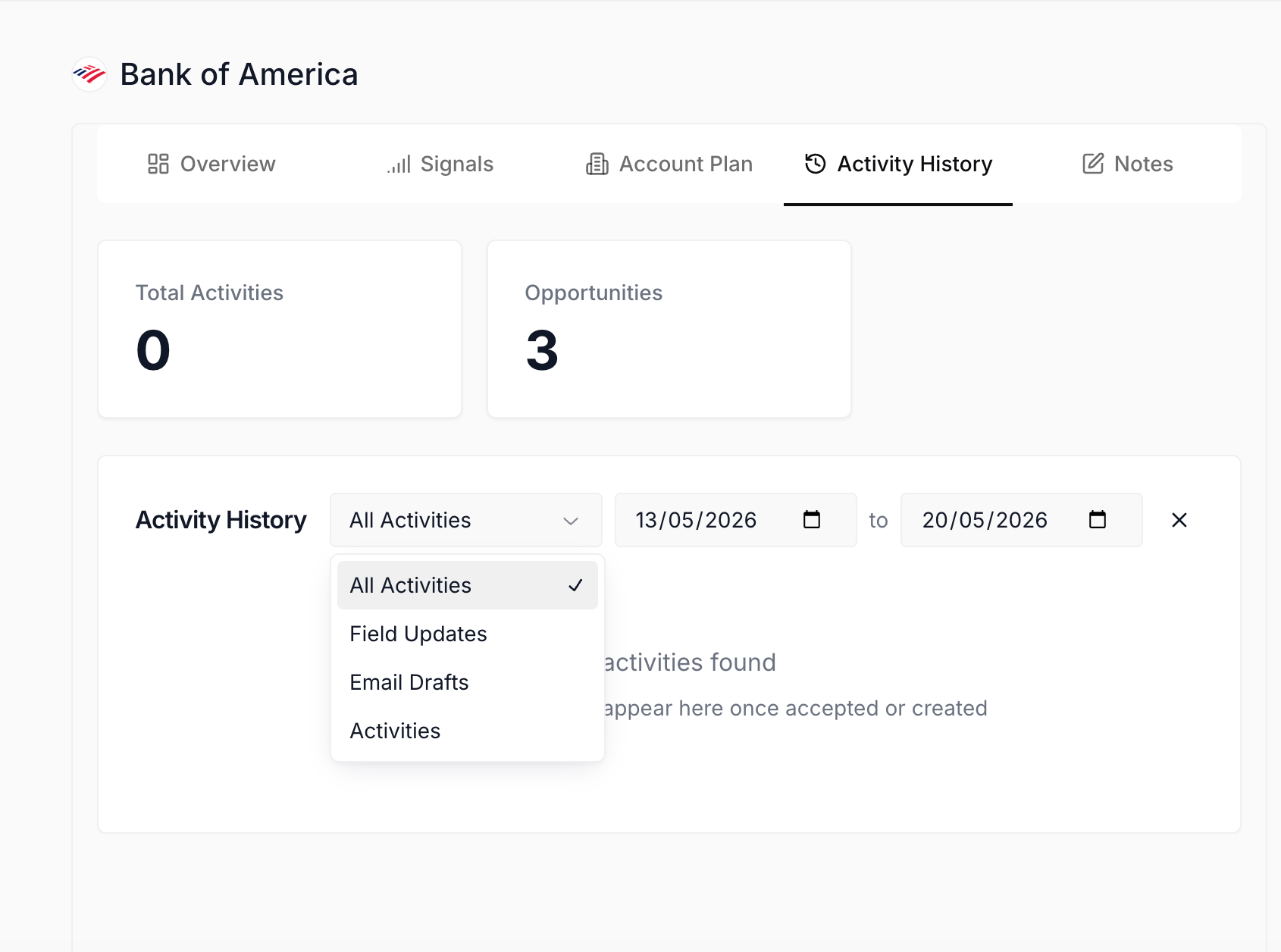
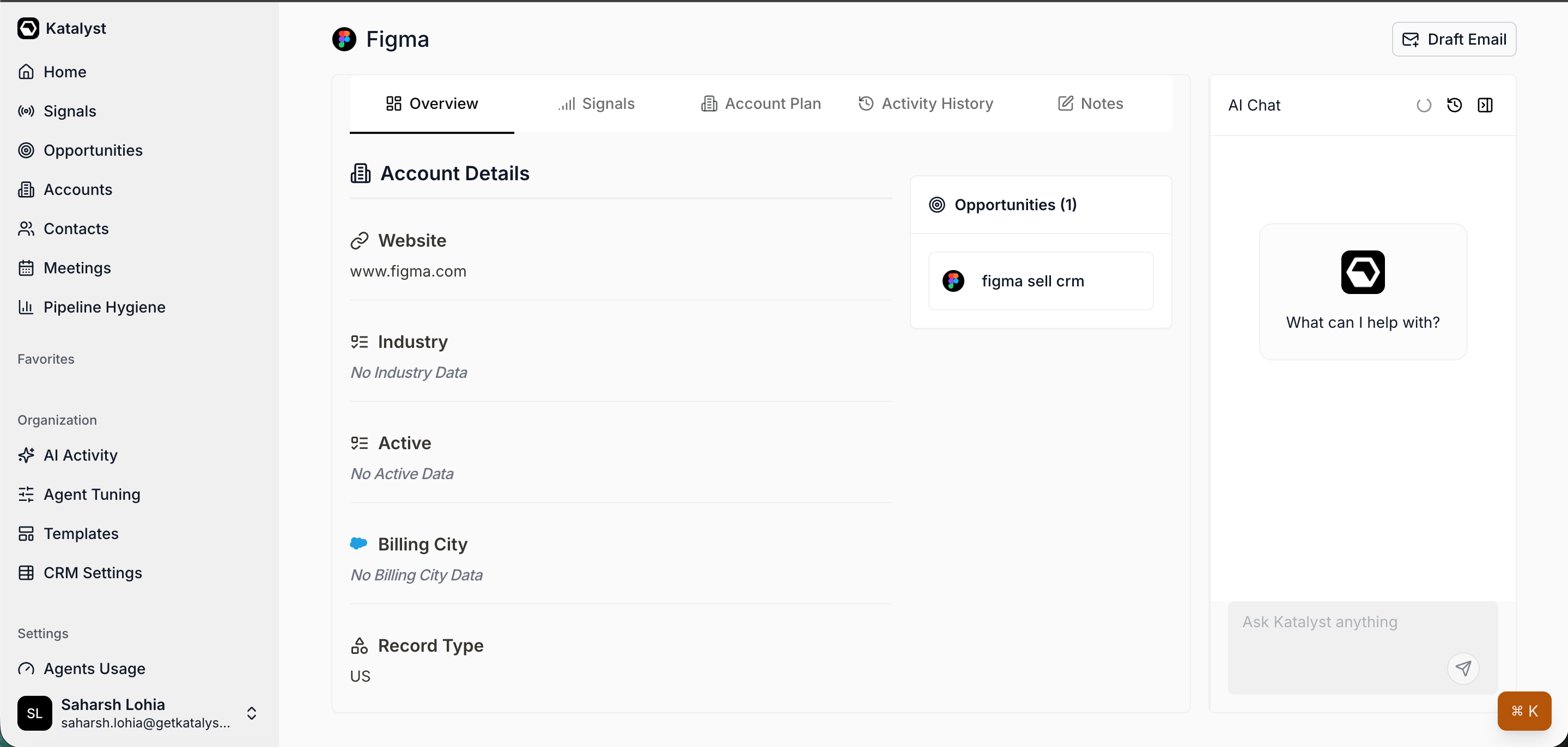 2. **Open Activity History and read the gap.** Switch to the Activity History sub-tab. This is the audit of every AI action on the account: emails AI drafted, fields it updated, summaries it wrote back from meetings. Set the date range to the last 60 days. If the list is sparse, the gap is real; if it's dense, something has actually been happening on your behalf that you may not have logged in your head.
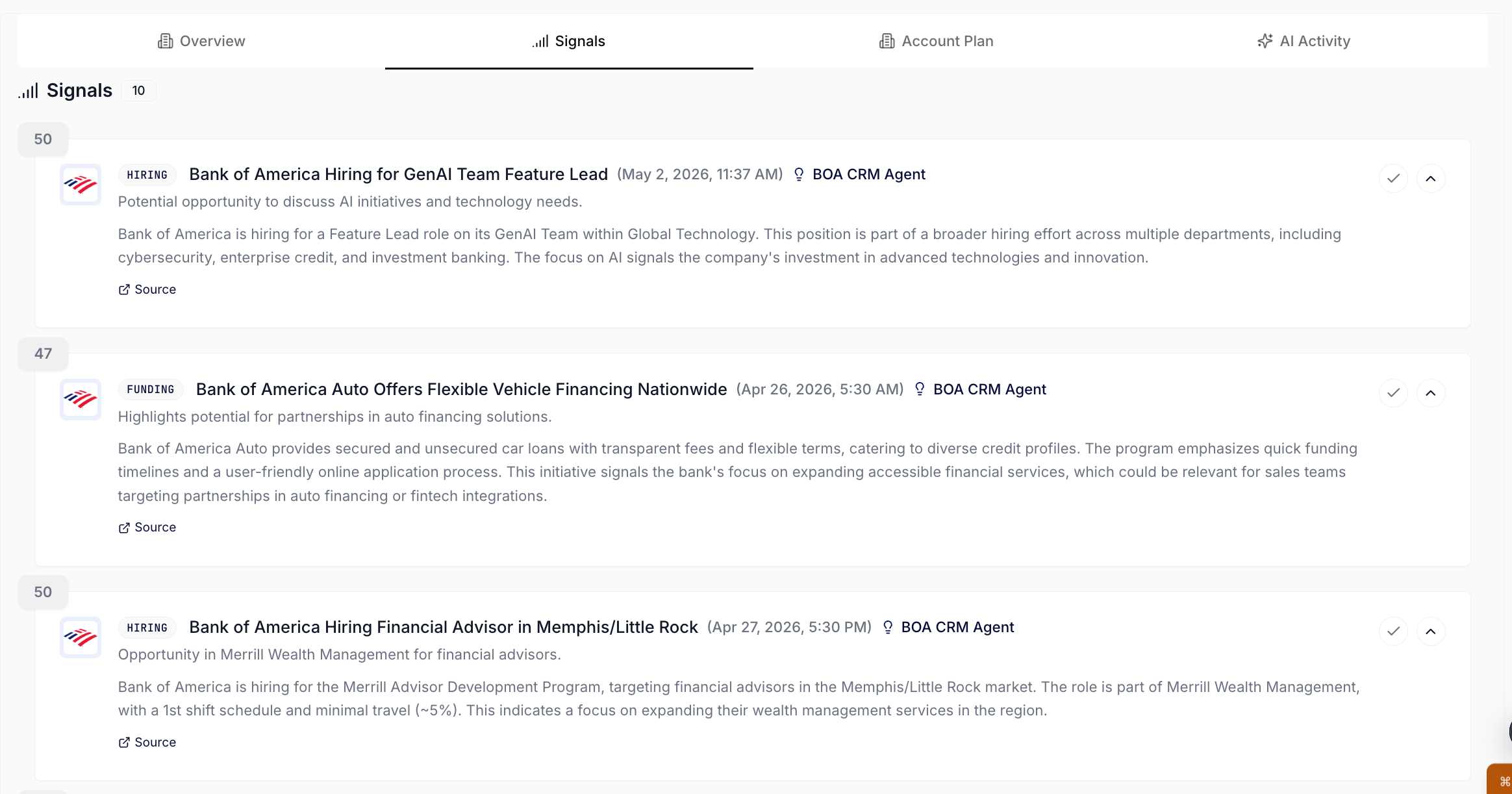
 3. **Check the Signals sub-tab for anything that fired in the gap.** Click Signals. A funding round, a leadership change, a hiring spree, a 10-K, anything scored 70 or above that landed during the silence is your re-engagement angle. Read the AI relevance line on each card; this is what you'll say in any outreach if you decide it's a go.
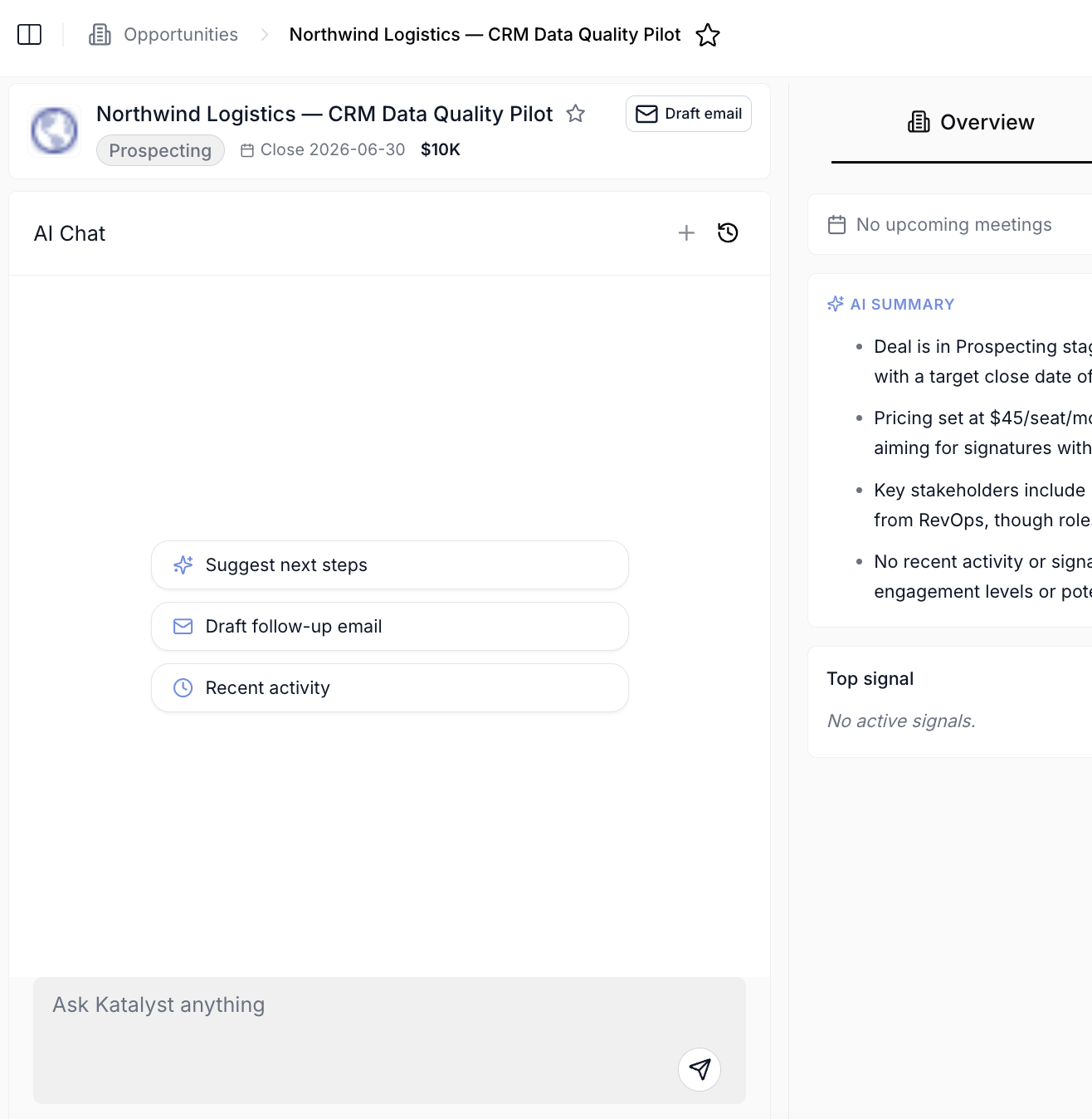
 4. **Ask Per-record AI Chat for the gap read.** The chat already has the Overview, Activity History, Signals, and Account Plan in context. Type: "What changed in the last 30 days on this account that I should know about, and what does it imply for the open opportunities?" The chat synthesizes across surfaces and gives you a defensible read in one paragraph.
 5. **Decide: go or no-go.** Two paths from here.
If it's a go: open the Notes sub-tab, write a one-paragraph "Re-engagement plan" with the angle (often anchored on the most relevant signal), and follow up with a Draft email from the account header so the outreach gets saved straight to Gmail or Outlook drafts for your review.
If it's a no-go: write a one-paragraph "Closing the loop" note explaining why, and update the opportunity in Salesforce (stage, close date, owner) so the dashboard stops carrying the deal as live. A clean no-go is a real outcome; the hygiene number thanks you for it.
## Variations
If you're running this play across a batch of 10+ stalled accounts (manager catch-up, end of quarter cleanup, post-PTO sweep), don't open every account from the Accounts table; instead, start from your saved Opportunities view filtered to "Stalled 30+ days, mine" and walk the rows. The same five steps compress to about eight minutes per account when you're in batch rhythm. If you're a CS lead rather than a sales rep, this play maps cleanly onto a quarterly book audit: same flow, but the go path usually ends in a renewal motion rather than a re-engagement outreach.
## Related
* [Catch up after PTO](./catch-up-after-pto) - the cross-book version of this play when you've been out and need the wider read.
* [Research from a fresh signal](./research-from-a-fresh-signal) - the play to run instead if a new signal just fired on a stalled account.
* [Account detail](../product/research/account-detail) - the workspace this play lives in.
* Pipeline hygiene flags a stalled deal with a missing next step or an overdue close date; both are addressable from this play.
5. **Decide: go or no-go.** Two paths from here.
If it's a go: open the Notes sub-tab, write a one-paragraph "Re-engagement plan" with the angle (often anchored on the most relevant signal), and follow up with a Draft email from the account header so the outreach gets saved straight to Gmail or Outlook drafts for your review.
If it's a no-go: write a one-paragraph "Closing the loop" note explaining why, and update the opportunity in Salesforce (stage, close date, owner) so the dashboard stops carrying the deal as live. A clean no-go is a real outcome; the hygiene number thanks you for it.
## Variations
If you're running this play across a batch of 10+ stalled accounts (manager catch-up, end of quarter cleanup, post-PTO sweep), don't open every account from the Accounts table; instead, start from your saved Opportunities view filtered to "Stalled 30+ days, mine" and walk the rows. The same five steps compress to about eight minutes per account when you're in batch rhythm. If you're a CS lead rather than a sales rep, this play maps cleanly onto a quarterly book audit: same flow, but the go path usually ends in a renewal motion rather than a re-engagement outreach.
## Related
* [Catch up after PTO](./catch-up-after-pto) - the cross-book version of this play when you've been out and need the wider read.
* [Research from a fresh signal](./research-from-a-fresh-signal) - the play to run instead if a new signal just fired on a stalled account.
* [Account detail](../product/research/account-detail) - the workspace this play lives in.
* Pipeline hygiene flags a stalled deal with a missing next step or an overdue close date; both are addressable from this play.