> ## Documentation Index
> Fetch the complete documentation index at: https://docs.joinkatalyst.com/llms.txt
> Use this file to discover all available pages before exploring further.
# Research a new account
> A new account just landed in your name. Get to a one-page understanding and a working Account Plan in under thirty minutes.
# Research a new account
You've just been assigned an account, or you're about to make first contact with one on your existing book that you've never actually looked at. The old prep is a Google search, a LinkedIn scroll, three tabs from the company's investor page, and a half-remembered note from your AE buddy. This play replaces that scramble with a single-surface flow: open the account, read the AI-written research, scan for any signals that have already fired, ask the per-record chat one sharp question, and end with a draft Account Plan you can actually walk into a call with.
## What to expect
* **Timing.** Roughly 25 to 30 minutes for a brand-new account.
* **Prerequisite.** The account exists in Salesforce and has synced into Katalyst. If you just created it from the Accounts toolbar, give the AI Enrich Row pass a minute to finish before you drill in.
* **Outcome.** A one-page mental model of the account (industry, fit, named competitors, key people, any active signals) and a generated Account Plan you can refine before outreach.
## Step-by-step
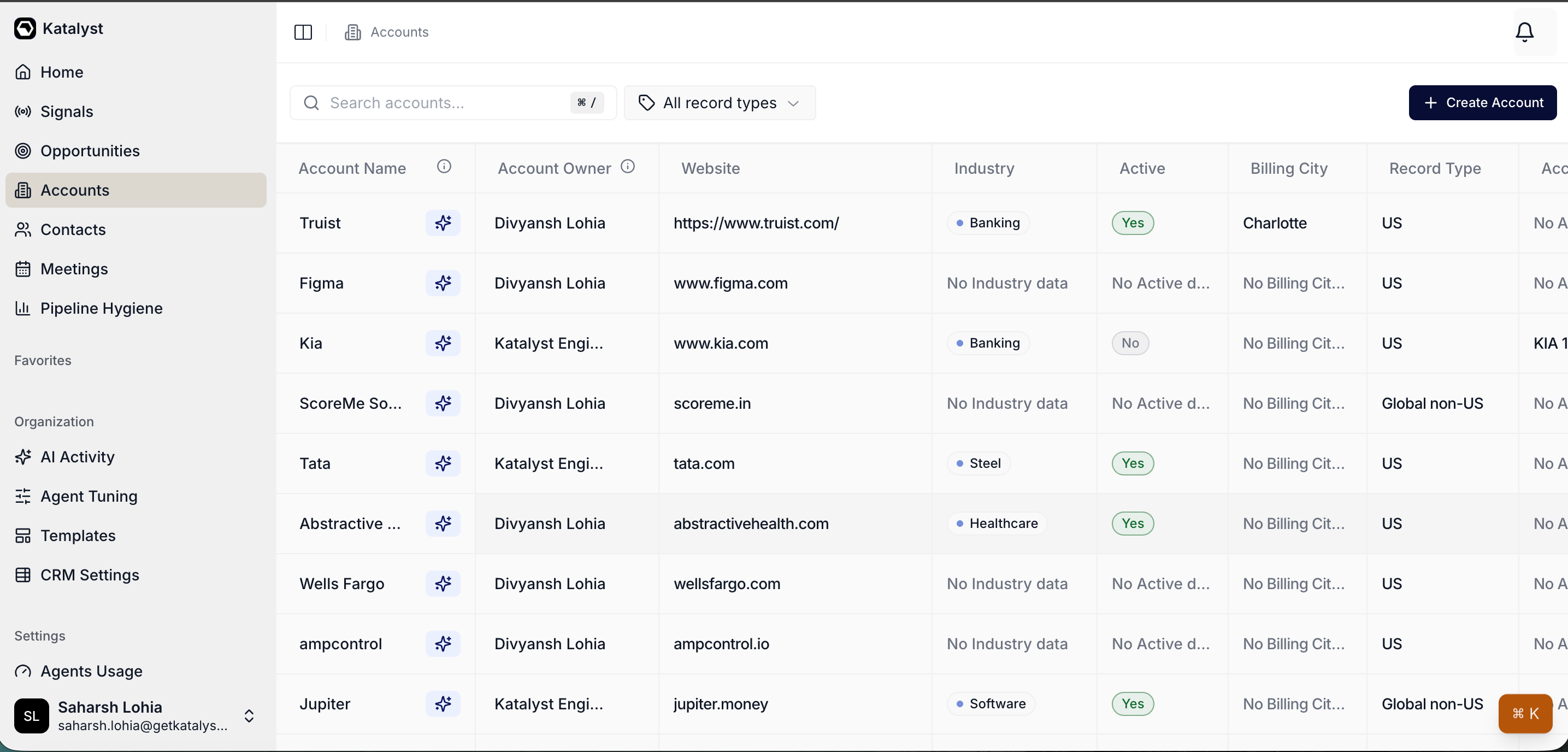
1. **Open the Accounts tab and find the account.** [Accounts](../product/research/accounts) lands you in the synced table view. Use the search bar (or the record-type filter if your org runs multiple) to narrow to the one you care about, then click the account name to drill in.
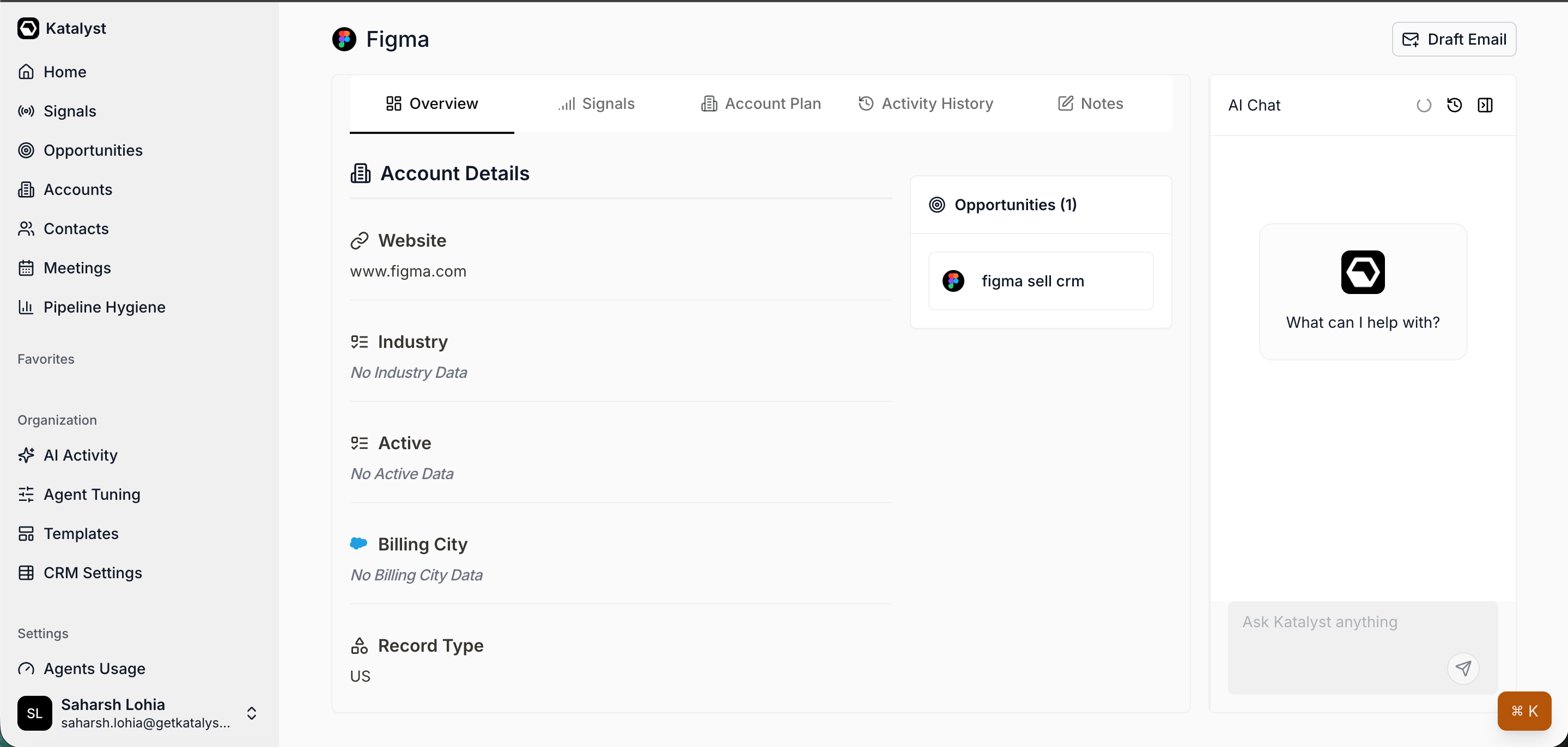
 2. **Read the Overview sub-tab end to end.** [Account detail](../product/research/account-detail) opens to Overview by default: the editable CRM fields on the left, the Key People grouping on the right, the linked Opportunities pill in the sidebar. Two minutes of scanning here tells you the industry, the owner, the revenue band, the deals already in flight, and the named buying committee.
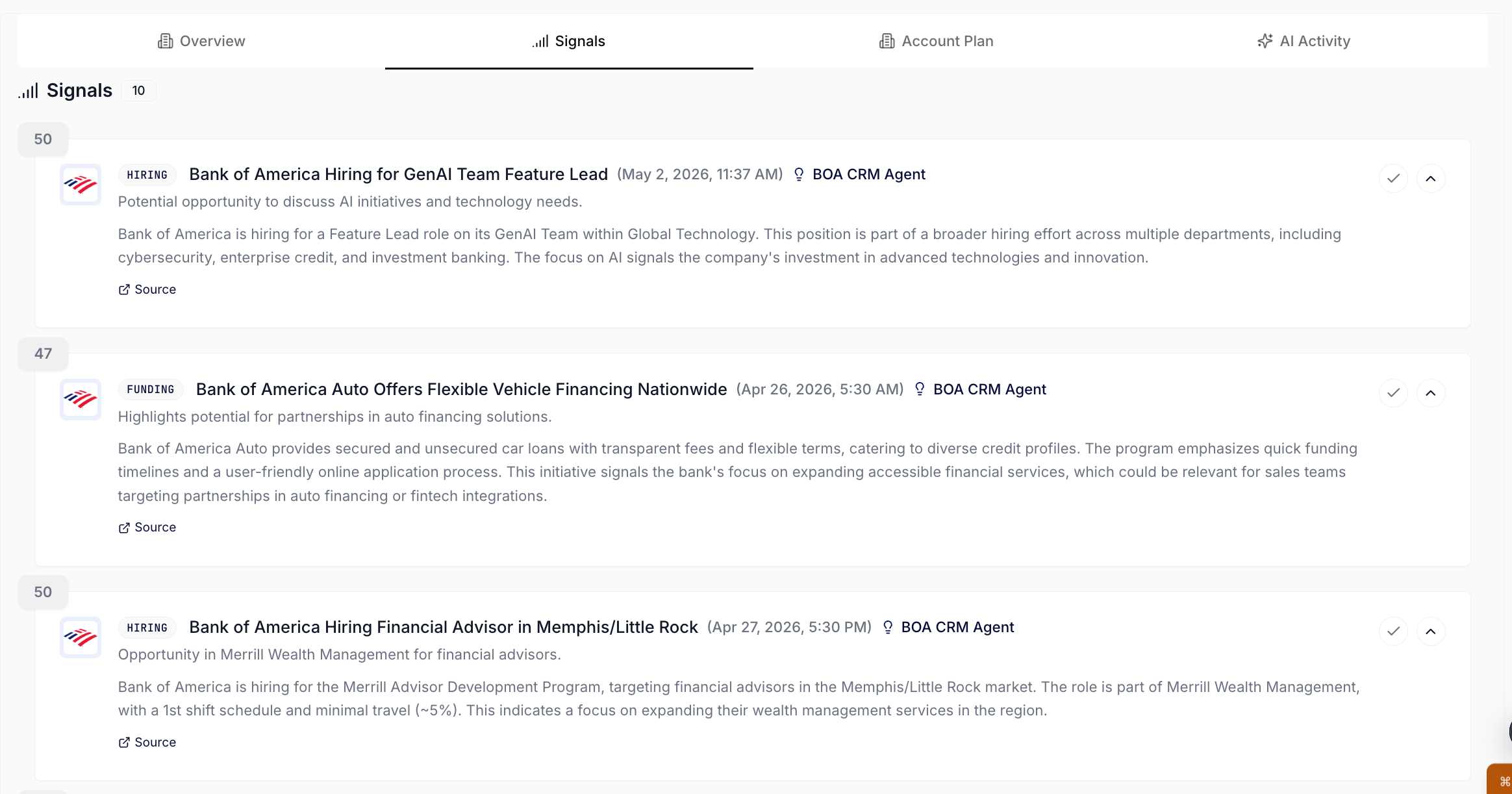
 3. **Check the Signals sub-tab for prior fires.** Click Signals. Anything already in the feed (a recent funding round, a leadership change, a hiring spree, a 10-K filing) is context you walk in with for free. Read the AI relevance line on each card; archive the noise; note the ones that should shape your first outreach.
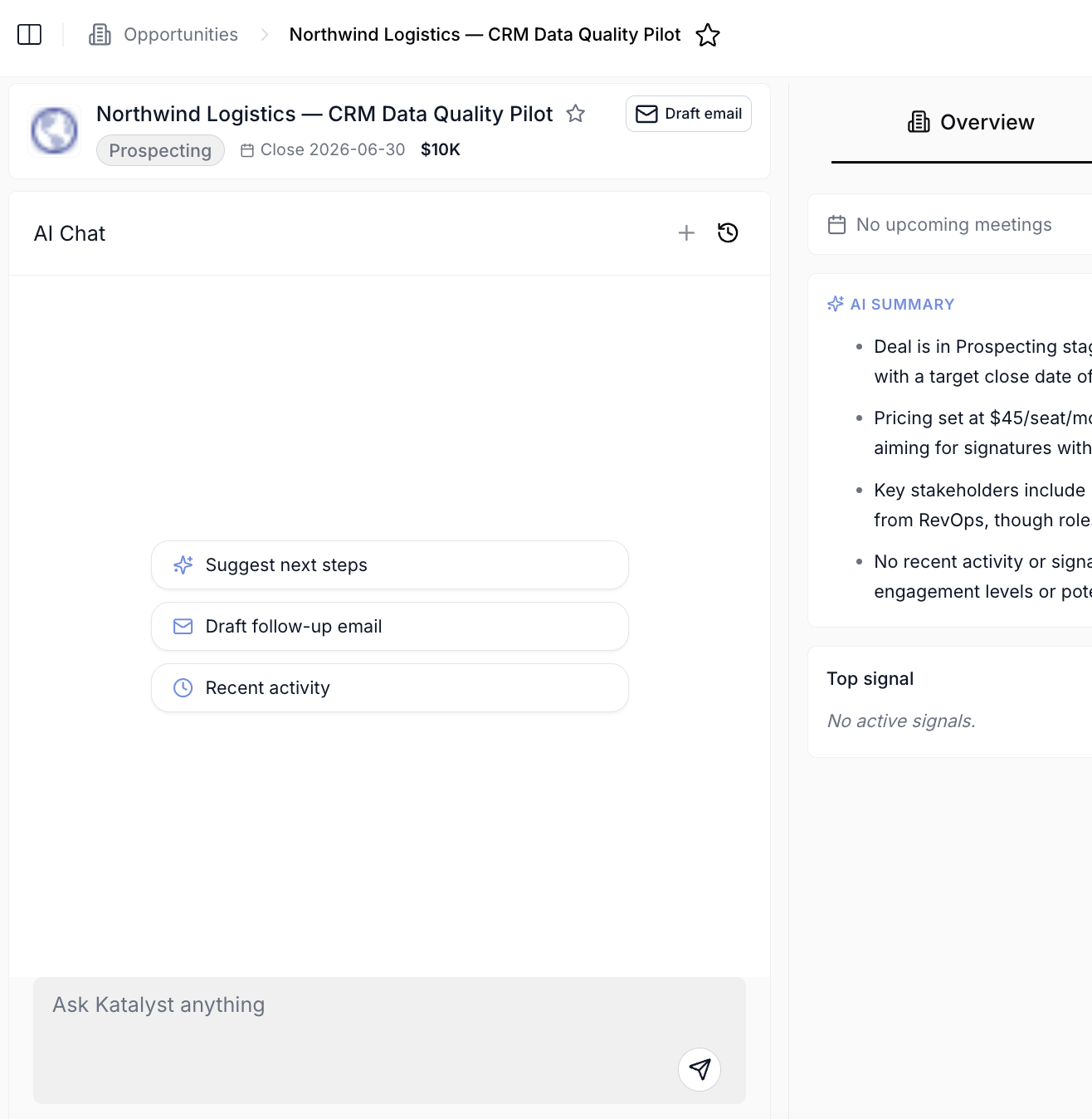
 4. **Ask Per-record AI Chat the entry-point question.** The chat panel on the right is scoped to this one account and already has the Overview, Key People, Signals, and any linked opportunities in context. Type the one question that decides your approach: "Given what's happened on this account, what's the most likely entry point for a discovery conversation?" The chat reads across everything on the record and answers with a named hypothesis you can refine.
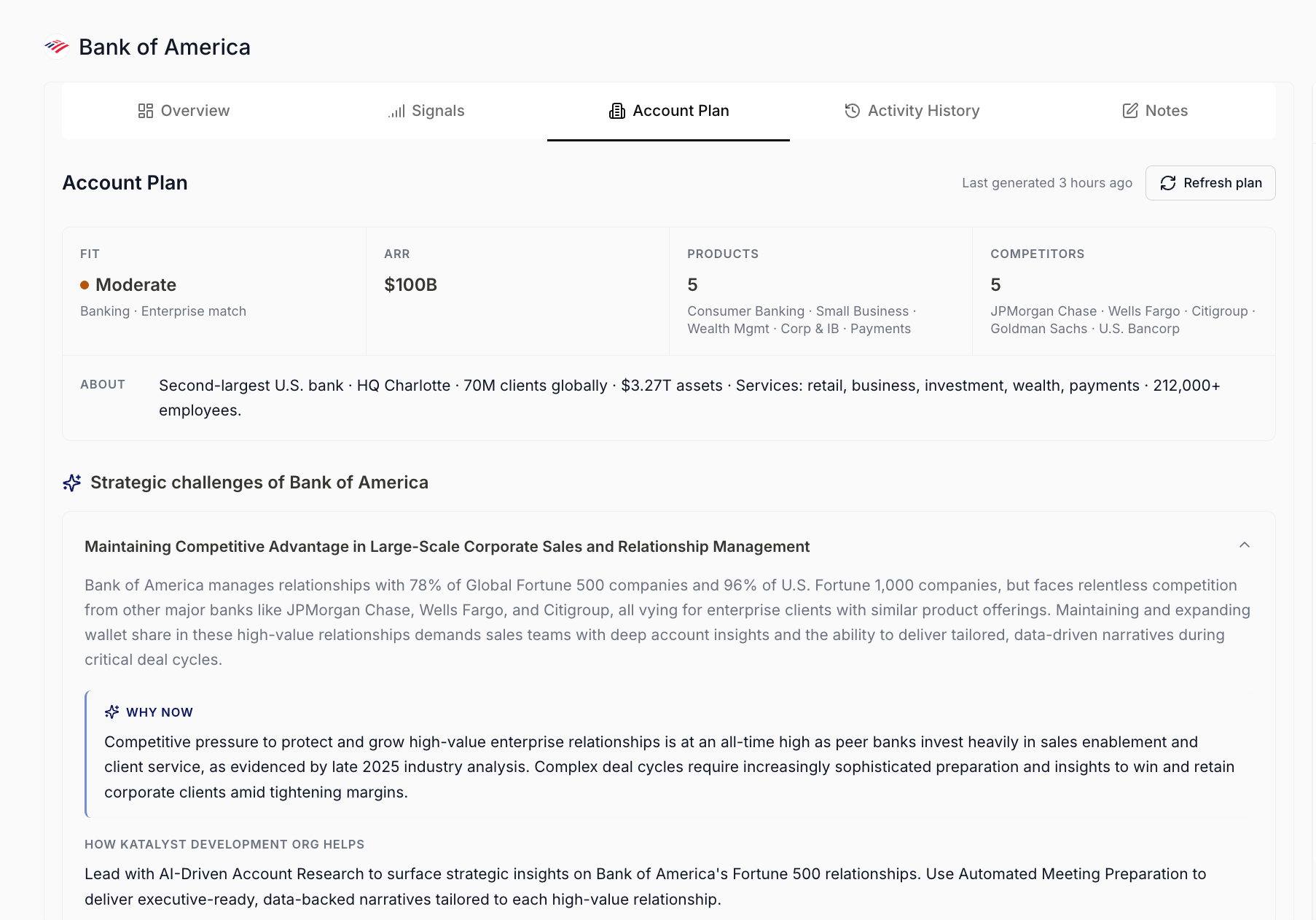
 5. **Generate the Account Plan.** Open the Account Plan sub-tab and click Generate account plan. Katalyst writes the snapshot card (FIT, ARR, products, named competitors) plus 2 to 3 strategic challenges, each with a Why now, a How Katalyst helps, and a business impact block. This is the page you actually carry into the first call: it lives at the account, regenerates on demand, and the Draft email actions on each challenge card become your warm-outreach trigger.
 6. **Star the account.** Hit the star in the header so the account pins to your side-nav Favorites. You're going to come back here a lot in the next two weeks; one click now saves the breadcrumb hunt later.
## Variations
If the account already has an Account Plan from a previous owner, skip step 5 and read the existing snapshot card first; only hit Refresh plan if the last generated timestamp is weeks old or the news has visibly moved. If the account hasn't synced cleanly from Salesforce and the Overview is mostly empty, run AI Enrich Row from the Accounts table before you drill in so the Overview has real data to read against.
## Related
* [Build a stakeholder map](./build-a-stakeholder-map) - the natural next play once you know the account.
* [Prep for discovery call](./prep-for-discovery-call) - the deeper prep flow when a first call is on the calendar.
* [Accounts](../product/research/accounts) - the synced table you start from.
* [Account detail](../product/research/account-detail) - the workspace this play lives in.
6. **Star the account.** Hit the star in the header so the account pins to your side-nav Favorites. You're going to come back here a lot in the next two weeks; one click now saves the breadcrumb hunt later.
## Variations
If the account already has an Account Plan from a previous owner, skip step 5 and read the existing snapshot card first; only hit Refresh plan if the last generated timestamp is weeks old or the news has visibly moved. If the account hasn't synced cleanly from Salesforce and the Overview is mostly empty, run AI Enrich Row from the Accounts table before you drill in so the Overview has real data to read against.
## Related
* [Build a stakeholder map](./build-a-stakeholder-map) - the natural next play once you know the account.
* [Prep for discovery call](./prep-for-discovery-call) - the deeper prep flow when a first call is on the calendar.
* [Accounts](../product/research/accounts) - the synced table you start from.
* [Account detail](../product/research/account-detail) - the workspace this play lives in.