

July 6th, 2026
Per-plan chat limits and upgrade prompts
Know where you stand on chat before you hit a wall: each plan now includes a monthly conversation limit and a per-conversation message cap, surfaced live in the composer with a clear upgrade path when you reach them. What it is: Chat usage is metered per plan, a monthly cap on how many conversations you can start and a per-conversation message cap, shared across every chat surface (home, deals, accounts, contacts, and meetings). The composer shows your active plan and a running count of chats and messages remaining, and when a limit is reached a contextual banner explains which one and links to upgrade. Buttons and quick-prompt chips disable with a tooltip when a cap is active. How it helps: A rep on a Core plan leans on chat hard during a heavy prospecting week. Rather than discovering a wall mid-question, she watches the composer count down her remaining conversations, so she spends the last few on her biggest deals instead of routine lookups. When she does reach the monthly cap, a banner tells her exactly that, distinguishes it from a per-conversation cap, and offers the upgrade her manager had already approved. She is never left staring at a generic error wondering what went wrong.Billing and pipeline essentials
Quality-of-life improvements to billing and the pipeline:- Automatic add-on credits : admins can let Katalyst top up credits automatically when the monthly allowance runs out, up to a spending cap they set, so AI features keep running.
- Buy credits with card on file : purchase credit packs in one click using the card already saved, from Billing, the Usage page, or the out-of-credits dialog.
- Access and payment safeguards : a warning banner when a payment fails, a clear message when all seats are taken, and admin-only control over org-wide AI features.
- Accurate owner filtering : filtering opportunities by My or a teammate now returns a complete, correctly paginated list every time.
- Reliable out-of-credits prompts : running low now consistently shows the top-up prompt across account plans, email drafts, and contact research instead of a generic error.
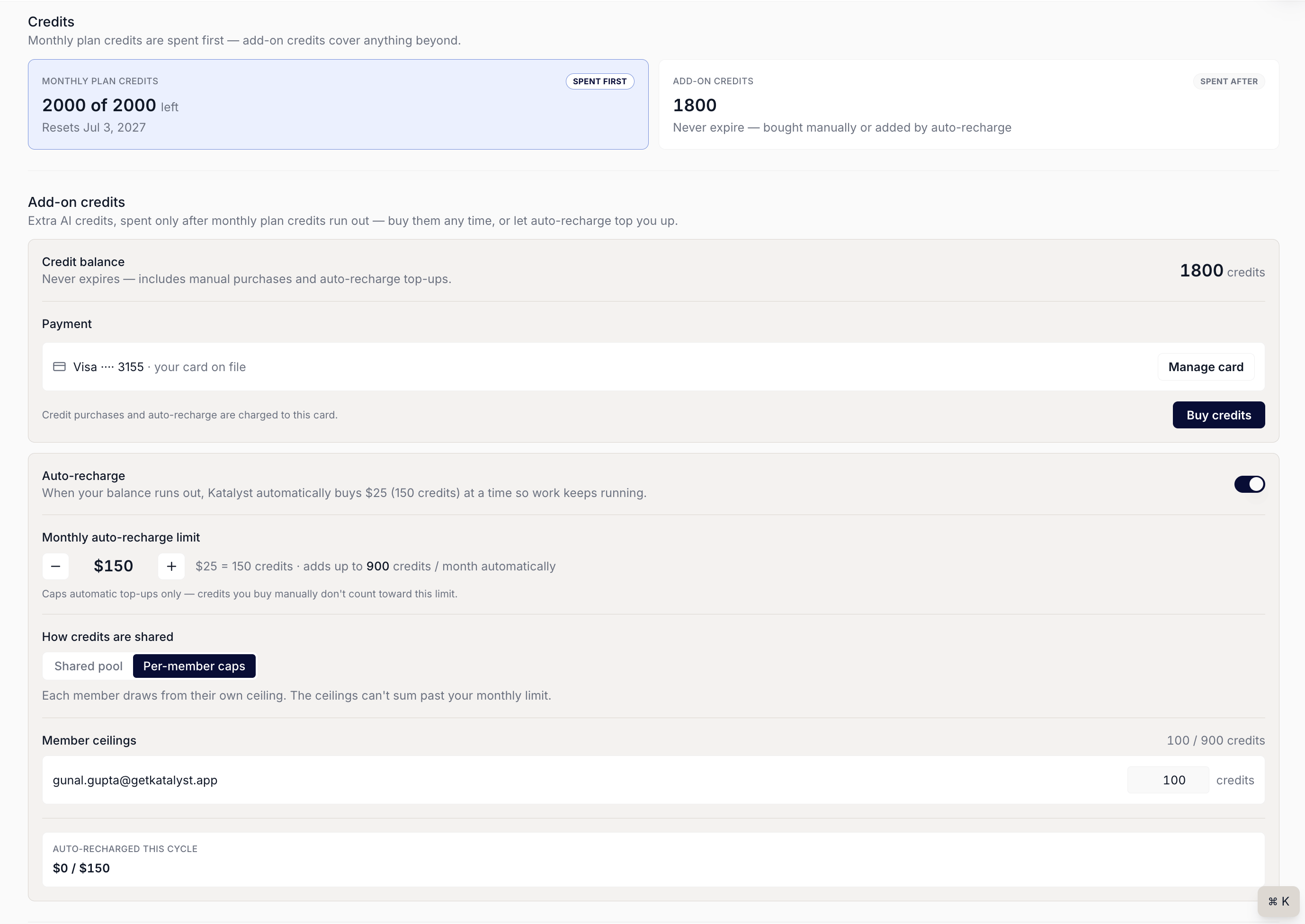
Credits on the Billing page: card on file, one-click Buy credits, and auto-recharge with a monthly cap
June 29th, 2026
”Your Move” on signal cards
Never wonder what to do with a signal: each signal card now spells out your recommended next move, why it is timely, and a one-click Take action that hands the whole context to the AI to execute. What it is: Signal cards gain a Your Move section with a specific recommended action, the reason it matters now, and a Take action button that opens the AI assistant pre-loaded with the signal’s context so it can draft the email or update the deal right away. Signals without a specific play show a Generate suggestion button instead, so there is always a path forward. The Do This Now priority list also surfaces the recommended move as a second line under each signal. How it helps: A rep covering a healthcare account sees a signal that the prospect just posted three senior engineering roles. Instead of reading the news and moving on, the card’s Your Move section tells her to tie the hiring push to the scaling concern her champion raised, notes that the 48 hours after a hiring surge are the warmest window, and offers Take action. One click opens the assistant already holding the signal, and it drafts an outreach note built around that exact context. The signal goes from something she noticed to something she acted on in under a minute.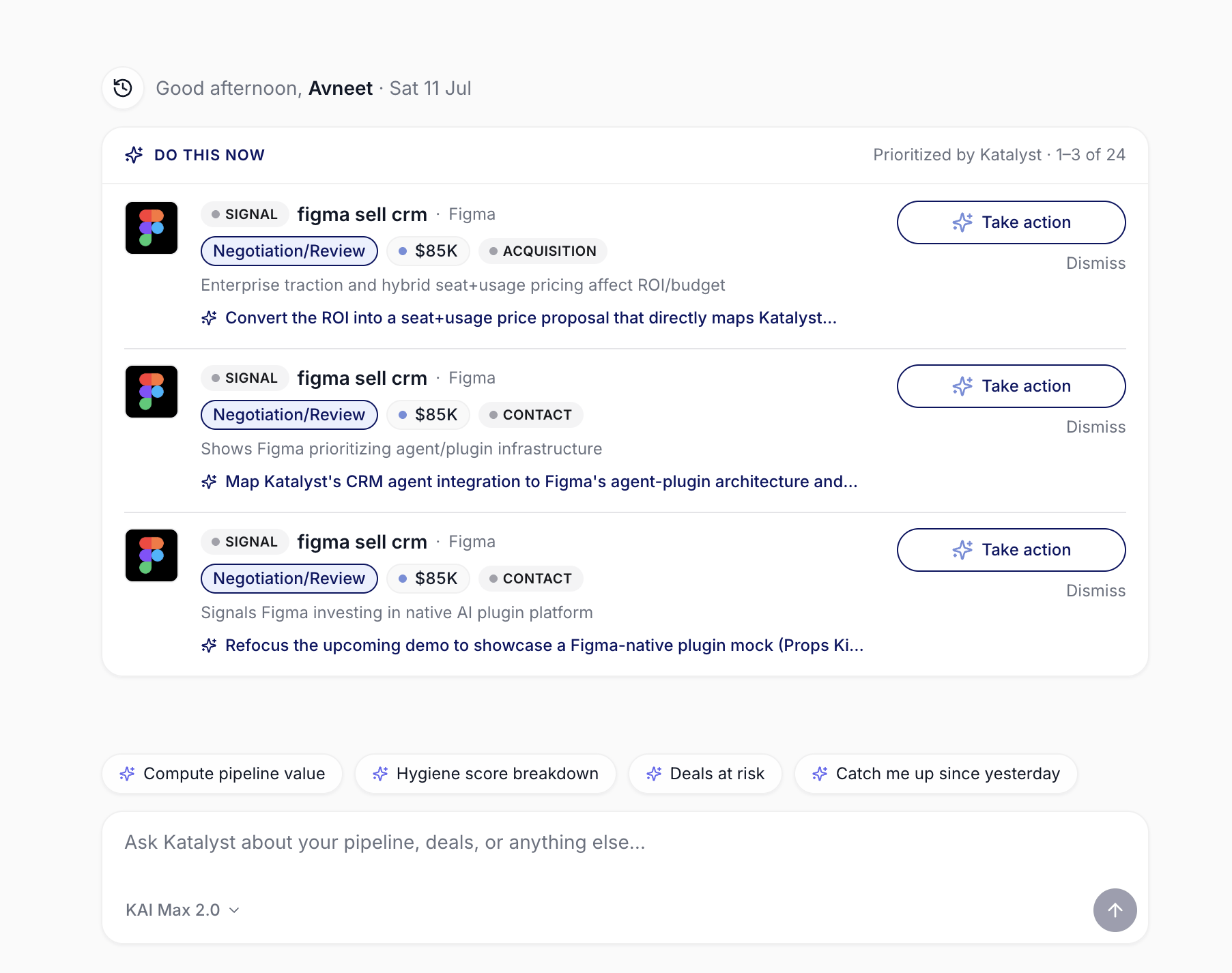
The recommended move also rides along in Do This Now, one line under each signal, with Take action beside it
Research and setup essentials
Quality-of-life improvements to research and setup:- Automatic account plans : account plans now generate on their own whenever an account is created or synced from your CRM, so the strategic view is ready without anyone clicking Generate.
- Calendar auto-sync on connect : connecting Google Calendar or Outlook during onboarding pulls your meetings in immediately, with no manual sync afterward.
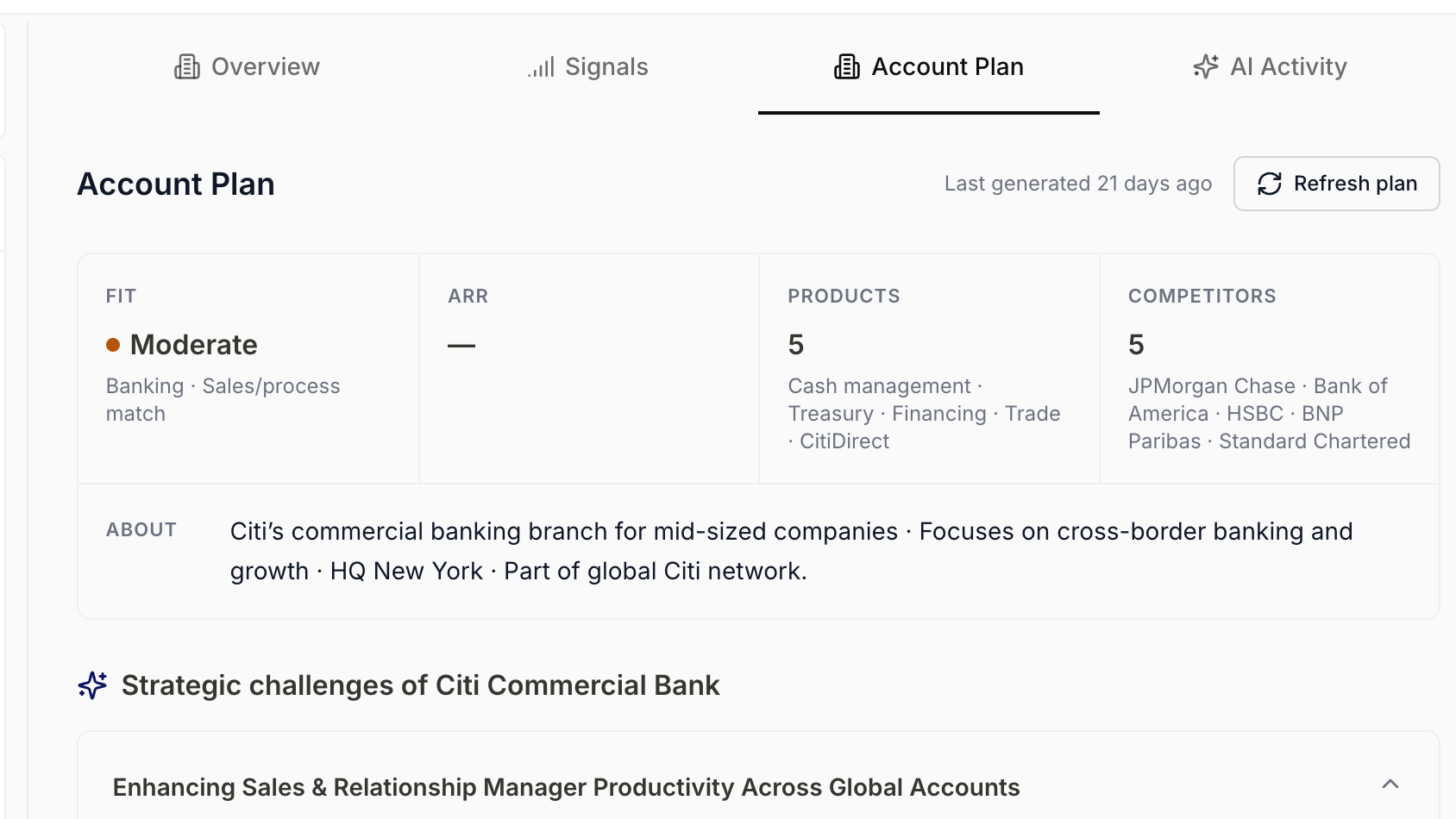
An account plan already generated on the account, with no manual Generate step
AI-active coverage and plan limits
Decide exactly which deals Katalyst’s AI works on, and see clearly what each plan unlocks: an AI-active coverage control plus consistent plan-based limits across records, signals, and premium features. What it is: A new AI-active coverage page in Settings lets admins choose which opportunities get AI suggestions, drafts, and insights, with a counter of slots used versus available; making an opportunity AI-active automatically covers its linked account and contacts at no extra cost. Plan limits now apply consistently: auto-created records from meetings are capped by tier (Starter 5, Core 20, Agent and Enterprise unlimited), signal types show a lock badge when they need a higher plan, and premium features like pre-meeting briefs and Slack are gated to Core and above. Locked items show an upgrade path and unlock retroactively when the org upgrades. How it helps: An admin on a Starter plan piloting Katalyst wants the AI focused on the ten deals that matter this quarter rather than spread thin. On the coverage page she marks those ten opportunities AI-active, watches the linked accounts and contacts get pulled in for free, and sees eight of her slots used. When a meeting spins up an eleventh auto-detected deal, it appears locked with a clear upgrade prompt instead of silently vanishing, so she knows exactly what upgrading would buy her. She also sees which signal types sit behind Core, so the plan conversation with her manager is grounded in specifics rather than guesswork.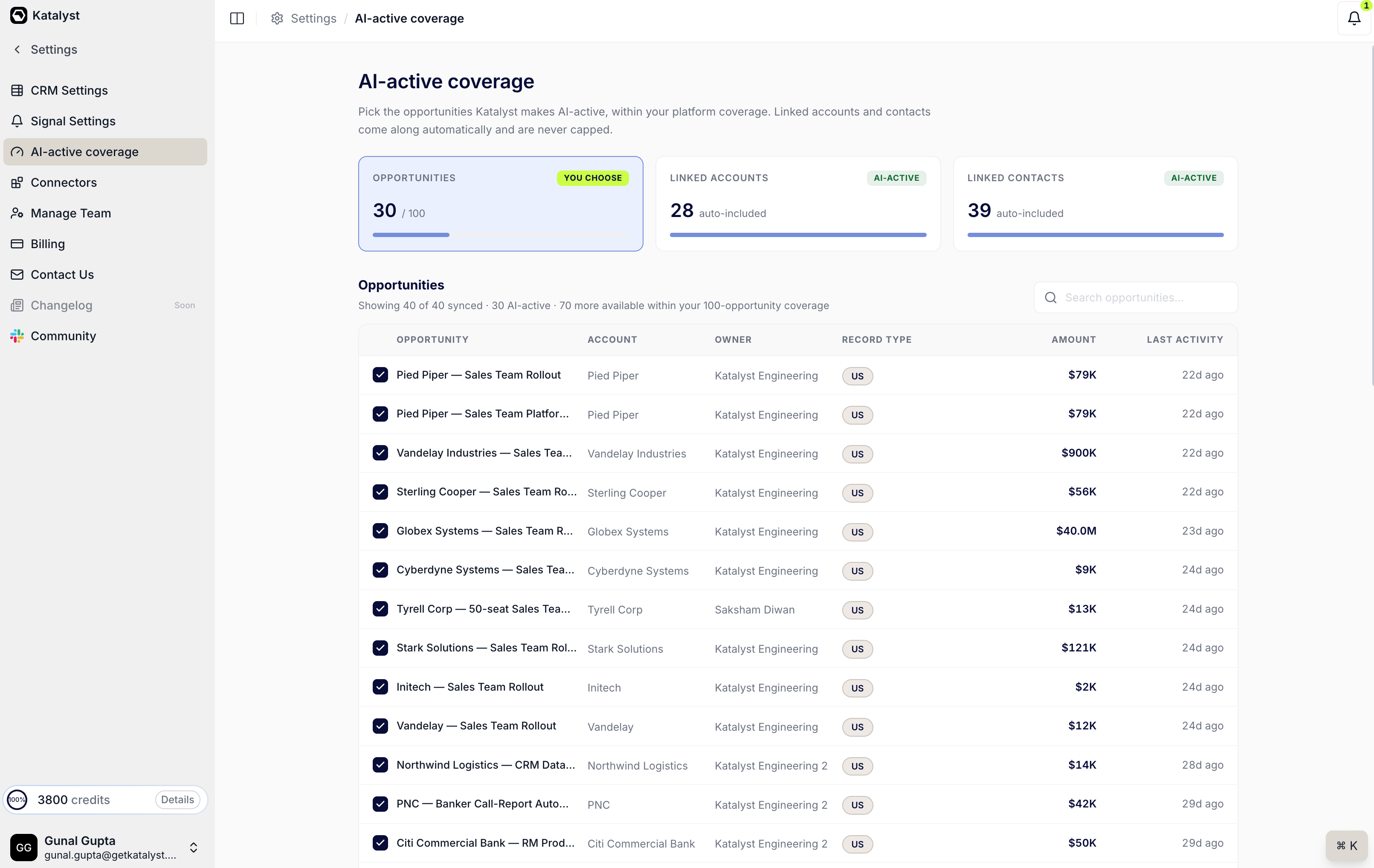
The AI-active coverage page: choose your opportunities, and linked accounts and contacts come along free
Plans and billing
Manage your whole subscription inside Katalyst: four plan tiers with live pricing, in-app upgrades and downgrades with a cost preview, and card, invoice, and cancellation handling through a secure portal. What it is: The rebuilt Plans page shows all four tiers (Starter, Core, Agent, Enterprise) with live pricing, a monthly/annual toggle, and buttons that reflect your current plan (upgrade, downgrade, or current plan). Changing plans opens a modal that shows the exact cost or credit before you confirm: upgrades take effect immediately, downgrades are scheduled for the end of the period. The Billing page shows your active plan, renewal date, and full invoice history with PDF downloads, and a single Manage billing button opens a secure portal to update your card, cancel, or reactivate. Billing actions are limited to admins, and the seat selector clamps to your plan’s maximum with the ceiling labeled inline. How it helps: The admin at a 25-rep team decides to move from Core to Agent midway through the quarter. She opens Plans, toggles to annual to compare, and clicks upgrade; the modal shows the exact prorated charge before she confirms, so nothing surprises her on the invoice. The change takes effect immediately, and when finance asks for documentation she pulls the last three invoices as PDFs from the Billing page without opening a support ticket. A month later she updates the company card in one click through the secure portal rather than emailing Katalyst. What used to mean a back-and-forth with the vendor is now self-serve.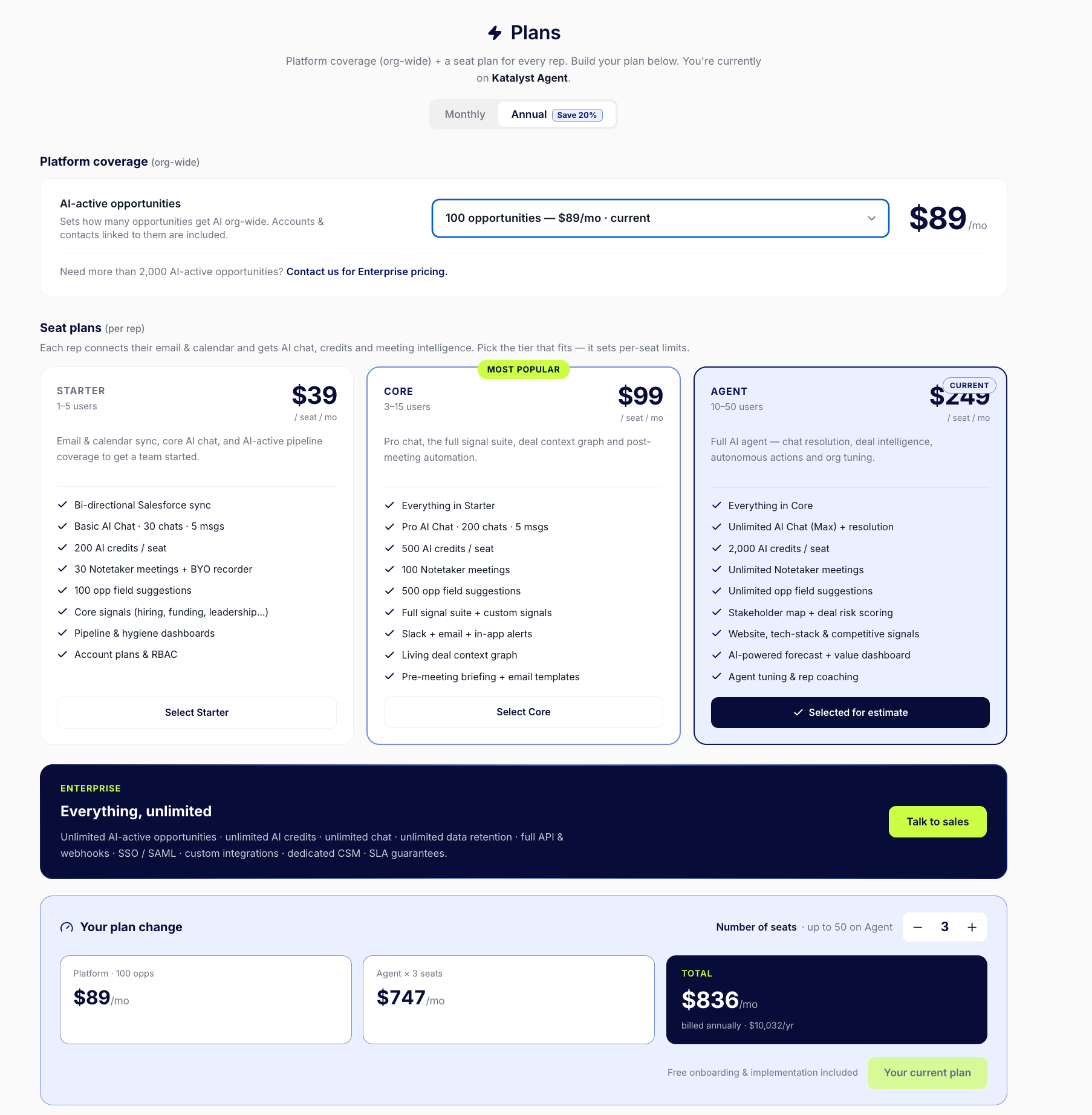
The Plans page: platform coverage plus per-seat tiers, with a live cost estimate
June 22nd, 2026
Chat-driven onboarding with Kai
Set up Katalyst by chatting instead of grinding through a form wizard: a conversational assistant named Kai walks you through every connection and preference, with a live progress rail and automatic resume if you step away. What it is: Onboarding is now a guided conversation with Kai rather than a multi-step form. A progress rail marks each step as done, in progress, or upcoming, completed steps stay clickable to revisit, and setup resumes from the right place if you leave and come back. The flow walks through organization, Salesforce, email, calendar, meetings, a signals-selection step (enable up to six types, common ones like funding, hiring, and leadership pre-selected and drag-to-reorder), and an AI-generated company profile. How it helps: A new rep signing into Katalyst for the first time meets Kai in a conversation rather than a setup form. As she connects Salesforce and her inbox, Kai acknowledges each piece and explains what it will do with it, so onboarding feels like briefing a new teammate rather than configuring software. When she is unsure whether Katalyst will cover her renewal deals or how buying signals get surfaced, she asks in the same thread and gets an answer on the spot, so she reaches her workspace already understanding what the product will do for her. She still moves through every step, from connections to a signals selection she tunes and a company profile she confirms, but the conversation itself has done the quiet work of building her confidence in the agent she is about to rely on.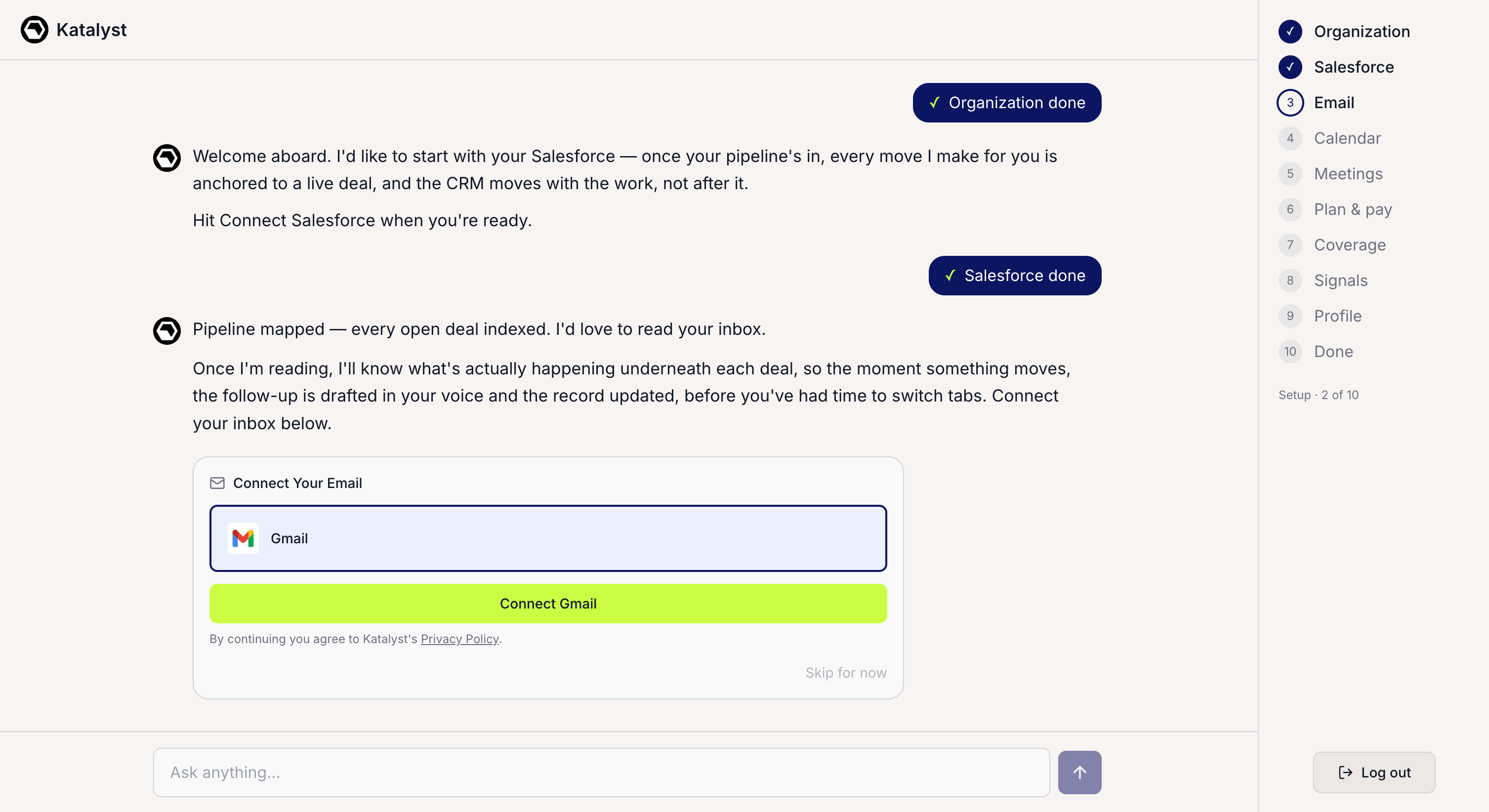
The Kai onboarding conversation with the step progress rail on the right
Meeting-sourced opportunity suggestions in Actions
Turn what a meeting revealed into CRM records without leaving your queue: when Katalyst detects a new deal or a link to an existing one from a meeting, the suggestion lands in the Actions inbox with the proposed Salesforce records and one-click sync. What it is: Meeting-sourced deal suggestions (create a new opportunity, link a contact, or link to an existing deal) now appear as rows in the Actions queue, each labeled with the meeting it came from. Expanding a row shows the exact Salesforce records that would be created and a plain-language reason, and accepting syncs in the background with a status indicator and a retry if the sync fails. Bulk accept and reject work across these alongside field-update suggestions, and only the most recent suggestion per meeting is shown. How it helps: A rep wraps a discovery call where the prospect mentions a second business unit evaluating the product. An hour later the Actions queue shows a suggestion sourced from that meeting: create a new opportunity for the unit, attach the two contacts who were on the call, and link them to the account. She expands it, reads the three Salesforce writes and the reasoning, and hits accept. A syncing indicator runs while the records are created in the background, so she moves to the next row without waiting. What used to be a post-call detour into Salesforce to stand up a deal and add contacts is now one approval in the inbox she already works.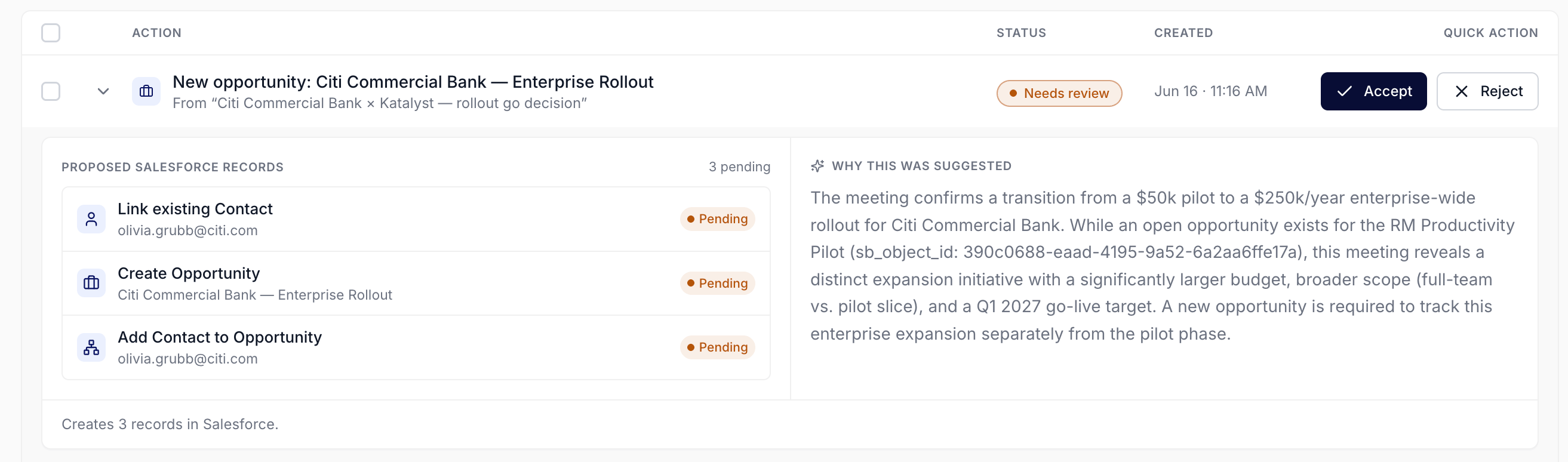
A meeting-sourced opportunity suggestion expanded in the Actions queue, awaiting review
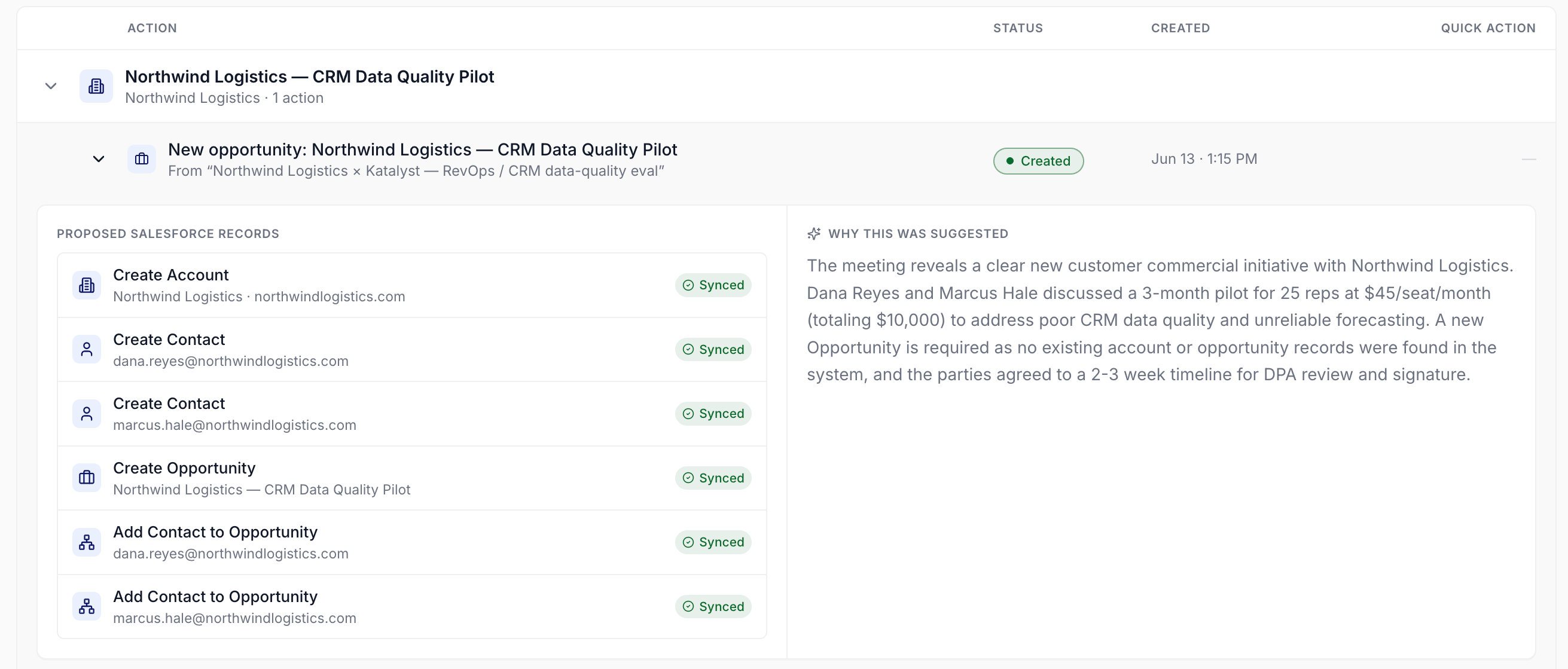
The same suggestion after accepting: every proposed record written to Salesforce and marked Synced
Direct-send email drafting
Stop copying AI drafts into a separate compose window: review and edit a drafted email in Katalyst, then save it straight to your Gmail or Outlook with one click. What it is: The email draft modal now saves the finished draft directly to your Gmail or Outlook mailbox, with no copy-paste into a separate compose window. It autosaves as you edit, adds a Cc field (pre-filled when the AI suggests extra recipients), and tucks email type, tone, and length controls into a collapsible panel. When the draft saves, a notification links straight to it in your mailbox. How it helps: A rep finishing her morning follow-ups asks Katalyst to draft a re-engagement note to a champion who went quiet. She tweaks two sentences, sets the tone to warm and the length to short, adds the economic buyer to Cc from the AI’s suggestion, and clicks save. The draft lands in her Gmail Drafts folder, and the confirmation links her straight to it for a final read before she sends. Across ten follow-ups that morning she never once leaves Katalyst to open a compose window or paste text between tabs.Platform essentials
Quality-of-life improvements across the platform:- Notetaker bot control : paste any meeting link to send the notetaker to an ad-hoc meeting, or remove a specific scheduled bot without disconnecting the calendar.
- Smarter notification toasts : pop-ups pause their countdown while you are away and resume when you return, and unacted high-priority suggestions re-surface so nothing is missed.
- Reorder table columns : drag any column header to reorder it on Opportunities, Accounts, and Contacts, with your preferred order remembered between sessions.
- Live Salesforce dropdowns : deal, account, and contact dropdowns pull current options live from Salesforce, and AI suggestions only propose values Salesforce still accepts.
- Rename your org inline : admins can rename the organization and upload, change, or remove its logo from the Manage Team page.
- Structured answer cards : informational chat answers render as structured cards with ranked lists and key metrics for faster scanning.
June 15th, 2026
One-click next steps and clarification prompts
Stop retyping what to do next after every answer, and stop getting a guessed-wrong reply when you meant a different deal: the chat now offers one-click next steps after each response and asks a structured question when it needs to know which record you mean. What it is: After any answer in the Home chat, a row of “Do this now” buttons offers the recommended next step in one click. When the assistant needs to disambiguate, a clarification panel appears above the composer with clearly labeled choices and an “Other” field for a custom answer, and the reasoning panel that shows the assistant’s thinking gets a cleaner look. How it helps: A rep managing 60 open deals asks the chat to catch her up on a stalled account. The answer lands with three “Do this now” buttons under it: draft a re-engagement email, log a follow-up task, and open the deal. She clicks draft and the email opens without her typing a follow-up request. A minute later she asks to update the next step on “the Apex deal” and, because two of her accounts are named Apex, the assistant shows a clarification panel with both deals labeled by amount and stage instead of picking one and being wrong. She taps the right one and the update proceeds. The old loop meant typing out each follow-up in full and re-asking whenever the assistant guessed the wrong record.Deal coaching in chat
Get told the single most important move on a deal, not just a data dump: when you ask the chat about a specific opportunity, it now names the highest-priority next action grounded in proven sales methodology and surfaces your account plan’s key angles right in the deal snapshot. What it is: When you ask about a specific deal, the Home chat identifies the highest-priority action based on where the deal actually stands, grounded in established sales methodologies (MEDDPICC, Challenger, JOLT, and others) rather than summarizing the data. When an account plan exists for the account, its highlights appear directly in the deal snapshot: the top challenge, the recommended pitch angle, and the expected business impact. How it helps: A rep with a $180K deal stuck in Negotiation asks the chat what to do next. Instead of restating the stage and close date, the answer leads with one move: confirm the economic buyer’s sign-off before the quarter closes, because the methodology flags an unverified decision-maker as the deal’s biggest risk. The deal snapshot alongside it shows the account plan’s top challenge, a competing incumbent, next to the recommended pitch angle and the projected impact, so she frames the follow-up around the angle that matters. She acts on the one thing that moves the deal instead of guessing among five. Before this, the chat would summarize what she already knew and leave the prioritization to her.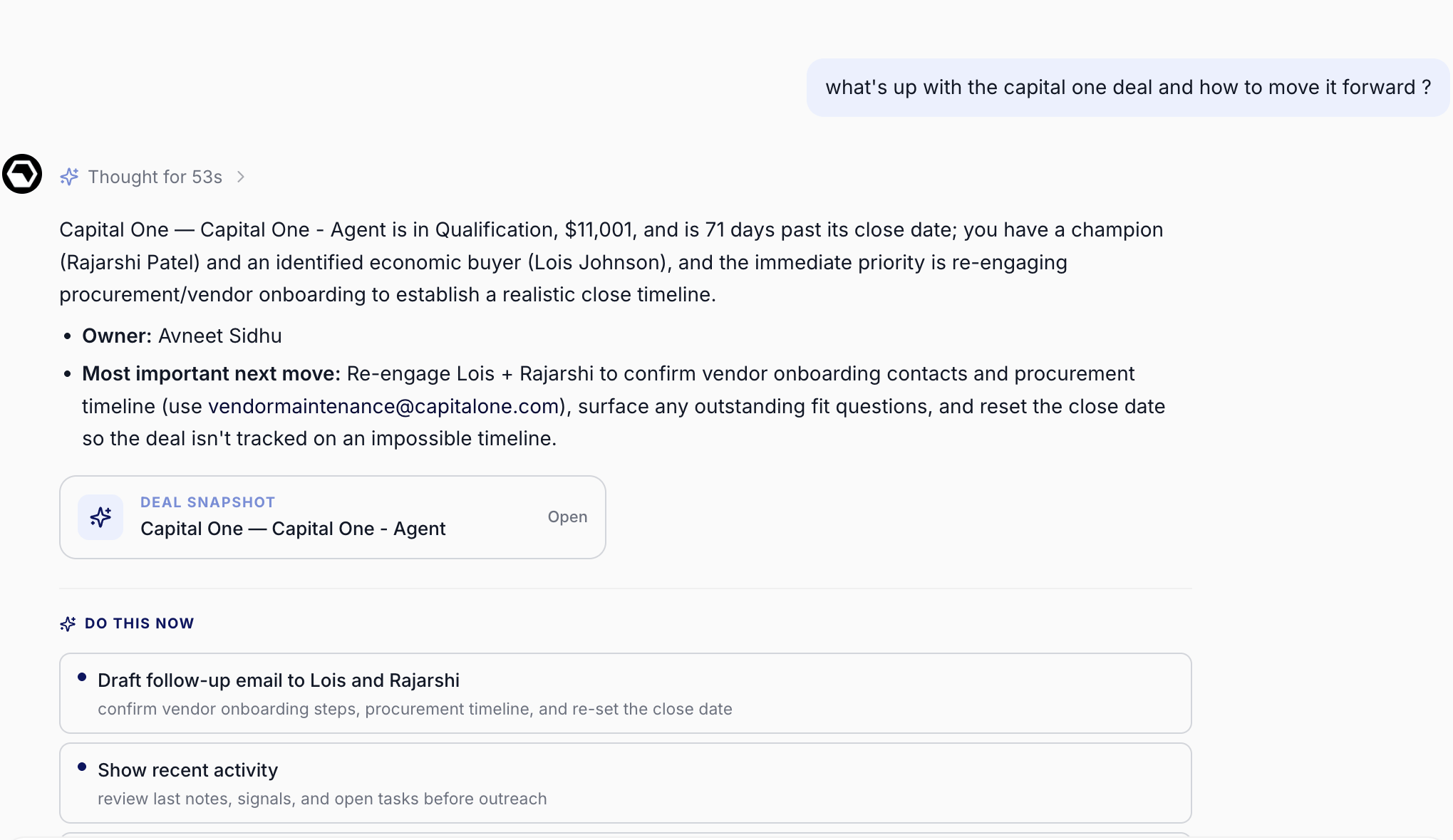
The chat leading with the most important next move on a deal, with a deal snapshot and one-click next steps
Deal panels in chat
Stop reading pipeline answers as walls of text: the assistant now renders your pipeline and each deal as interactive panels alongside the conversation, so you can scan risk and drill into a deal without leaving the thread. What it is: On the Home chat, informational answers can render in the right panel as a ranked, scrollable list of deal cards or a full deal snapshot covering stage, amount, close date, champion and economic buyer, blockers, action items, AI recommendations, and recent signals. Deal cards and snapshots carry color-coded flags for overdue, stale, and closing-soon deals, and a back button returns from a snapshot to the pipeline list. How it helps: A rep covering 70 open deals opens Home and asks which deals are at risk. Instead of a text list, the right panel returns a ranked stack of deal cards, three flagged red for stale activity and two amber for a close date inside two weeks. She clicks the top card and the snapshot lays out the stage, the $240K amount, the champion and the economic buyer, two open blockers, and the latest signal, then she jumps straight to the deal with one click. What used to be a paragraph of prose she had to parse and cross-check against Salesforce is now a scannable panel she can act on in place.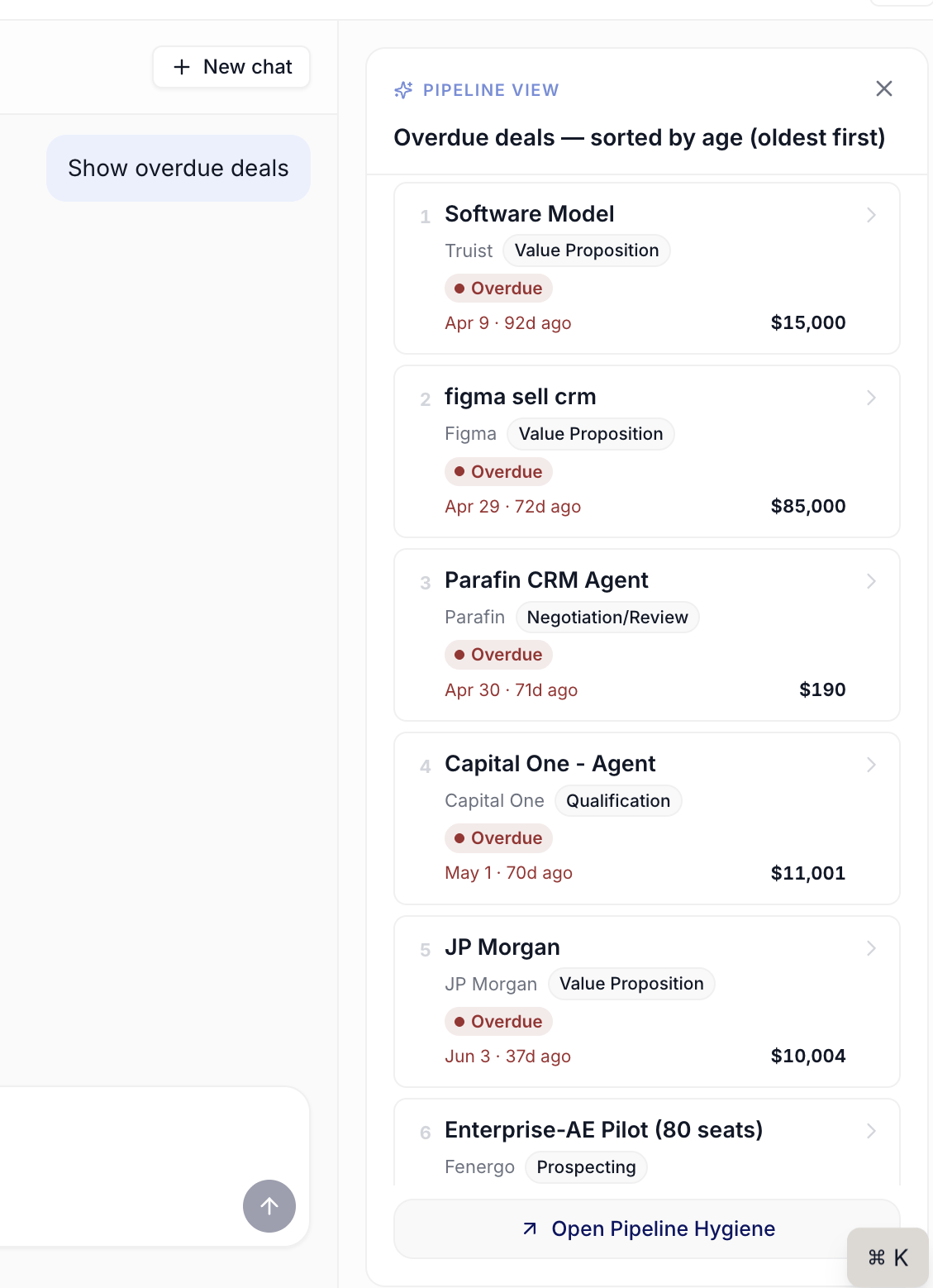
The chat right panel rendering the pipeline as a ranked list of deal cards with risk flags
June 8th, 2026
Bulk actions
Clear a stack of obviously-right AI suggestions in one move: a multi-select checkbox column with a floating Approve and Reject bar that fans the writes out to Salesforce in bounded batches, with per-row success or failure reported back so a single bad row never rolls back the good ones. What it is: A row-level checkbox column on the Actions queue plus a floating bottom bar that appears when one or more rows are selected. Bulk Approve fans the underlying CRM writes out in batches of five so rate limits and timeouts never abort the batch. How it helps: A rep covering 60 mid-market healthcare accounts opens the Actions queue on a Monday morning to 22 pending field-update suggestions: refined Next Steps on twelve Negotiation deals, revised close dates on seven where the buying committee slipped a week, and three corrected champion contacts. She scans the page, expands two of the close-date rows to read the reasoning, then checkboxes the eighteen she trusts and hits Approve 18. The bar fans the Salesforce writes out in batches of five, a toast lands with Approved 18 actions, and the four she paused on stay highlighted for a closer look. Two minutes for what used to be eighteen one-by-one accepts across the Opportunities table.
Bulk action bar floating above the Actions queue with eighteen rows selected
Action detail
See exactly what the AI wants to change and why before you say yes: every row in the Actions queue expands in place into a two-pane drawer that lays out the proposed change on one side and the reasoning on the other, without ever leaving the inbox. What it is: An inline drawer that opens below any row in the Actions queue when you click the title or the chevron. The left pane renders the proposed change shape: a strike-through old to new field diff for a field update, the recipients and key points for an email draft, or the description and due date for a task. The right pane carries the AI’s plain-English reasoning for why the change was suggested. How it helps: A rep prepping for a Tuesday account review opens the Actions queue and lands on a pending field update titled “Update Next Step” on her largest Negotiation deal. The row alone tells her there is a proposal; one click expands the drawer to reveal the current value “Schedule security review with InfoSec” struck through, the proposed “Confirm budget owner sign-off before EOW” on a volt chip, and a three-sentence reasoning that names the late-Friday email the procurement lead sent. She accepts inline, watches the row clear, expands the next row, rejects an email draft after reading the proposed Cc list, and works through the page in five minutes. Without the drawer the same review would have meant opening the deal page, the activity log, and her inbox for every row.
Action detail drawer expanded under a field-update row, showing the proposed change and the AI reasoning side by side
Actions
Triage every AI-suggested CRM write in one inbox-shaped queue: a new top-level tab that consolidates the drafted emails, field updates, and AI-created tasks Katalyst surfaces across the platform into one paginated, searchable, multi-select list with Accept and Reject inline on every row. What it is: A new top-level Actions tab in the side nav that consolidates every pending AI suggestion across the AE’s deals into a paginated, searchable queue with To Review, Approved, and Rejected tabs. Every row carries Accept and Reject inline; resolving here propagates to every other surface that displays the same suggestion. How it helps: A rep covering 80 active deals opens the Actions tab on a Monday after a week of customer meetings. The To Review tab reads 27: nineteen field-update suggestions across her Negotiation and Proposal deals, five AI-created follow-up tasks on Discovery accounts, and three drafted outreach emails awaiting send. She types “Bank of America” into the search and the page narrows to the seven BoA-related rows. She accepts five inline, expands the sixth to read the proposed close-date shift, rejects it as too aggressive, and opens the seventh’s drafted email in Gmail via the View full draft link. Twelve minutes from open to a fully-triaged BoA stack, where the old loop meant the Opportunities table, the per-account Activity History, three browser tabs, and a guess at what the AI had queued since Friday.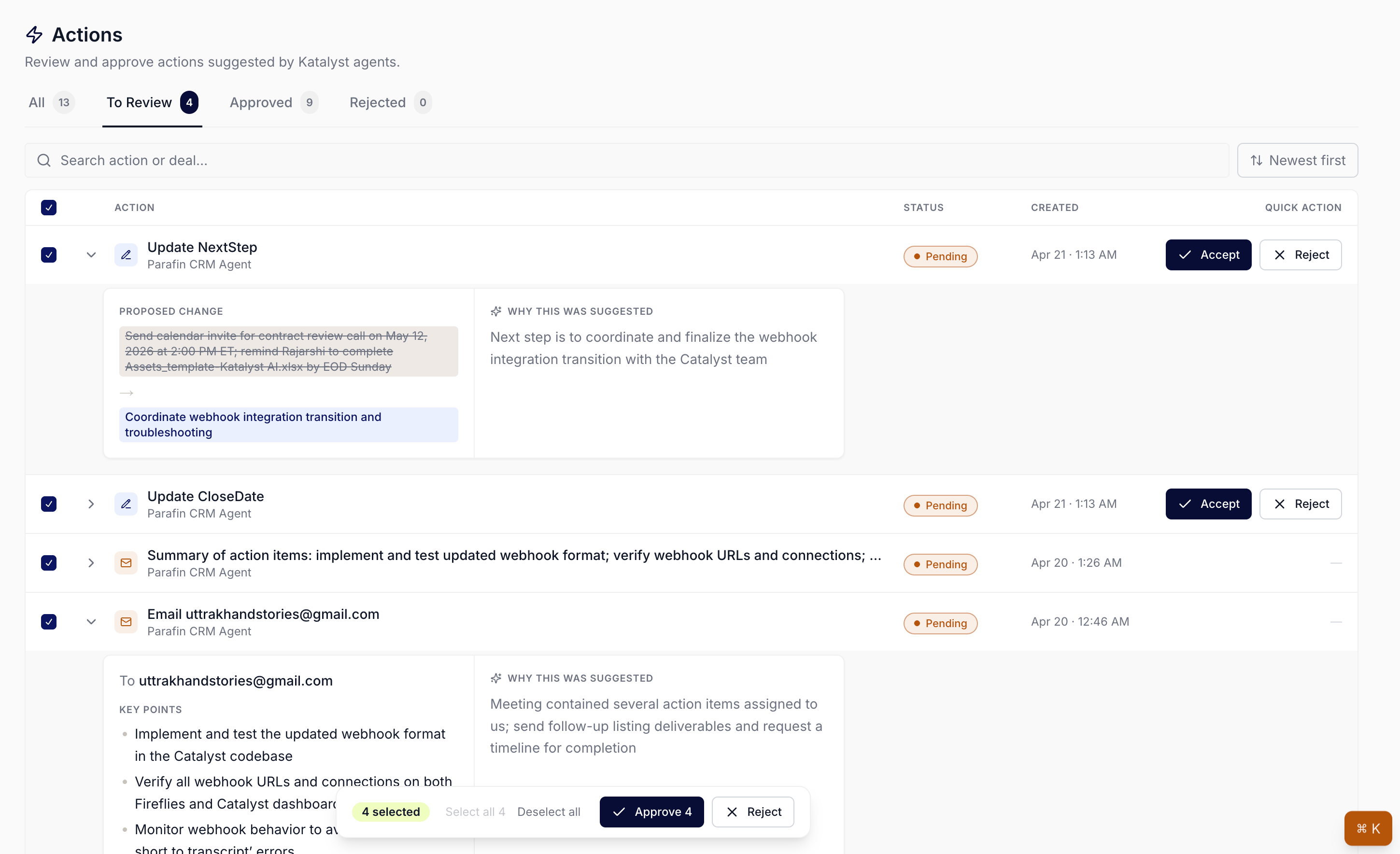
Actions tab landing view with the four-tab queue, search, sort, and per-row Accept and Reject affordances
June 1st, 2026
Home essentials
Quality-of-life features that round out the Home tab, so the landing surface is a productive first move whether the AE has a question to ask or a recommended action waiting:- Suggested prompts : four starter chips above the composer (Compute pipeline value, Hygiene score breakdown, Deals at risk, Catch me up since yesterday). Tap one and the question lands in the chat with the right framing already loaded.
- Time-aware greeting : a Good morning / afternoon / evening line keyed to the AE’s local clock and first name, with today’s date next to it.
- Pipeline stats rail : open pipeline value, deal count, and a team-wide hygiene score on the right rail, with hover-revealed breakdowns of top deals and which hygiene rules pulled the score down. The number matches the Pipeline Hygiene dashboard exactly.
- Upcoming meetings rail : a today-and-forward strip of the next few calls with a Ready, Drafting, or Needs prep tag per row, a forward-only day stepper, and hover-revealed previews of the linked opportunity and brief.
- Chat history : every past Home conversation persists, sorted by most recent activity, opened from a hover-revealed popover next to the greeting and from the chat header. New chat resets the surface in one click.
- Reasoning trace and response feedback : every assistant message shows a live Reasoning ticker that collapses to Thought for Ns once the answer starts, with copy and thumbs-up or thumbs-down chips under the response.
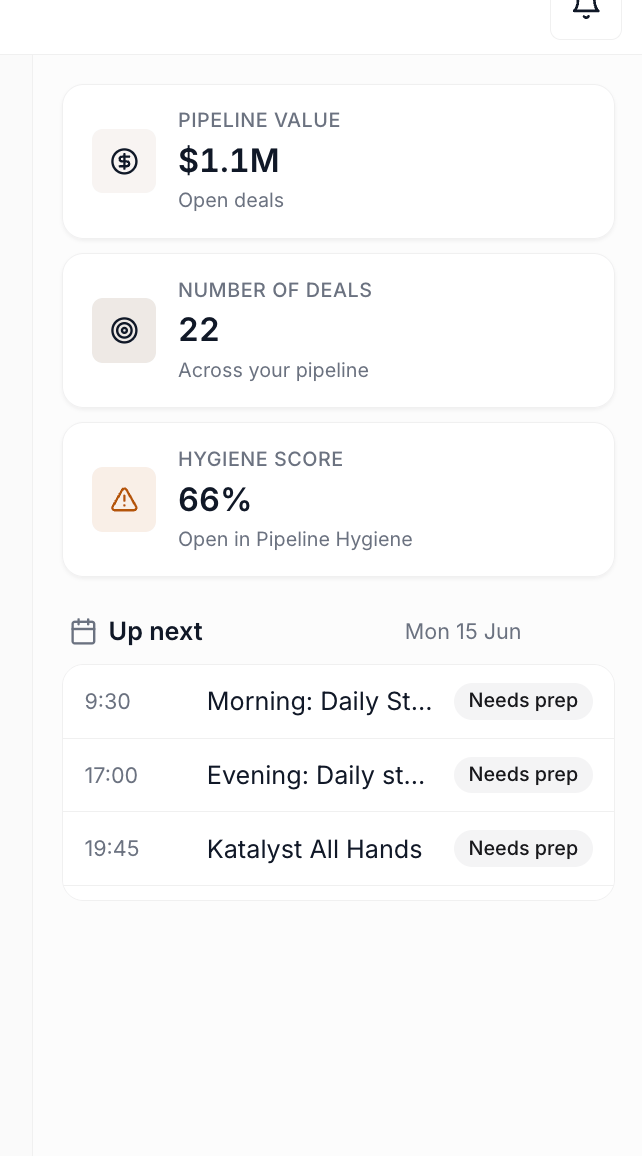
Home tab landing view with the right-rail insight cards
Contacts essentials
Quality-of-life features that round out the Contacts table: find the person you need fast, narrow the table to the slice that matters, and jump from any email into a company-aware draft.- Real-time search : a search bar above the table that matches the contact’s display name as you type. Find any contact in a couple of keystrokes without losing your record-type filter.
- Record Type filter : narrow the table to a single Salesforce contact record type, or keep all in view. Picklists on the resulting rows open instantly thanks to a warmed cache.
- Draft email from the Email cell : every contact whose row carries both an email and a linked account renders the email as a clickable button that opens the Draft Email modal pre-filled with the address and scoped to the parent account. Jump from scanning to drafting without leaving the table.
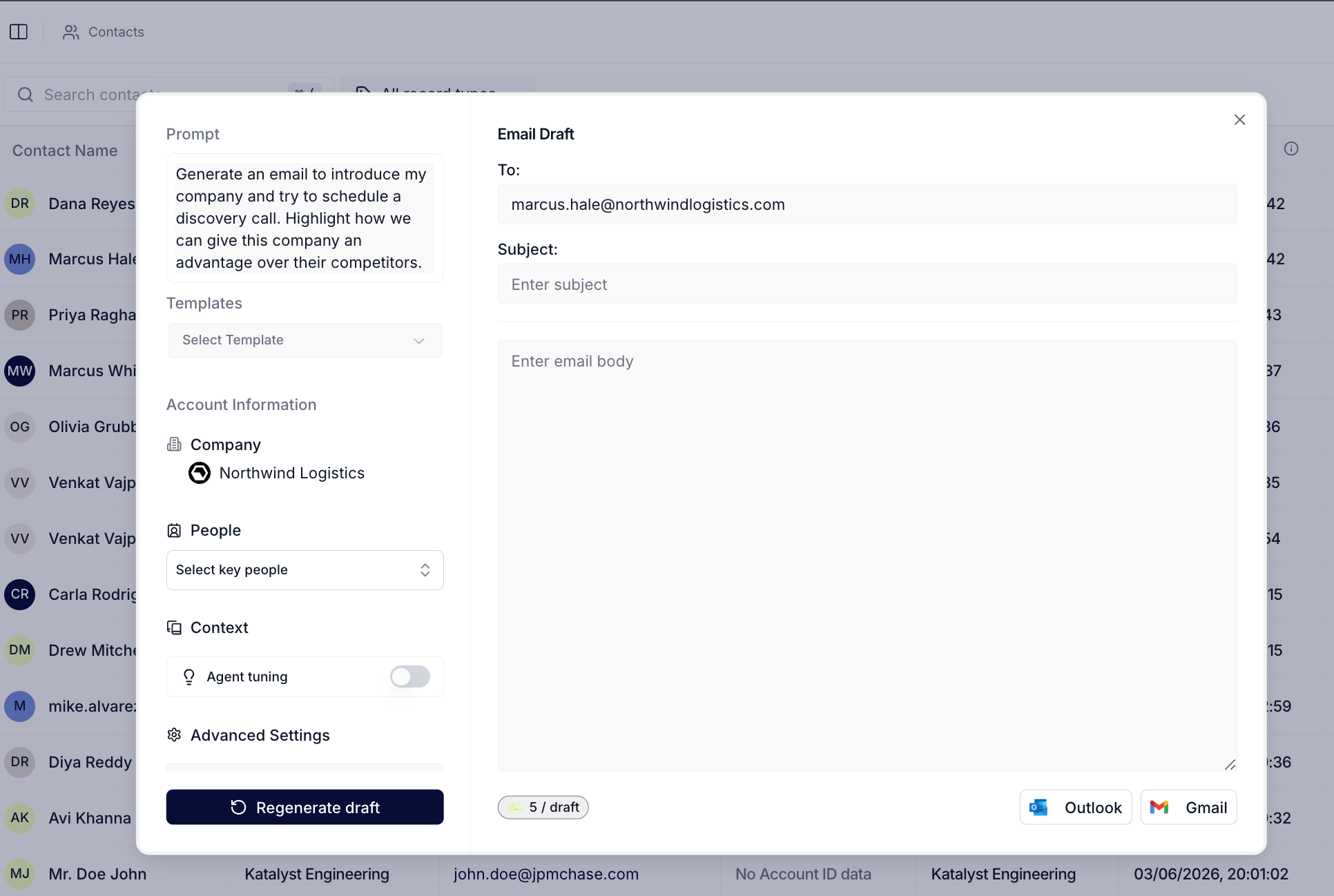
Contacts table toolbar plus the Email cell draft entry point
Opportunities essentials
Quality-of-life features that round out the Opportunities table: find the deal you need fast, narrow to the slice that matters, control which columns appear, and snap back to the pipeline views you live in.- Real-time search : a search bar above the table that filters by deal name as you type, with a
Cmd / Ctrl + /shortcut to jump straight to it from anywhere on the page. - Mine / All owner filter : a single toggle that flips the table between every deal you own and the whole team’s book.
- Record Type filter : narrow the table to a single Salesforce record type, or keep all in view.
- Column management : show, hide, and reorder the Salesforce-mirrored and Katalyst AI column groups from a single dropdown. Each header also exposes Update Instruction and Delete, with a built-in test panel that previews what AI Suggestions would propose for the field before the prompt ships to the whole pipeline.
- Add column : define a custom AI-driven column by writing a natural-language instruction (e.g. “Summarize the current state of the procurement review for this deal”). Choose Add and Run to fire the research agent across every row immediately, or Add column to define the surface and fill cells on demand.
- Saved Views : a left-rail sidebar of named pipeline slices that captures hidden columns, filters, owner scope, and grouping in one click. Reps save “Closing this quarter, mine” or “Pushed past close date” once and snap back to the same configuration every morning.
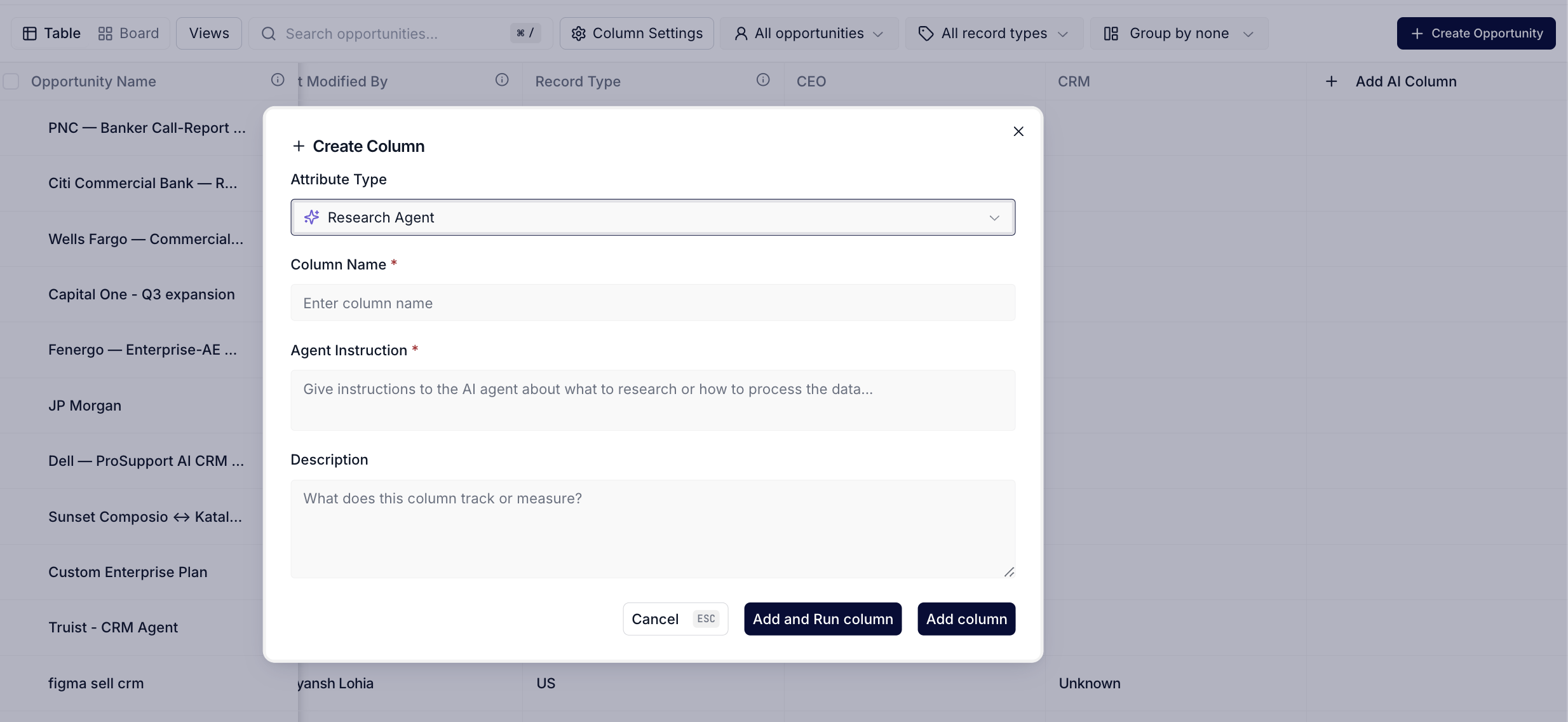
Opportunities table toolbar with the Add Column flow open
May 25th, 2026
CRM Settings essentials
Quality-of-life features that round out the CRM Settings surface, so admins can tune the Salesforce-to-Katalyst sync without leaving the page:- Live field discovery : the Add Field picker queries Salesforce for the entity’s full field list every time it opens, with type-to-search and a small SF read-only tag chip on fields Salesforce marks non-updateable.
- Per-field permission dropdown : flip any synced field between Manual update only, AI suggestion, and Read only on click, with the change reflected on the table cell overlay within a frame.
- Record Type filter for opportunities : constrain the sync to a chosen set of Salesforce record types so the team only sees the slice that matters, guarded by a Yes Re-sync confirmation dialog because the action deletes existing rows before re-pulling.
- Org-wide change confirmations : every Add Field, Remove Field, and Re-sync click opens a confirm dialog naming the org-wide impact, so a single misclick never silently propagates.
- 15-field sync cap per entity : the synced field count is shown as N of 15 next to the entity title, with the Add Field button auto-disabled at the cap so tables stay legible.
- Read-only Opportunity Contact Role card : a fourth card at the bottom of the page lists the five Salesforce-defined Contact Role fields synced into Key People, all marked Read only and Required, so admins can see what is flowing without being able to change it.
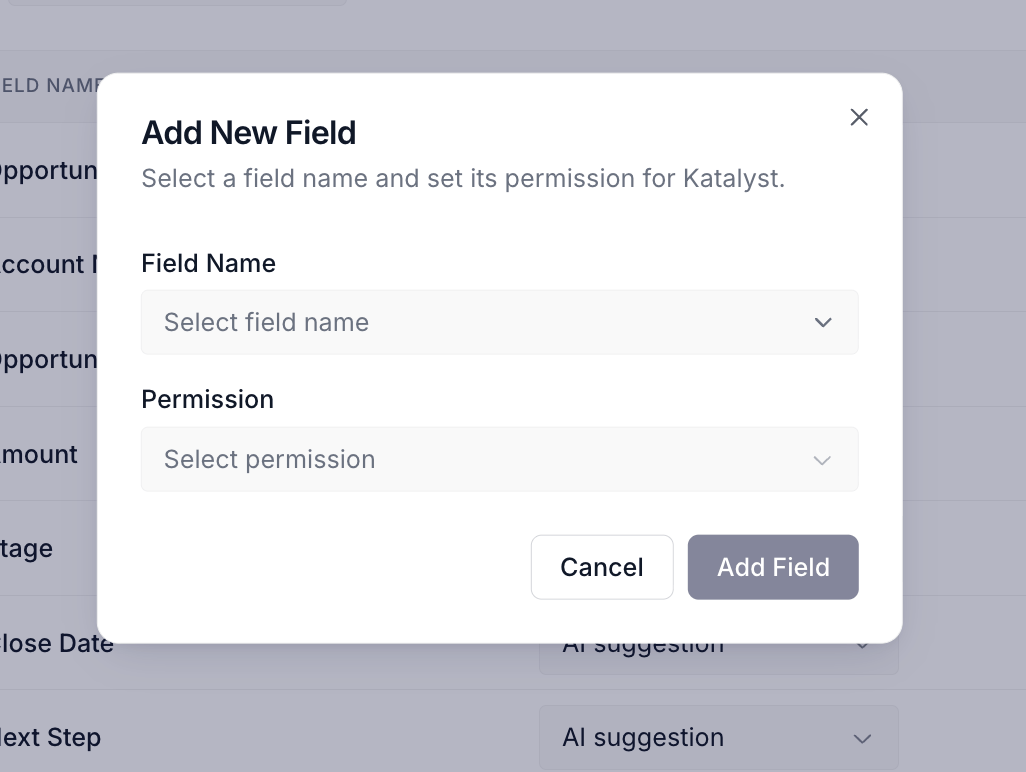
Add Field dialog open over the CRM Settings page with the live Salesforce schema list and the SF read-only tag chips
Opportunity kanban
Move a deal forward with one gesture: a stage-based board layout of your pipeline, with currency totals at the top of every lane and drag-to-progress writes that round-trip back to Salesforce. What it is: A board layout for the Opportunities tab, switched on from the toolbar Layout toggle. Lanes are seeded from the live Salesforce Stage picklist for the active record type, and each card carries the deal name, account chip, amount in the deal’s own currency, owner avatar, and a close-date pill that goes red when overdue. Dragging a card to a new lane writes the stage change back to Salesforce in a single round-trip, with revert on permission denial or rejection. How it helps: A rep covering 60 open deals across two record types opens her pipeline on a Monday and flips to Board. The Negotiation lane shows three deals totalling 310,000, and the Discovery lane fourteen at $1.2M. She drags a stalled Proposal back into Negotiation, drops a Discovery deal forward into Value Proposition, and watches both moves land in Salesforce by the time she scrolls to her next lane. Six minutes for a portfolio review that used to require a Salesforce kanban report, a spreadsheet, and three browser tabs.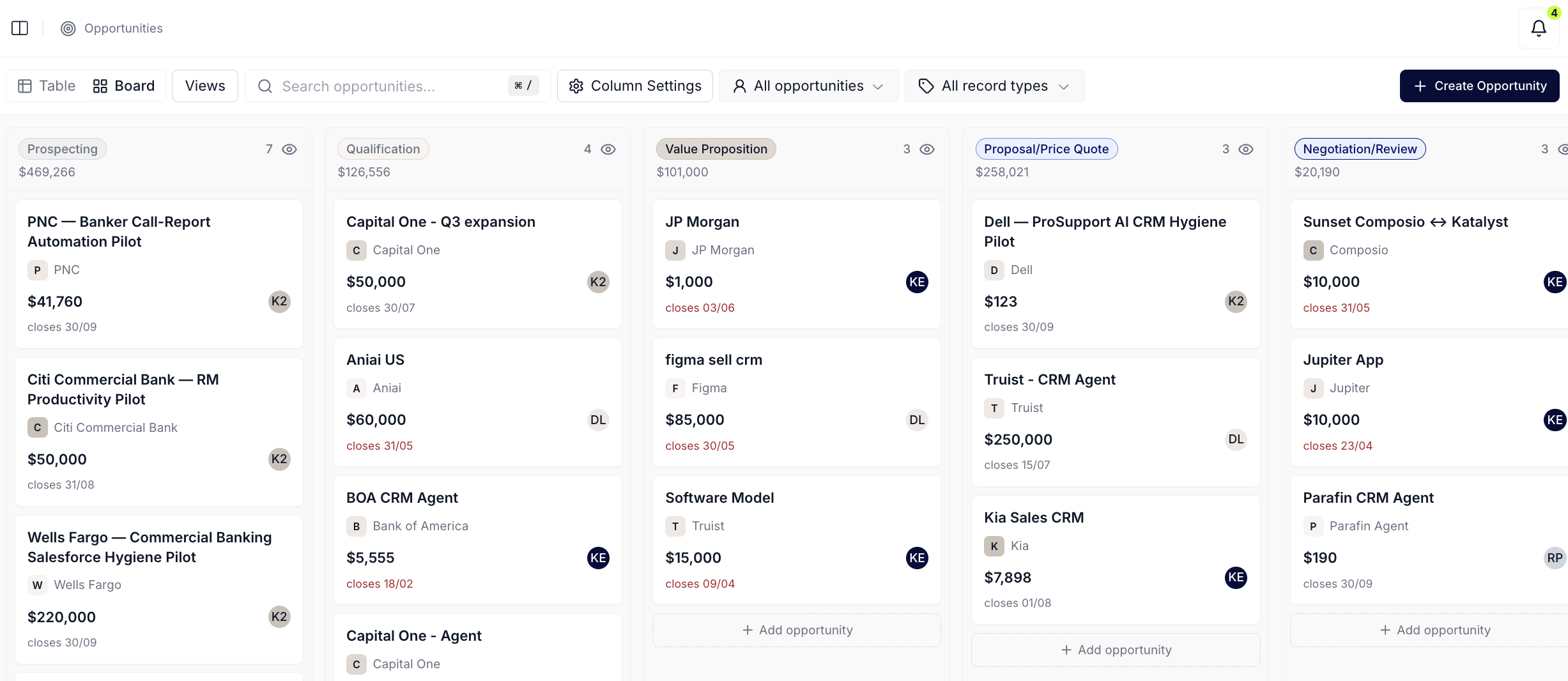
Opportunities tab in Board layout
Post-meeting Action Plan
End every customer call with the CRM hygiene already drafted: an AI flow that reads the meeting, recognizes the new accounts, opportunities, and contacts that came up, and proposes the Salesforce writes for you to review in one pass. What it is: A card on the meeting workspace that surfaces the accounts, opportunities, and contacts Katalyst recognized from the call, with a queue of proposed Salesforce writes ready for Approve & Sync, Review, or Reject in one pass. Ambiguous matches route into an inline review panel before sync. How it helps: A rep wraps a discovery with a mid-market healthcare prospect who introduces two new champions and confirms a second product line is in scope. The meeting ends, and the workspace lands her on a card titled “Drafted a new opportunity for the prospect’s account,” with the account chip, the proposed opportunity chip, a three-line reasoning, and four queued Salesforce writes: create the account, create the opportunity, attach the two new contacts, link the meeting. She clicks Approve & Sync, watches the live timeline tick through each write, and is back in her pipeline 45 seconds later with everything in place. The old version of that workflow was a Salesforce tab, two contact creates, a manual opportunity stand-up, and a Slack message to her manager so she would not forget.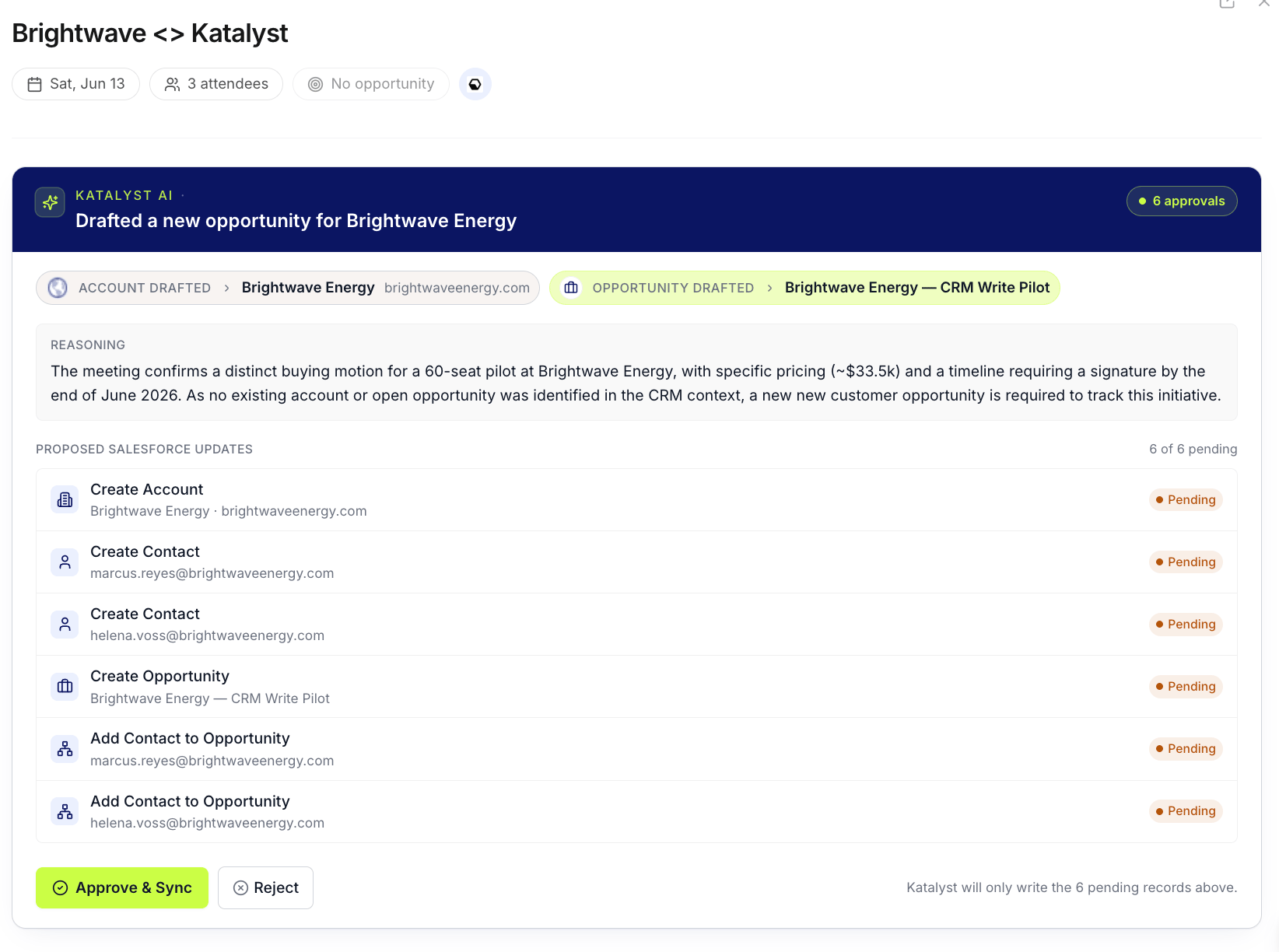
Post-meeting Action Plan card on the meeting workspace
May 18th, 2026
Toast notifications
Catch every deal-moving event in the moment it fires, without breaking the page you are on: a bottom-right card stack that pops new signals, drafted emails, field suggestions, meeting summaries, and pre-briefs as they arrive, with inline Accept or Reject on the ones that need a decision. What it is: A live card deck anchored above the command bar at the bottom-right of every page, showing up to three notifications at a time with the newest in front. Standard rows auto-dismiss after 30 seconds with a countdown bar and a close button, high-stakes rows carry a warning-tinted border, hold for 5 minutes, and force an inline decision instead of a close. How it helps: A rep covering 40 mid-market healthcare accounts is mid-call when Katalyst proposes setting the Next Step on a Negotiation deal to “Confirm budget owner before Friday.” A warning-bordered toast lands in the bottom-right with the deal name, a Review chip, and a Dismiss chip. She hovers to pause the timer, clicks Review to reveal “NextStep arrow Confirm budget owner before Friday” in a navy box, hits Accept, and the suggestion writes to Salesforce without her ever leaving the meeting workspace. Two minutes later a standard-tier toast pops with a new acquisition signal on a target account: she reads the headline, lets the 30-second timer expire, and trusts the row is waiting in the bell if she wants it after the call. The old loop would have been a Salesforce tab, a manual edit, and a context switch back to the call she was supposedly running.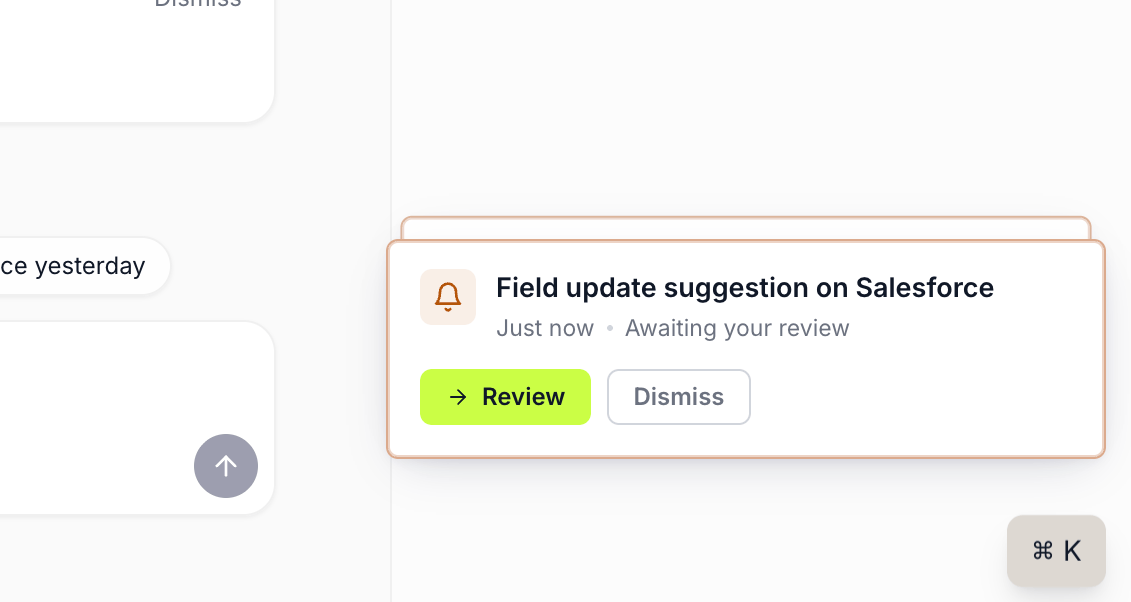
A toast landing in the bottom-right corner with an inline decision to make
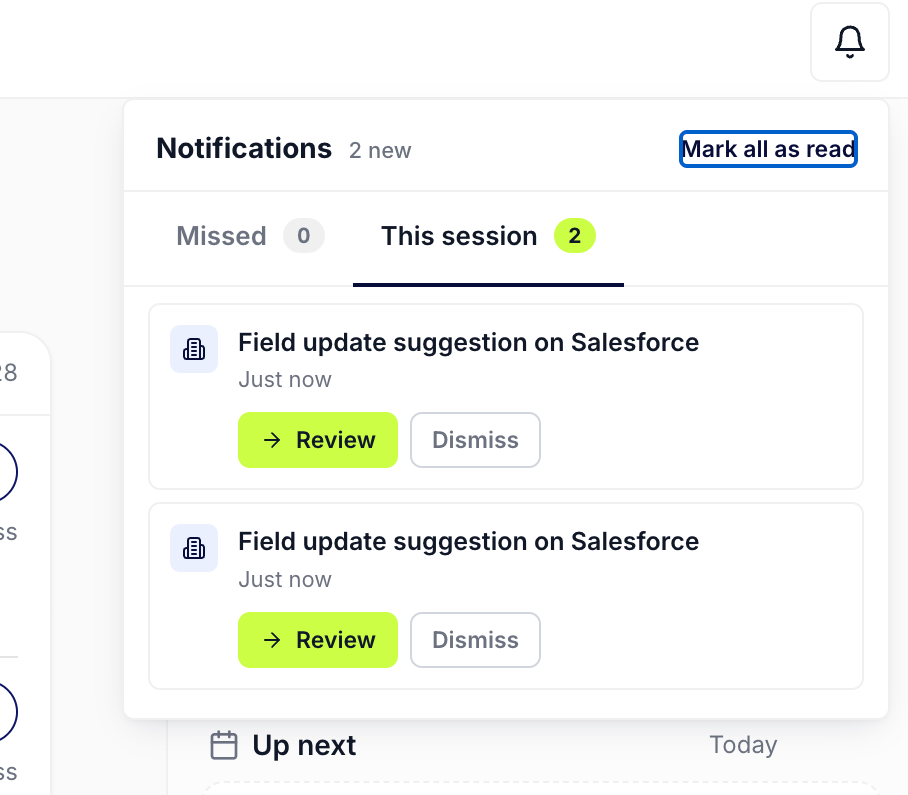
Anything you do not act on is kept in the notification bell, split into Missed and This session
Notification bell
One place to scan everything Katalyst surfaced for you: a top-right bell that unifies every signal, AI action, and pending review into a single popover, with inline Accept or Reject on every high-stakes row. What it is: A top-right bell with a count badge for new-since-last-open notifications, opening a popover with This session and Missed tabs. High-stakes rows expand inline to Accept or Reject without leaving the page. How it helps: A rep with 60 active deals signs in Monday morning to a bell badge reading 8. She opens the popover and lands on Missed: an Actions card with five pending rows (two AI-drafted outreach emails, two field-update suggestions on Negotiation deals, one auto-created follow-up task), an Accounts card with two enrichment suggestions, and a Signals card with twelve new arrivals since Friday. She expands Actions, clicks Review on the first field update, sees “Stage arrow Proposal Sent” in the navy box, accepts it, watches the row clear, and works through the next four in under three minutes. The signals card she leaves for after coffee. Twelve minutes to triage what would have been a Salesforce tab, two Gmail searches, a Slack scroll, and a guess at what the AI did over the weekend.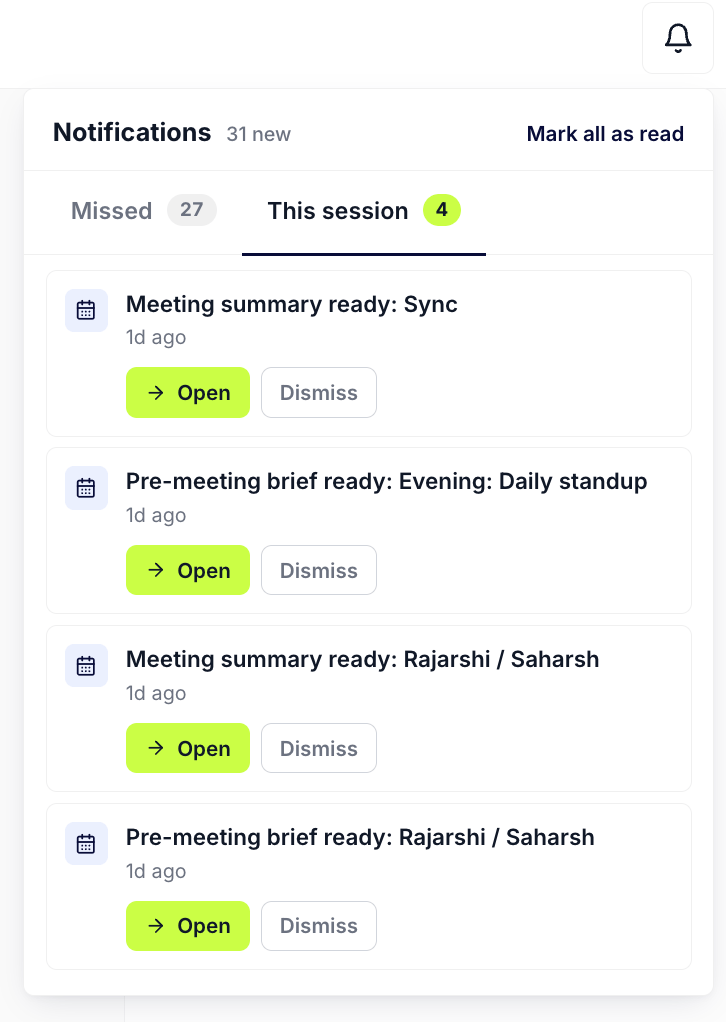
Notification bell popover with mixed Missed-tab notification types and a count badge on the trigger
May 11th, 2026
Custom signal types
Watch for the categories you cover, not just the ones we curate: a Create custom signal button on Signals Settings lets you add bespoke types (with a name and description), reorder them alongside the defaults, and edit or delete from the same row. What it is: A header affordance on Signals Settings opening a name + description dialog. Saved custom types render in the sortable list with pencil and trash affordances, share the 6-active cap as defaults, and persist via the same auto-save path. How it helps: A rep covering 40 mid-market cybersecurity accounts wants to track a category Katalyst’s curated 14 don’t cover: SOC 2 attestation renewals. She lands on Signals Settings, hits Create custom signal, names it SOC 2 renewals with a one-line description, and the new type slots in at the top of her sortable list, enabled by default, counting against her 5 / 6 enabled chip. A drag pushes it below Leadership and Acquisition, the priority auto-saves, and her next 8 AM fetch starts surfacing SOC 2-related items. Two days later she edits the description for clarity from the pencil icon, no second trip to the page header needed. Before custom types, a watch-list category outside the canonical 14 was an email-filter rule and a hope.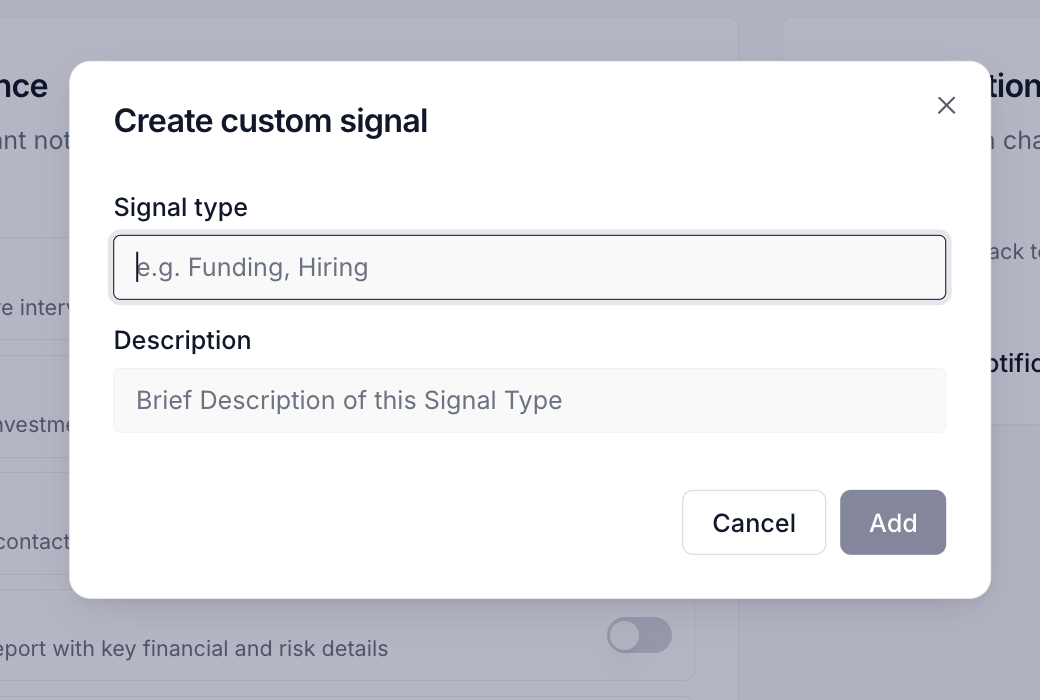
Custom signal type in the Signal Types & Relevance card, tinted, with pencil and trash affordances
Pre-meeting brief
Walk into every call already prepped: an AI brief on the meeting workspace that picks the right shape for what you are about to walk into, whether it is a pipeline meeting, a champion catch-up, or a cold first call. What it is: A brief block on the upcoming-meeting view that returns a context-aware summary tailored to the meeting type, whether it’s anchored to a pipeline opportunity, a champion catch-up, or a cold first touch. How it helps: A rep covering 60 active deals has a 10 AM check-in with the champion on her largest Negotiation. She opens the meeting at 9:55 and the brief leads with the deal’s stage, the open amount, the close date, and the last meaningful touchpoint, before naming the two points the champion raised on the previous call. Five minutes later she joins the meeting with the right opener and a sense of what to push on. Without the brief she would have flipped between Salesforce, the last meeting’s summary, and a hurried scroll through her notes.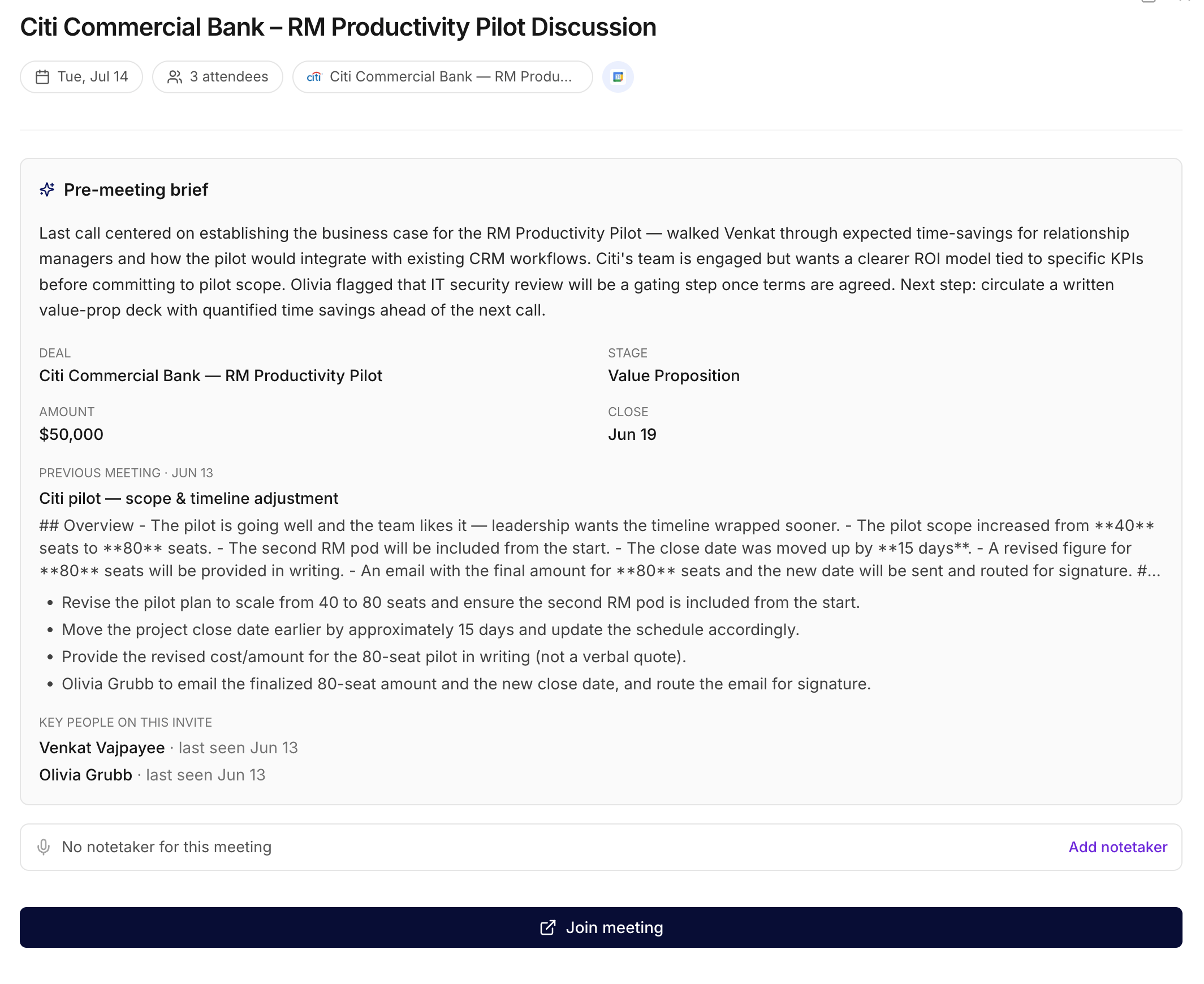
The pre-meeting brief on an upcoming meeting
May 4th, 2026
Do This Now
End the “where do I even start” minute every morning: a prioritized rail of the highest-leverage moves across the AE’s whole book, each with a one-tap chat prompt to act on it. What it is: A prioritized rail on the Home tab that merges the highest-priority deal signals with the most-slipping hygiene rules across every opportunity in the AE’s book. Each row carries a single CTA that opens a tailored chat prompt to act on it. How it helps: A rep covering 60 active deals lands on Home at 8:30 AM. The top row flags a buying signal on a Negotiation account (a new VP of Clinical AI just posted a hiring listing), the second row flags a closing-risk hygiene rule on a Proposal deal whose close date slipped past Friday, the third row flags a Discovery deal with no Next Step set. She taps Generate outreach on the first, lands in a chat with a draft referencing the hiring signal, and accepts the field updates the chat proposes for the second deal without leaving the surface. Six minutes to the three highest-leverage moves of the day, where the old loop meant a Salesforce report, a Slack scroll, and three separate per-deal page-opens.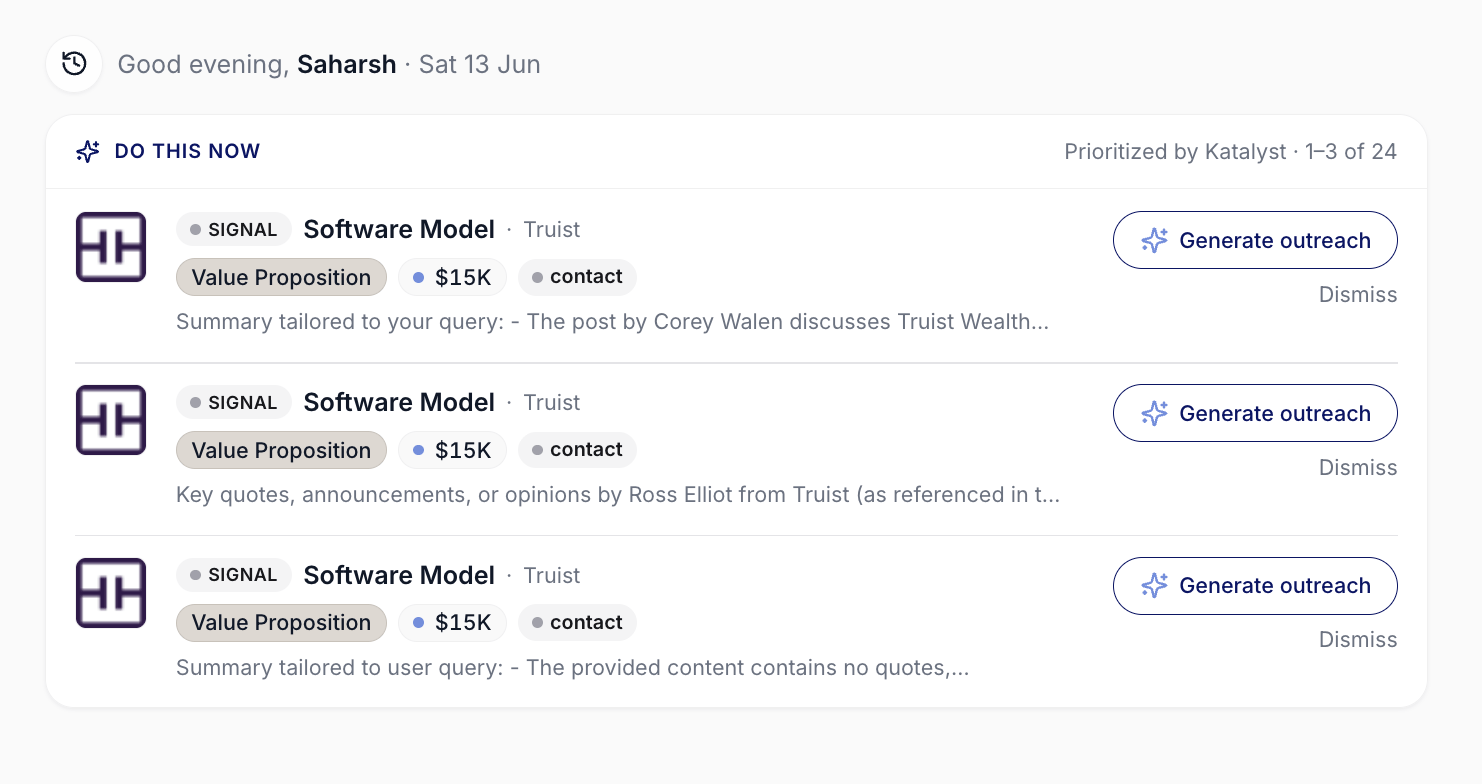
Do This Now card on the Home tab
Agent Actions
Decide for yourself how autonomous Katalyst is on each kind of CRM write: a per-user permissions card that flips every action type between Always Allow, Needs Approval, and Blocked, with the choice propagating instantly to the Bell, the Actions queue, and the per-cell suggestion overlay. What it is: A per-user permissions card inside Agent Setup with four action-type rows: Create Salesforce Records, Draft Emails, Log Activities to Salesforce, and Update CRM Fields. Each row carries a radio toggle with the legal modes for that action type, and selection saves optimistically against the user’s settings without an org-wide dialog. How it helps: A rep covering 40 mid-market healthcare accounts joins a team that runs Always Allow on field updates and is uncomfortable with the agent writing to Salesforce on her behalf yet. She opens Agent Actions, flips Update CRM Fields from Always Allow to Needs Approval, and watches a toast confirm. The next stage-change proposal on her largest deal shows up as a pending row on the Actions queue and as a live toast in the bottom-right, with the proposed Stage arrow Proposal Sent visible before the write fires; she accepts it inline. Two weeks later, after a hundred accepts in a row, she flips the toggle back to Always Allow. The same card lets a careful AE move slowly without holding the rest of the team back, and lets a confident AE turn the agent loose without negotiating with the admin.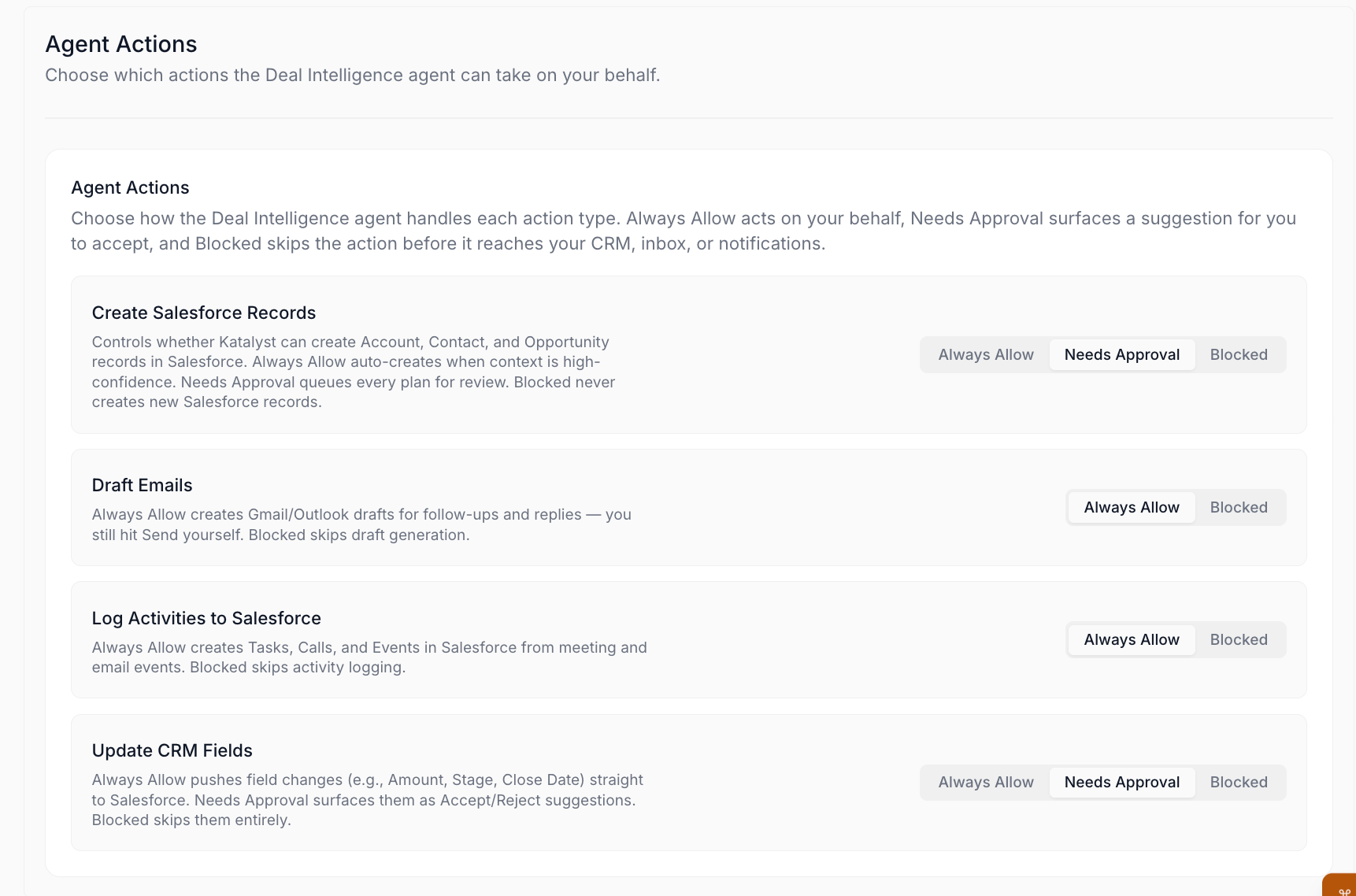
Agent Actions permissions card with the four action rows and the three-mode radio toggles
April 27th, 2026
Research
Skip the LinkedIn rabbit hole before every prospect call: an AI-curated dossier per contact that turns minutes of research into a ready-to-use personalized opening. What it is: A sub-tab on the contact detail surface that returns an AI-curated persona dossier: a 30-second bio, conversation hooks, employment history, interests, and discussion topics. Available when the contact is linked to at least one opportunity in your pipeline. How it helps: A rep covering 40 mid-market healthcare accounts has a 10 AM discovery with a new VP of Clinical AI. She opens the Research tab at 9:55 and gets a 30-second bio, three conversation hooks tied to the VP’s recent paper on transformer safety, a five-job employment history, and four discussion topics keyed to the account’s likely budget cycle. Five minutes before the call she walks in with a personalized intro instead of a generic question. The same prep used to mean a LinkedIn deep-dive plus skimming the company blog plus pulling earnings transcripts.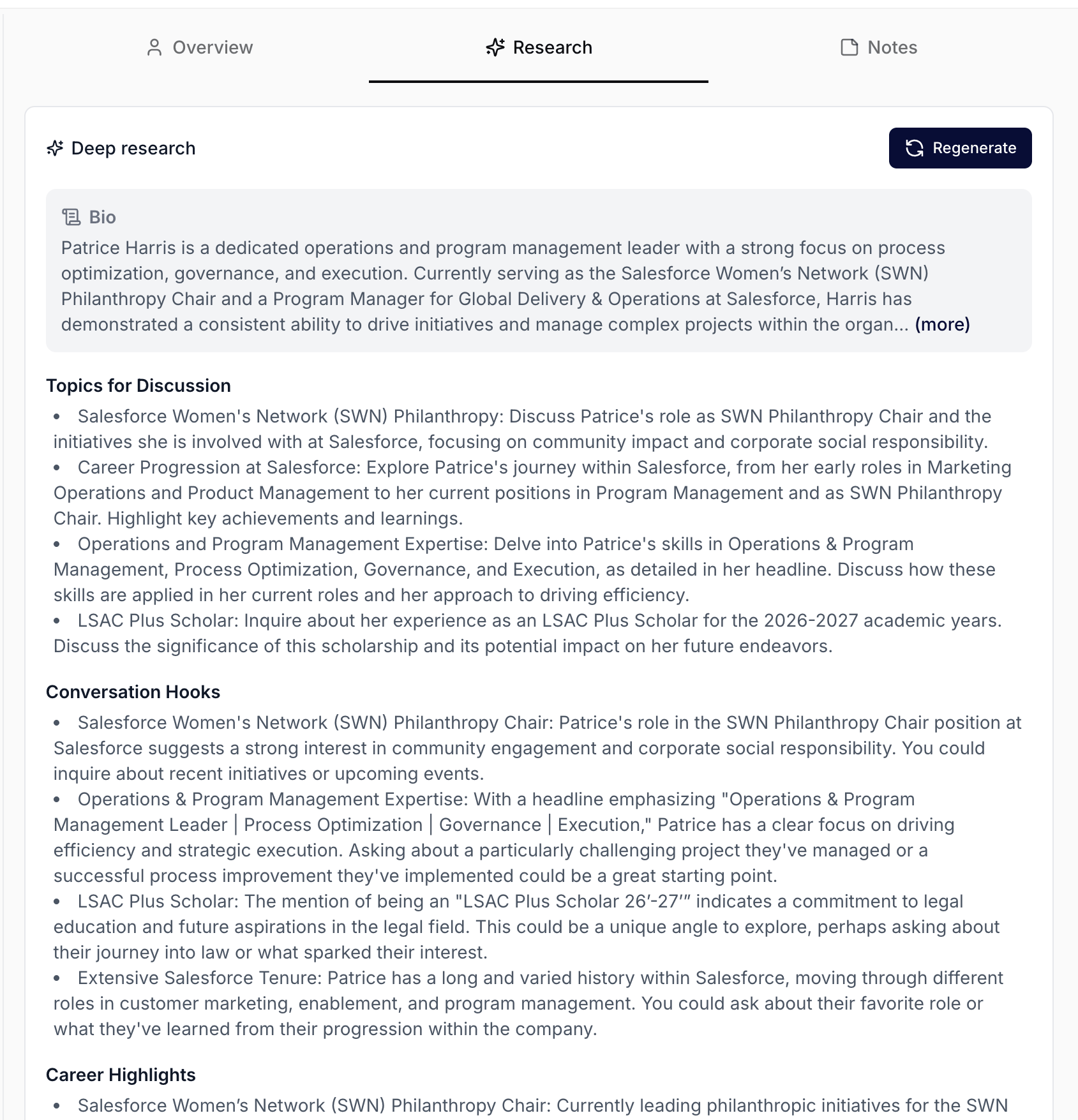
The Research sub-tab on a contact
Contact detail
Walk into every call knowing exactly who you are talking to: a two-column contact workspace that puts an AI chat canvas next to a tabbed view of the person’s CRM record, linked deals, recent activity, and a deep persona dossier. What it is: A two-column drill-in for any contact. The left column anchors a contact-scoped AI chat next to the contact’s header; the right column tabs through Overview, Research, and Notes. How it helps: A rep covering 40 mid-market healthcare accounts has a 10 AM call with a champion she has been working for months. She opens the contact at 9:55. The Overview tab shows the AI summary, three linked deals, recent meetings, and the contact’s editable CRM fields. She asks the left-column chat to surface the last objection the contact raised, updates the Next Step field inline, and drops a quick note in the Notes tab before joining the call. Five minutes from open to prepped, all in one place.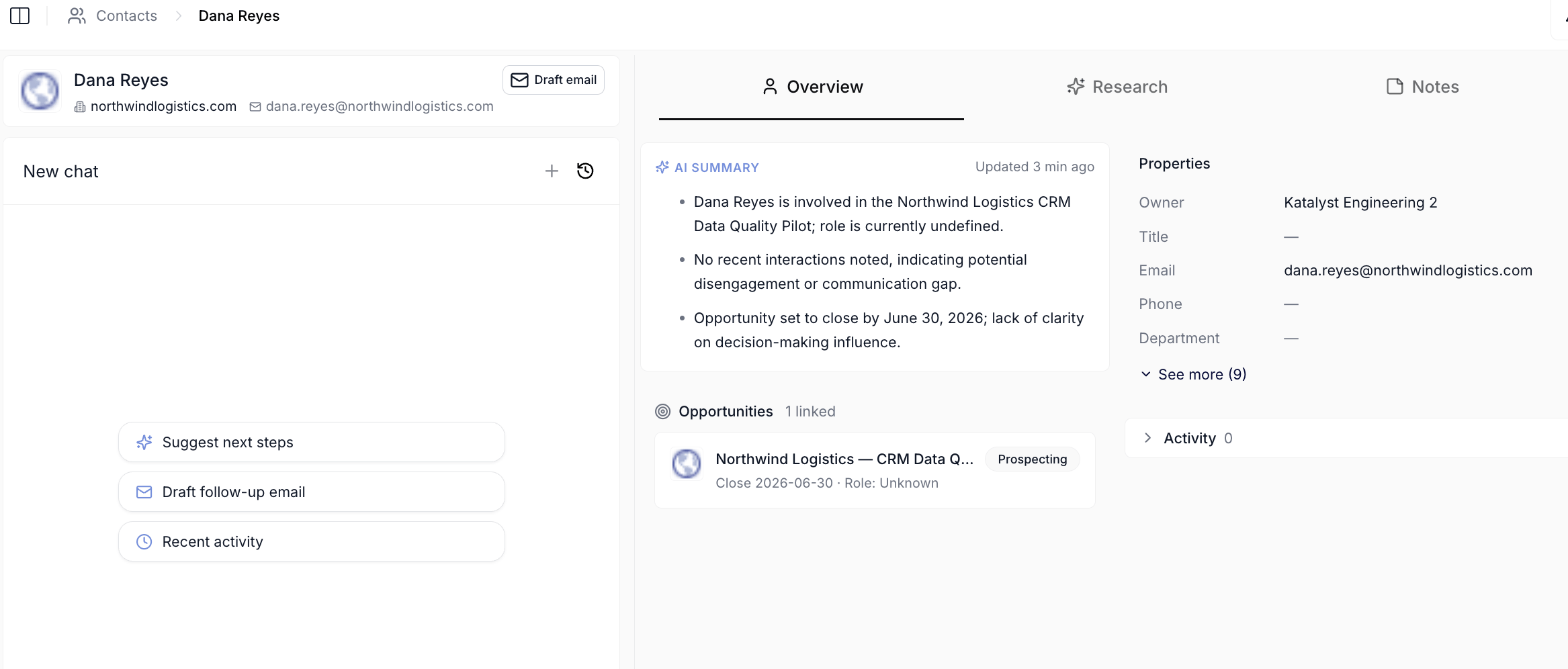
Contact detail two-column workspace
April 20th, 2026
Accounts essentials
Quality-of-life features that round out the Accounts surface: create new accounts, find what you’re looking for fast, focus the table on what matters, and pin the accounts you live in.- Create Account : create a new account directly inside Katalyst with auto-enrichment kicking off as soon as it’s saved, then synced to Salesforce.
- Real-time search : a search bar above the table that matches across every column as you type. Find any account in seconds.
- Record Type filter : narrow the table to US, Global non-US, or all record types with a single dropdown.
- Star to favorite : pin an account to your side-nav Favorites for one-click access from anywhere in the app.

Accounts table top bar: Create Account, search, filter
Create Contact
Stand up a new contact without leaving the page: a Salesforce-faithful modal that creates the record, syncs it back to the table, and keeps your prep flow intact. What it is: A modal opened from the Create Contact button in the Contacts toolbar. Captures the Salesforce-faithful field set (name, account, role, contact info) and on save creates the record in Salesforce, polling until the new row lands back in the table. How it helps: A rep wraps a discovery call where a new champion gets introduced. From the Contacts tab she clicks Create Contact, fills in the name, account, title, and email, and saves. By the time she opens her next prep, the contact is in the table, ready to inherit her persona research and the Draft Email flow she runs from the Email cell. No Salesforce tab, no copy-paste, no broken context.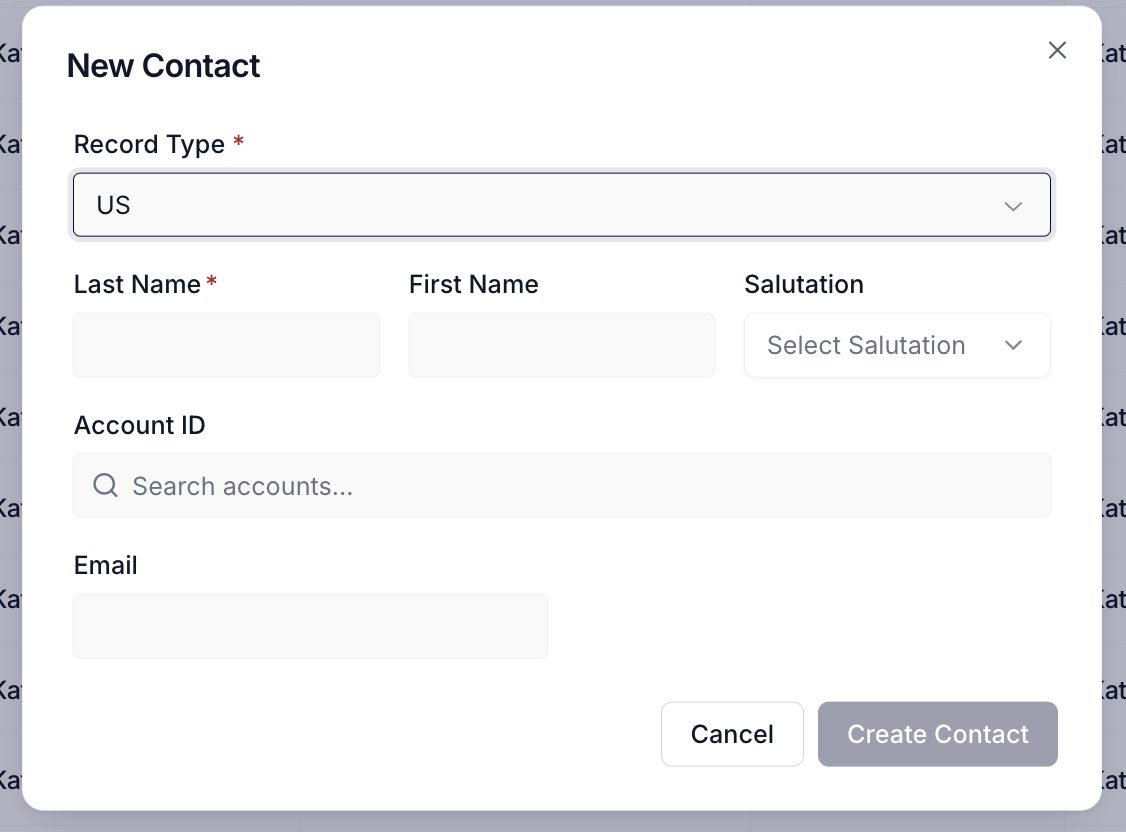
Create Contact modal
April 13th, 2026
Create New Opportunity
Stand up a new deal without leaving the page: a record-type-aware modal that creates the opportunity in Katalyst, writes it through to Salesforce, and lands you back on the same pipeline view ready to keep working. What it is: A modal opened from the Create Opportunity button in the Opportunities toolbar and from the Add opportunity action at the bottom of every kanban lane. It picks up the Salesforce record-type picker when more than one is in scope, renders the matching field set (including a typeahead Account lookup), and on save creates the record in Salesforce and polls until the new row lands back in the table. How it helps: A rep wraps a discovery call where the prospect confirms budget for a second product line. From the kanban Discovery lane she clicks Add opportunity, picks the right record type, fills in the deal name, account, amount, and close date, and saves. By the time she opens her next meeting, the new deal is sitting in the lane she added it to, synced to Salesforce, and ready to inherit her standard AI columns. No Salesforce tab, no copy-paste, no broken context.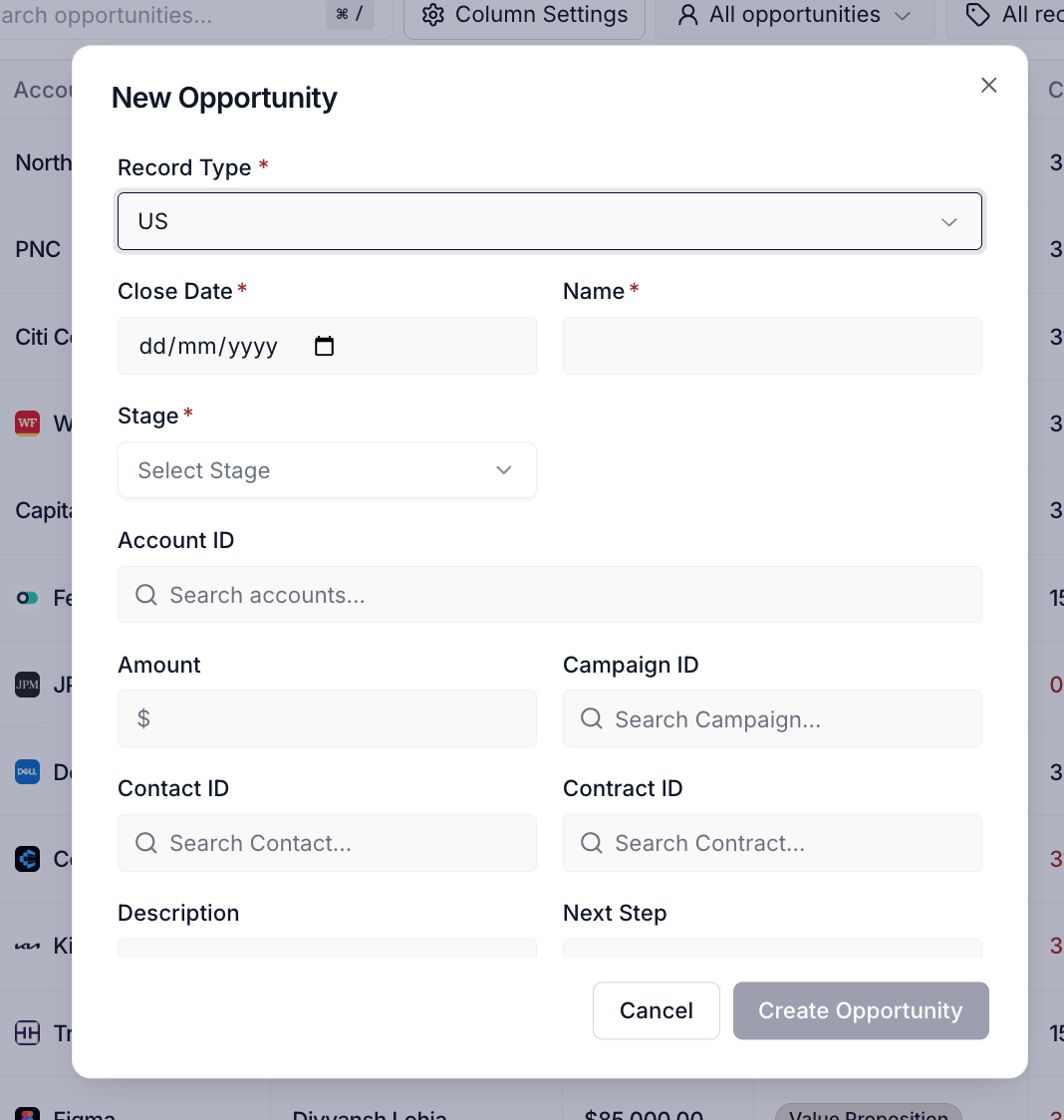
Create New Opportunity modal
Home
Open Katalyst and ask anything across your whole book of business: an AI chat landing surface that reasons over every opportunity, account, contact, signal, and meeting at once, with a right-rail of pipeline vitals and a recommended-action rail so the first move of the day takes a sentence instead of a tab shuffle. What it is: The top-level Home tab: a global AI chat across the AE’s whole pipeline, distinct from per-record chat panels. The landing surface pairs the chat with a Do This Now card of prioritized actions, four starter prompts, and a right rail of pipeline vitals and upcoming meetings. The chat can read across opportunities, accounts, contacts, signals, meetings, and the org knowledge wiki, and can take real Salesforce writes through the same agent. How it helps: A rep with 80 active deals signs in Monday morning. The greeting reads Good morning, then Do This Now flags a leadership change at a top account and a hygiene-slipping deal in Negotiation. She types “catch me up on what changed across my pipeline since Friday”, and the chat returns a stage-by-stage diff with three new signals and two pending AI suggestions on her Negotiation deals, with the reasoning trace showing it pulled the activity timeline and the signals feed. She follows up with “draft a re-engagement note for the BoA deal referencing the security review concern”, accepts the draft into Gmail, and asks the chat to favorite the three highest-ARR Negotiation deals so the sidebar surfaces them. Twelve minutes from sign-in to a full Monday plan, where the same loop used to span Salesforce reports, Gmail, a LinkedIn tab, and the Pipeline Hygiene dashboard.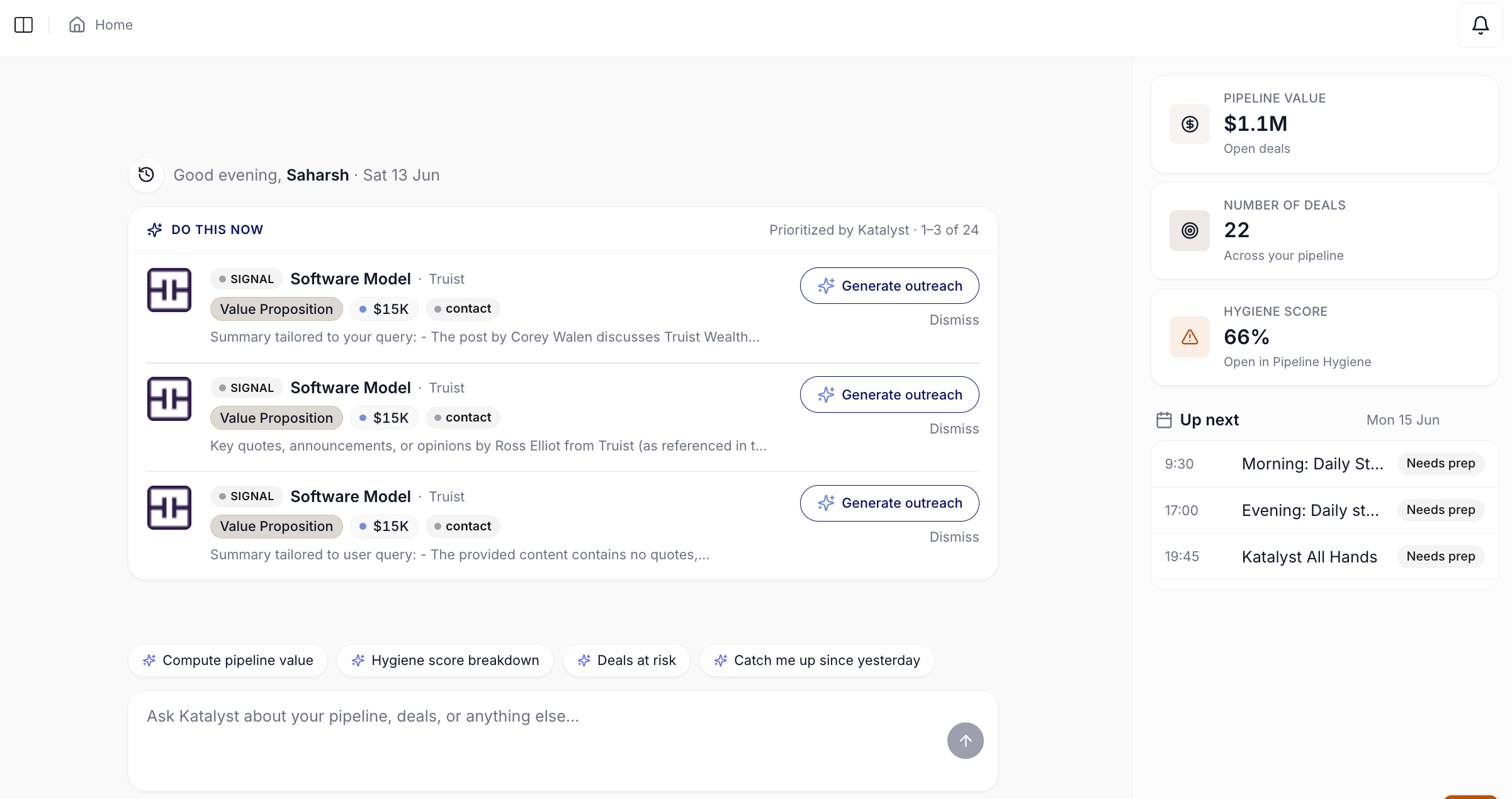
Home tab landing view
April 6th, 2026
Hygiene rules
Tune your team’s definition of “clean pipeline” without waiting on engineering: a configurable five-rule catalog with adjustable penalty weights, capped at a 100-point total so the math stays honest. What it is: A rule catalog on the Pipeline Hygiene tab covering close-date freshness, activity recency, deal amount, next step, and account linkage, with a per-rule penalty input and an on / off switch. Admins and managers edit the catalog; everyone else sees it read-only. How it helps: A sales manager onboarding a new pod decides the team should weigh next-step discipline more than account linkage this quarter. From the third KPI card on Pipeline Hygiene she opens the rule catalog, slides the “Next step is empty” penalty from 15 to 25, turns the “No account linked” rule off, and watches the totals tick to 95 of 100. Every score on the page recomputes in the same frame: the org headline drops three points, two reps move into the amber band, and the per-rep tables update their violation chips. Three minutes to redefine what “healthy” means for her team, where the previous loop would have meant a Salesforce report definition, an admin ticket, and a week of waiting for the dashboard to catch up.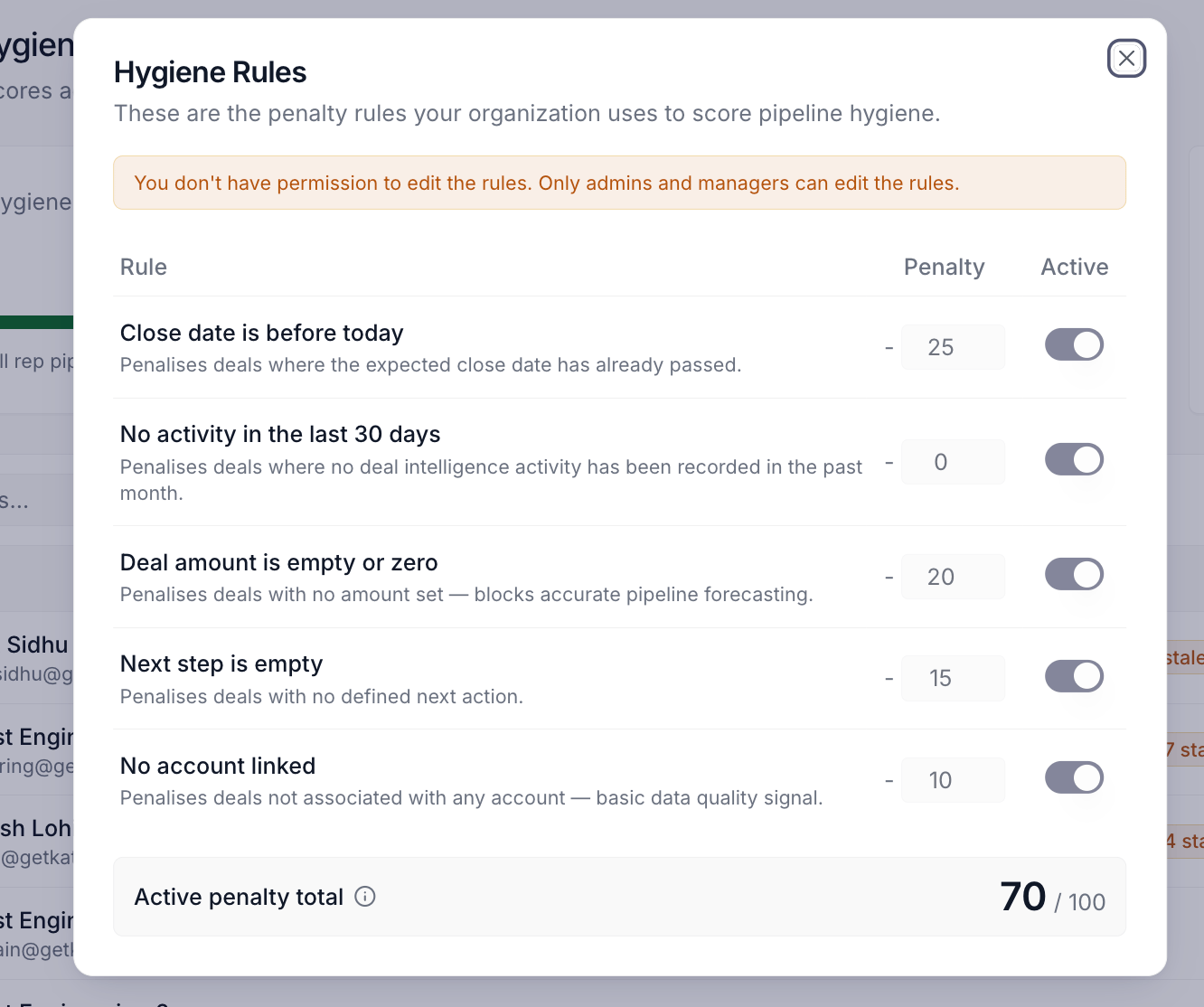
Hygiene Rules dialog with the five-rule catalog and the active-penalty-total chip
Per-rep hygiene breakdown
Coach a slipping rep with the specific deals in hand: an AE drill-in that pairs a rolling-30-day score history with a worst-first table of every open deal pulling the number down. What it is: A per-AE detail surface reached by clicking any rep on the Pipeline Hygiene table. The view stacks a 30-day score-history line chart and a current-score card above a worst-first table of every open deal the rep owns, with a colored penalty chip cluster on every row. How it helps: A manager running a Friday pipeline review notices one rep covering 40 mid-market healthcare accounts has dropped from 82 to 61 over three weeks. She clicks the rep row, watches the history chart tick down with a hover-revealed note that “Stale activity” became the dominant active rule eight days ago, and scrolls to a worst-first deal table where the five lowest-scoring deals all carry “Stale” and “No next step” chips. Ten minutes later the one-on-one is scoped to four specific deals with two specific fixes, where the old loop meant a generic “your hygiene is slipping” message and an awkward back-and-forth.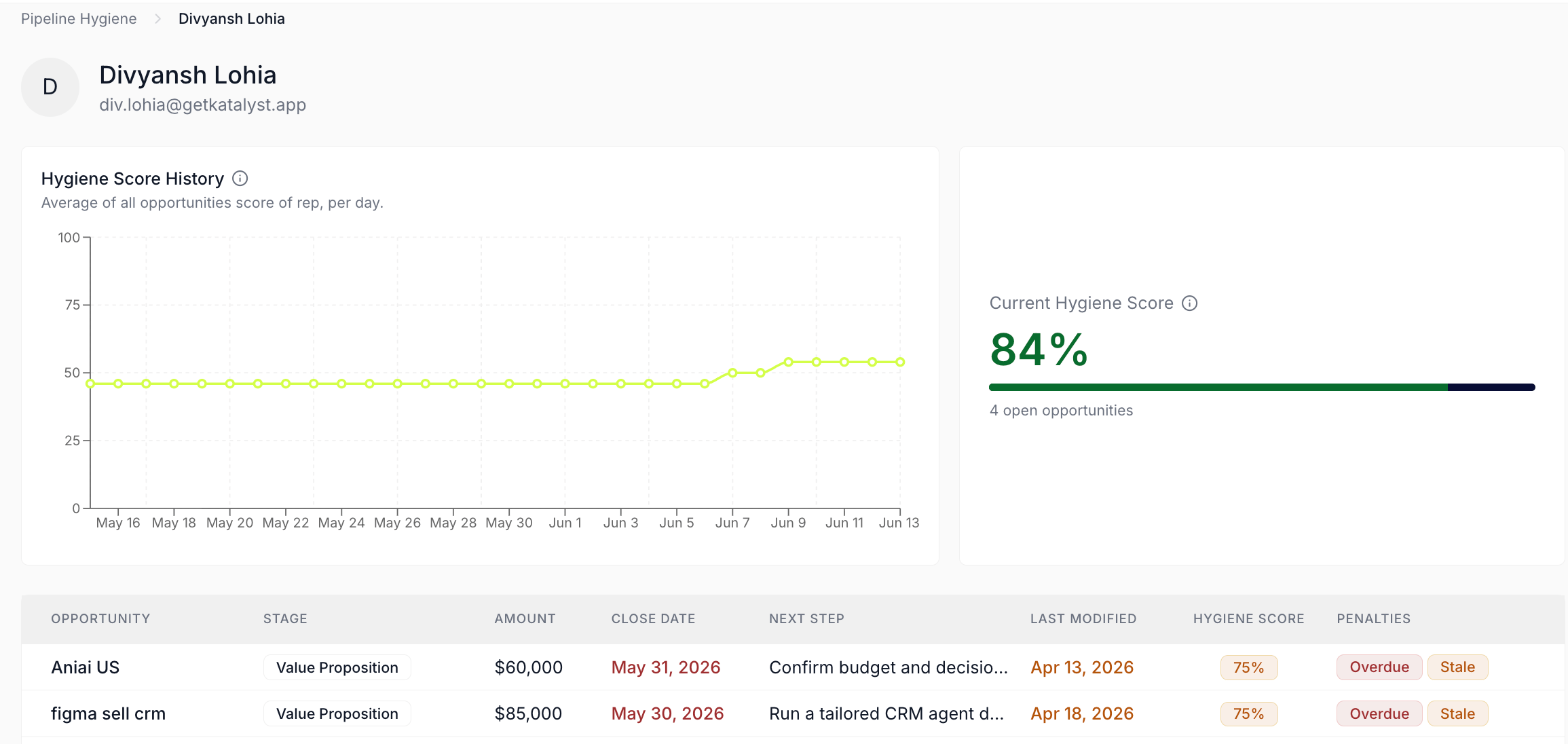
Per-rep hygiene drill-in with score history, current score, and per-deal table
Pipeline Hygiene
Know exactly where the pipeline is leaking signal: a one-screen audit view that scores every open deal, rolls each rep into a colored hygiene badge, and exposes a Zero Board of dead-air deals one click away from triage. What it is: A top-level Pipeline Hygiene tab that scores every open opportunity against a five-rule deduction model, averages the result into a worst-first table of reps, and surfaces a Zero Board flat list of every deal scoring exactly zero across the org. The same score also powers the Home stats rail card and the per-deal hygiene badge on every opportunity page, so the number cannot drift between surfaces. How it helps: A sales manager running a 30-rep org opens Pipeline Hygiene on a Monday morning. The org headline reads 68 out of 100; the worst-first rep table puts three reps in the red band; the chip clusters tell her two of them are bleeding on stale activity and the third on overdue close dates. She flips into Zero Board, gets a flat list of nineteen open deals scoring zero across the org, clicks the largest to land on the opportunity page, and updates the next step inline. Five minutes from sign-in to a coaching plan for three reps and a save on one near-million-dollar deal, where the old loop meant a Salesforce hygiene report, a custom dashboard build, and a thirty-minute spreadsheet diff.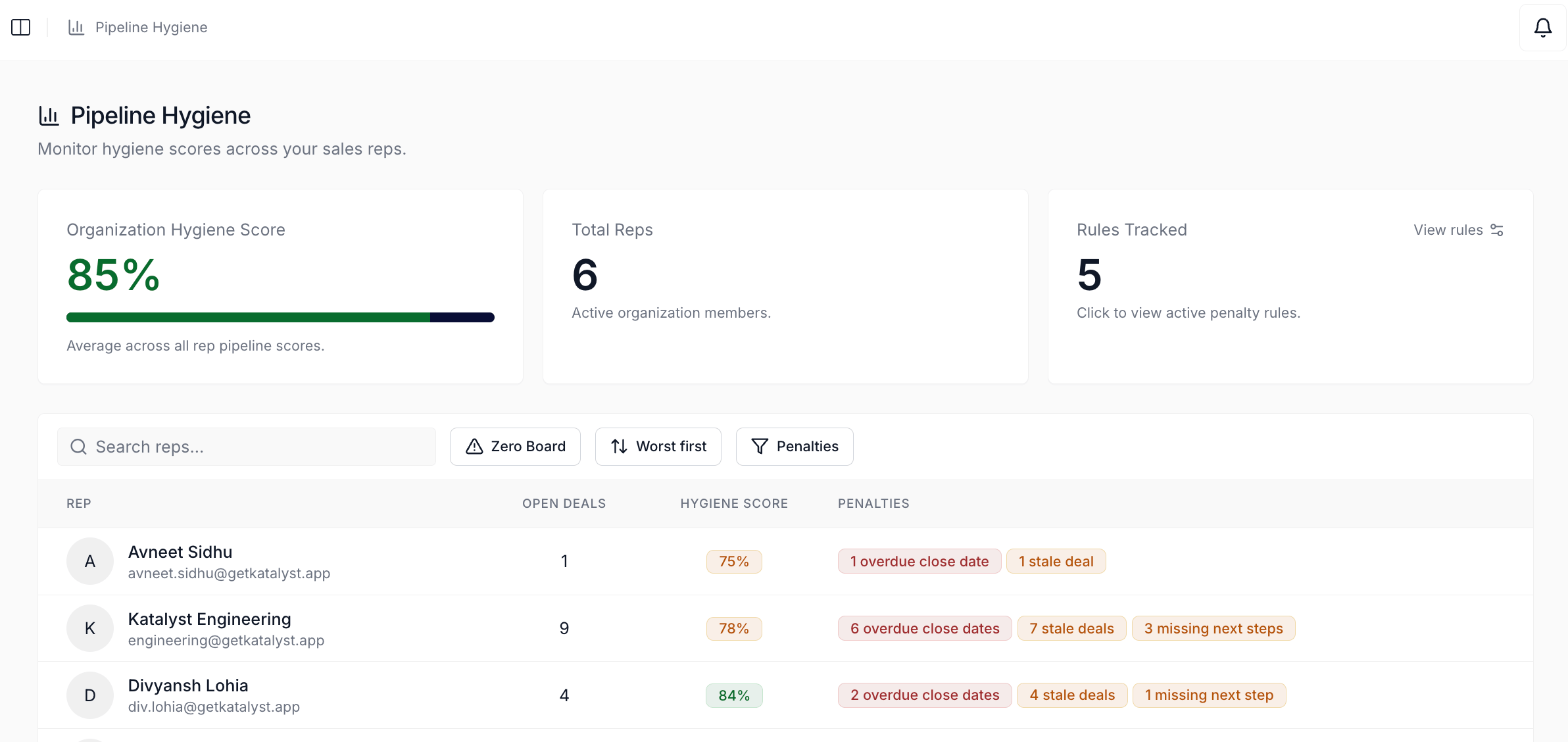
Pipeline Hygiene dashboard with the org KPI cards, the worst-first rep table, and the toolbar including the Zero Board toggle
March 30th, 2026
Signals essentials
Quality-of-life features that round out the global Signals feed: narrow the noise to the slice you care about, pivot from portfolio scan to deal-by-deal prep, and catch new signals the moment they land.- Filters : type, score band, date, status, owner, and sort, all URL-bound so any filtered view is a bookmark. The Type dropdown only offers categories that actually exist in your current view, so you never pick a filter that returns zero.
- Group by Opp : a one-click toggle that switches the feed from a flat chronological list into per-opportunity buckets, with the same signal card rendering in either mode. Useful right before a block of back-to-back deal prep.
- Real-time arrival : new signals appear at the top of the feed within seconds of being generated, no manual refresh, powered by a Supabase broadcast scoped to your owned opportunities.

Signals feed top bar: search, filter row, group toggle, and sort
Contacts
The home for every person in your book of business: a Salesforce-synced contacts table that sits alongside Accounts and Opportunities as the third top-level surface, where each row drills into a two-column research workspace per contact. What it is: A top-level Contacts tab listing every person in your CRM as a resizable, inline-editable table with bidirectional Salesforce sync. Email cells double as one-click entry points into a context-aware Draft Email modal, and any row drills into a two-column research workspace. How it helps: A rep with 300 synced contacts opens Contacts on a Monday morning between calls. She types two letters into the search box and lands on the person she has a meeting with in an hour. The contact’s Email cell shows up as a navy-styled button, she clicks it, the Draft Email modal opens already scoped to the account, and the rep sends a quick follow-up to last week’s thread before opening the detail page for the longer prep. Three minutes for what used to mean bouncing between Salesforce, Gmail, and a LinkedIn tab.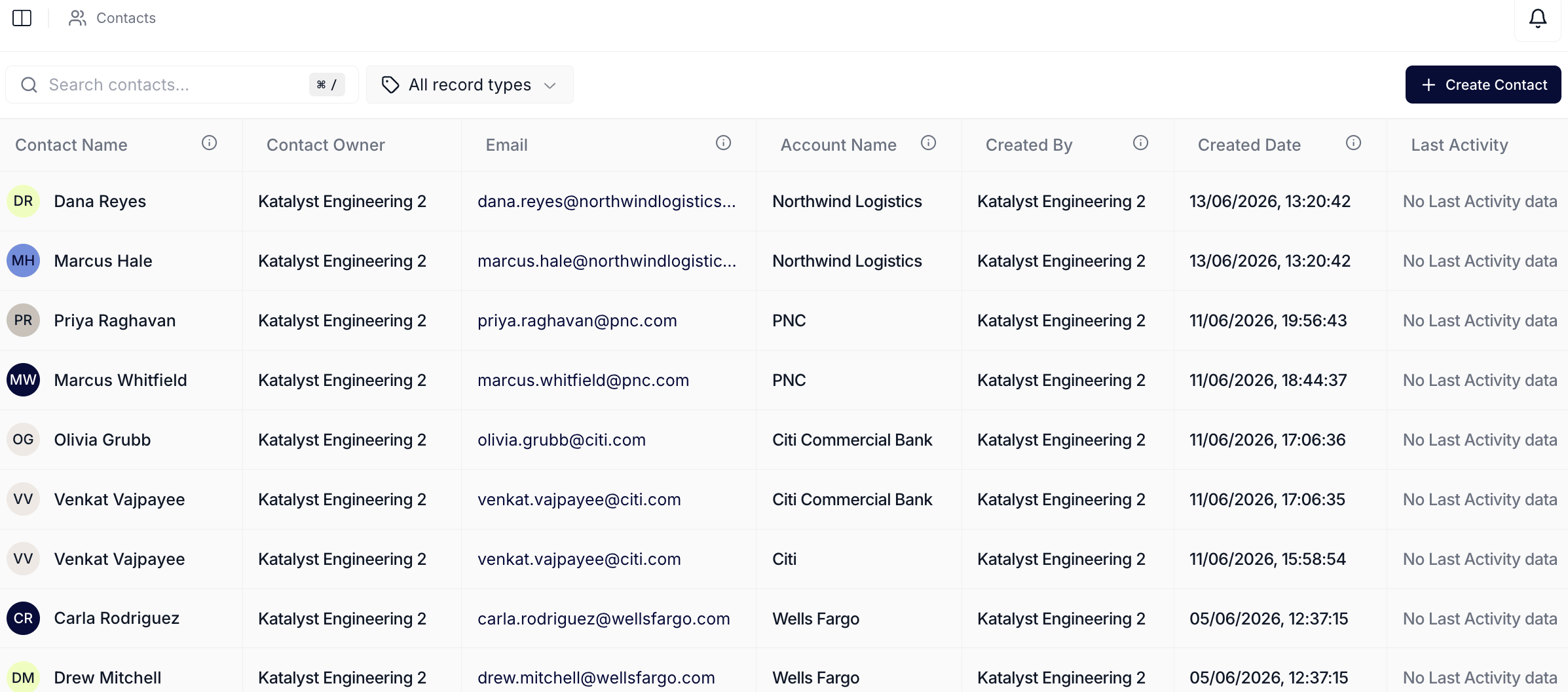
Contacts tab table view
March 23rd, 2026
Meeting detail
Land on every meeting with the whole record laid out: a workspace that pulls the summary, the speaker-attributed transcript, the Katalyst-proposed follow-up actions, and a meeting-scoped chat into one view, with the linked opportunity always one click away. What it is: The per-meeting workspace that opens from any meeting in the timeline. Upcoming meetings show the pre-brief and attendees; past meetings show the AI summary, the searchable transcript, the queue of AI-proposed follow-ups, and a meeting-scoped chat on the right. How it helps: A rep prepping for a Tuesday follow-up opens the previous week’s discovery call. The summary lands her on the Action Items section in two clicks via the section navigator; the transcript search jumps her to the exact moment the buyer named a budget cycle; Katalyst surfaces three drafted follow-ups, two field updates, and a task to schedule the security review, each with the AI’s reasoning inline. She accepts two drafts, rejects one, updates the Next Step, and asks the right-pane chat “did they confirm the security review?” without ever leaving the page. Twelve minutes from open to fully prepped, where the old workflow took half an hour across Gong, Salesforce, and her notes.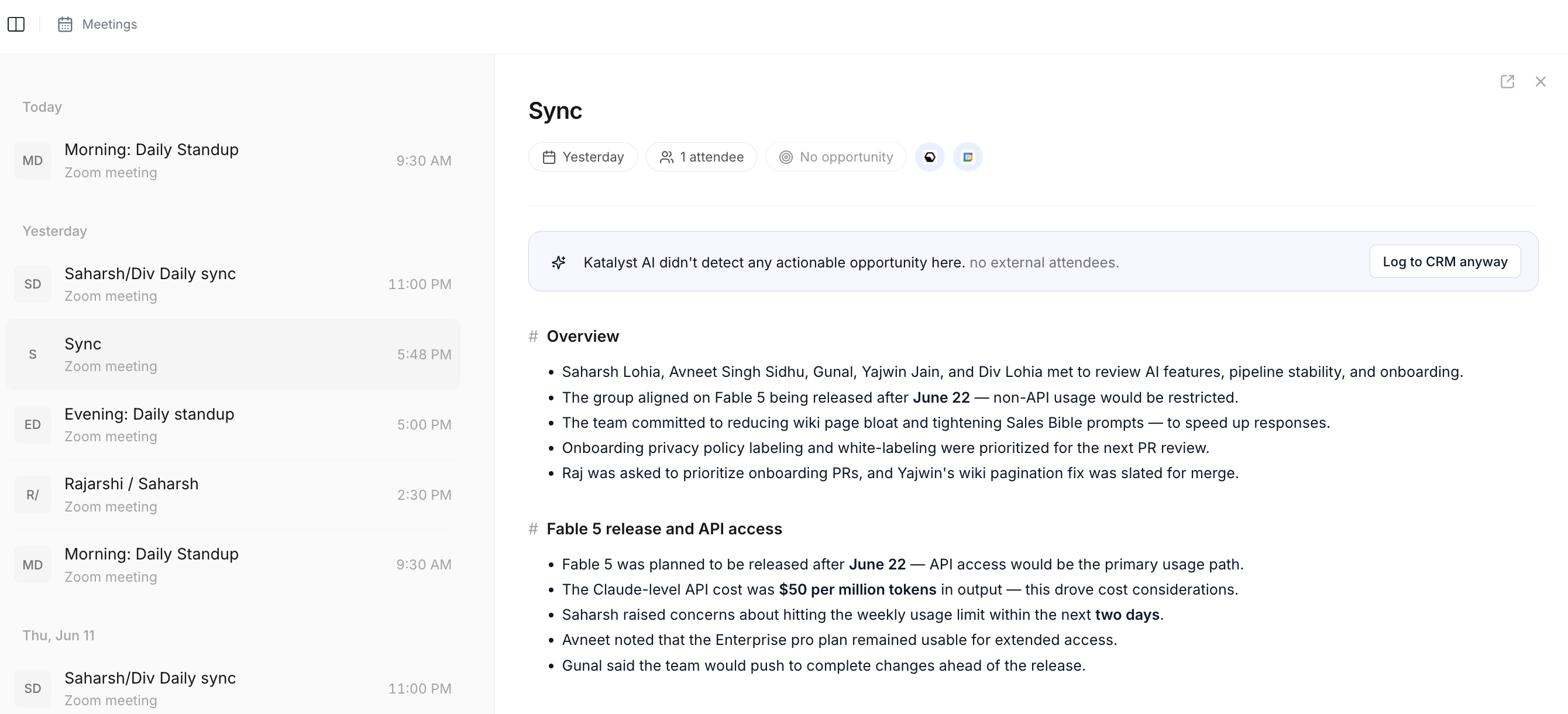
Meeting detail workspace with summary, transcript, recommendations, and chat
Per-record AI Chat
Stop re-establishing context every time you open a record: every account, opportunity, contact, and meeting carries its own AI chat scoped to that one record, with the full context already loaded. What it is: A record-scoped AI chat that lives on every detail surface in Katalyst: the Account detail, the Opportunity detail, the Contact detail, and the Meeting detail. Each chat reasons over the single record it is anchored to and keeps a per-record thread history, distinct from the global Home chat which spans the whole pipeline. How it helps: A rep covering 40 mid-market healthcare accounts is prepping for a 10 AM call with a Bank of America champion. She opens the account, asks the right-side chat “what changed on this account since last week,” gets a three-line diff with the new VP hire and the latest signal, then jumps into the linked opportunity and asks its left-column chat to draft an agenda referencing the security review the buyer raised. Two clicks later she opens the contact and asks its chat for the last objection the champion voiced on a call. Twelve minutes from cold open to a fully prepped call across three records, where the old loop meant a Salesforce tab, two Gong searches, and a notes-app scroll, each one requiring the rep to re-state who and what she was asking about.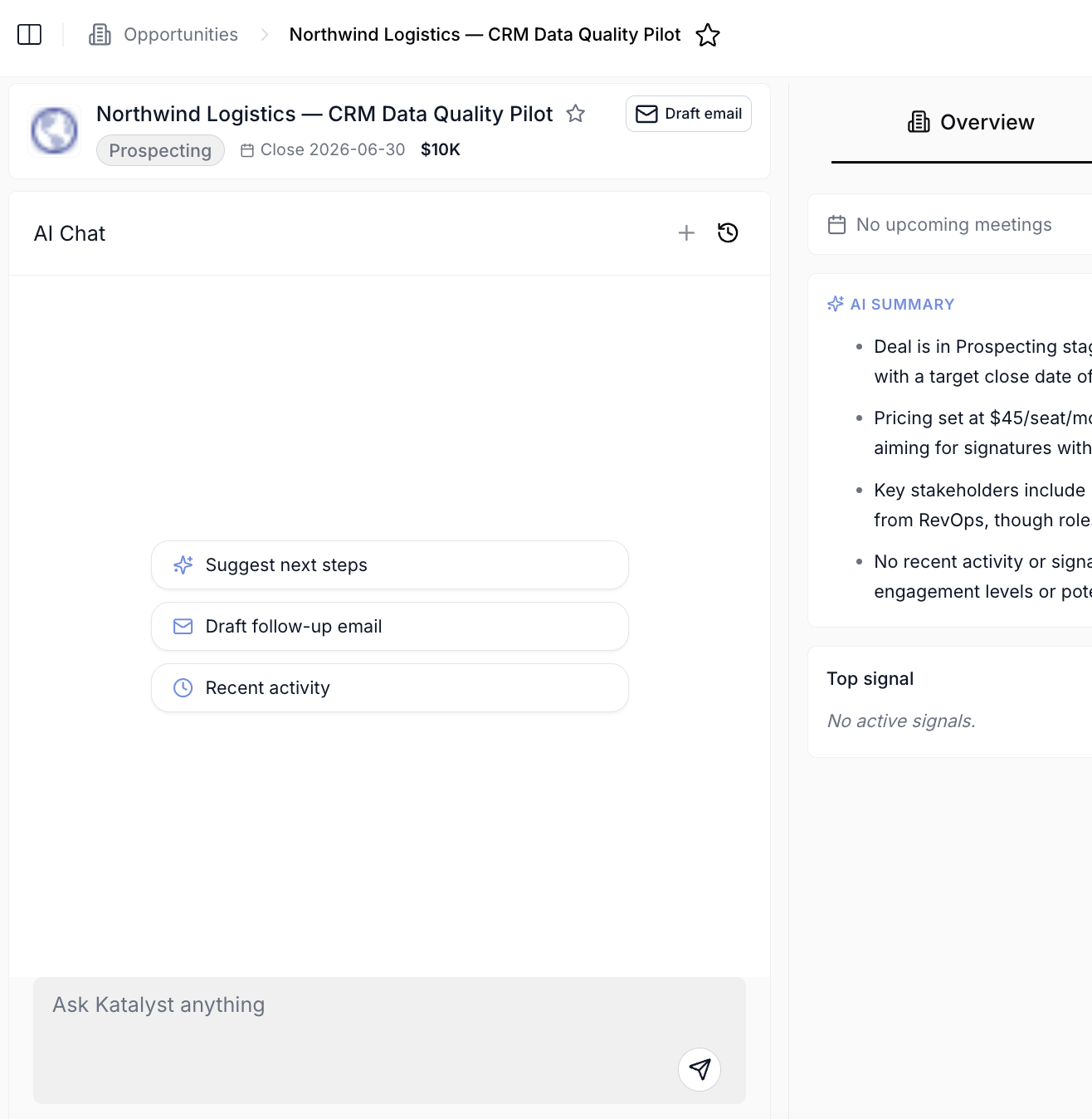
Per-record AI Chat across Account, Opportunity, Contact, and Meeting detail surfaces
March 16th, 2026
Per-account AI Chat
Ask anything about the account without leaving the page: a persistent AI chat scoped to each account, with full context on the company, people, signals, and your activity. What it is: A chat panel anchored to the right of every account detail view, persistent across sub-tabs and supporting multiple titled threads per account. It has visibility into the full account context and can take action: drafting emails, updating fields, kicking off enrichment. Suggested-question CTAs from other surfaces route into this chat directly. How it helps: A rep prepping for a meeting with Stephanie at Bank of America asks the chat, “What did Stephanie say about budget in our last call?” Within seconds she has the relevant transcript pull and a summary. Follow-up: “Draft a meeting agenda based on the strategic challenges we identified.” The chat doesn’t just answer, it produces the artifact, with the account’s full context already loaded.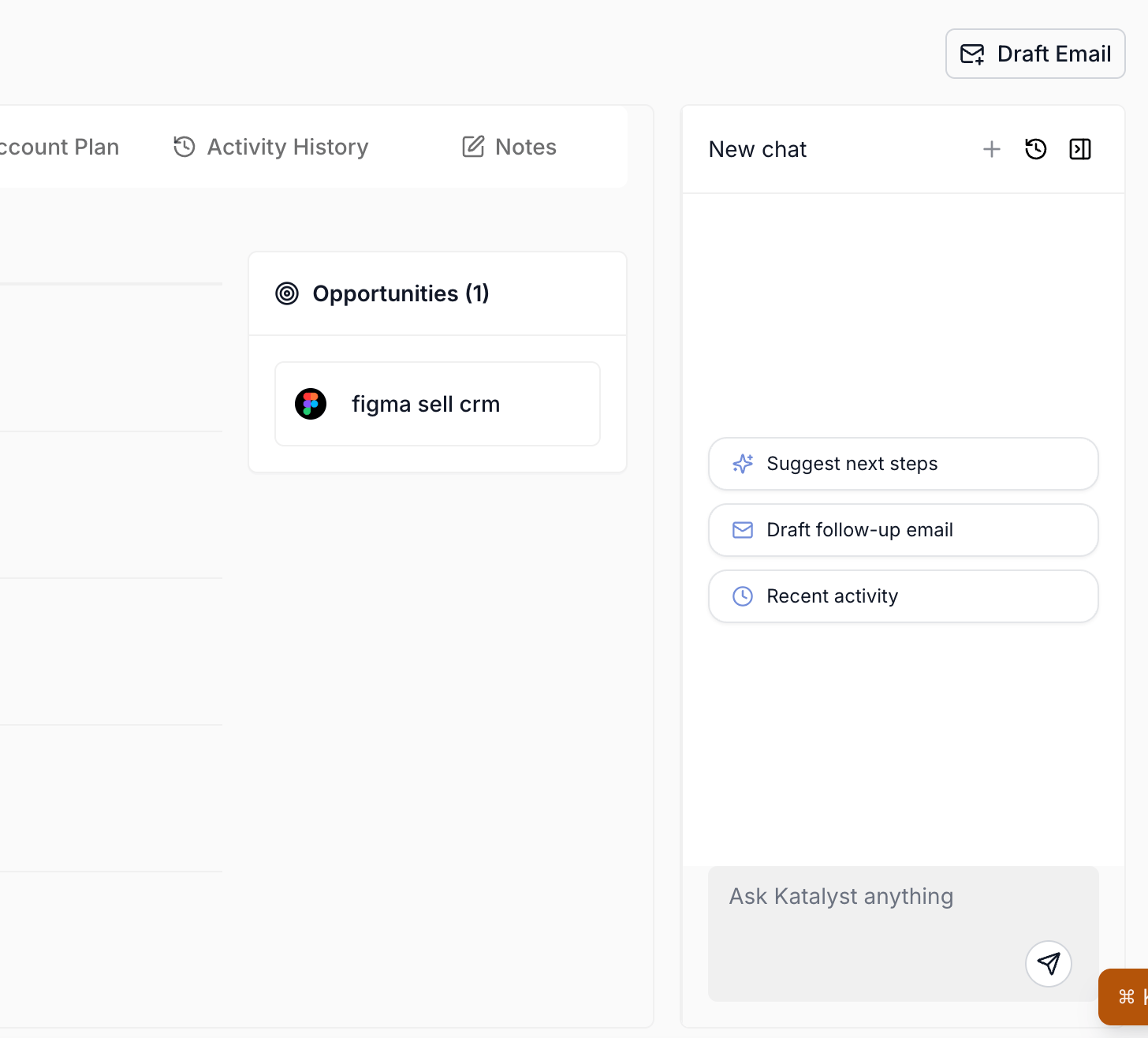
Per-account AI Chat panel with active thread
AI Enrich Row
Skip hours of manual CRM data entry: one click on the AI symbol next to any Account Name auto-fills missing fields from public and private sources, keeping your existing values intact. What it is: A per-row AI enrichment action in the Accounts table, triggered by the sparkle icon next to each Account Name. It pulls from public and private sources Katalyst is connected to, fills missing fields, and presents a preview before writing back to Salesforce. Existing values are never overwritten. Each run costs credits. How it helps: A rep imports 50 prospect accounts from a sales-conference attendee list. Without enrichment, she’d spend an afternoon Googling each for industry, annual revenue, and billing city. Instead, she clicks the AI symbol on each row, reviews the preview, and commits. Her manually-pasted fields stay untouched. The whole list is enriched in 15 minutes instead of three hours.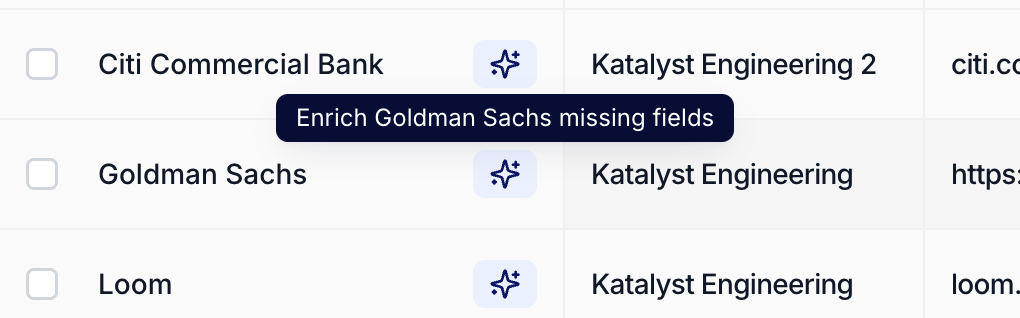
Per-row AI sparkle icon next to an Account Name
March 9th, 2026
Strategic Challenges
Move past surface-level account research: Katalyst’s most differentiated AI surface produces 2 to 3 strategic challenges per account, framed in your org’s value prop and wired for one-click outreach. What it is: A section in the Account Plan that surfaces 2 to 3 strategic challenges per account, generated by the masterGenerate account plan action. Each challenge card frames urgency, maps the challenge to your org’s specific capabilities (drawn from Agent Tuning), and projects business impact. One-click action paths let the AE draft outreach, sharpen their pitch, or anticipate pushback for that challenge.
How it helps: A rep covering Bank of America runs the plan and gets back a challenge titled “Maintaining Competitive Advantage in Large-Scale Corporate Sales.” The card frames urgency, names her company’s exact capabilities that address it, and projects the business impact. One click and she has a tailored outreach draft pre-filled with the challenge context, saved to Gmail drafts. Under a minute from research to ready-to-send.
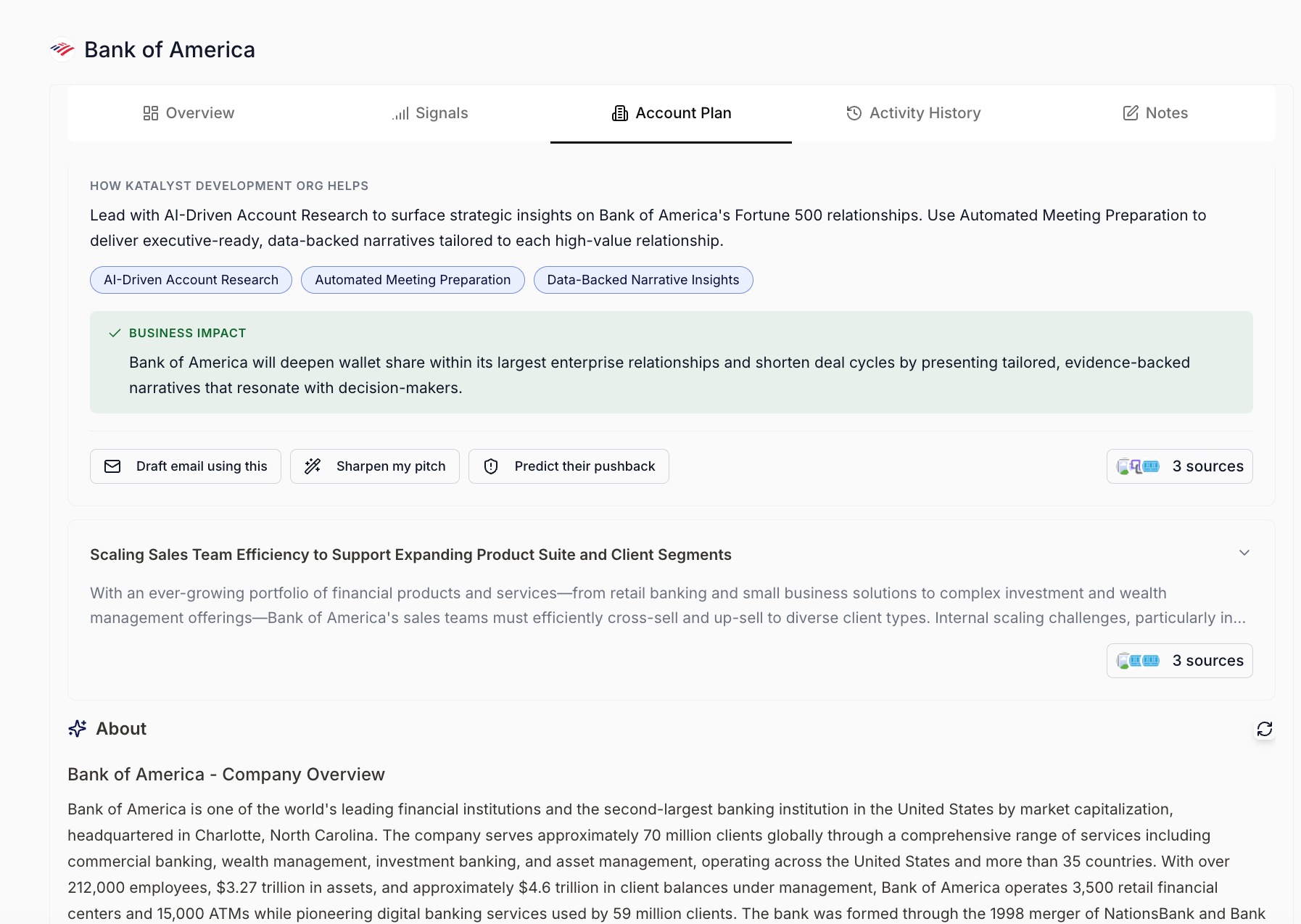
Single expanded Strategic Challenge card
Signals (per-account)
Never miss a deal-moving event at an account: an AI feed of every external signal (hiring, funding, leadership change, 10-K, acquisition, and more) relevant to the account, scored by importance. What it is: A sub-tab inside the account detail view that surfaces signals: AI-generated alerts about external events at the account, drawn from public news, filings, hiring posts, and similar sources. Each signal carries a relevance score, a type tag, an AI-written summary, and a one-line statement of why it matters. Scoped to all opportunities linked to this account, this view is the per-account slice of the global Signals feed. How it helps: A rep checks Signals on Bank of America before a Tuesday meeting and finds a recent hiring signal: they’re staffing a GenAI team. The relevance line tells her this is a potential conversation hook on AI initiatives. She opens the meeting with timely context the prospect knows is real. The next deal-moving event surfaces itself rather than waiting for her to Google.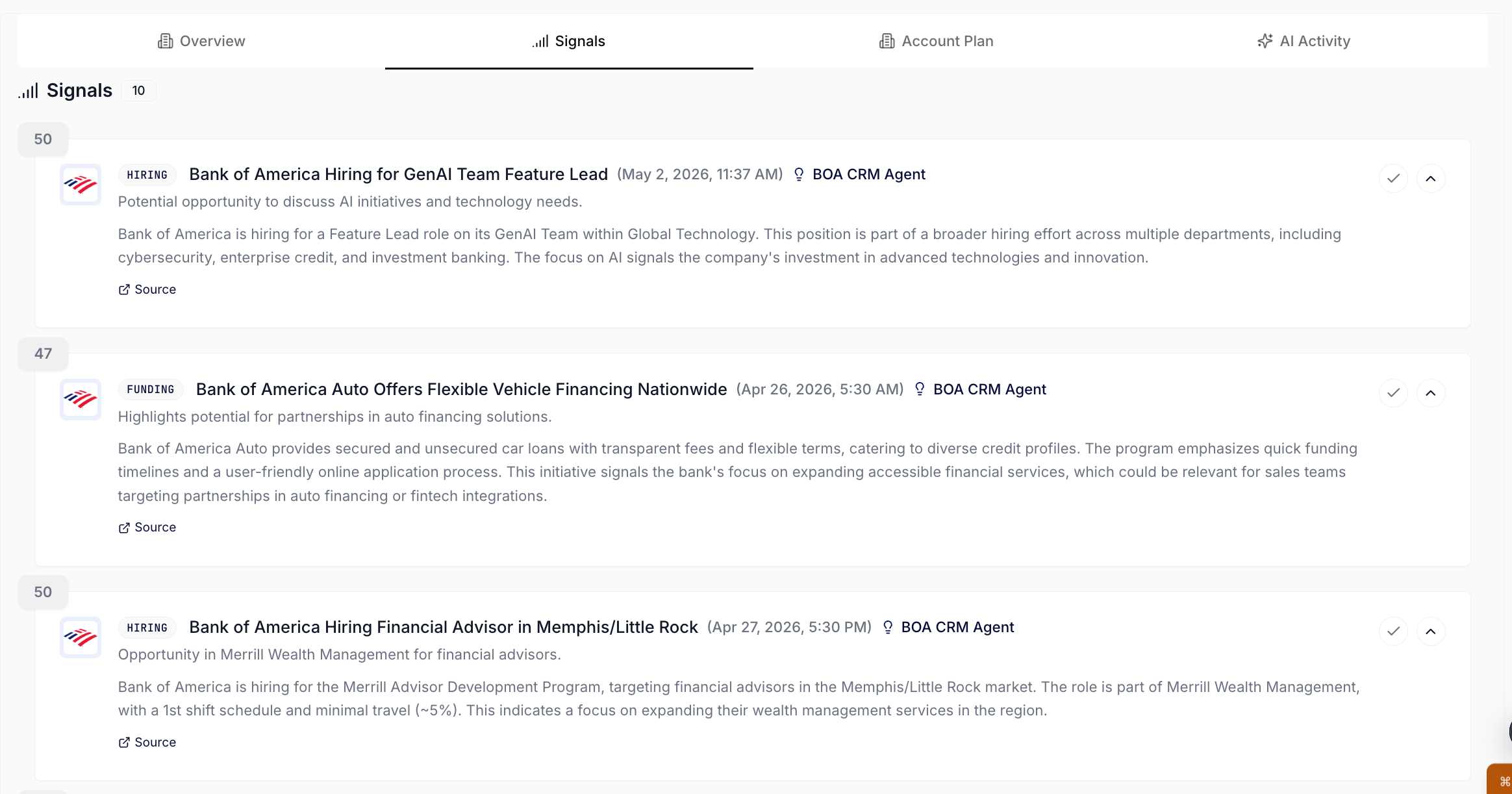
Per-account Signals sub-tab, populated
Account Plan
Stop spending afternoons researching accounts: a single sub-tab where Katalyst generates a complete, customer-segmented plan with one click, anchored to your org’s value proposition. What it is: A sub-tab inside the account detail view that produces an AI-generated account plan. The master generate action populates four research sections (About, Industry, Competitors, Products and Services) consolidated from public sources, plus an at-a-glance snapshot card (fit rating, ARR, headline products and competitors) and a set of strategic challenges personalized to your org’s positioning. Individual sections can be refreshed independently if you only want to update one piece. How it helps: A rep needs to walk into a discovery with Bank of America in an hour. Instead of Googling “Bank of America competitors” and stitching together notes, she opens the account, clicksGenerate account plan, and gets back a structured research brief plus three strategic challenges framed in her company’s positioning. Reading time: five minutes. What used to be an afternoon of research is now a coffee break.
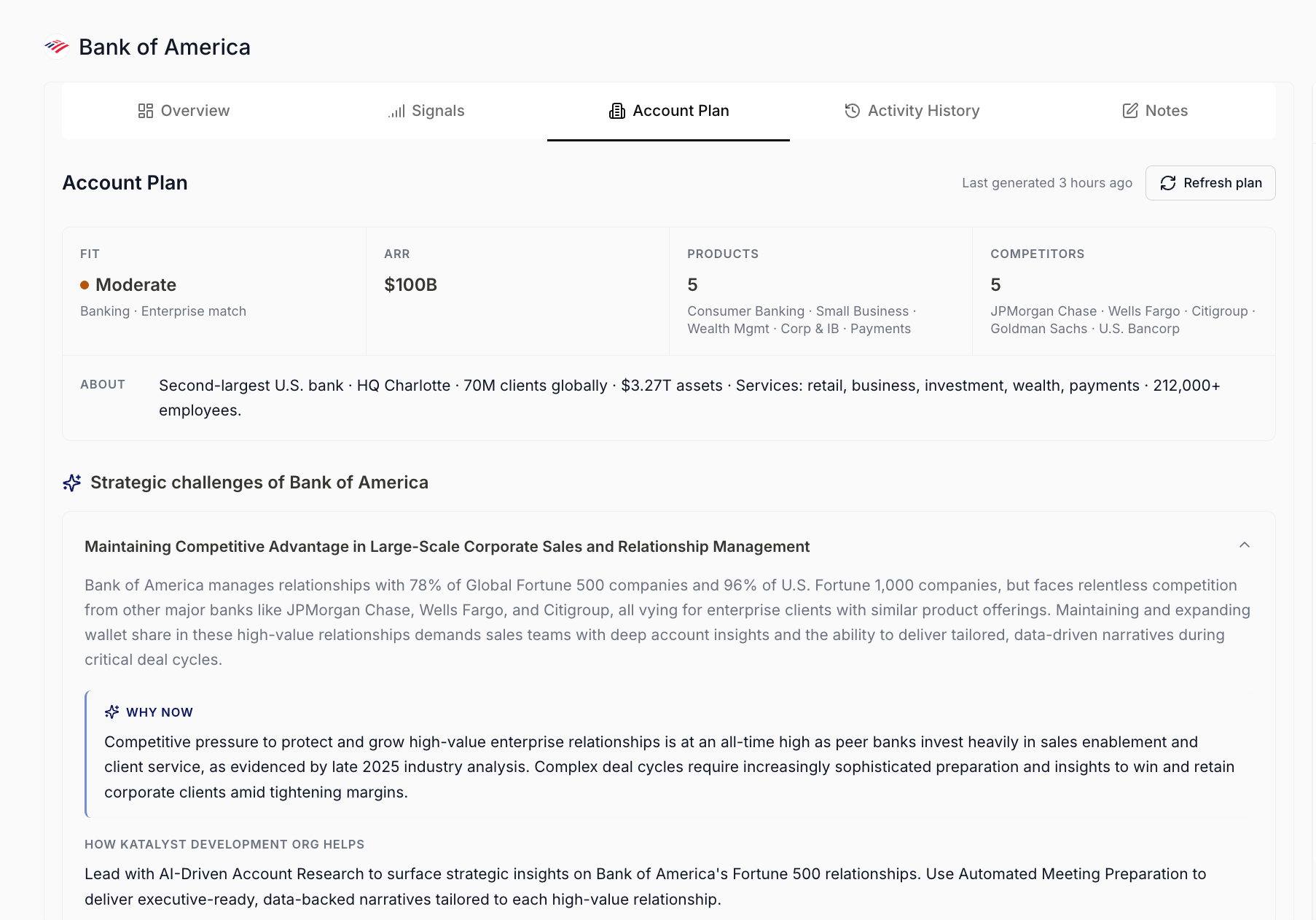
Account Plan populated state, top portion
March 2nd, 2026
Activity History
Trust the autonomous layer: a per-account audit log of every action AI has taken on your behalf, with one-click accept or reject on anything that’s still pending. What it is: An audit log sub-tab inside the account detail view. It surfaces every action AI has performed for this account, filterable by activity type and date range. Pending recommendations awaiting your accept or reject show up alongside completed actions, so you can see and steer everything in one place. Rejected items move to a separate bucket; the active list stays clean. How it helps: A rep comes back from a week off and opens her top account. Instead of guessing what’s changed, she scrolls Activity History and sees every CRM update, email draft, and suggestion AI generated while she was out. She accepts the drafts that read well, rejects the ones she’d handle differently, and trusts that nothing went out without her review. Five minutes, fully caught up.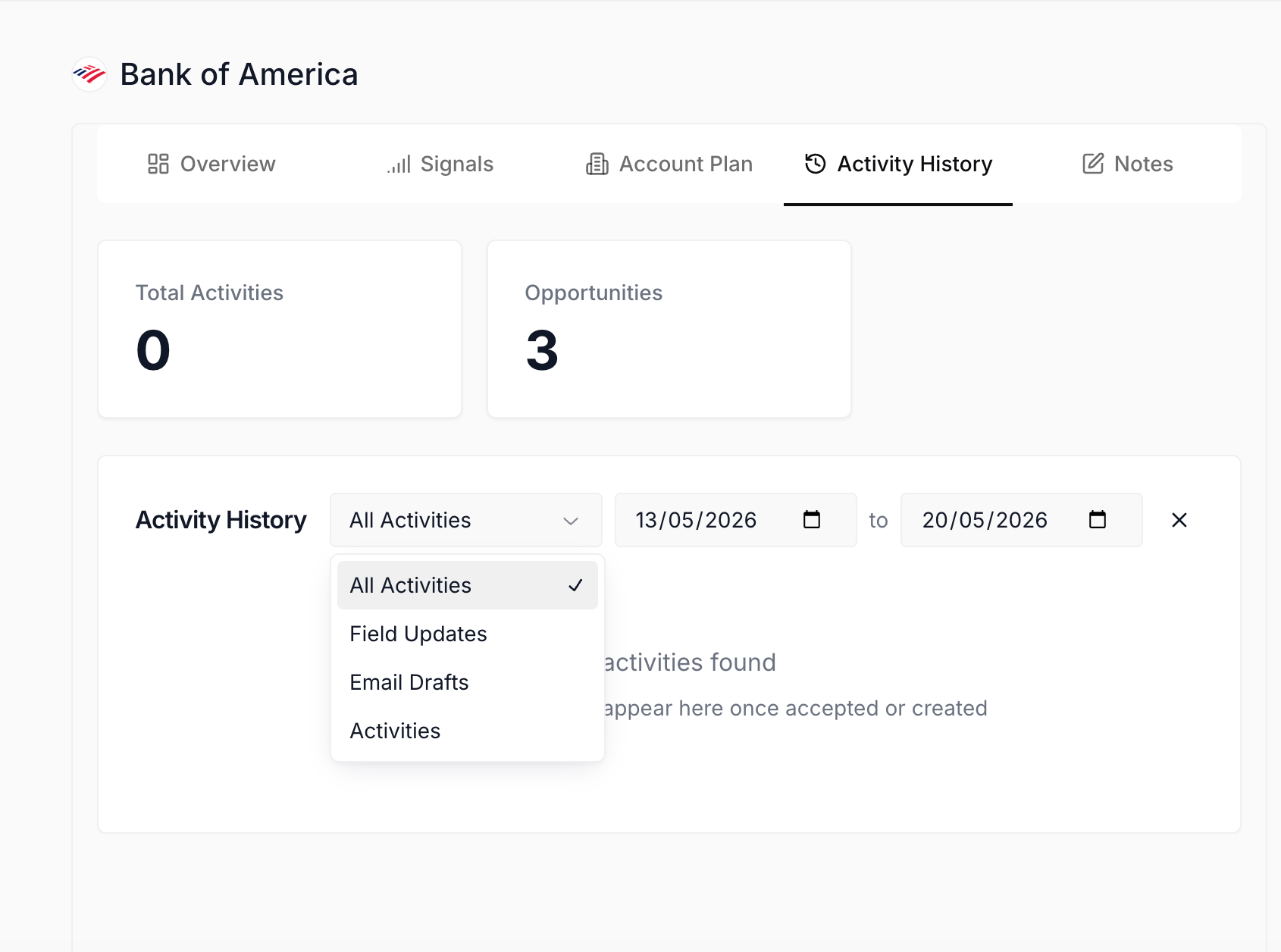
Activity History sub-tab
Update Field Instructions
Tune the AI’s data-pulling behavior at the column level: a per-column prompt editor that lets you control exactly how Katalyst enriches each field across every account in your table. What it is: Click any column header in the Accounts table to open the Update Field Instructions modal. Inside, you can edit the natural-language prompt that AI uses when enriching that column for any account. Prompts support template variables (currently{{company}}) so they apply consistently across rows. Editing an instruction triggers re-enrichment of every existing row in addition to applying to future runs. An empty instruction falls back to the default.
How it helps: A sales lead wants the Industry column to always be specific to vertical, not just broad sector. She clicks the Industry column header, opens Update Field Instructions, and rewrites the prompt: “Return the specific vertical the company operates in, e.g. ‘Mid-Market Healthcare SaaS,’ not broad sector labels like ‘Healthcare.’” The change re-enriches all 200 accounts in her table to the new specificity. The AI does the column’s work the way she actually wants it done.
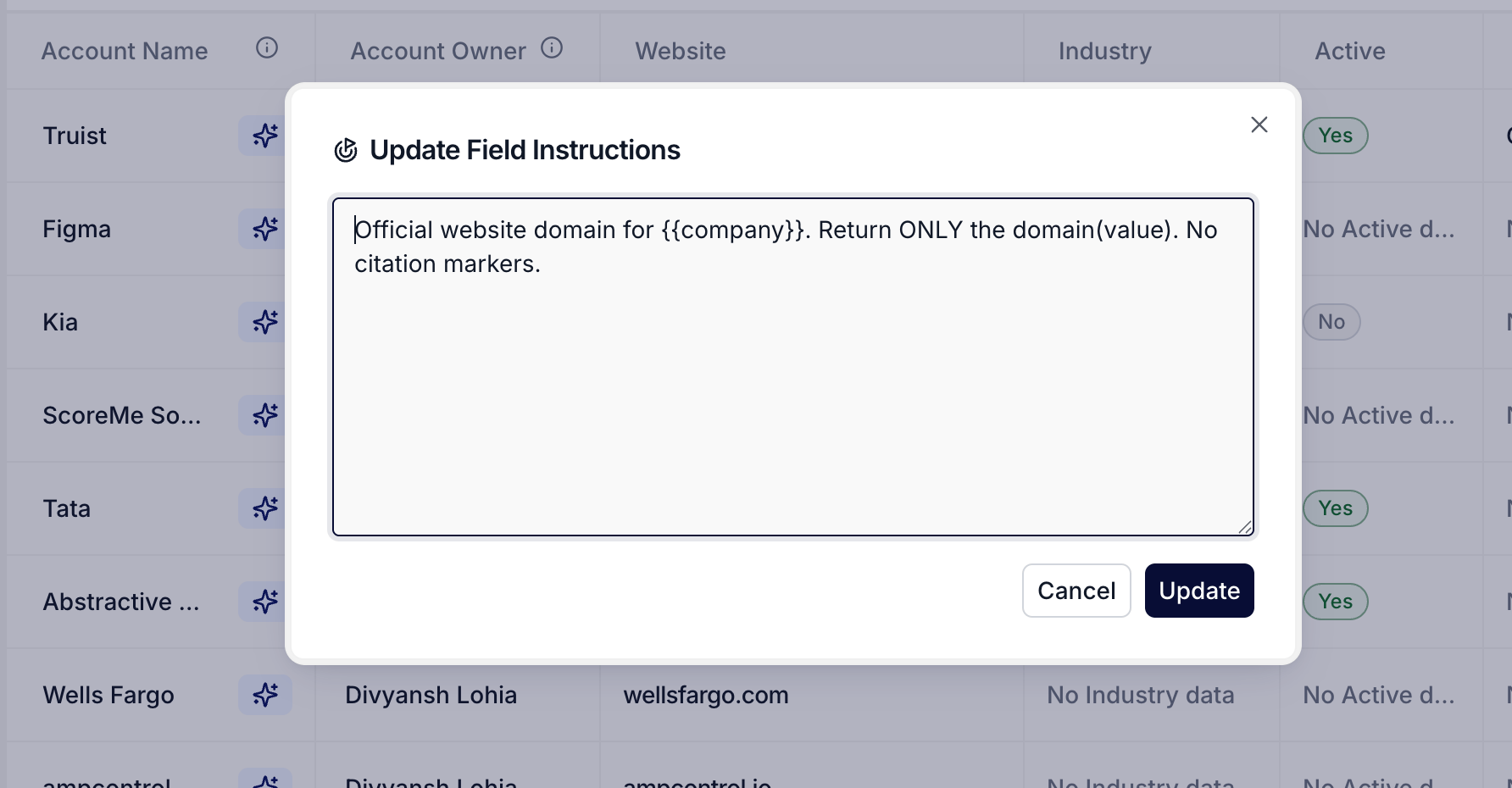
Update Field Instructions modal
February 23rd, 2026
Key People
Know exactly who’s in the buying committee for every deal: per-opportunity contact tables auto-populated from connected sources, so AEs walk into every meeting knowing who matters. What it is: A section inside the Account Overview that lists people tagged to this account, grouped by linked opportunity. Each opportunity gets its own contact table with role and department mapped. Sources combine Salesforce contacts, third-party enrichment, and any contacts the AE has manually added. How it helps: A rep covering Figma has three opportunities across the account. Without Key People, she’d dig through Salesforce, email threads, and LinkedIn to identify each deal’s buying committee. With Key People, she opens the account once and sees all three committees with role context for every contact. She knows who to engage on each deal without leaving the page.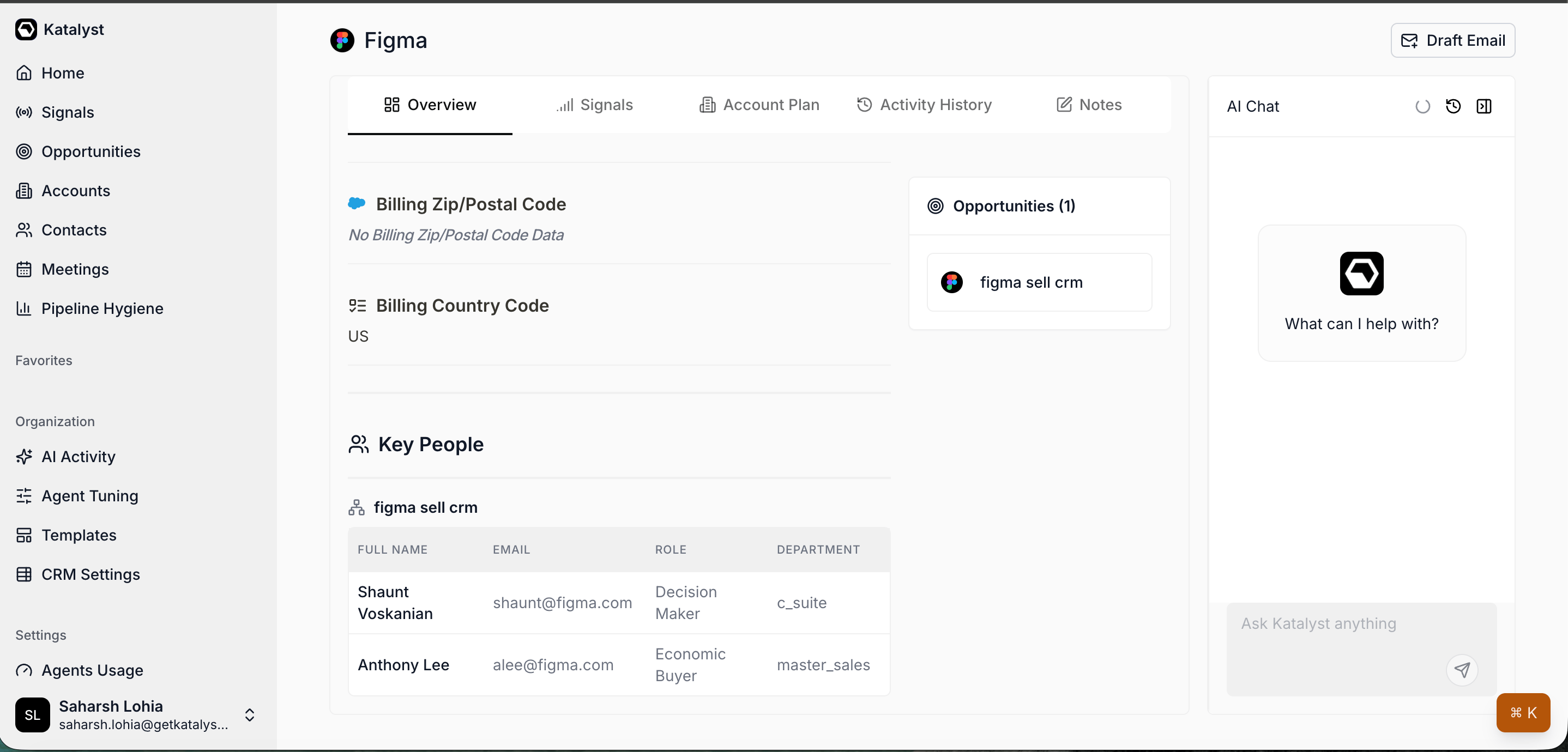
Key People section in Account Overview, grouped by opportunity
Accounts
The home for every account in your book of business: a Salesforce-synced table where each row drills into a deep per-account workspace that consolidates research, signals, planning, and activity. What it is: A top-level tab that lists every account in your CRM as a sortable table, with bi-directional Salesforce sync so edits flow in either direction. Clicking any account opens a detail view organized into five purposeful sub-tabs plus a persistent per-account AI chat. The whole surface is built so AEs can replace the patchwork of Google Docs, scattered CRM notes, and LinkedIn tabs with one consolidated workspace. How it helps: A rep covering 50 mid-market accounts opens Katalyst on Monday morning. Instead of bouncing between Salesforce, her notes folder, and LinkedIn to remind herself what’s happening on each deal, she opens the Accounts tab, scans the table to pick a target, and drills in. Within that single account view she finds the company’s profile, who matters in the buying committee, what’s new at the company this week, the strategic story for her pitch, and anything the AI has done on her behalf, all without leaving the page.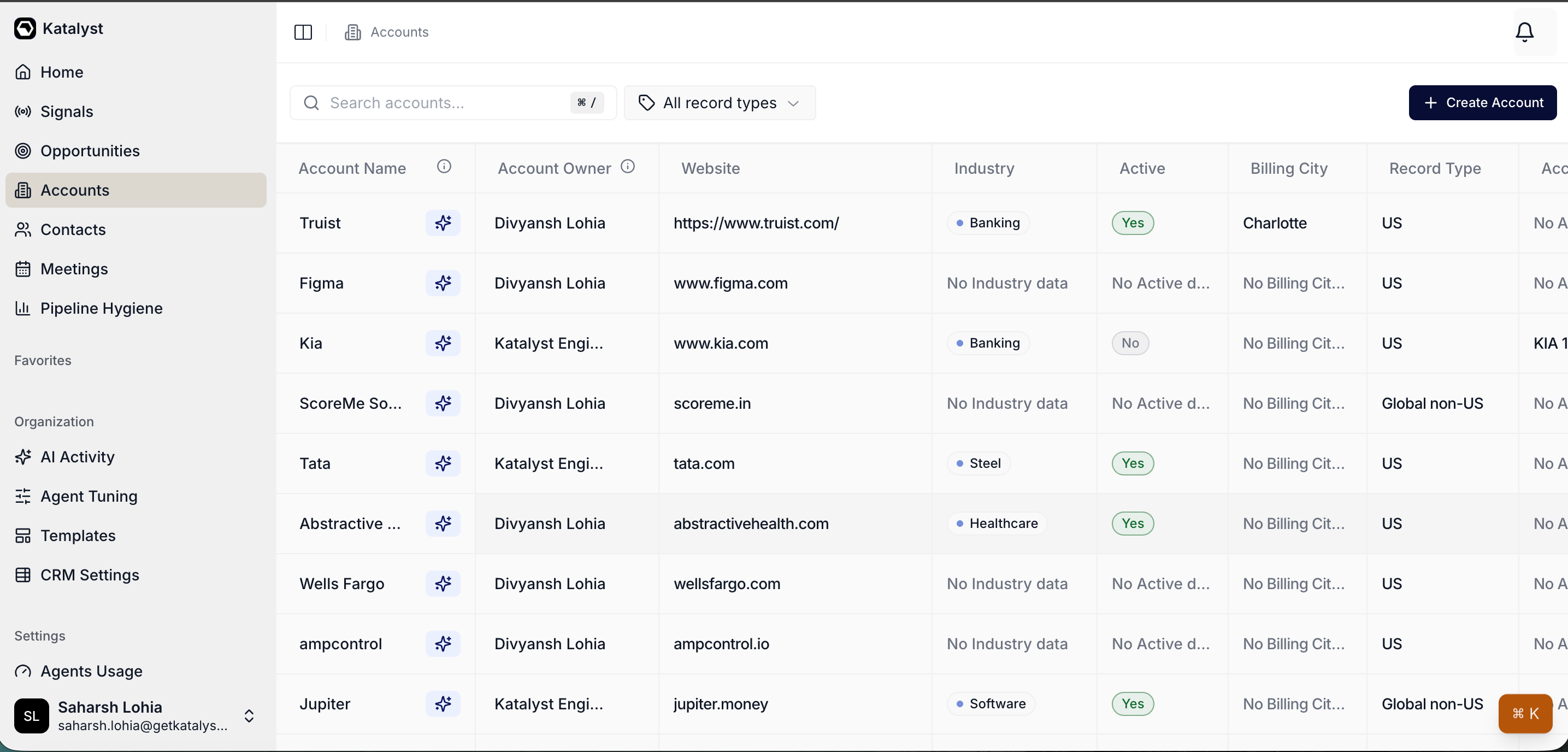
Accounts tab table view
February 16th, 2026
Opportunity detail
Run every deal-moving thought in one place: a three-column workspace that puts an AI canvas, the deal’s activity, and its CRM properties side by side, so research, prep, and write-back all happen without changing screens. What it is: The per-deal page that opens from any opportunity. The Overview surface is a three-column workspace: AI chat canvas on the left, deal context (AI summary, activity, linked meetings, top signal) in the center, editable Salesforce properties + contacts + AI columns on the right. Signals, Account Plan, and AI Activity sub-tabs sit alongside Overview. How it helps: A rep prepping a Tuesday meeting opens the deal at 8:30 AM. The AI overview in the center column tells her where the buying committee landed last week; the activity log shows the late-Friday email she missed; the right-column contacts panel surfaces two suggested adds from a recent signal. She asks the left-column chat to draft an agenda, accepts the AI’s proposed next step from the action stack, and updates the Next Step field in the properties panel without switching tabs. Fifteen minutes from open to a fully-prepped meeting that used to take an hour across Salesforce, Gmail, and her notes.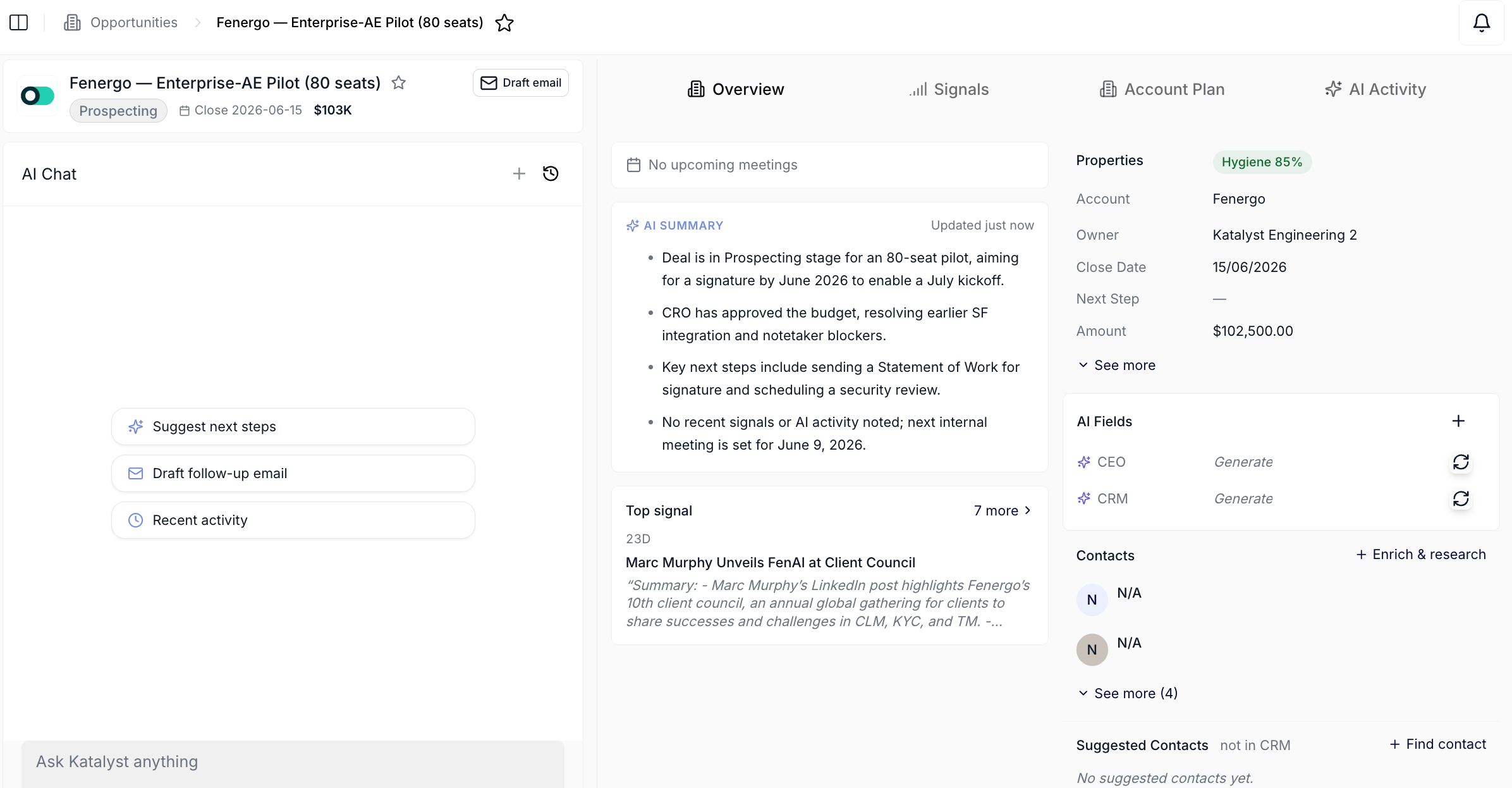
Opportunity detail three-column Overview
Manage Team
Run your team’s roster from one page without leaving Katalyst: an admin and manager surface that lists current members, lists pending invitations, exposes inline role changes, and walks every new invite through the one Salesforce permission Katalyst can’t toggle on the invitee’s behalf. What it is: A Settings page gated to admins and managers with two tables (current members + pending invitations), inline role selects, and a two-step invite flow whose first step is a Salesforce permission walkthrough. Role and removal mutations mirror-write to Clerk and Supabase so every downstream surface stays consistent. How it helps: A sales manager onboarding a new pod of three reps opens Manage Team on a Monday morning and clicks Invite Member. The Before You Invite dialog reminds her to flip the Approve Uninstalled Connected Apps permission in Salesforce for each new rep, with a fallback flow for orgs that manage permissions via permission sets. She steps through, lands on the invite form, picks Member as the role, and sends the first invitation. Two minutes later the row appears in the Pending Invitations table. By the end of the morning all three are queued, the pending table reads 3, and the new reps will land in Katalyst already cleared to complete the Salesforce OAuth on their first sign-in. Without the pre-invite walkthrough the same loop would have meant a separate Slack reminder, a missed permission, and the new rep stuck on the Connectors page on day one.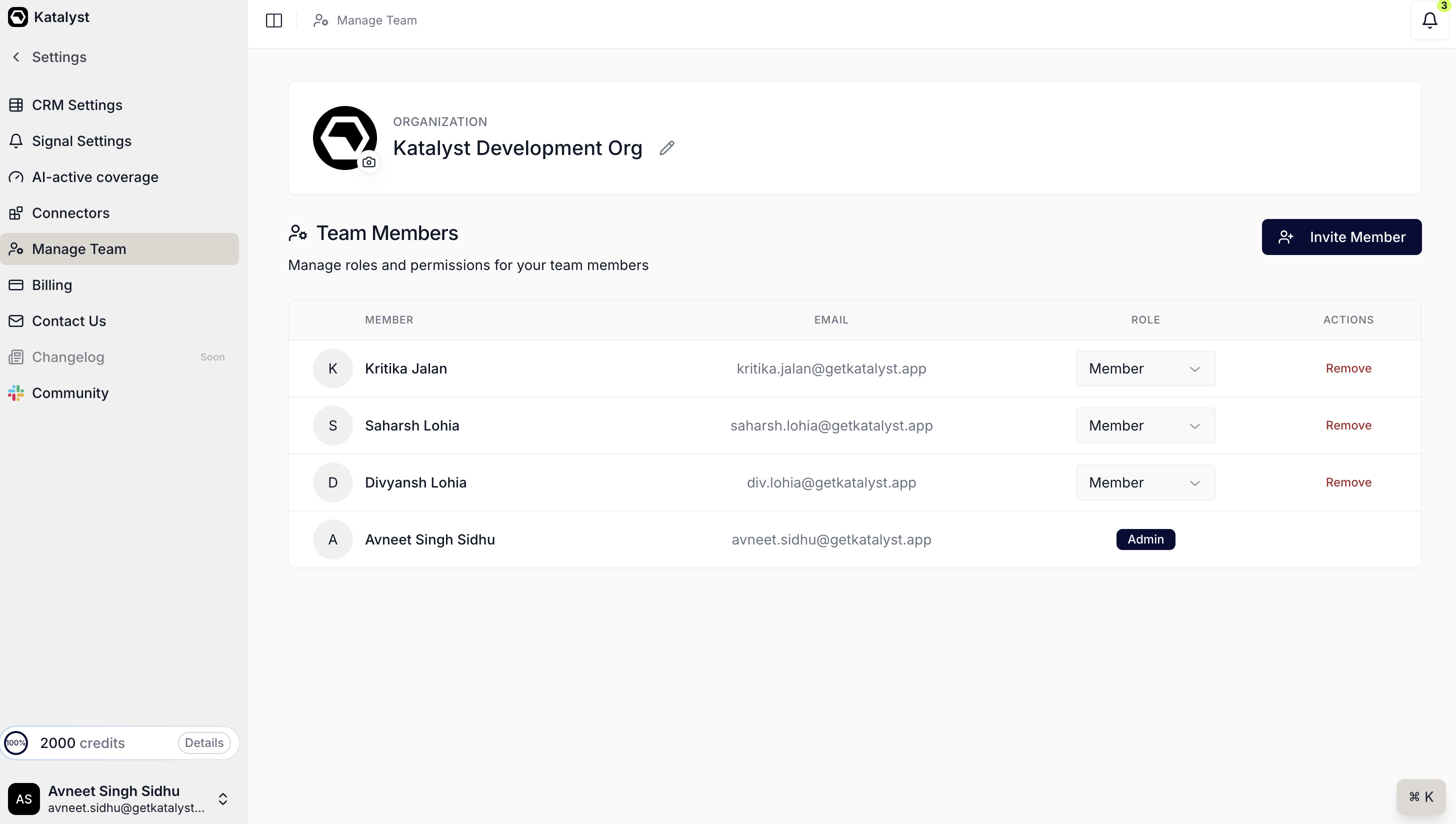
The Manage Team page with the roster, inline role selects, and the Invite Member entry point
February 9th, 2026
AI Suggestions
Skip the manual CRM upkeep that breaks your selling rhythm: an agent reads every email, meeting, and signal on a record and proposes the field updates, with a volt-lime outline on each cell so you can accept or reject in a single pass. What it is: A per-row AI field-update layer that lives on the Opportunities and Accounts tables. Cells eligible for a pending update render with a volt-lime outline, and a row checkbox plus a bulk action bar let you accept or reject individually or across every selected row. How it helps: A rep covering 80 active deals opens her pipeline on a Monday morning after a heavy week of customer meetings. Twelve rows carry the volt-lime outline: a refined Next Step on five Negotiation deals, an updated champion contact on three Discovery deals, and revised close dates on four where the buying committee slipped a week. She clicks Select all suggested, scans the proposed values inline, accepts the nine that read right, and rejects the three she would phrase differently. Three minutes for what used to be a Sunday-evening Salesforce cleanup, and every accepted value round-trips to Salesforce before she scrolls to the next view.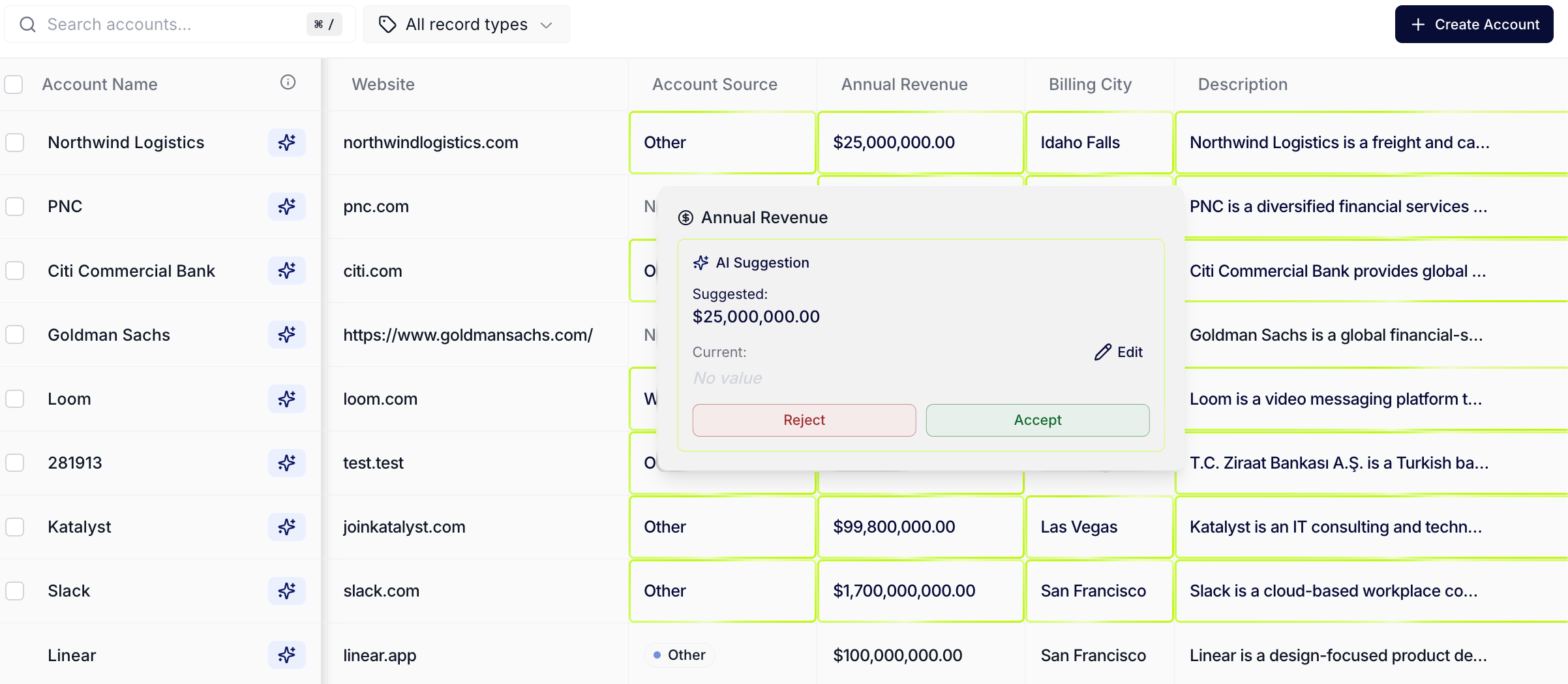
Volt-lime-outlined AI Suggestions across a pipeline view
AI Activity
Trace every CRM write the agent touched in one filterable log: a dedicated org tab that aggregates every AI-proposed field update, drafted email, logged activity, and account enrichment across the team’s whole book into one searchable table with a per-row reasoning dialog. What it is: A dedicated tab listing every AI-assisted CRM action across the org, with scope, action-type, provider, and date-range filters above the table. Each row carries a status badge and a View affordance that opens an action-shape-specific detail dialog. How it helps: A sales-ops admin running a Friday audit on a 30-rep org opens AI Activity, leaves the date range at the default last seven days, and switches the scope dropdown to All Opportunities. The table loads 412 rows. She filters action type to Field Updates and reads down the Status column: 287 accepted, 94 pending in the queue, 31 rejected. She clicks View on a rejected row covering the Bank of America Negotiation deal, reads the proposed close-date shift from October 14 to November 4 alongside the agent’s reasoning (a procurement-lead email referenced a finance review), and confirms the rejection was right. Six minutes to a defensible answer for the quarterly compliance review, where the old loop meant a Salesforce report definition, a Slack thread with the rep, and a guess at what the AI was even allowed to do.February 2nd, 2026
Notification Channels
Never miss a deal-moving signal: route Signals to Slack, email, or in-app, so leadership changes, filings, and acquisitions reach you the moment they happen. What it is: A panel inside Signals Settings that lets AEs choose where Katalyst delivers Signals. Three independent channels are available: Slack (requires the Slack connector), email, and in-app, each as a toggle, in any combination. How it helps: A rep covering Bank of America has Slack notifications turned on. At 9:32 AM, Katalyst detects her champion just got promoted to SVP of Commercial Banking. A Slack DM lands seconds later; she sees it on a coffee break, fires off a congratulatory note from a template, and books a strategic call by end of day. Without channel routing, that signal sits in Katalyst until her next login, by which point a competitor’s BDR has already reached out.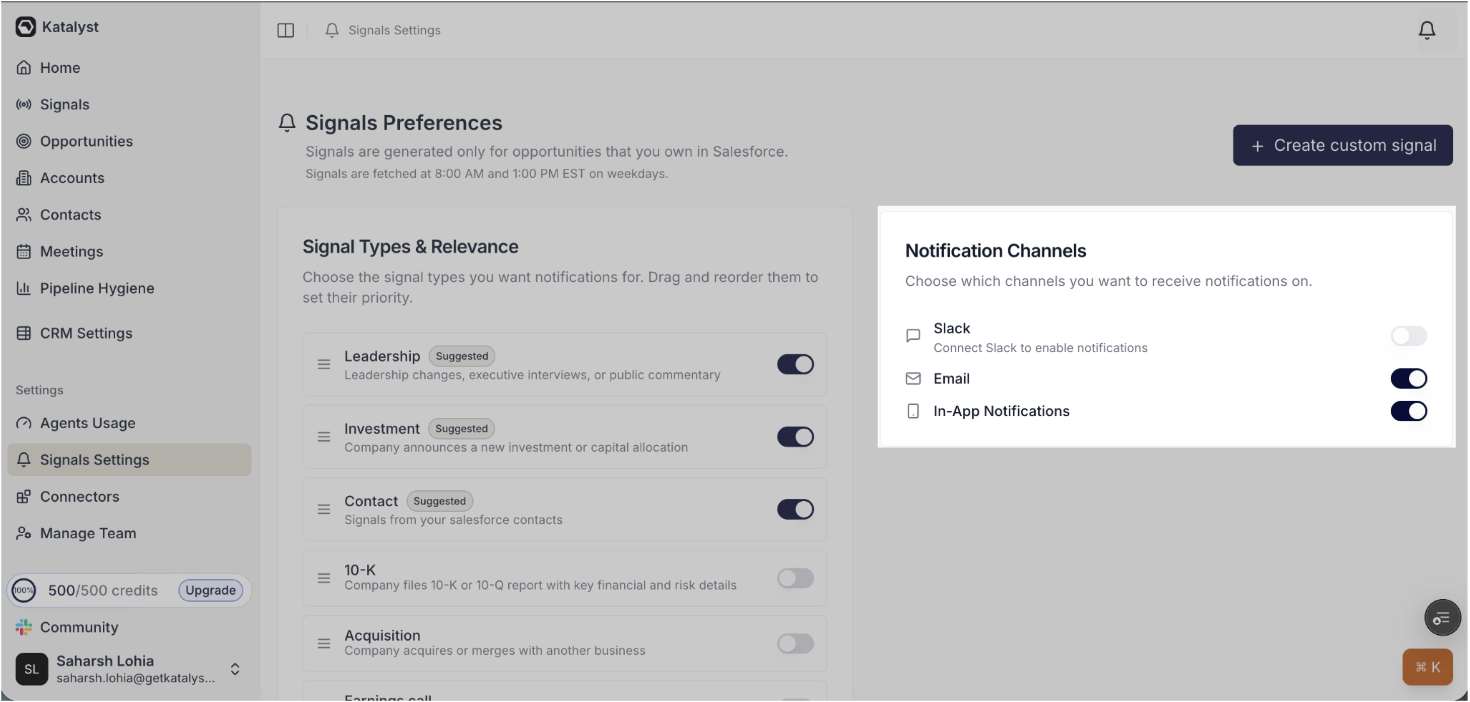
Signals Settings → Notification Channels
Signal Types & Relevance
Cut the noise: pick up to 6 signal types and drag to set their priority, so only the alerts that matter reach you. What it is: A section in Signals Settings where AEs curate which categories of external events generate Signals, and in what priority order. Up to 6 types can be enabled; the list order is the priority. Available types include:- Leadership : leadership changes, executive interviews, or public commentary.
- Investment : company announces a new investment or capital allocation.
- Contact : signals from your Salesforce contacts.
- 10-K : company files a 10-K or 10-Q report with key financial and risk details.
- Acquisition : company acquires or merges with another business.
- Earnings call : company discusses quarterly or annual results in an earnings call.
- Expansion : company expands to a new region, office, or market segment.
- Funding : company raises new funding or completes a merger / acquisition round.
- Hiring : company announces hiring for senior or strategic roles.
- Legal : company involved in a new lawsuit, settlement, or legal proceeding.
- New product : company launches a new product or service offering.
- Partnership : company forms a new strategic or technology partnership.
- Recognition : company or executives receive an award or recognition.
- Security : company faces or reports a cybersecurity or data-related event.
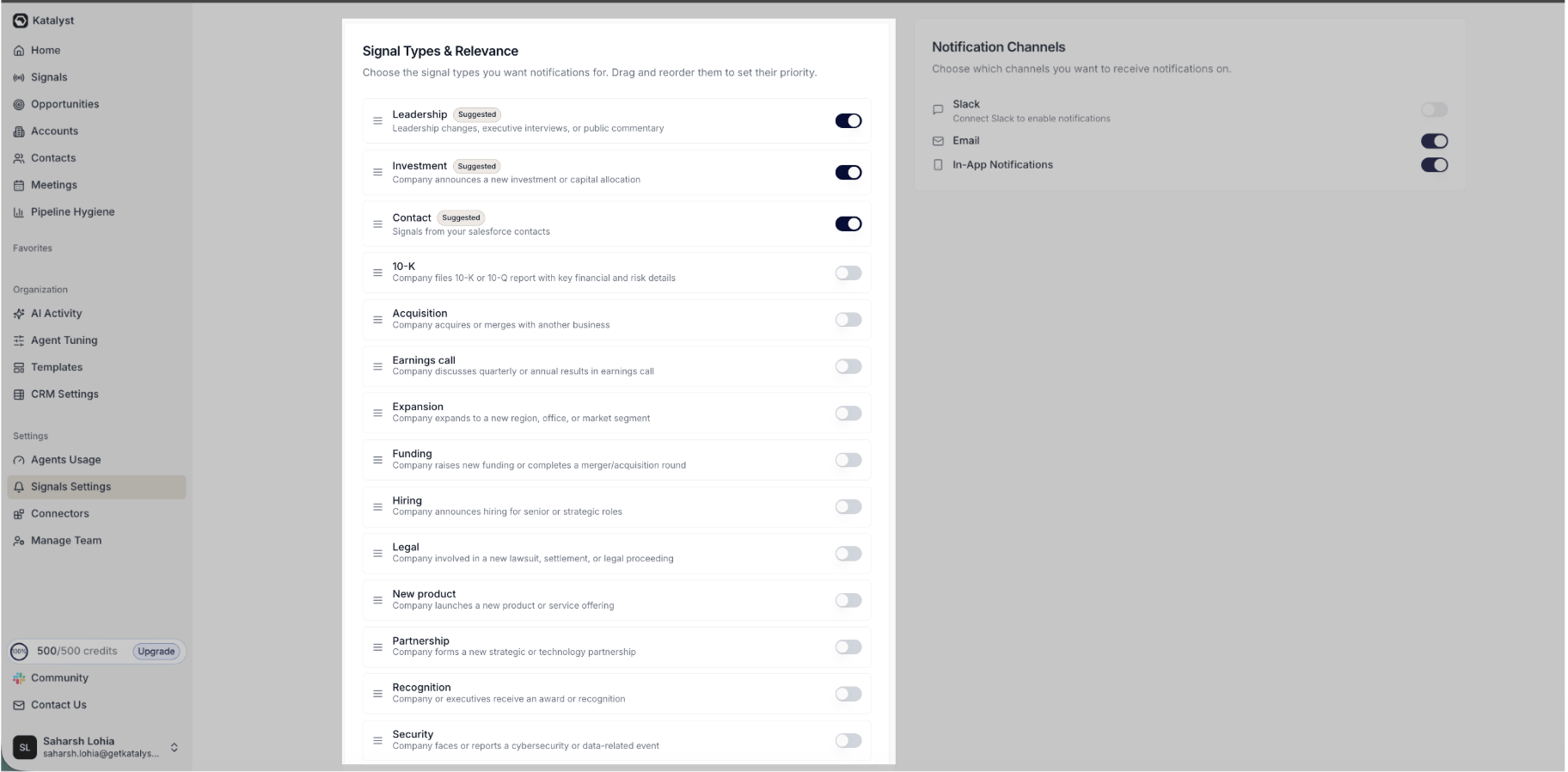
Signals Settings → Signal Types & Relevance
January 26th, 2026
CRM Settings
Decide once which Salesforce fields enter Katalyst and how the agent treats them: a settings page with three editable cards (Opportunities, Accounts, Contacts) where every field carries a permission that drives the per-cell AI overlay across the rest of the product. What it is: A dedicated CRM Settings page with one card per record type, each card listing the synced fields with a per-field permission (Manual update only, AI suggestion, Read only) and an Add Field affordance backed by live Salesforce schema discovery. Required fields and Salesforce-flagged read-only fields render as inert chips so the table stays honest about what is editable. How it helps: A RevOps lead onboarding a new fifteen-rep mid-market team opens CRM Settings on Monday morning. She accepts the default required fields on Opportunities (Name, Account, Owner, Stage, Amount, Close Date, Next Step), then adds three custom fields the team uses on every deal: Forecast Category as AI suggestion so Katalyst proposes a value the AE can accept, Champion as Manual update only so the rep owns the call, and Renewal Risk as Read only because that field is auto-computed by a Salesforce formula and Salesforce marks it non-updateable. She switches to Accounts, adds Industry as AI suggestion, and the enrichment agent starts populating it within the minute (a toast confirms Enrichment started). Twenty minutes to a Katalyst tenant whose tables, AI overlays, and account-plan agents are wired to the team’s actual Salesforce schema, where the old loop meant a custom integration project and a four-week wait.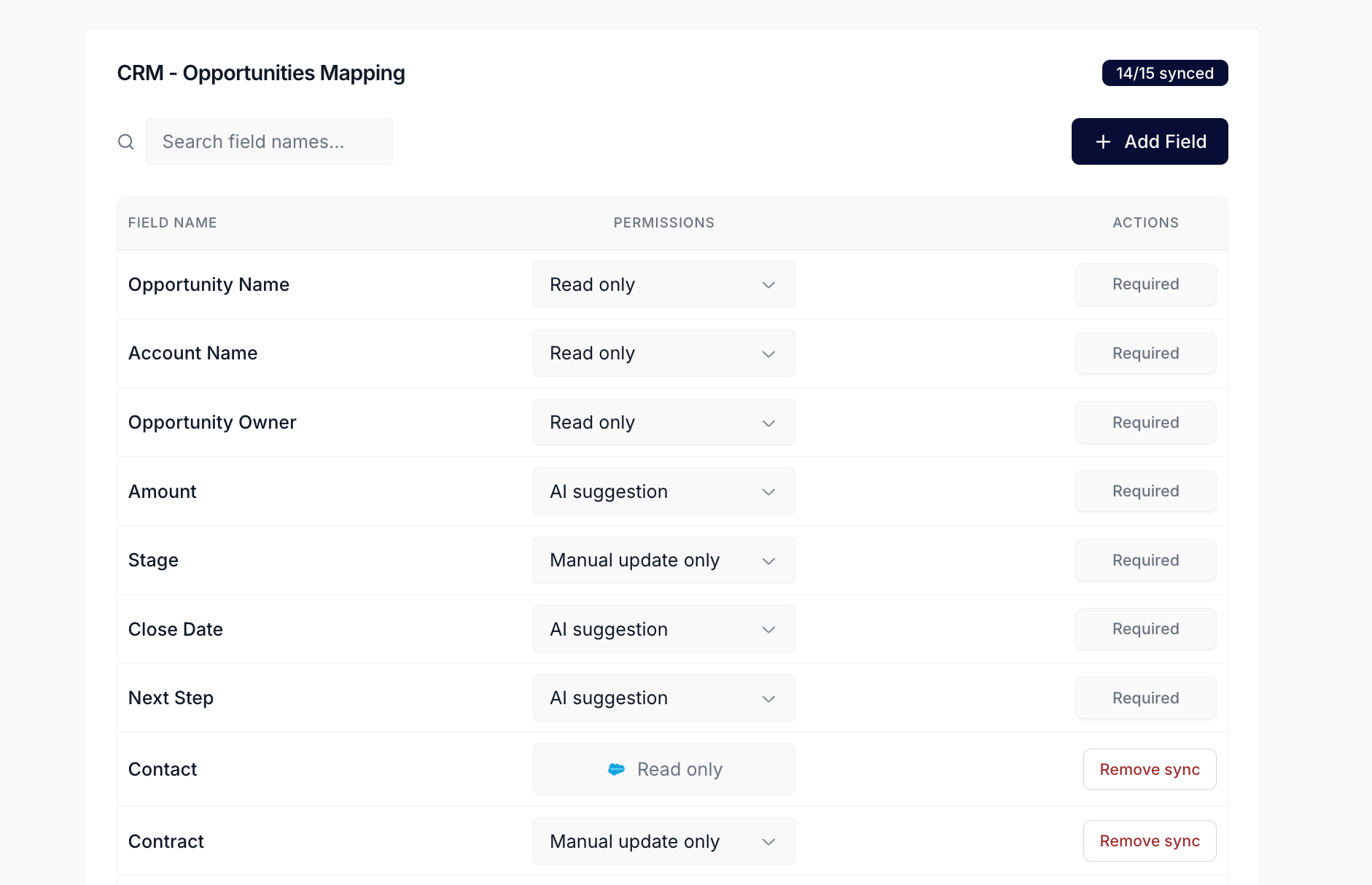
CRM Settings page with the Opportunities Mapping card open, showing the field table, permission dropdowns, and Required chips
Signal Card
Read the signal, scan the source, take the next action: every signal renders as a self-contained card with all the context you need to decide whether to act, in under ten seconds. What it is: The atomic unit of every Signals feed in Katalyst. The per-account view, the global Signals tab, the notification bell, and the toast popups all render the same card. Each card surfaces a relevance score, a type tag, an AI-written summary, a one-line “why this matters” statement, a link to the original source, and an accept action that archives the signal once you’ve acted on it. How it helps: A rep is between meetings and clicks a notification for a new acquisition signal on a target account. She skims the score, reads the why-it-matters line, expands the summary for context, and clicks the source link to verify. Two minutes later she is composing tailored outreach with the acquisition front and center. The card gave her everything she needed without ever leaving Katalyst.
Single signal card close-up
Signals
Catch every deal-moving external event across your entire book in one place: an AI-curated feed of news, filings, hiring posts, leadership changes, partnerships, and acquisitions, scored by relevance and arriving in real time. What it is: A dedicated top-level Signals tab, distinct from the per-account Signals sub-tab. The page aggregates every AI-generated external signal across every opportunity you own in Salesforce, with filters, sort, a group-by-opp toggle, and real-time arrival in a single control row. Each card uses the shared Signal Card shape, with the catalog of supported signal types and the delivery channels (Slack, email, in-app) configured in Signals Settings. How it helps: A rep covering 40 mid-market healthcare accounts opens the Signals tab between meetings, sorts by Katalyst Score, and sees four signals scored 80 or higher at the top of the feed: a hiring post for a Director of Clinical AI at one of her top accounts, a 10-K excerpt flagging margin pressure at another, a competitor’s expansion announcement into the same vertical, and a leadership change at a stalled deal. She accepts the first, archives the competitor noise, expands the 10-K for the AI summary, and follows the source link to verify the filing language. Twelve minutes from open to four targeted follow-ups queued, with the feed continuing to populate in real time while she works. Without the global feed she would be flipping between 40 separate account pages or waiting on a Slack digest the next morning.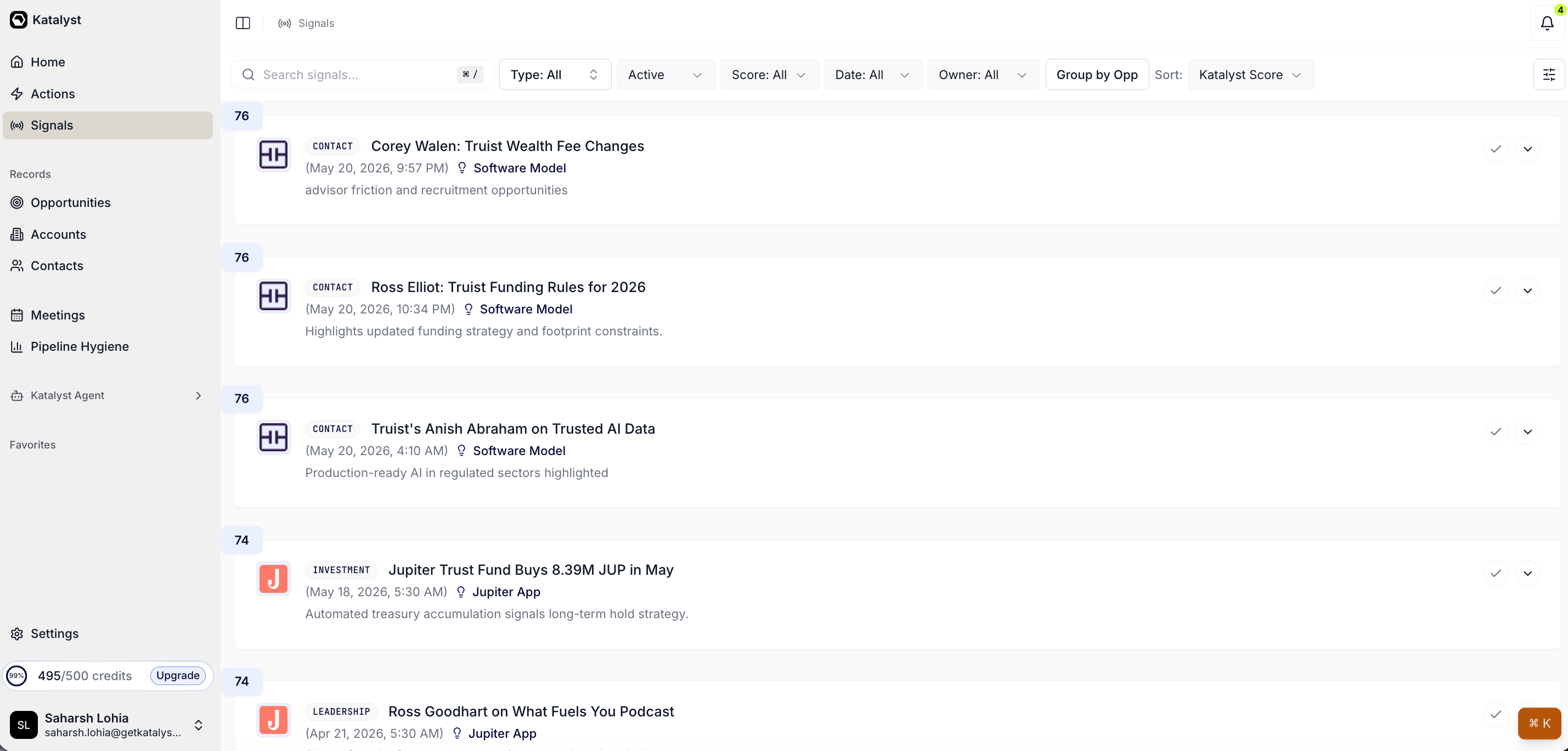
Signals tab, populated feed view
January 19th, 2026
Opportunities
The home for every open deal in your book: a Salesforce-synced table that sits alongside Accounts as a sibling top-level surface, where each row drills into a per-deal workspace. What it is: A top-level Opportunities tab that lists every deal in the AE’s CRM as a resizable, inline-editable table, with bidirectional Salesforce sync. Columns are grouped into Salesforce-mirrored fields and Katalyst AI fields, with per-row pending AI Suggestions rendered as a volt-lime outline you can accept or reject individually or in bulk. How it helps: A rep covering 80 active deals opens Opportunities on a Monday morning. The table lands sorted on her default view: every deal she owns, with stage, amount, close date, and the four AI-driven columns her team set up to summarize procurement state, champion strength, last meaningful touch, and renewal risk. She scans the volt-lime-outlined rows for the seven deals where AI Suggestions has a pending field update queued, accepts the five that read right, rejects the two she’d handle differently, and drills into the highest-amount Negotiation deal for prep, all without switching to Salesforce.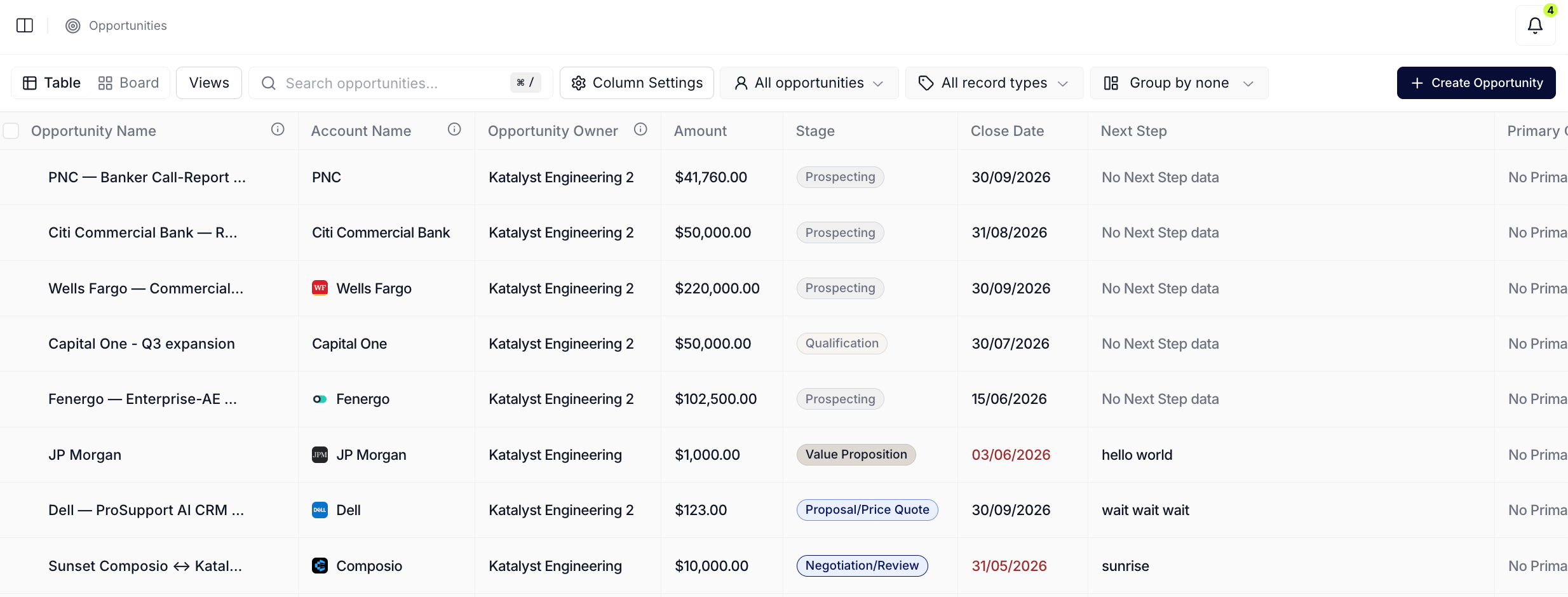
Opportunities tab table view
Connectors
Wire Katalyst to every external system it depends on from one categorized two-pane shell: a left rail listing every supported integration grouped by category, a right pane that swaps to the selected connector’s page, and rail-level health badges so a broken integration is visible from anywhere in the area. What it is: A two-pane Settings surface listing every supported integration grouped by category, with a Connected pill on each wired row. Salesforce aggregates connection, change-data-capture, and streaming-health into a single badge; notetaker and email/calendar connectors are mutually exclusive so two providers never write to the same downstream table. How it helps: An admin standing up a fresh org opens Connectors and works left to right through the rail. She lands on Salesforce, kicks off the native OAuth in a 600 x 700 popup, watches the three status cards (Connection, Change Data Capture, In-Memory CDC) light up green, and steps through the CDC setup-instructions dialog when one of the five required entities reads Disabled. She moves to Gmail, connects in two clicks, and notices the Outlook row is now visually unavailable because the exclusivity map blocks it. She picks Katalyst Notetaker next, picks Google as the calendar feed in the provider-choice dialog, and finishes with Slack, which carries a second OAuth for the workspace bot plus a Send Test Message smoke test against the hash-katalyst-signals channel. Fifteen minutes from empty org to every downstream surface (Accounts table, Meetings tab, Signals delivery) wired and verifiable.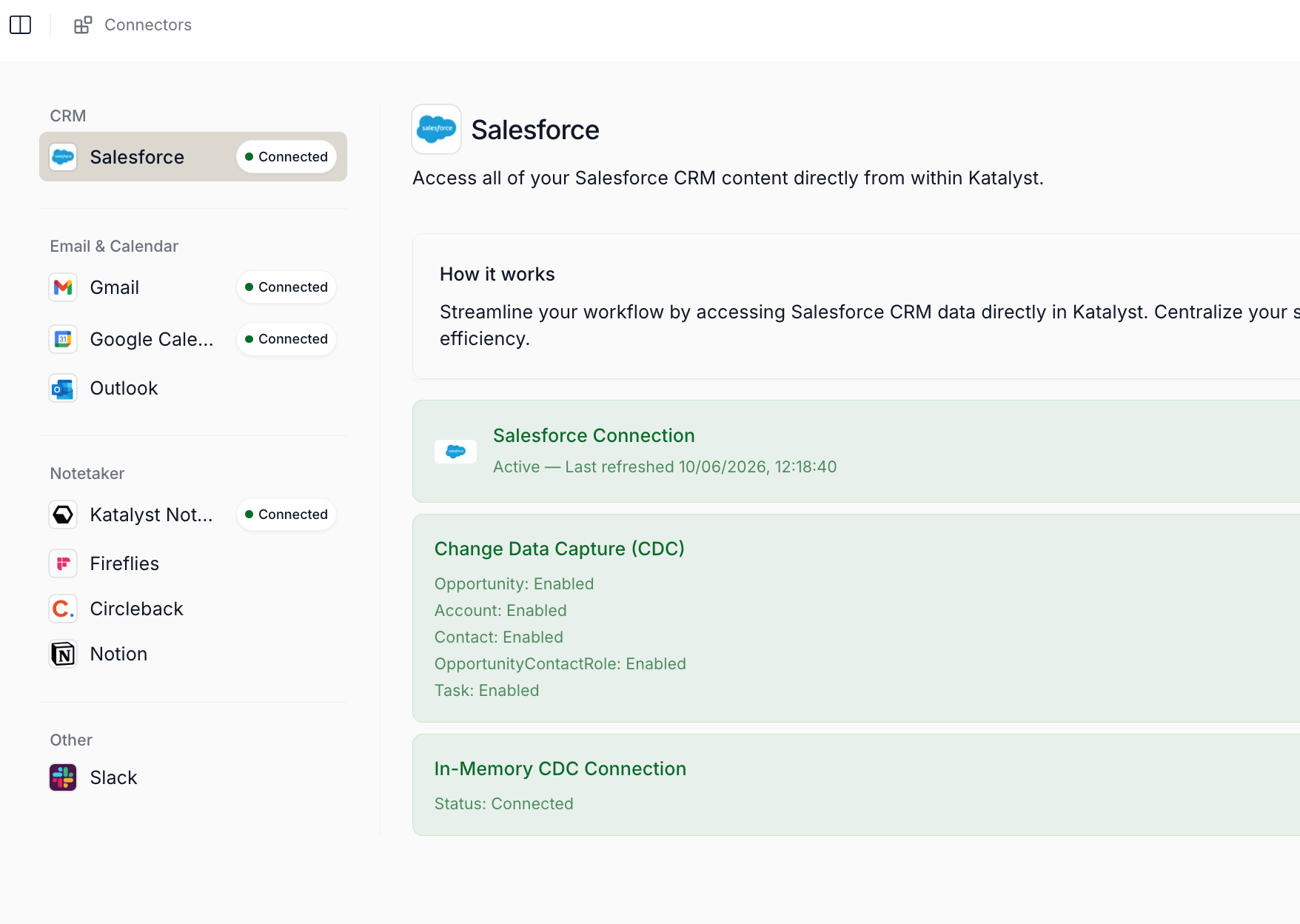
Connectors two-pane shell with the rail expanded and the Salesforce page selected
January 12th, 2026
Email Templates
Teach Katalyst how the team writes by curating reusable example emails per scenario: a library of saved drafts that the Draft Email modal mixes with per-account context every time the AE asks for an outreach. What it is: A library page under Organization that lists every saved email template as a scenario-tagged card with the example subject and body, plus a New Email Draft dialog with a Scenario, Subject Line, and 8-row Body Textarea. The library is org-scoped: any template one rep saves shows up for every teammate in the Draft Email modal’s Choose template picker. How it helps: A sales lead seeding a fifteen-rep team’s tenant on a Monday morning opens Email Templates and lands on an empty state. She adds six scenarios over coffee: Discovery follow-up, Security review request, Procurement nudge, Renewal cold open, Post-demo thanks, Champion re-engagement. Each one takes ninety seconds: a scenario tag, the subject line that landed for her last quarter, the body in her tone. By Tuesday her reps are opening the Draft Email modal on Negotiation deals, picking the Procurement nudge template, and watching Katalyst personalize it against the specific account’s recent signals and the procurement contact’s persona. Six templates seeded once, hundreds of personalized drafts downstream, where the old loop meant a shared Notion page that nobody updated and reps writing each email from scratch.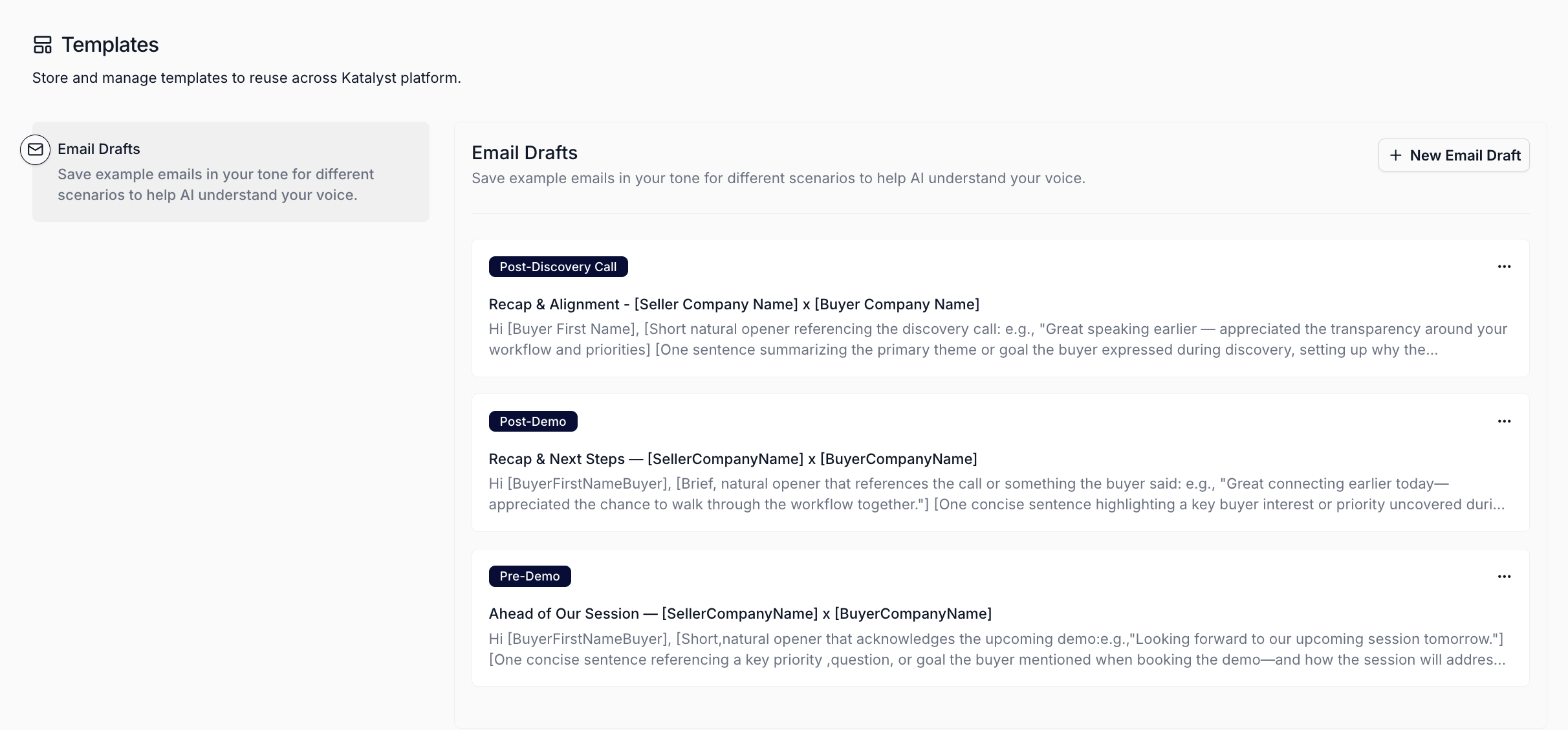
Email Templates library page with saved templates and the New Email Draft dialog open
Account detail
A single workspace for everything that matters about an account: research, signals, plan, history, notes, and an AI agent that knows it all, anchored to the right edge of every view. What it is: The drill-in surface that opens from any account in the Accounts table. Five sub-tabs anchor the experience (Overview, Signals, Account Plan, Activity History, Notes) alongside a persistent AI chat panel pinned to the right edge across every sub-tab. A Draft Email action and a star-to-favorite affordance are available throughout. How it helps: A rep clicks into Bank of America from her account list. She lands on the Overview sub-tab and skims the fundamentals. Then she switches to the Account Plan, reads the strategic challenges, and pivots to draft an outreach email, all without losing her place. The AI chat stays open the whole time; she asks it a quick question about a key contact and gets an answer rooted in the same context she’s already looking at.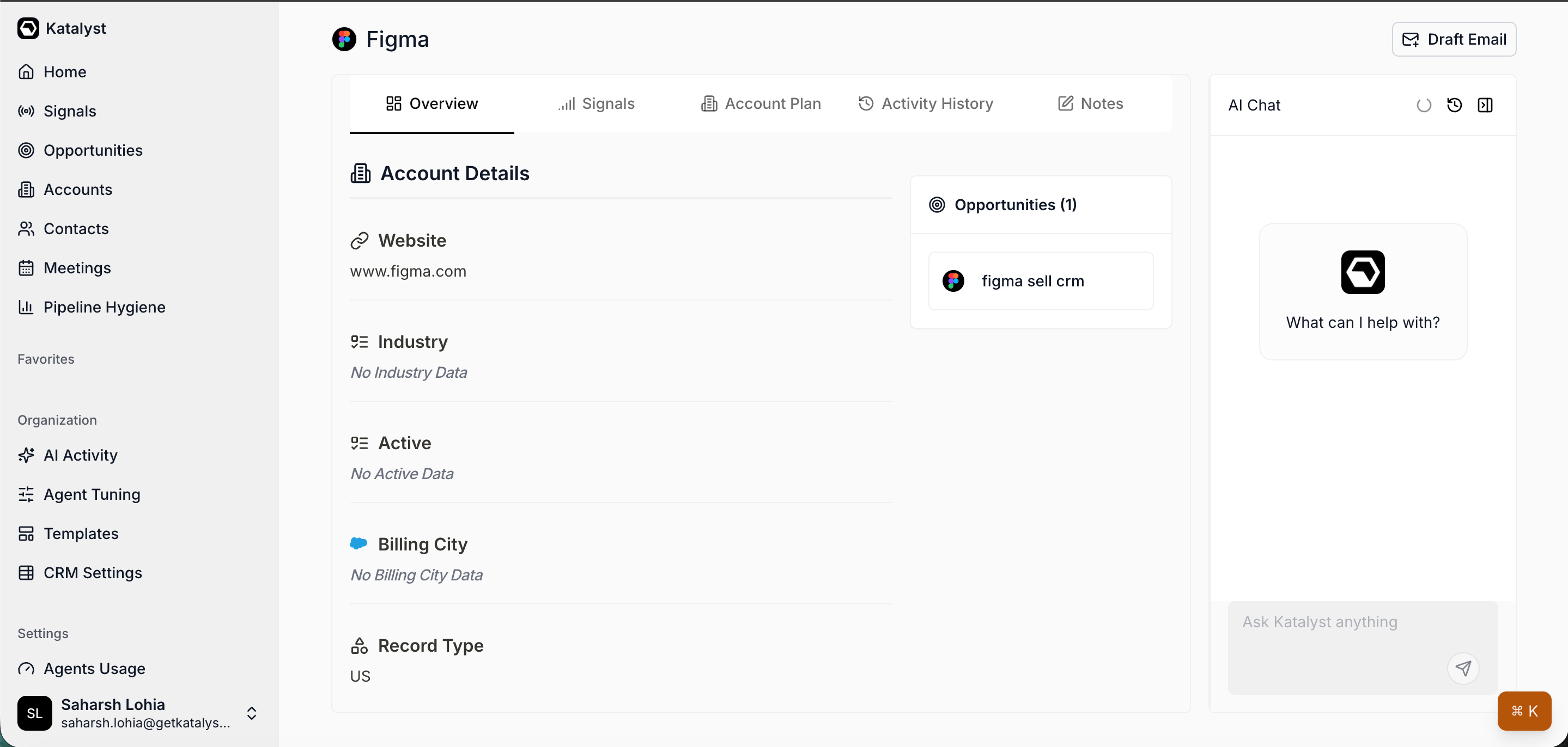
Account detail view shell with sub-tabs and persistent AI chat
January 5th, 2026
Notes
Capture every thought mid-call without breaking flow: an in-account notebook that auto-saves every keystroke and surfaces every saved note as a searchable card. What it is: A sub-tab inside the account detail view for jotting down thoughts, meeting notes, and observations tied to the account. Each note has an editable title and a free-form body that saves automatically as you type. Saved notes appear as cards in the list view, sorted by most recently edited, and are searchable across both title and body. Visible to teammates working the same account. How it helps: A rep is on a discovery call with a prospect. The CTO mentions a budget cycle detail that matters for the deal. Instead of fumbling to a separate app, the rep clicks New Note in Katalyst, types the detail, and keeps listening. Auto-save means the note is captured the moment she types it. After the call, the note is there in the account, searchable for the next prep session.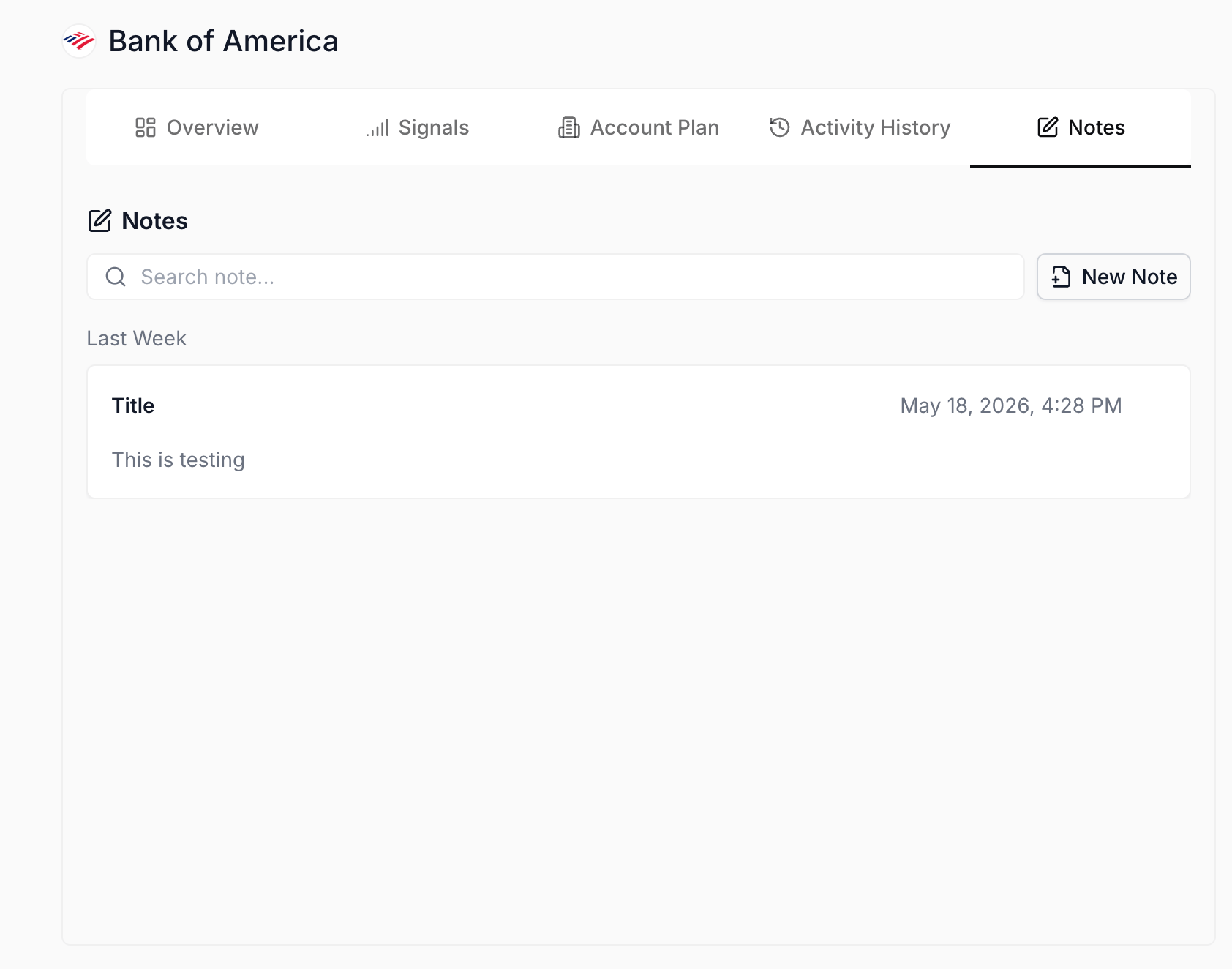
Notes sub-tab
Draft Email Modal
Turn any insight into a tailored outreach in under a minute: a unified email-drafting surface that pulls in account context, key people, and your saved templates, then saves the draft directly to Gmail or Outlook for your final review. What it is: The canonical email-drafting modal across Katalyst, reachable from any account’s persistent Draft Email button or from a Strategic Challenge card. It pre-fills with whole-account or specific-challenge context, exposes templates and key people as selectable inputs, and saves the generated draft to Gmail or Outlook for your final review. How it helps: A rep spots a relevant Strategic Challenge for Bank of America and clicksDraft email using this. The modal opens with the challenge context in the prompt, her standard email template selected, and the right champion picked from Key People. She tweaks two sentences, hits the Gmail button, and finds the draft waiting in her inbox. From insight to ready-to-send outreach in under a minute.
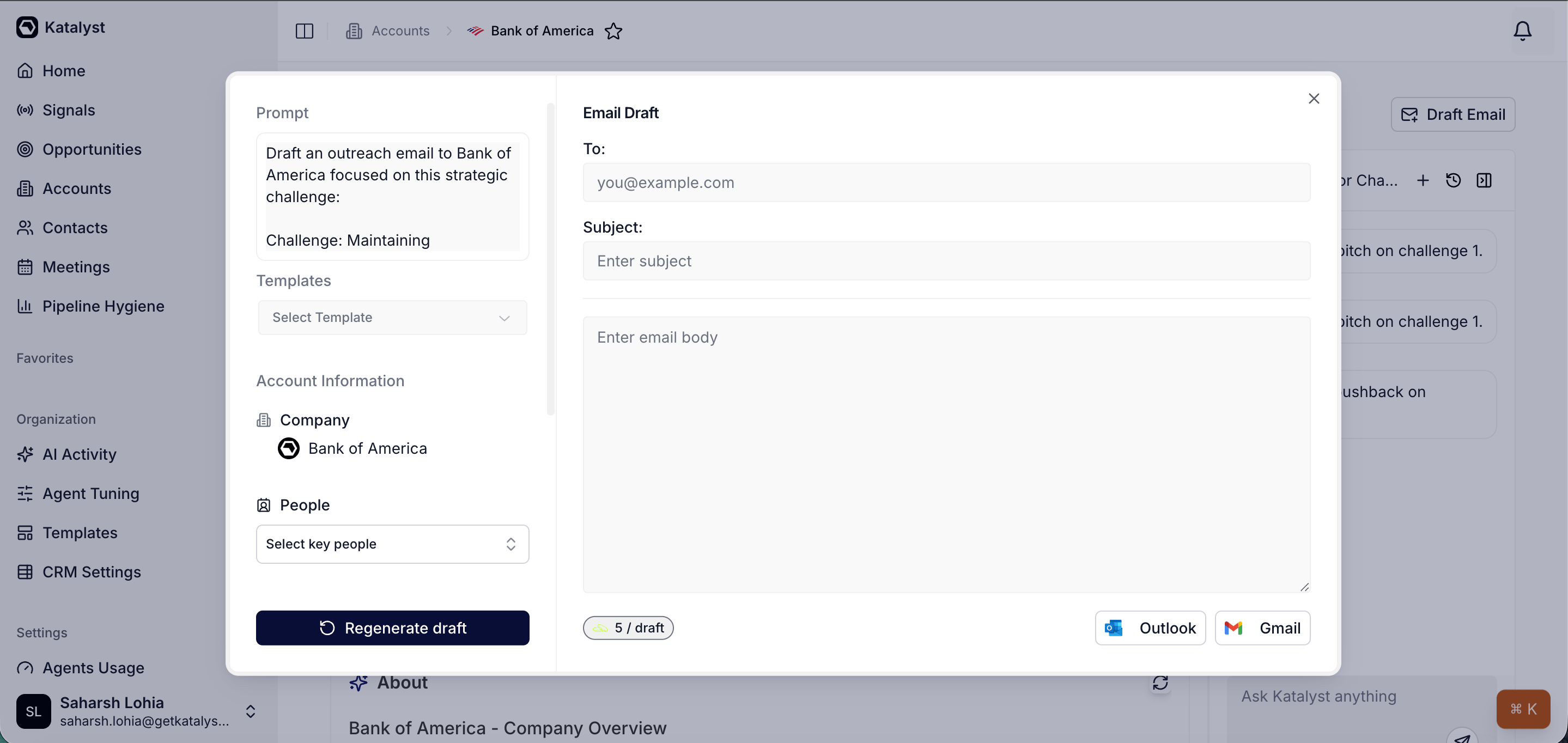
Draft Email modal
Account Overview
Every fact you need about an account, in one scroll: a sub-tab that surfaces the core company data, linked opportunities, and key contacts grouped by deal. What it is: The default landing view inside the account detail. It renders the same fields as the table view (Website, Industry, Active, Billing City, and so on) in a scrollable layout, plus a sticky Opportunities sidebar showing every deal linked to this account. Editable fields work the same way they do in the table: click to edit, save to push to Salesforce. The Key People section anchors below the account fields, organized by linked opportunity. How it helps: A rep opens the account on a Monday morning and wants the at-a-glance picture before drilling deeper. Overview gives her every CRM field, every active deal, and every key contact in one scroll. She spots that there’s a third opportunity she hadn’t worked yet, clicks into it from the sidebar, and pivots her week’s plan.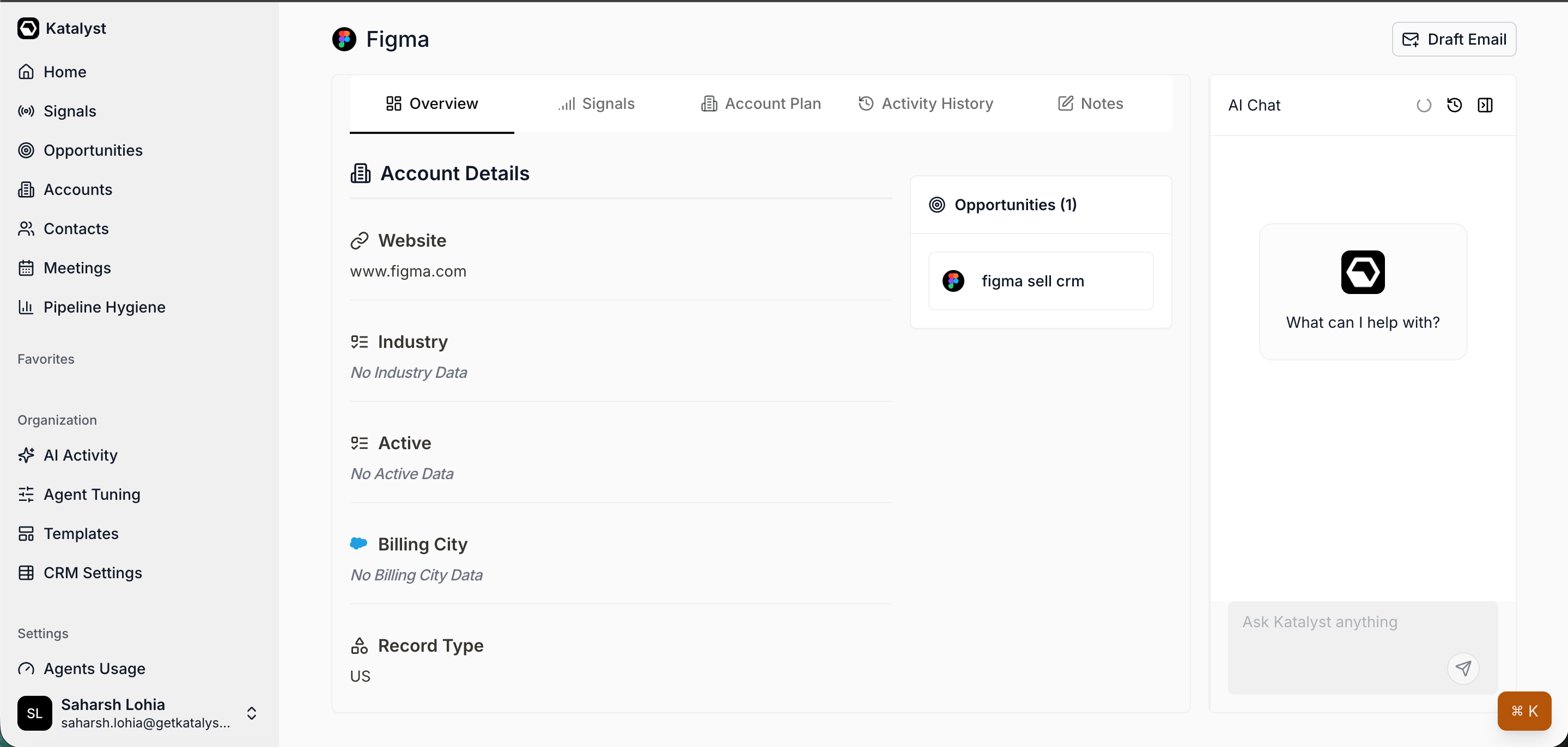
Account Overview sub-tab content
December 29th, 2025
Cmd+K Search
Jump anywhere in Katalyst from any page in one keystroke: a Cmd+K palette over the AE’s accounts and open deals, with a favorites-first empty state, two zero-friction quick actions (Add AI column, Send email), and a Help section that puts the Slack community and the founders’ inbox one click away. What it is: A global palette opened by Cmd+K, Ctrl+K, or a yellow shortcut pill in the bottom-right. Empty state lists favorites then recent accounts, plus Quick Actions and Help. Typeahead fans out across accounts and opportunities and routes to the matched record on select. How it helps: A rep covering 35 mid-market healthcare accounts is three pages deep on the Acme Health Negotiation deal and her champion just emailed about a sister account, Beacon Health, that she has not touched in two months. She hits Cmd+K, types beacon, the palette shows the Beacon Health row with the company logo and domain, she presses Enter, and the account overview opens half a second later. Earlier in the morning she hit the same palette to fire the Send email quick action on her current deal without scrolling to find the Draft Email button, and twice that week she opened the Help section to drop a question in the Slack community. The same palette serves as her cross-product jump, her two daily quick actions, and her in-app help affordance, where the old loop was a sidebar scroll, a tab switch, and a bookmarked Slack link.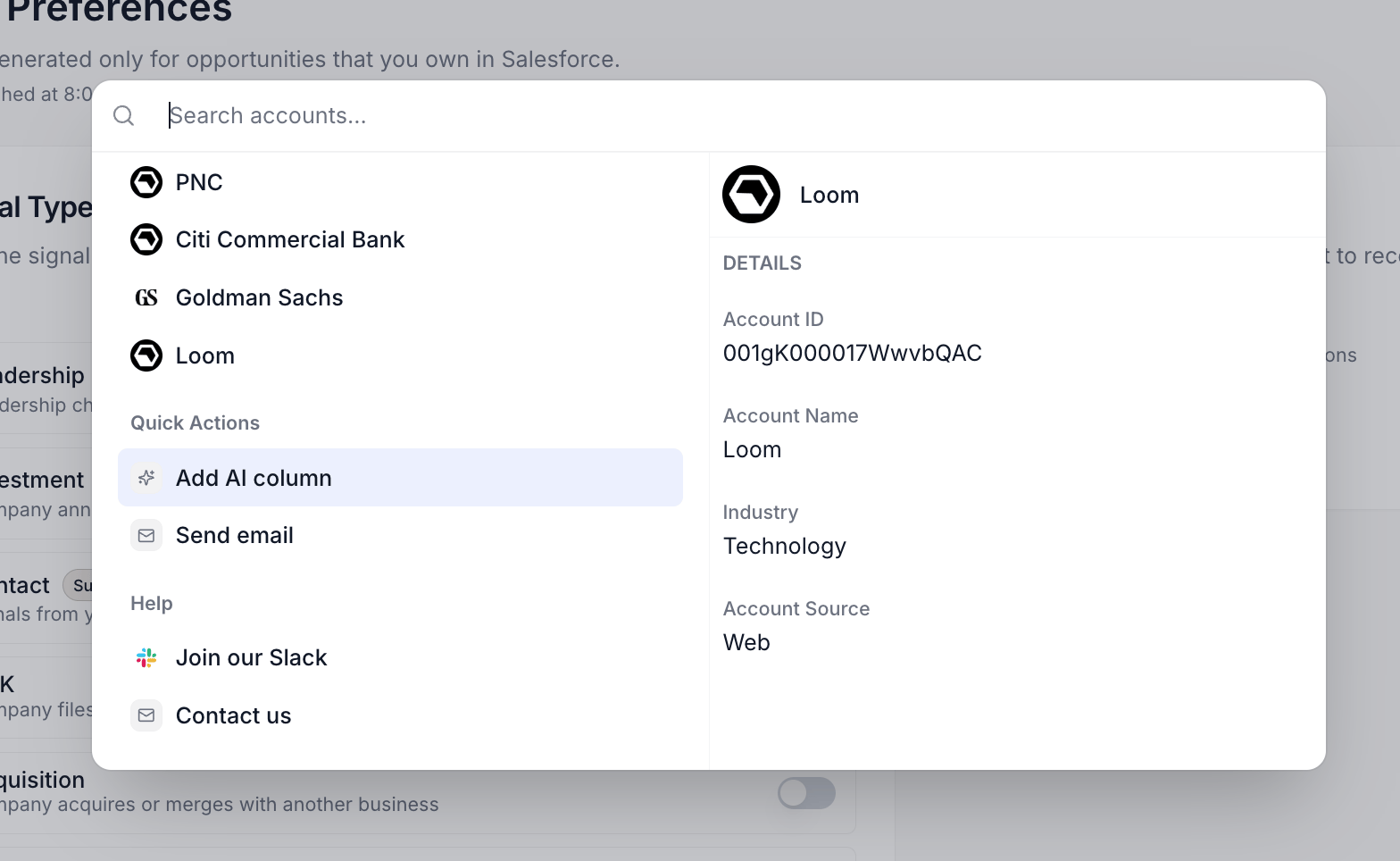
Cmd+K palette open with the favorites-first Suggestions list and the Quick Actions and Help sections
Agent Setup
Tune the AI agent to your company in one place: an org configuration tab that captures company overview, ICP, pain points, and competitors as structured Q&A, hosts the uploaded artifact library the agent reads from, and reports the health of the real-time integration triggers powering live event capture. What it is: A four-tab Organization surface covering Finetune (positioning Q&A), Artifacts (uploaded docs/URLs), Agent Actions (per-user autonomy), and Agent Status (integration health). Finetune ships a Prefill with URLs shortcut that scrapes up to five pages and auto-fills the form. How it helps: A new AE joining a healthcare SaaS team opens Agent Setup on her first day. The Finetune tab is empty, so she pastes her company’s homepage and three product pages into Prefill with URLs, hits Generate answers, and watches the four sections fill in over twelve seconds: a Company Overview paragraph, six pain-point chips, three competitor cards with value props, and an ICP paragraph. She bumps the ICP from “mid-market healthcare” to “mid-market healthcare with 200 to 2000 employees” because that matches her territory, accepts the org-wide change warning, and clicks Save. By the afternoon her first account plan generates against her actual ICP, her first draft email cites her actual value prop, and her artifacts library is queued for training on a pricing one-pager and two case studies she uploaded after lunch. Twenty minutes from sign-in to a personalized agent, where the old loop meant a brand workshop with the sales lead and a month of generic AI output.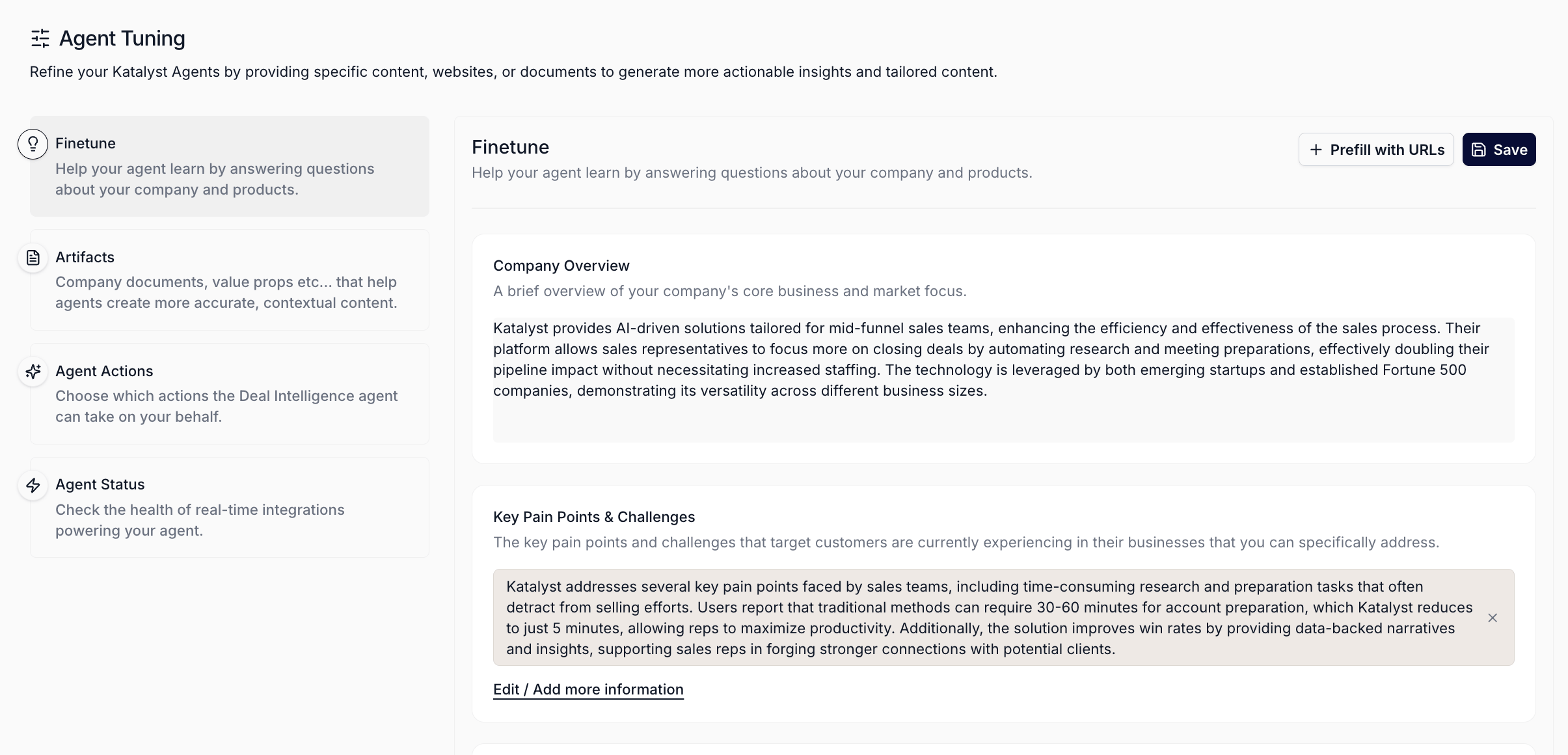
Agent Setup Finetune tab with the four section cards and the Prefill with URLs and Save buttons
Meetings
The home for every customer conversation: a calendar-anchored workspace that lays out your upcoming calls and your past meetings side by side, with a meeting-scoped chat in the right pane and every meeting one click into its workspace. What it is: A top-level Meetings tab with a day-grouped Coming Up timeline above a reverse-chronological Past meetings list. Open a meeting and the inline detail panel slides in alongside, with the right-pane chat flipping its scope from the upcoming-window overview to the selected meeting. The page reshapes between 2, 3, and 4 panes as the viewport widens or narrows, so the same workspace stays usable from a zoomed laptop to a wide monitor. How it helps: A rep covering 40 mid-market healthcare accounts opens Meetings on a Monday morning. The Coming Up rail shows three calls today and four tomorrow, each with the linked opportunity tag and the notetaker provider already attached; the Past list above the fold flags last Friday’s discovery as still processing and last Wednesday’s renewal call as enriched and ready. She opens the renewal, scans the summary, then asks the right-pane chat to surface anything the buyer said about pricing pressure. Three minutes later she is on the way to her first call of the day with the prep already done, where the old loop meant Calendar, Gong, Salesforce, and a Slack scroll.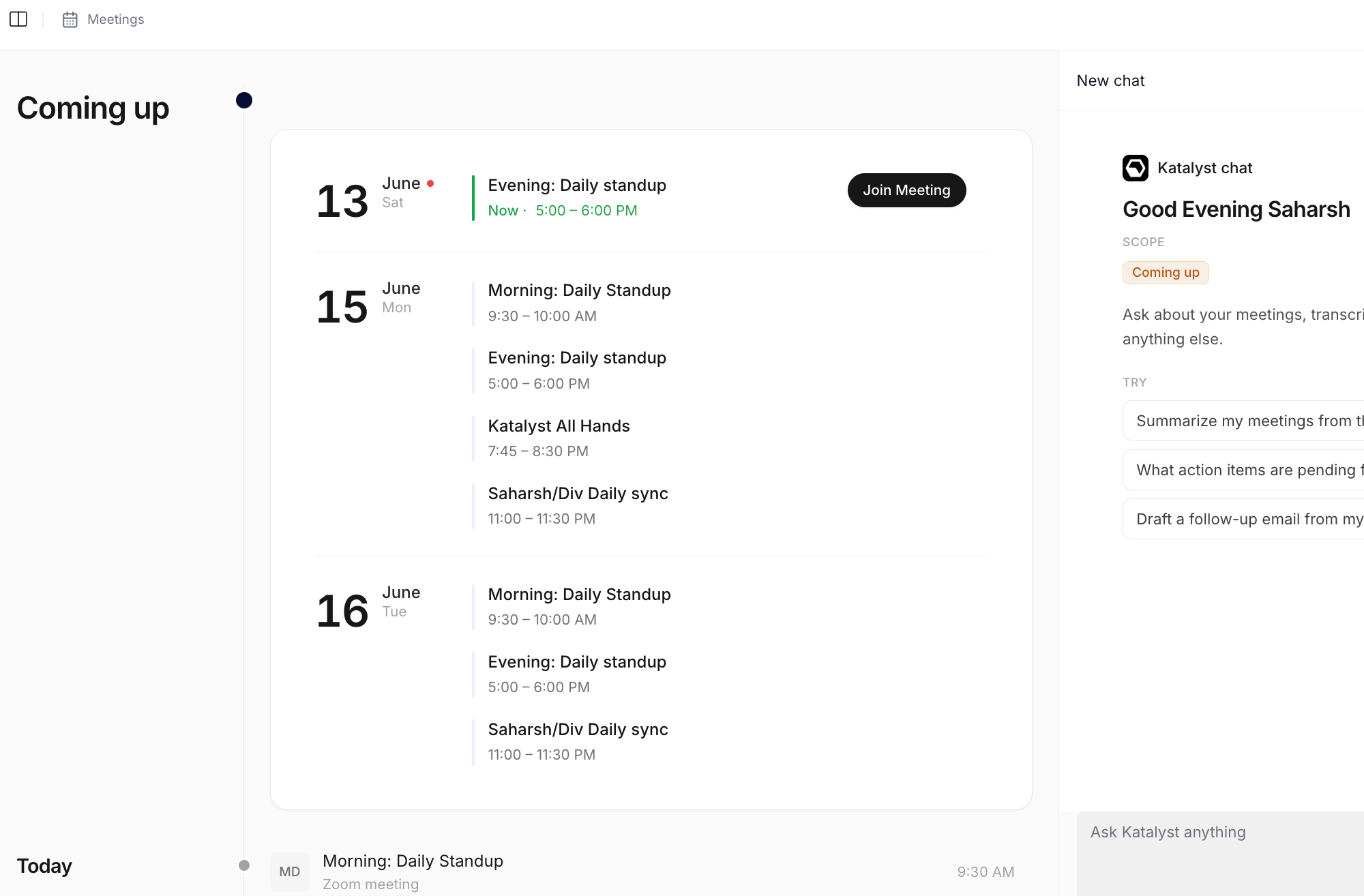
Meetings tab landing view