

Accounts
Accounts is your research workspace. A Salesforce-synced table for scanning and editing every account in your book, AI-driven columns you can add and tune in natural language, and a one-click drill-in to the per-account research page.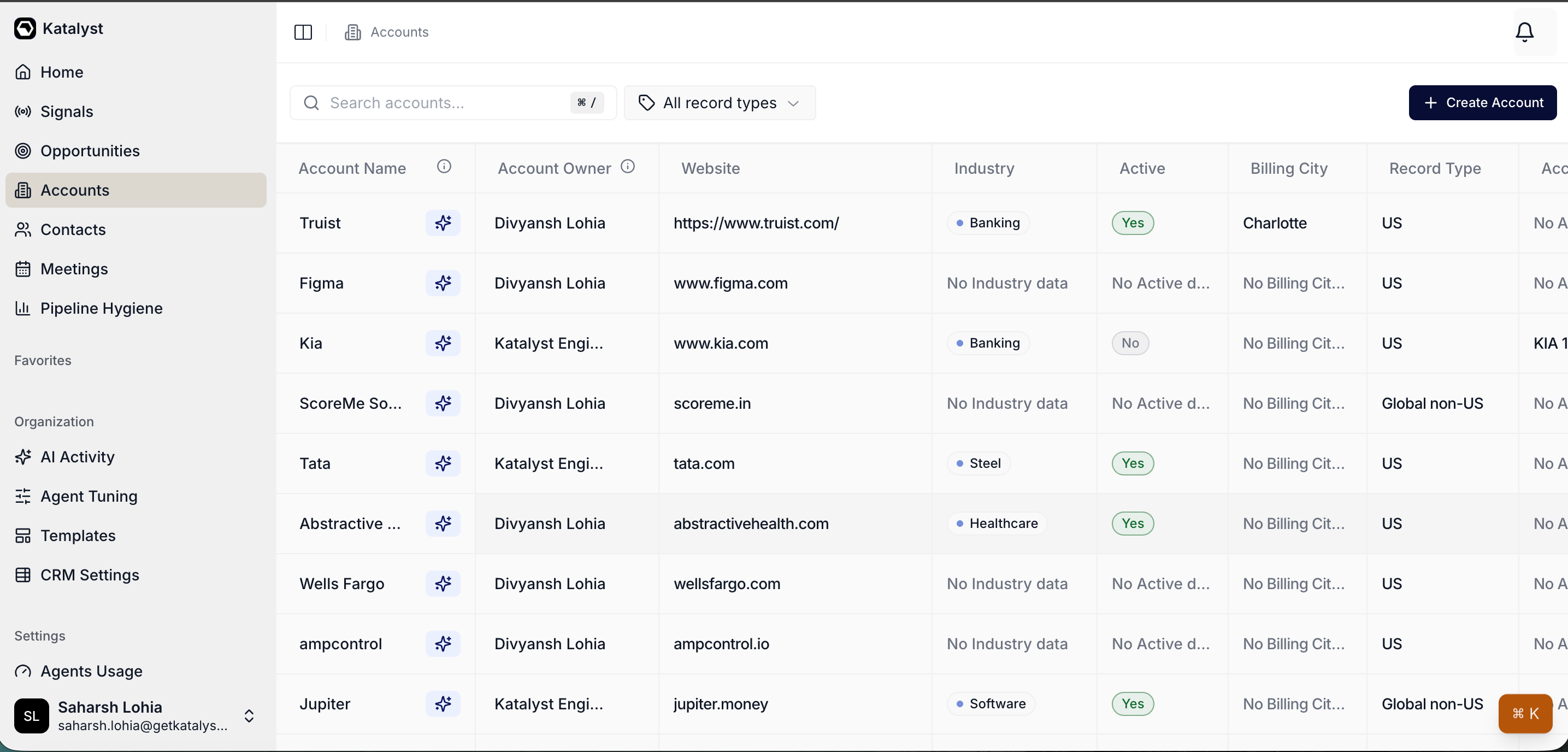
Accounts tab table view
What you can do here
- Scan and edit your accounts as an inline table. Click-to-edit cells, search across every column with Cmd / Ctrl + /, and filter by Salesforce record type (US or Global non-US) from the toolbar. Edits round-trip back to Salesforce in the background, so the table and the CRM stay in lockstep.
- Add an AI-driven column. The column header opens a prompt editor that defines how Katalyst fills that field across every row. Templates support a company variable, so a column like “Website” runs with the per-account context baked in. Editing the prompt re-enriches every row, not just future ones.

Accounts table toolbar with the column-prompt editor open
- Enrich one row at a time. The AI sparkle next to each account name kicks off a single-row enrichment that fills every missing field, with a preview before write-back and a skip on any cell that already has data. Useful when you need one account ready to work and don’t want to wait for a full-table run.
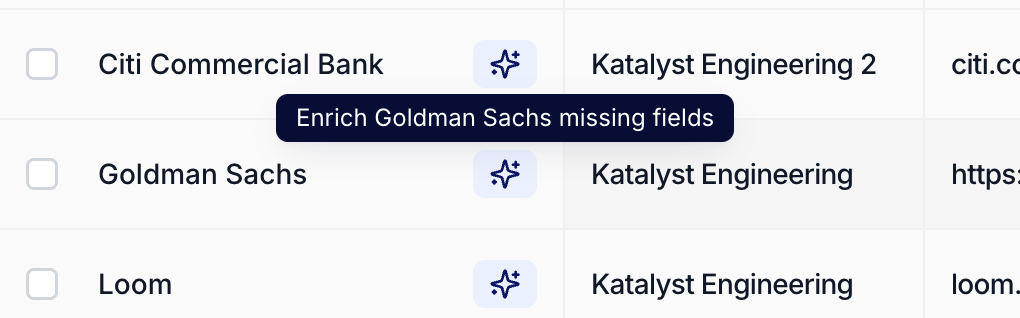
AI Enrich Row preview on a single account
- Create a new account in place. The Create Account button in the toolbar opens a record-type-aware modal that writes the account to Salesforce and auto-runs the row enrichment as soon as the record lands back in your table.
- Star an account to pin it. The favorite control on the per-account header adds the account itself as a quick-link entry in the side nav, surfaced under Favorites and reachable from Cmd+K. Use it for the four or five accounts you open every day.
- Reorder columns to match how you actually read an account. Drag any column header left or right and the order persists between sessions, with the name column pinned to the left. The same mechanism works on Opportunities and Contacts, so you can make all three tables read the same way.
- Trust the dropdowns. Picklist fields (owner, type, and the rest) pull their options live from Salesforce rather than from a saved snapshot, so a change your Salesforce admin made this morning is reflected here now, and an AI suggestion will never propose a value Salesforce would reject.
How to use it
A rep covering 40 enterprise accounts opens Accounts mid-morning. She filters to US record type, searches for the bank she’s prepping for a discovery call, and clicks the AI sparkle next to the row to enrich it. The preview surfaces a Website fill, an Industry classification, and an Annual Revenue number, all pulled from public sources; she accepts the preview and the cells write back to Salesforce. She adds a new column with the prompt “Summarize this account’s last earnings call in one line, no citation markers” and lets it run across her US slice while she keeps working. Two clicks later, the new column has populated; she stars the bank, opens the account, and is on the research page with the column answer already showing in the table behind her. Six minutes from search to a ready-to-call account, with a reusable column the rest of the team can see.Patterns that work
Use the column-prompt editor as your team’s research template. The instruction you put on a column header is what runs against every row, every time. Phrase it the way you’d brief a junior rep (“Return only the domain, no citation markers”), and edit the prompt rather than re-typing values when the answer comes back wrong. Edits re-run the enrichment across existing rows, so a small prompt tweak fixes the whole column at once. Enrich the row, then open the account. The single-row sparkle fills the columns you scan in the table; the per-account research page is where you go for the strategic plan, signals, and activity history. Doing the row enrichment first means the account page opens with the headline fields already populated, so the research read is grounded. Search hits every column, not just the name. Typing “Charlotte” into the table search returns every account with Charlotte anywhere in the row, billing city, billing address, account source. Use it when you’re prepping by geography or by segment rather than by name. Star the four or five accounts you actually work this week. Favorites are pinned per-account in the side nav and reachable from Cmd+K, so opening the bank you’re calling tomorrow is two keystrokes from anywhere in the product. Treat the star as a “this is in my active window” tag, not a long-term tag, and prune it weekly.Related
- Account detail - the per-account research workspace every row clicks through to.
- Contacts - the people side of the same book of business, the third sibling alongside Accounts and Opportunities.
- Opportunities - the deal-list workspace; the two tables mirror each other on filters, search, and inline editing.
- Research a new account - the standard end-to-end pass on an account you’ve never worked before.
- Build a stakeholder map - going from an enriched account to the buying committee.
- The Setup section’s AI Suggestions page is the canonical reference for the volt-lime cell overlay you’ll see on enriched rows.