

Contacts
Contacts is the persona-research surface. A Salesforce-synced table of every contact in your book of opportunities, and a two-column per-contact page with an AI persona summary, deep persona research, linked deals, and a chat panel scoped to the human you’re prepping for.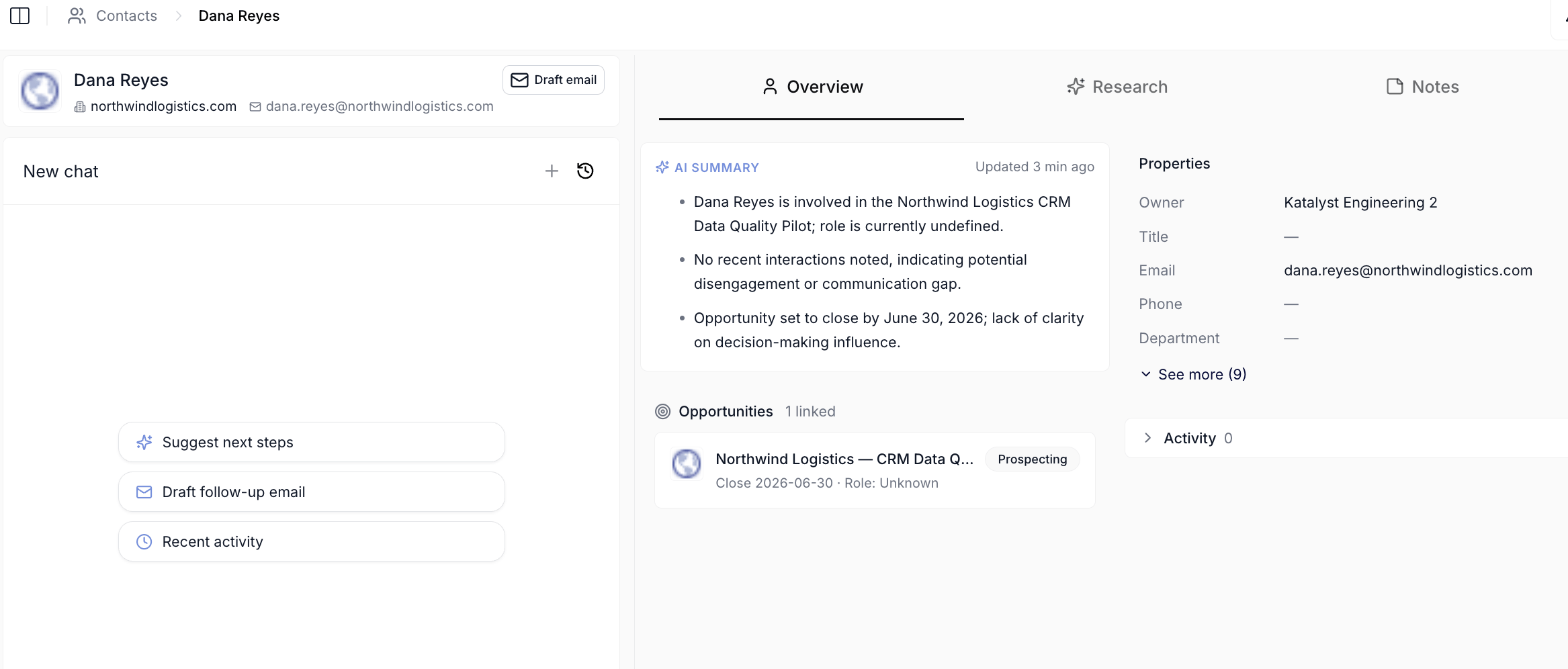
Contact detail page with the two-column workspace, AI Summary, linked opportunities, and per-contact chat
What you can do here
- Scan and edit your contacts as an inline table. A sticky name column composed from Salutation, First Name, and Last Name, with an avatar per row, plus every other Salesforce-synced field as an editable cell. Search by composed display name, narrow by record type when more than one is in scope, and create a new contact directly into Salesforce from the toolbar.
- Draft an email from a contact’s row. Every row whose email cell carries both an address and a linked account renders the email as a clickable button that opens the canonical email modal pre-filled with the contact and the parent account in scope. Rows without an account fall back to a plain mailto link, so the email is still a one-click open.
- Open a contact for the two-column workspace. Clicking a row lands on a per-contact page split into a left chat canvas (always expanded, scoped to the contact) and a right tabbed surface with Overview, Research, and Notes. The chat is the primary working surface; the right column is the context you refer back to as you prep.
- Read the AI Summary at the top of Overview. A short AI-written persona brief that pulls from the contact’s CRM record, their linked opportunities, recent activity, and any deep research already on file. Carries a freshness stamp so you know whether the summary still matches reality.
- Generate deep persona research. The Research sub-tab is a two-stage Apollo-backed pass. Enrich contact info pulls LinkedIn, photo, and a basic bio; Generate research produces the deeper dossier, bio, topics for discussion, conversation hooks, career highlights, employment history, and interests and expertise, with citations. Takes one to two minutes and surfaces the dossier inline when it completes.
- Ask the chat anything about the contact. The left-column chat is scoped to the human, not the deal or the account. Same panel as the Account chat, mounted with a contact-aware provider, so it knows the contact’s CRM fields, their linked opportunities, their recent emails and meetings, and any research already on file.
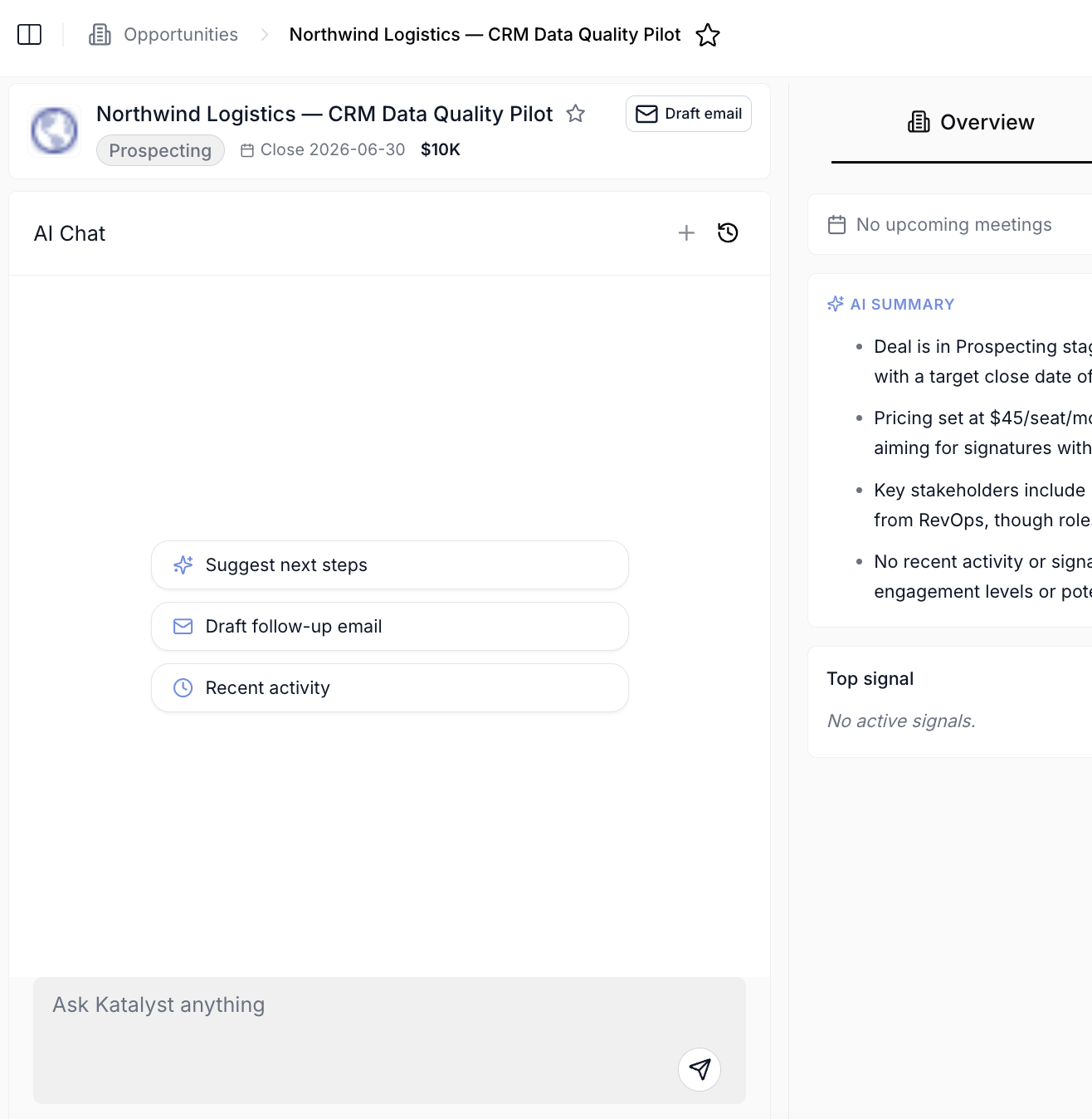
Per-record AI Chat across Account, Opportunity, Contact, and Meeting surfaces
- Draft a contact-scoped email from the header. The Draft email button on the contact header opens the canonical modal pre-scoped to the contact’s primary linked opportunity, with the recipient pre-filled. Same modal you’d get from an Account page or the Opportunity page; the entry point just carries different context.
- Reorder columns to match how you actually read a contact. Drag any column header left or right and the order persists between sessions, with the name column pinned to the left. The same mechanism works on Opportunities and Accounts.
How to use it
A rep prepping for a Thursday discovery call opens the Contacts tab, searches for the customer champion she’s meeting, and clicks her row. The two-column workspace opens; the AI Summary on the right reads “recently promoted to VP Engineering, co-authored a paper on transformer scaling, on three calls with the team in April.” The Linked Opportunities panel shows two deals with stage and amount, the Activity panel below it lists the last three emails and one meeting tied to the contact. She clicks Research, hits Enrich contact info to pull the LinkedIn photo and bio, then Generate research and watches the dossier fill in over the next ninety seconds. The Topics for Discussion list calls out a recent product launch she can open with; the Conversation Hooks suggest a paper she co-authored. She switches focus to the left-column chat and asks “draft an intro email that references the paper she co-authored and the security review she pushed on last call.” The chat returns a draft; she clicks through to the modal, saves it to Gmail drafts, and closes the page. Ten minutes from search to a ready-to-send opener informed by everything the system knows about the human.Patterns that work
Treat the AI Summary as your pre-read, not the dossier. The summary is short by design, three to five lines plus a few highlights. It tells you whether the contact has changed roles, what they’ve recently shipped, and how much they’ve been on calls. Read it first, then decide whether to go deeper with the Research sub-tab or jump straight into the chat. Run the basic enrichment before the deep research. The Apollo pull (LinkedIn, photo, basic bio) feeds the deeper research worker. Skipping it means deep research has less to work with. The two-stage path is by design; the Enrich contact info button is only one click and finishes in a few seconds, so always run it first when you open a fresh contact. Use the left chat as the working surface, the right column as the context. The Contact page intentionally puts the chat in the left column, not as a side rail. The pattern is “read the AI Summary, ask the chat to extend it, accept a draft, save the draft to Gmail.” The CRM properties and activity feed on the right are there for cross-referencing while the chat composes the next move. Deep research takes a minute or two; queue it before you read the rest. The Generate research button starts a background pass that runs while you read the Overview, scan the linked deals, and check the activity feed. By the time you’ve finished a pre-read on the deal, the dossier is usually ready and the Research sub-tab fills in without you waiting on a spinner.Related
- Accounts - the company side of the same book of business.
- Account detail - the per-account research workspace; contact pages route back to the account’s Key People section.
- Build a stakeholder map - turning a contact and an account into a full buying-committee view.
- Prep for discovery call - using the AI Summary, deep research, and the chat to walk in ready.