

Account detail
Account detail is the per-account workspace. Everything Katalyst knows and has researched about one account, organized as Overview, Account Plan, Activity History, and Signals sub-tabs, with a persistent chat panel that stays with you across the whole page.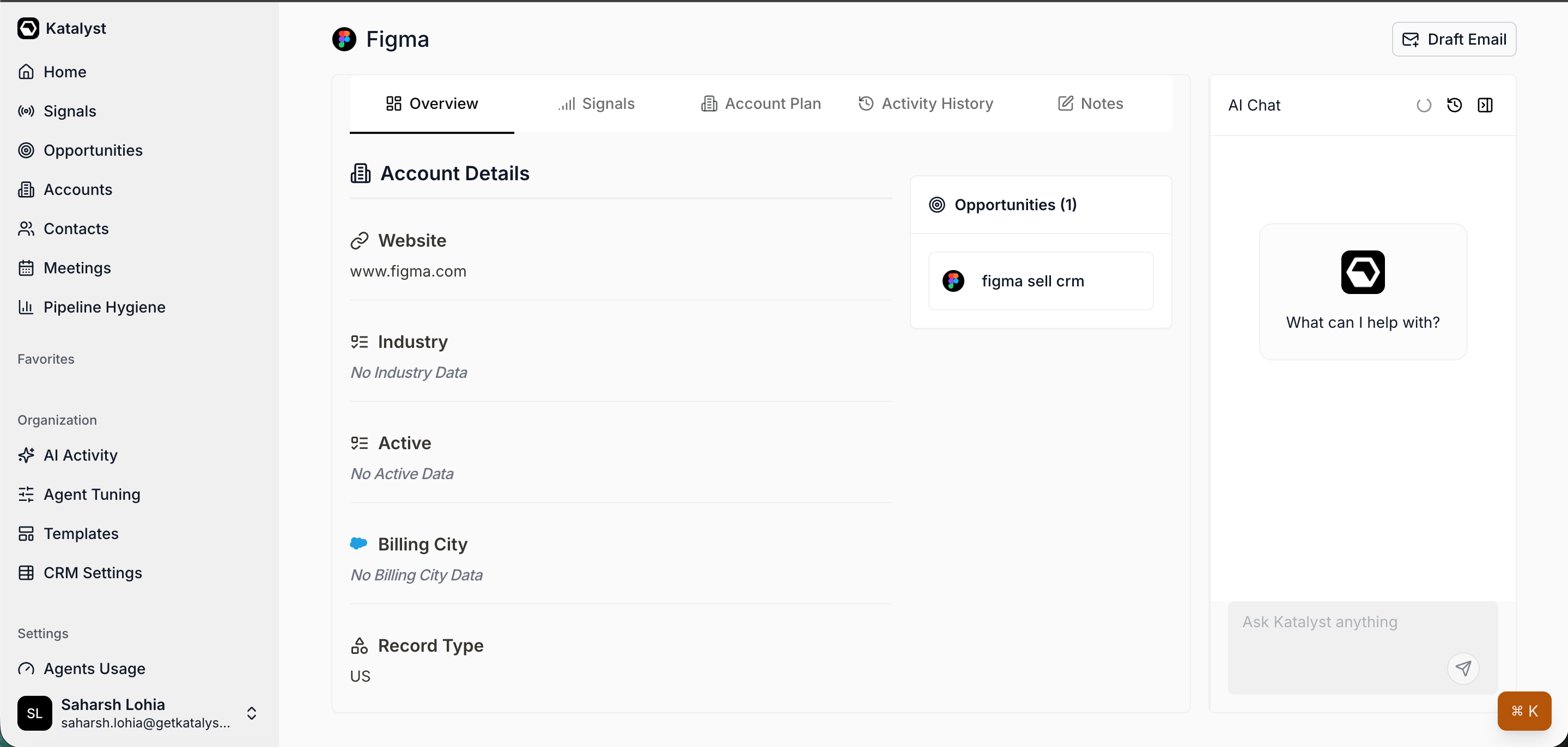
Account detail Overview tab with the three-column header, key people, and linked opportunities
What you can do here
- Read the Overview as your at-a-glance. The account header carries the company name, a favorite star, and a Draft Email button. The body shows the account-details column with every Salesforce-synced field (editable inline, same semantics as the table), a Key People section grouped by linked opportunity, and a sticky Opportunities pill on the right that lists every deal tied to the account.
- Generate the Account Plan. One click on Generate account plan produces a snapshot card (fit rating, annual revenue, products, competitors), a four-section research dossier (About, Industry, Competitors, Products and Services), and the differentiating strategic plan, two to three challenges, each with a Why Now, a How Katalyst Helps narrative, and a Business Impact paragraph.
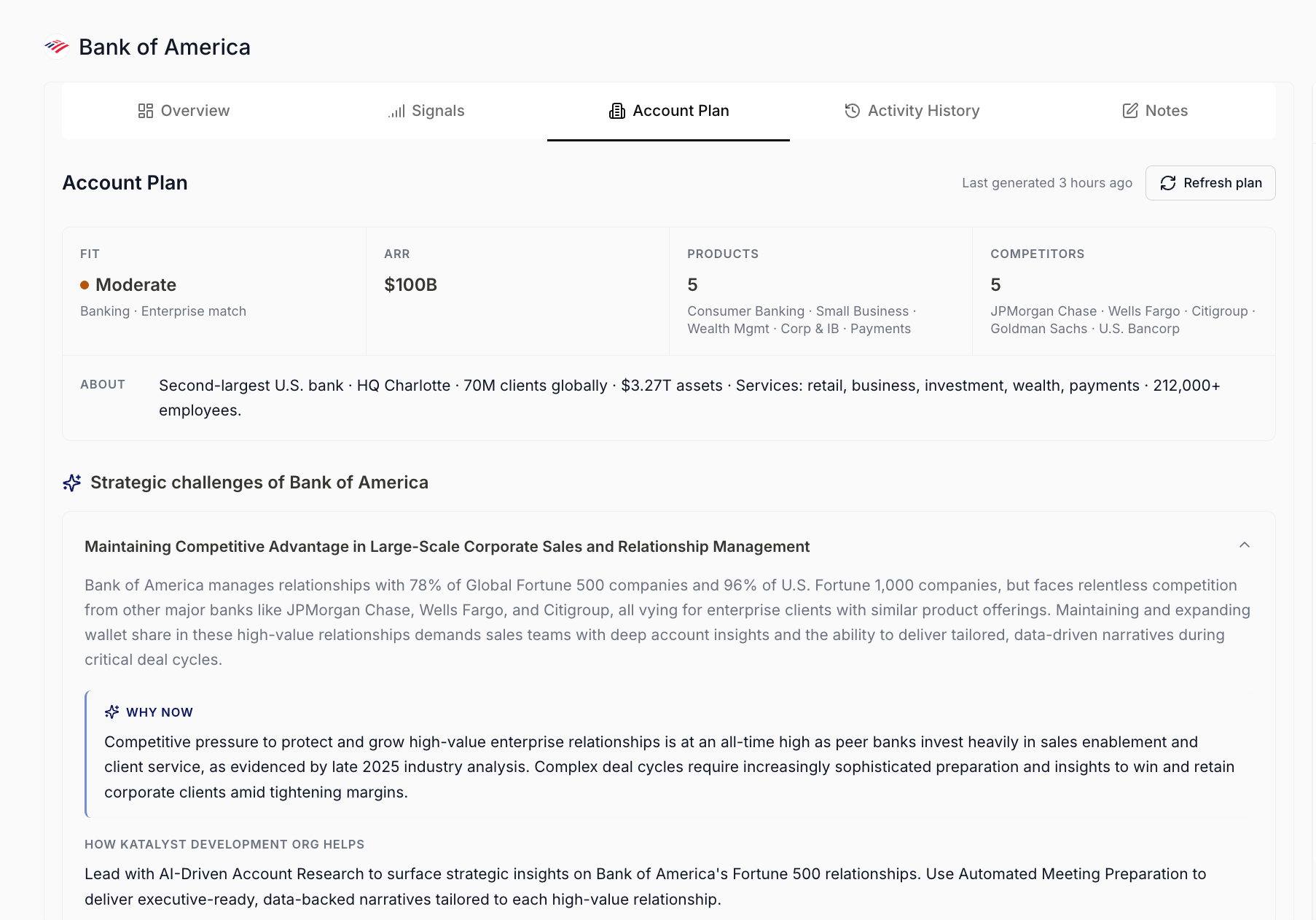
Account Plan sub-tab with snapshot card and strategic challenges
- Act on a challenge in one click. Each strategic challenge card carries three actions: Draft email using this opens the canonical email modal pre-filled with the challenge as context; Sharpen my pitch and Predict their pushback fire a templated question into the chat panel so the agent expands on the challenge in the same thread you’re already in.
- Audit AI activity on the account. The Activity History sub-tab is the log of every AI-performed action against this account, drafted emails, accepted field updates, recommendations from meeting transcripts. Filter by activity type or date range, see both pending and accepted items, and surface what was rejected when you need the trail.
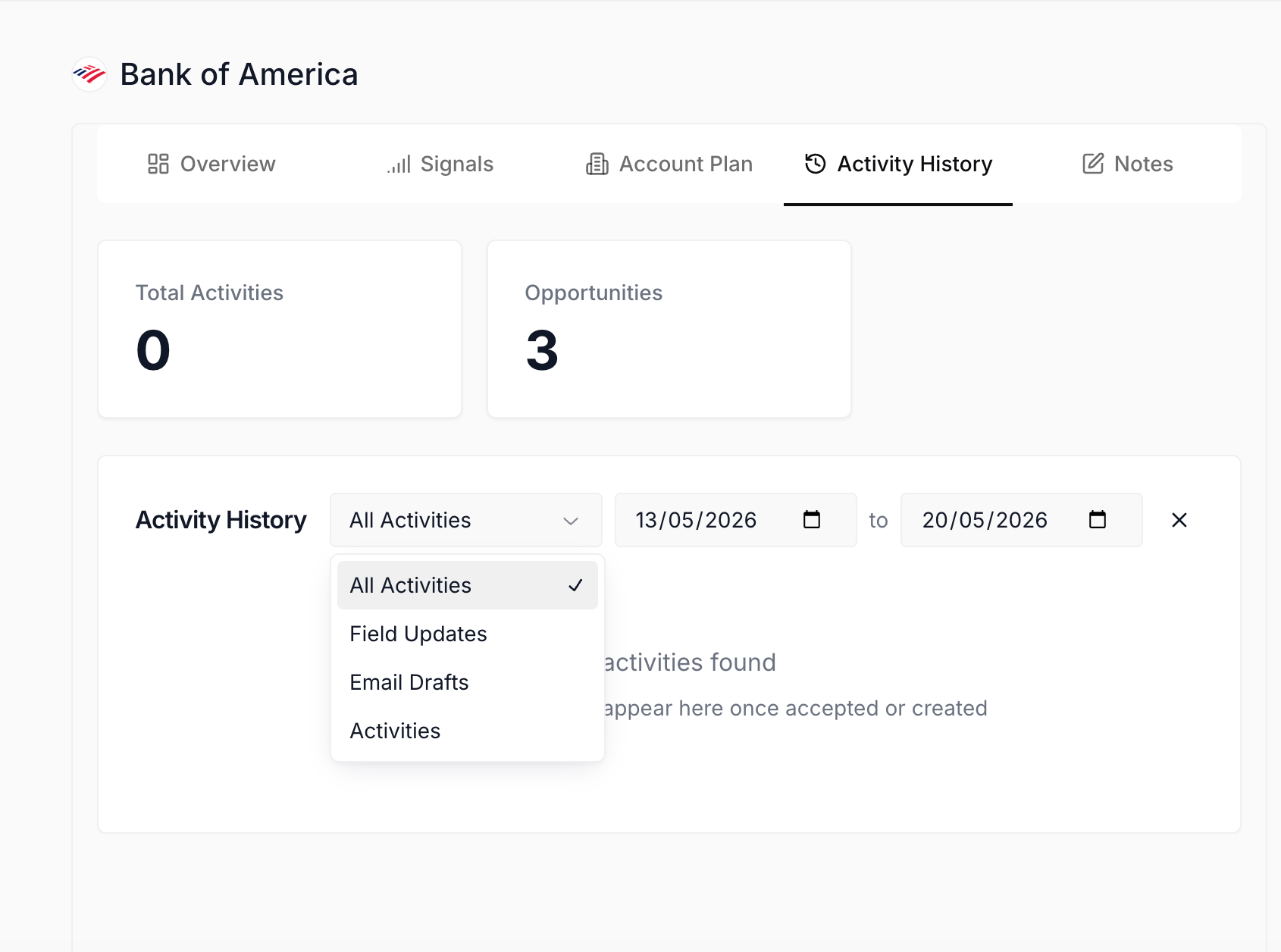
Activity History sub-tab on the Account detail
- Monitor signals for the account. The Signals sub-tab is the per-account slice of the live-intel feed, every external event Katalyst has scored as relevant to opportunities under this account. Same card shape as the global Signals feed, scoped to one company.
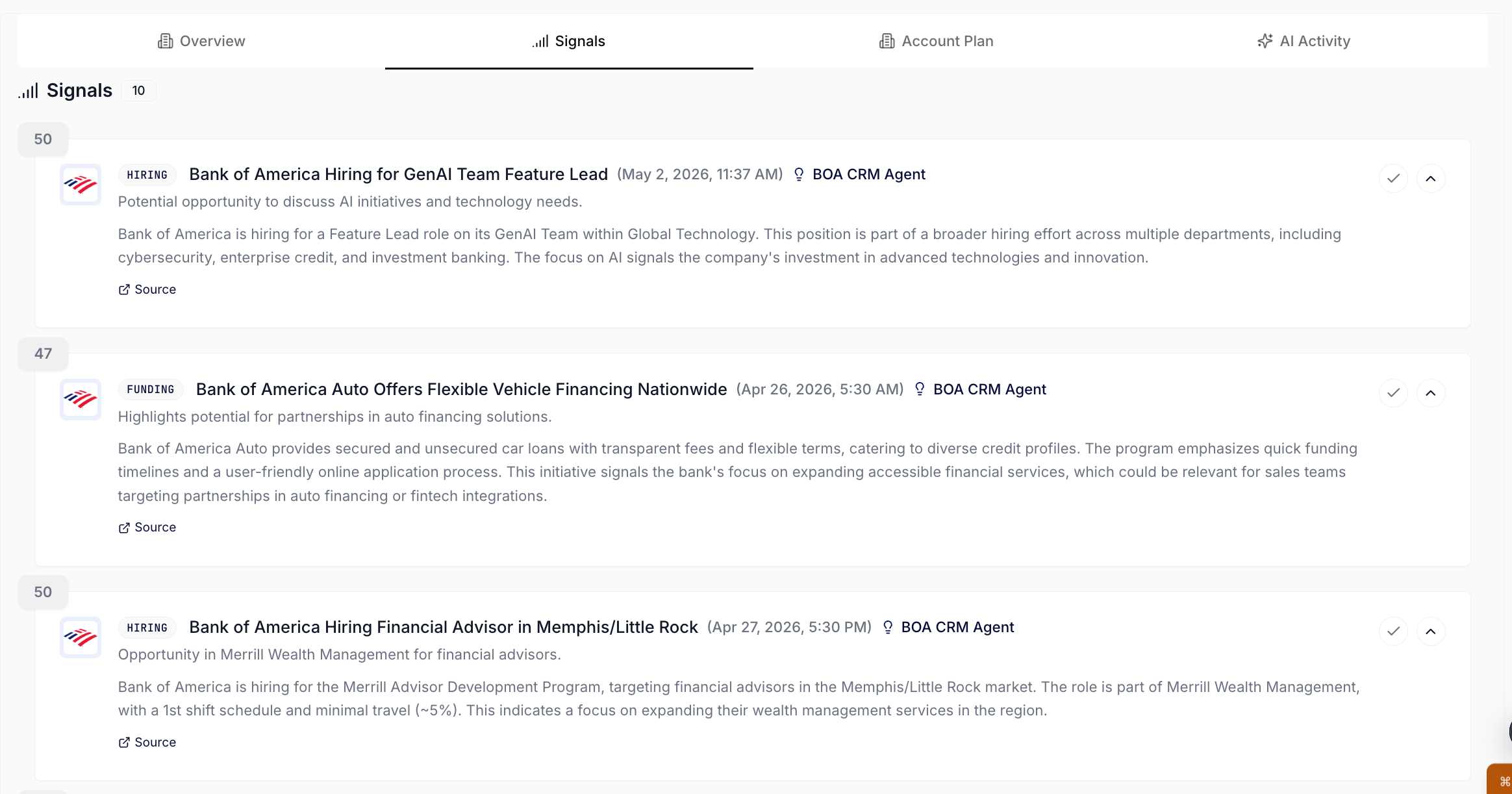
Signals sub-tab on one account
- Ask the chat panel anything about this account. The right-side chat is scoped to the account, persistent across all sub-tabs, and aware of every field, key person, linked opportunity, signal, and note on the record. Start a new thread for a new question; the panel keeps history per account, so yesterday’s thread is one click away.
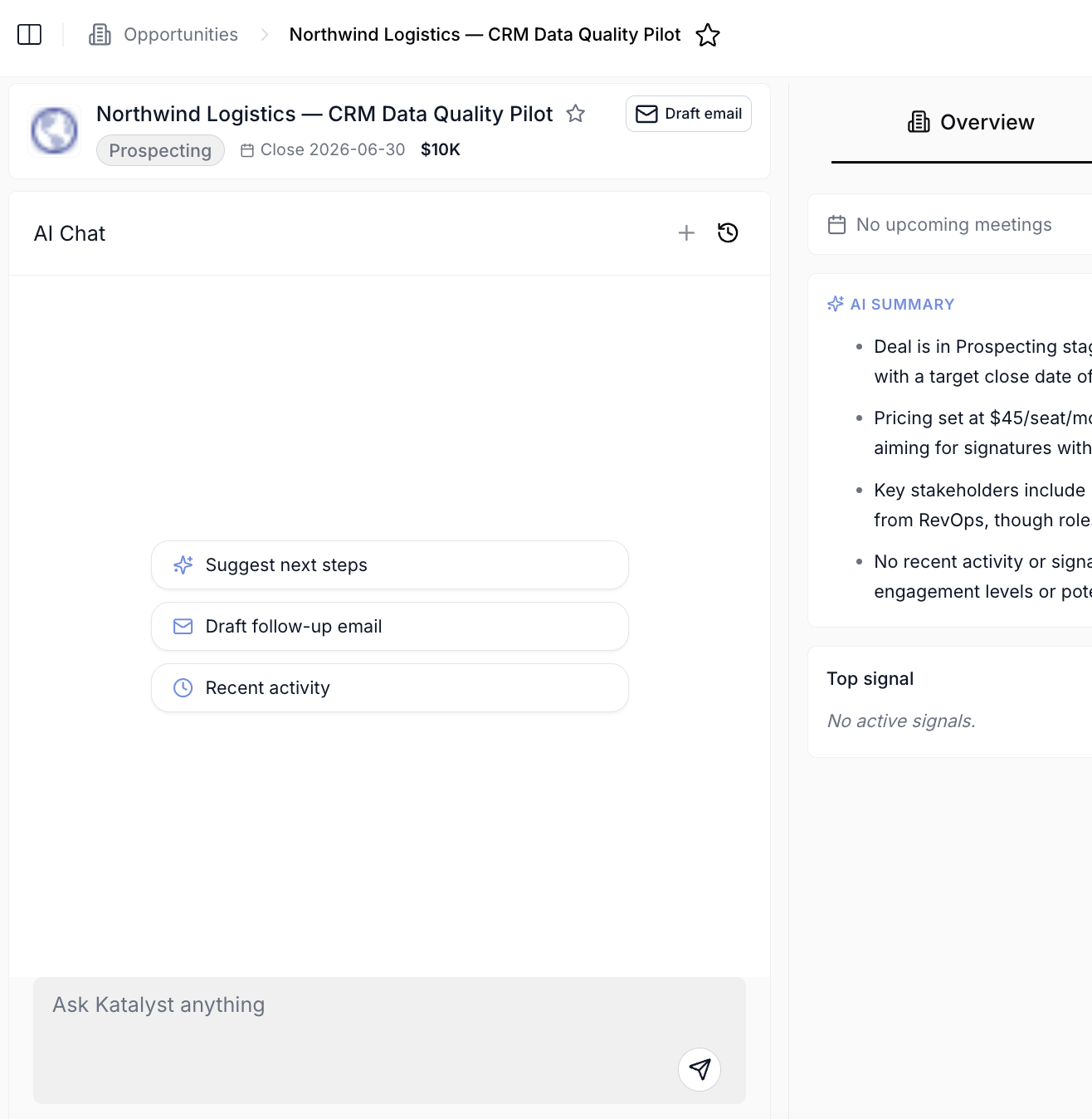
Per-record AI Chat across Account, Opportunity, Contact, and Meeting surfaces
- Find the Account Plan already written. Plans now generate on their own whenever an account is created or synced from your CRM, so the strategic view (fit, products, competitors, the About passage, and the strategic challenges) is waiting the first time you open the account. Nobody has to remember to click Generate, and a Refresh plan control re-runs it when the account has moved on.
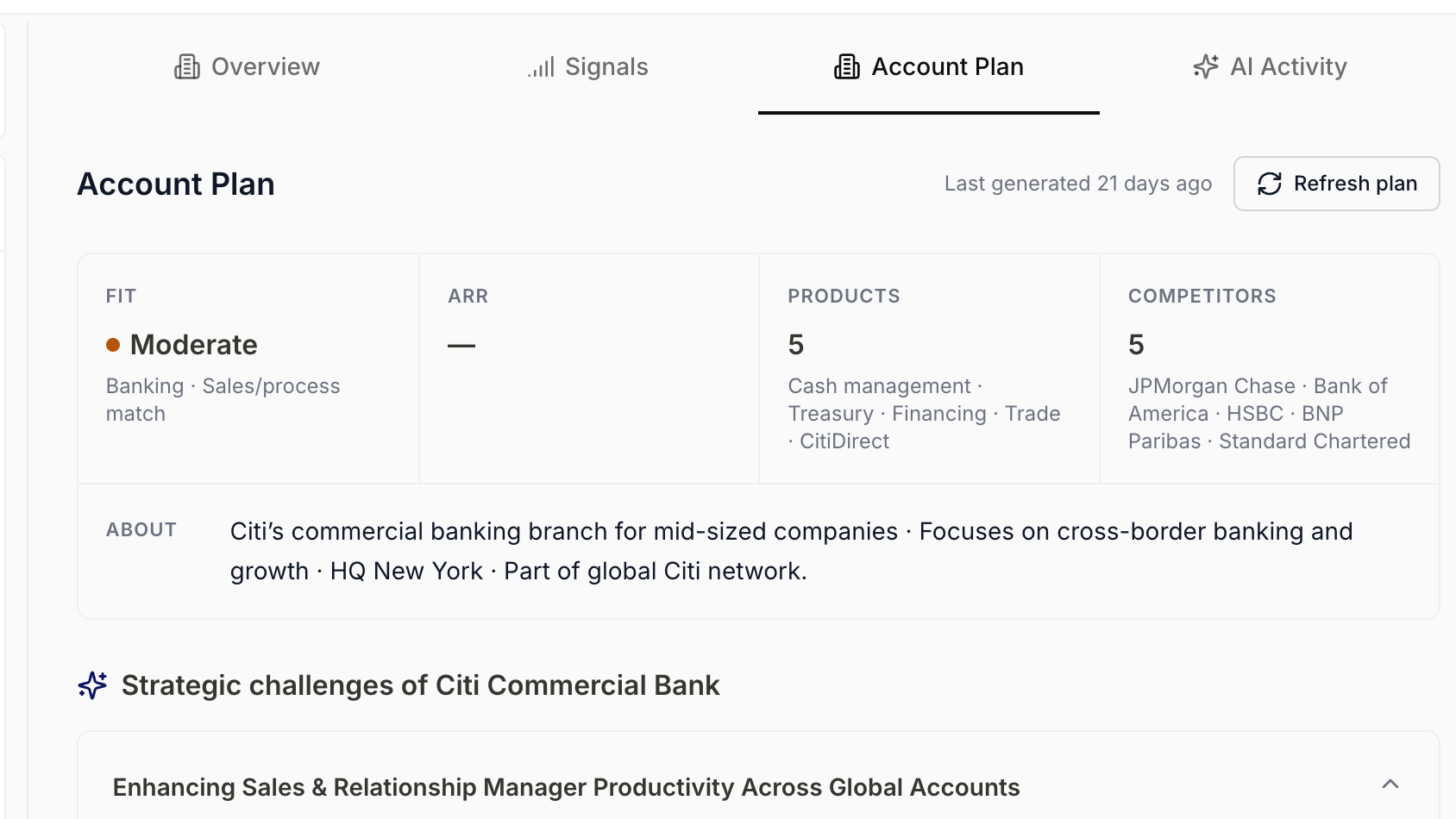
An account plan already generated on the account, with no manual Generate step
How to use it
A rep prepping for a Wednesday discovery call opens the account from her Favorites in the side nav. The Overview shows the bank’s Salesforce-synced fields, the buying committee grouped by the two live opportunities, and one deal pinned on the right. She clicks Account Plan, hits Generate account plan, and waits forty seconds; the snapshot card returns “Moderate fit, $100B annual revenue, five products, five competitors” with a one-line About row. The first strategic challenge surfaces a competitive-pressure narrative with three capability pills under How Katalyst Helps. She clicks Sharpen my pitch on that card, and the chat thread on the right gets a new message expanding the challenge into a call-ready pitch. She clicks Draft email using this on the second challenge, reviews the draft in the modal, saves it to her Gmail drafts, and switches to the Signals sub-tab to read a leadership-change card from two days ago that informs her opener. Twelve minutes from the favorite click to a fully-prepped call with a draft sitting in her outbox.Patterns that work
Generate the plan first, then read it. The plan is the differentiator on this page, not the Salesforce-mirrored fields. Hit Generate account plan as soon as you open an account you want to work this week, then come back to the Overview for the at-a-glance once the plan has filled in. The snapshot card answers most of the read in under a minute. Treat strategic challenges as a conversation, not a deliverable. The three actions on each challenge card (Draft email, Sharpen my pitch, Predict their pushback) are designed to feed the chat panel on the right. The pattern that works is “read the challenge, click Sharpen, read the chat answer, click Predict, read again,” and then either draft an email or open a meeting. The plan becomes a starting point for an actual prep loop rather than a wall of text. Use Activity History to keep AI honest. Once the chat is taking actions on the account (field updates, drafted emails, accepted meeting recommendations), Activity History is your audit trail. Default filter is the last seven days; widen the range when you need to find a specific accept or rejection, and use the activity-type filter to slice down to just field updates or just emails. Star the account if you’ll open it again this week. Favorites pin the account to the side nav and to Cmd+K, so opening the bank you’re working on Wednesday is two keystrokes from anywhere in the product on Monday. The same favorite drives the sidebar quick-link entry and the Cmd+K shortcut, so star early when you start working an account.Related
- Accounts - the list-level workspace that every account detail page opens from.
- Contacts - the people side of the same account; key people in Overview link out to the buying committee surfaces.
- Opportunities - the deal-list workspace; the right-side Opportunities pill on Overview routes into the per-opp page.
- Signals - the org-wide feed; the Signals sub-tab is the per-account slice of the same data.
- Activity History - the canonical home for the per-account follow-through log this page surfaces as a sub-tab.
- Integrations - the Salesforce connector that hydrates this page and the round-trip target for every inline edit.
- Research a new account - the standard end-to-end pass on an account you’ve never worked before.
- Catch up on a stalled account - reading Activity History and the chat to figure out where the deal stopped.
- Research from a fresh signal - turning a Signals card into a next-step on the account.
- Prep for discovery call - using the strategic challenges and the chat to walk in ready.