

Opportunities
Opportunities is where you work your deals. A Salesforce-synced table for sorting and editing, a kanban for stage-by-stage prioritization, and a left rail of Saved Views for the slices you actually return to.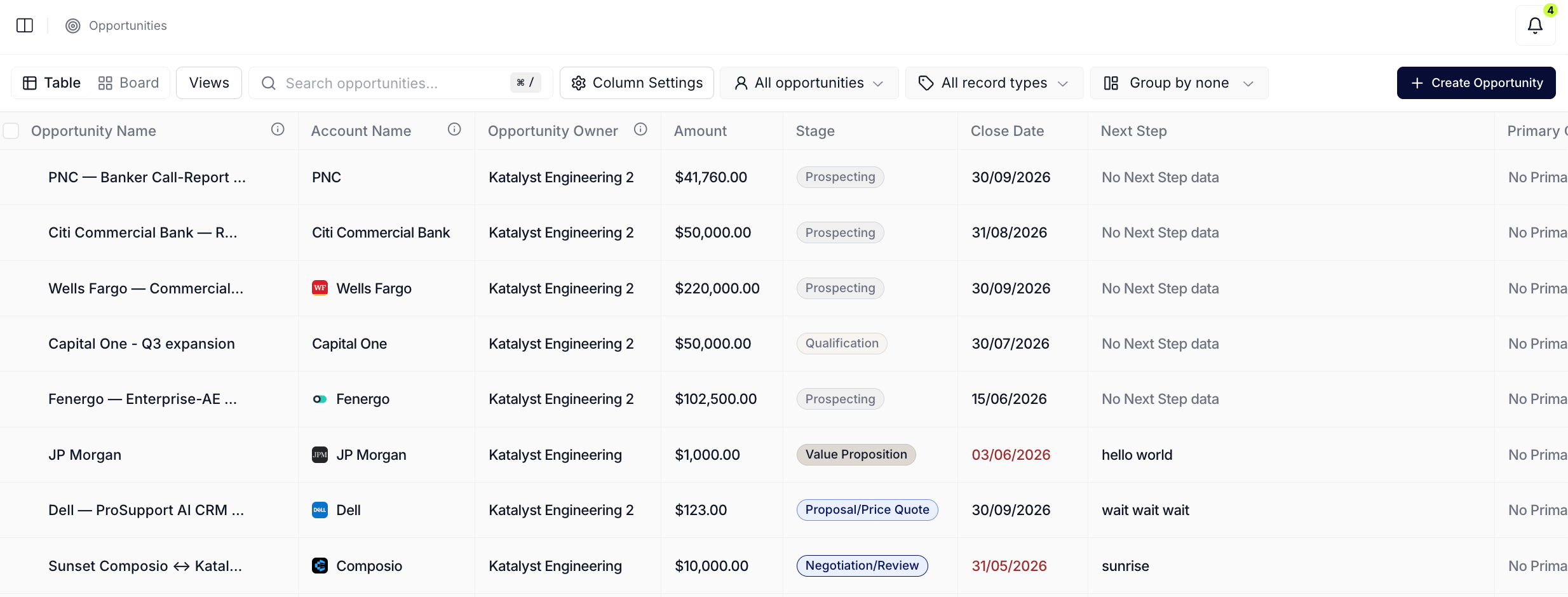
Opportunities tab table view
What you can do here
- Scan and edit your pipeline as an inline table. Resizable columns, click-to-edit cells, search by deal name with Cmd / Ctrl + /, and a Mine / All filter for narrowing to your own deals. Edits round-trip back to Salesforce in the background.
- Flip to a kanban by stage. The Layout switch toggles between Table and Board. Lanes are seeded from your Salesforce stage picklist, with per-lane deal count and currency total at the top. Drag a card across lanes to progress the stage; the move writes back to Salesforce in one round-trip.
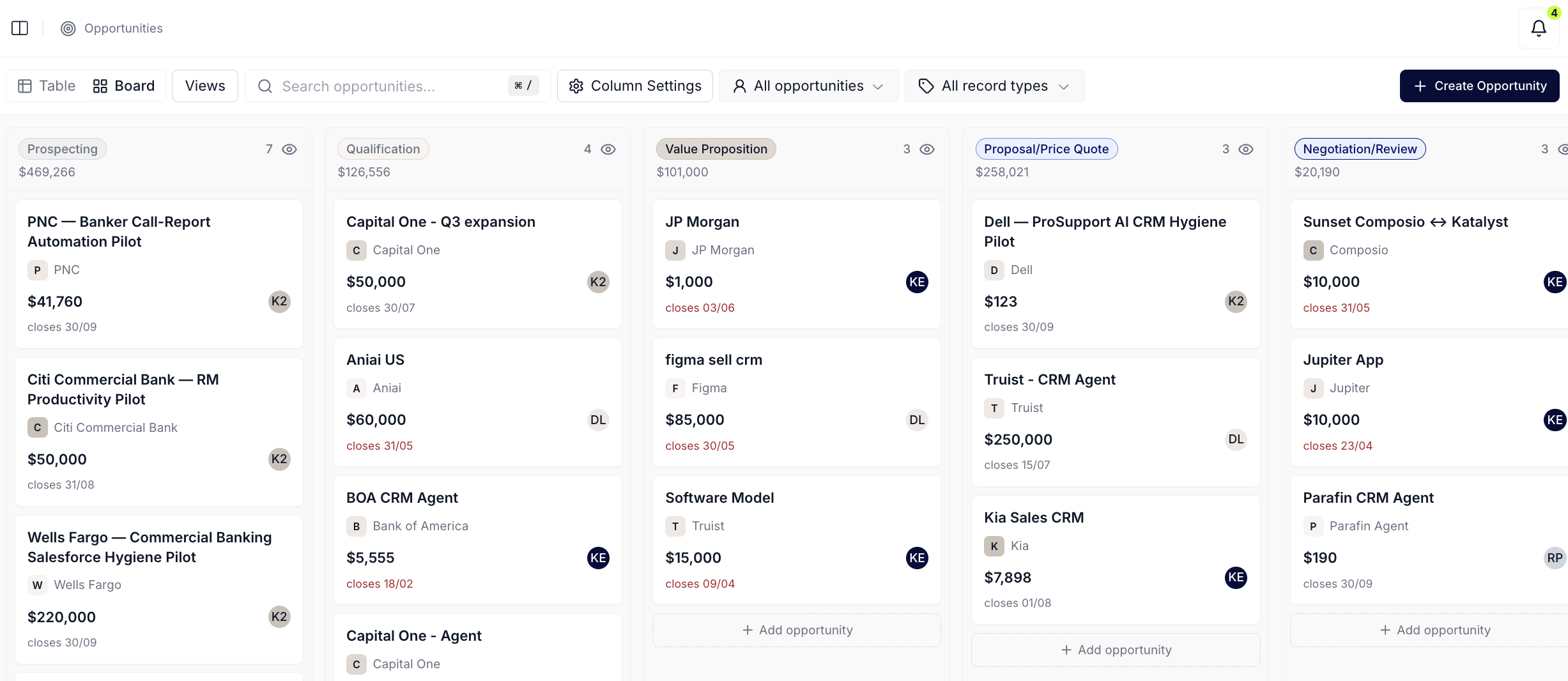
Opportunities tab in Board layout
- Save a view in the left rail. Hide the columns you don’t care about, set a record-type filter, flip Mine on, and save the configuration as a named view. One click snaps the whole table back to it, “Closing this quarter,” “My commits,” “Pushed past close date.”
- Add an AI-driven column. The Add column dialog lets you write a natural-language question (“Summarize the current state of the procurement review for this deal”) and run it across every row. Answers persist as a regular column the rest of the team can see.
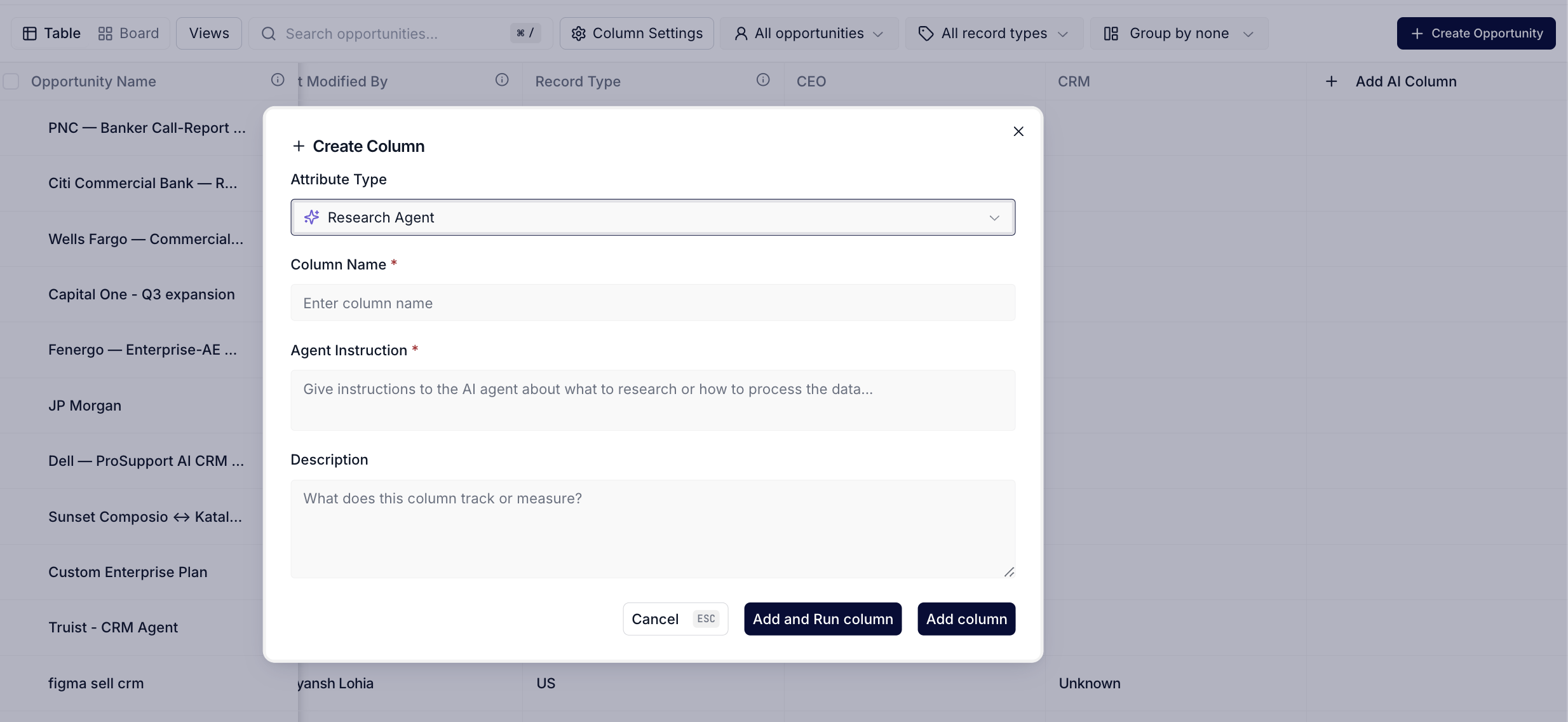
Opportunities table toolbar with the Add Column flow open
- Create a new deal in place. The Create Opportunity button in the toolbar (and the Add opportunity action at the bottom of every kanban lane) opens a record-type-aware modal that writes the deal to Salesforce and polls until it lands back in your table.
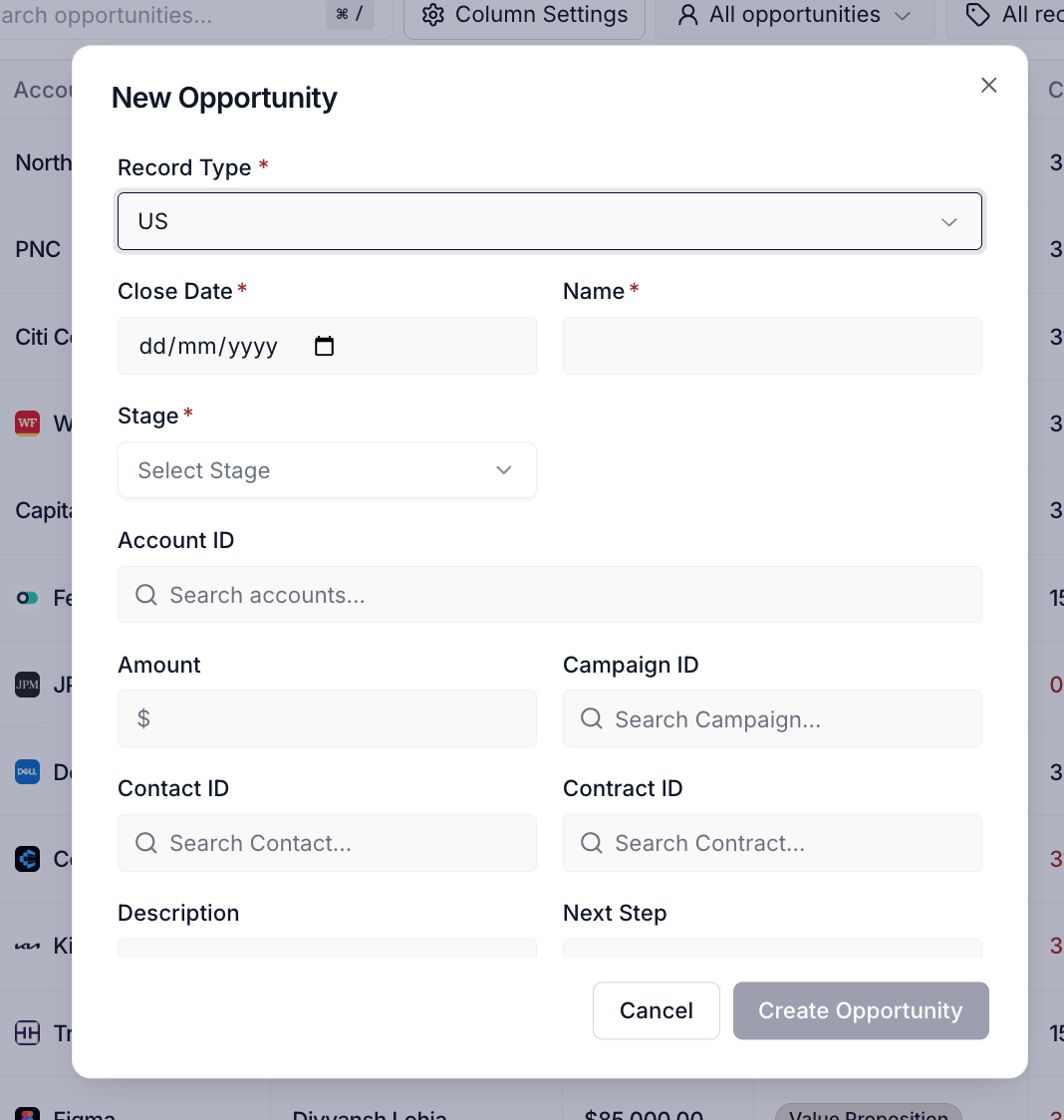
Create New Opportunity modal
- Reorder columns to match how you actually read a deal. Drag any column header left or right and the table remembers the order between sessions. The name column stays pinned to the left so you never lose your anchor. The same mechanism works on Accounts and Contacts.
- Filter to one owner and get the whole picture. Filtering to My opportunities or a specific teammate now returns a complete, correctly paginated list of that person’s deals, rather than a page trimmed after the fact. Switching owners resets you to page one, and the board view loads only the selected person’s pipeline instead of the whole org’s.
- See only the stages that apply. The board columns and the stage dropdown show only the active stages assigned to the record type you’re looking at. Inactive Salesforce picklist stages, stages belonging to other deal types, and stale cached stages no longer produce empty, irrelevant columns.
How to use it
A rep working an 80-deal book opens Opportunities first thing in the morning. The table loads with her “Mine, closing this quarter” Saved View applied: 22 rows in the Negotiation and Proposal stages, the columns she cares about already in place. She flips to Board, scrolls to the Negotiation lane, and sees a $480K deal with a red close-date pill and a volt-lime ring around the card (a pending AI Suggestion on its next step). She drags a stalled Proposal deal back to Value Proposition, clicks the volt-ring card to land on the deal page, reviews the AI Suggestion, and accepts the proposed next step. Back on the board, the Negotiation lane currency total ticks down by the moved deal and the AI Suggestion ring clears. Three deal-moving actions before her 9 AM coffee finishes.Patterns that work
Save the view you scan every day; don’t reapply the filters every morning. Saved Views capture hidden columns, the record-type filter, the Mine toggle, and the grouping mode. Reps who scan “closing this quarter, owned by me, in Negotiation or Proposal” daily save it once and snap back to it in a click. The left-rail order is drag-to-reorder, so put the view you open most at the top. Use the kanban for prioritization scans, the table for editing in bulk. The board is fastest when the question is “where does each deal sit, what’s overdue, what’s at risk.” The table is fastest when you’re updating next steps across five deals, accepting a batch of AI Suggestions, or sorting by close date. Both are the same underlying data, so you can flip mid-task without losing place. Drag-to-progress only writes the stage; everything else still belongs in the cell or the deal page. Moving a card across lanes commits the stage change to Salesforce, but it does not edit the amount, the close date, or the next step. If the stage move is also a forecast revision, click into the deal page or the row to update the rest. The card border turns red when a deal is past its close date; treat that as a prompt to re-set the close date or move the stage on the same pass. Volt-lime cell or card outlines are pending AI Suggestions, not errors. When you see a row or card with a volt-lime ring, Katalyst has a proposed value for one of its fields waiting on your review. Bulk-select rows and use the floating bar to accept or reject across the selection in one pass. The full AI Suggestions behavior, the per-cell review modal, the accept-all and reject-all paths, lives on the AI Suggestions page.Related
- Home - the daily landing surface; the Do This Now rail and rail click-throughs route into Opportunities.
- Pipeline Hygiene - the dashboard that scores every deal in this list; the per-deal hygiene badge on each opportunity page is the same score.
- AI Suggestions - the accept/reject mechanic for the volt-lime ring that shows up on cells and kanban cards.
- AI Suggestions configuration - the Update Instruction dialog and Test Prompt panel for tuning what each AI column proposes.
- Monday morning pipeline review - using Saved Views and the kanban for the weekly scan.
- Pre-board meeting forecast prep - flipping to Board and sweeping close dates and amounts before commit.
- Prep for customer meeting - drilling from the deal row into the per-opportunity page and chat.
- Tune an AI column when it’s noisy - the calibration play to run when a column is proposing too many irrelevant values.