

Draft Email
Draft Email is the shared composer that drafts outbound mail on top of whatever context you’re already in. It mounts from Cmd+K, from any record header, from an Account Plan challenge card, or from the per-record AI Chat, and it lands the result as a real draft in your connected mail client.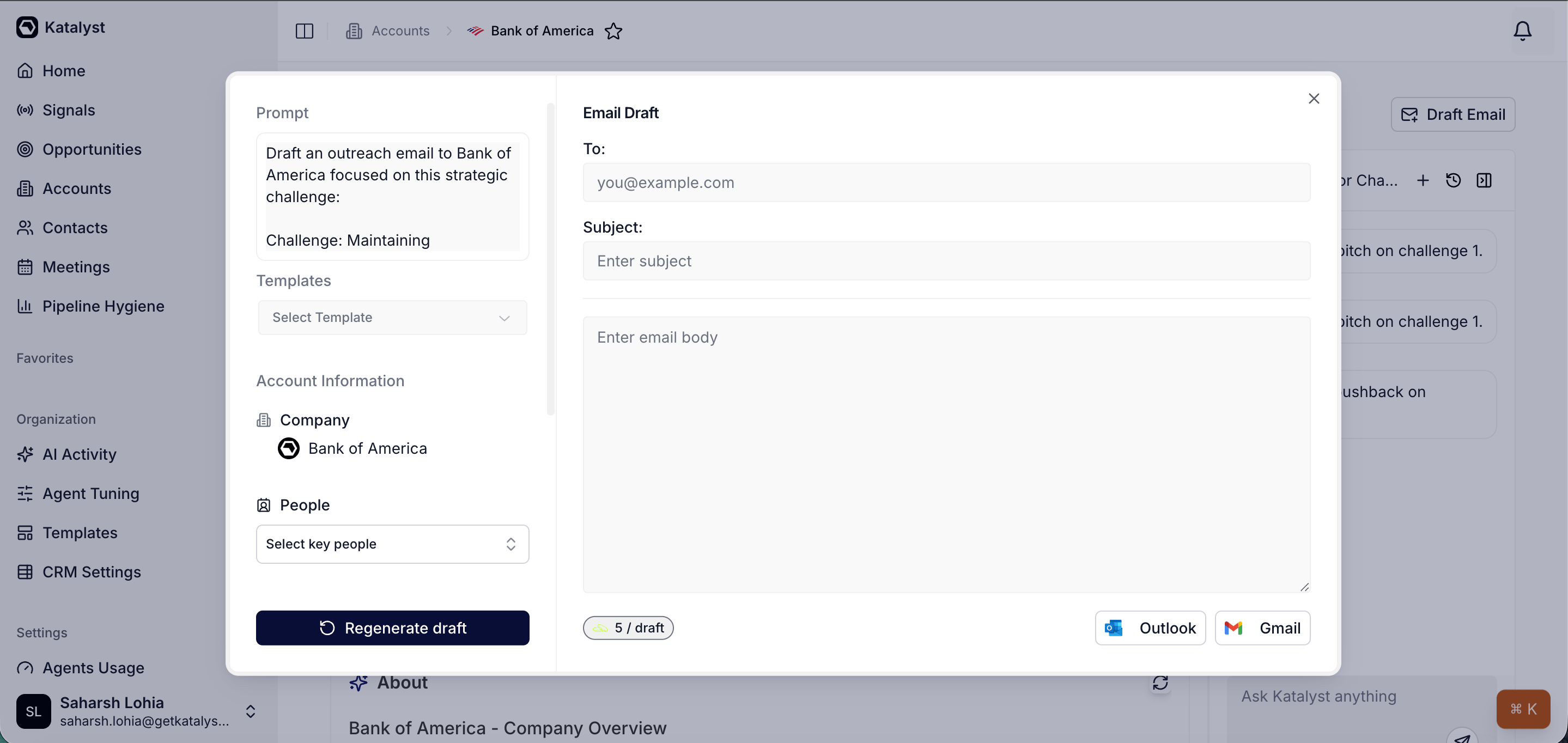
Draft Email composer modal
What you can do here
- Open the composer from anywhere you already have context. Cmd+K’s Send email quick action mounts the modal in place. The Draft Email button on an Account, Opportunity, or Contact header pre-fills with that record. The Draft email using this CTA on an Account Plan strategic challenge card seeds the prompt with the challenge itself. The same modal opens every time, with the right context already wired in.
- Steer the draft with a prompt, a template, and the people on the deal. The left side of the modal holds the prompt area (pre-populated with whatever context you came in with), a template picker that pulls from your saved Templates, and an account-information block with the company auto-set and a key-people multi-select that sources from the record’s buying committee.
- Regenerate and edit in place until it sounds right. Regenerate draft re-runs the prompt with the current selections; the To, Cc, Subject, and Body fields on the right are all editable, so you can hand-tune the language without leaving the modal. The Cc field pre-fills when the AI thinks someone else on the deal should be looped in, so the economic buyer doesn’t get left off by accident. Your edits autosave as you type, so a mis-click never costs you the draft.
- Dial the shape of the draft, not just the words. A collapsible generation panel carries the email type, the tone, and the length. Shorten a rambling first pass, warm up a note that reads too transactional, or switch the type when the email turns out to be a different kind of email than you started writing, all without rewriting the prompt.
- Hand off to your inbox, not Katalyst’s outbox. Save to Gmail or Outlook drops the finished draft into your mail client’s drafts folder, and a confirmation links you straight to it. The modal never sends; you open the draft, do the last read, and hit send yourself.
- Pick up a draft the AI Chat just wrote. When you ask the per-record chat to “draft a re-engagement note” or “write a follow-up referencing the security review concern,” the assistant emits the draft and the same modal opens pre-filled with the chat’s output. From there it’s the same edit, regenerate, and save-to-drafts loop.
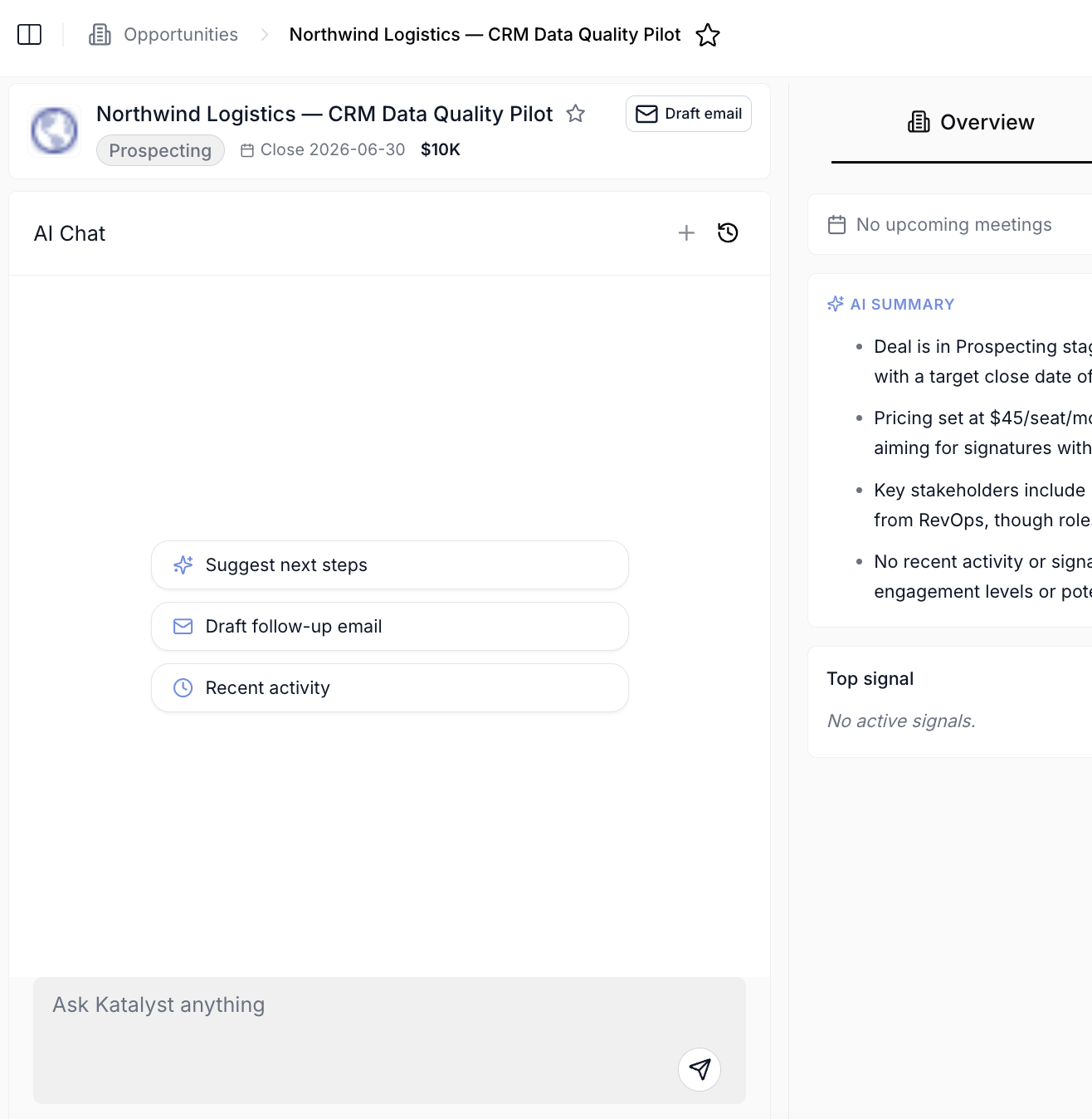
Per-record AI Chat across Account, Opportunity, Contact, and Meeting surfaces handing off to the Draft Email modal
How to use it
An AE working a renewal on a mid-market bank lands on the account from her Favorites and opens the Account Plan. The second strategic challenge card calls out a competitive-pressure narrative around regional commercial lending. She clicks Draft email using this and the modal opens with the challenge already wired into the prompt, the bank set as the company, and two key people pre-selected from the buying committee. She picks her Renewal touchpoint template from the dropdown, hits Regenerate draft, and reads the result. The opening paragraph is too generic, so she rewrites it inline in the Body field, then opens the generation panel and drops the length to short because the champion never reads past two paragraphs. The AI has suggested the economic buyer on Cc and she keeps him there. She clicks Save to Gmail, follows the confirmation link straight to the draft, gives it one more read, and hits send. Six minutes from the challenge card to a real email in the prospect’s inbox, with no copy-paste between tools.Patterns that work
Open the composer from the surface that has the context, not from a blank slate. Cmd+K’s Send email path is fastest when you already know who you’re writing to and what to say. The per-record header and the Account Plan CTA are better when the context matters more than the speed: the prompt and the people picker come pre-filled, so the generated draft already knows the deal. Use templates for cadence patterns, prompts for one-offs. The template picker is the right tool when this email is part of a recurring sequence (“renewal touchpoint,” “post-discovery follow-up”). The prompt area is the right tool when the email is bespoke (“respond to the procurement question they raised on yesterday’s call”). Mix the two when you want a templated structure with a custom hook. Save to drafts, not to send. The modal hands off to your inbox on purpose. Drafts give you one more pass before the email goes out, and they live in the same place every other email you send already lives, so the trail follows your normal mail history rather than disappearing into a CRM log. Reach for tone and length before you reach for the keyboard. The most common edit reps make by hand, cutting a draft down or warming it up, is a control in the generation panel. Changing length to short and regenerating is faster than trimming three paragraphs manually, and it keeps the structure of the argument intact rather than leaving you with the wreckage of a longer email. Trust the Cc suggestion, then check it. When the AI puts someone on Cc it’s because the deal context says they belong there, usually an economic buyer or a stakeholder who’s been on the thread. It’s right often enough to be worth reading, and wrong often enough to be worth a glance before you save. Hand off the routine drafts to the chat. When you’re inside a per-record AI Chat and ask for a draft, the modal opens pre-filled with the chat’s work. That path is great for the high-volume drafts you’d otherwise write from a blank composer; the chat already knows the account or deal, so you skip the prompt-tuning step entirely.Related
- Notes - capture what you took away from a call before you draft the follow-up; notes become context the chat reads on the next ask.
- Actions - turn the draft into a tracked task or follow-up when you want to come back to it later.
- AI Suggestions - the per-cell accept/reject layer; field updates the agent proposes often pair with an outbound email.
- Account detail - the per-account chat that often hands off into this composer.
- Send a personalized follow-up email - the end-to-end play that lands here from a fresh signal or a meeting.
- Research from a fresh signal - the Research-side play that ends in a draft saved to your inbox.