

Confirm Salesforce sync end of day
It’s roughly 5 PM. The day’s calls are done, the inbox is mostly cleared, and the rep wants the receipts: every field update the AI fired today, every Salesforce Task it created, every email draft it landed, all confirmed as round-tripped to Salesforce before signing off. This play turns Home into the launchpad for that end-of-day sweep: identify the accounts touched today, open Activity History on each, scan for failed or pending writes, retry anything stuck, and drop a Note on anything that needs investigation in the morning. About 10 minutes for a five-account touch day; the rep leaves with peace of mind and a clean ledger.What to expect
- Timing. Roughly 10 minutes for a five-account touch day; longer if the day was busier.
- Prerequisite. A day’s worth of AI-assisted activity behind the rep: accepted recommendations from meetings, fired field updates from AI Suggestions, drafted emails from the chat, the rest of the daily flow. Salesforce is connected and writing.
- Outcome. Every AI write from today confirmed in Activity History, anything stuck retried, and a Note dropped on persistent failures so tomorrow’s first task is named.
Step-by-step
- Open Home. Land on Home from the side nav. The right rail surfaces the day’s shape at a glance: Do This Now (what’s still pending), pipeline stats (the hygiene number for the book), and Upcoming Meetings (what’s still on the calendar). Use the chat history popover to scan the threads from today, the Do This Now feed to recall which accounts the AI flagged, and the upcoming meetings rail to remember which calls already happened. The goal is to build a mental shortlist of the accounts the rep touched today.
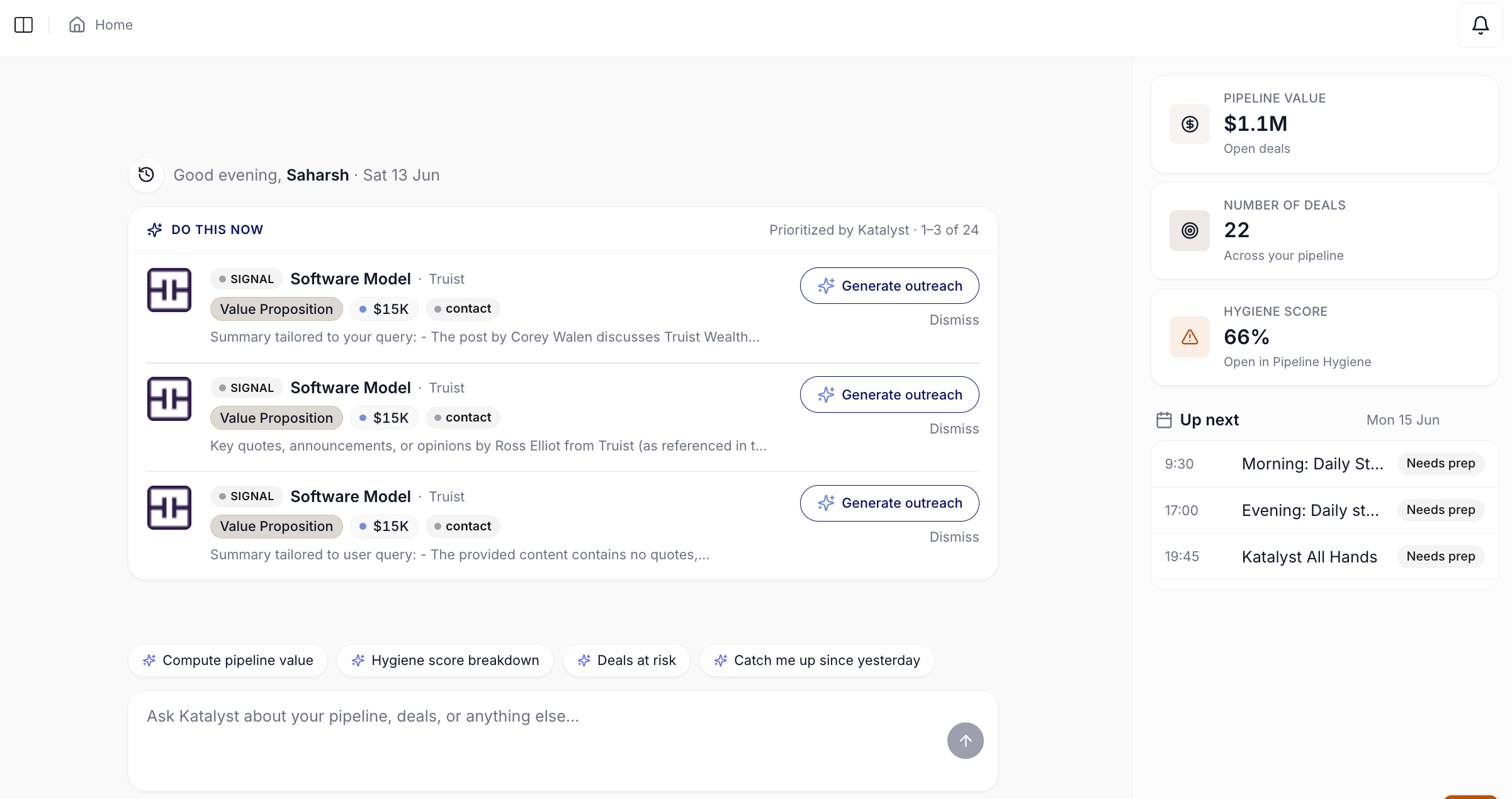
Home landing; the right-rail cards and the chat history popover together help the rep reconstruct which accounts they worked today.
- Build the touched-today list. Three sources usually cover it. The Do This Now rows the rep cleared today (the rep remembers which accounts the AI nudged). The meetings that happened earlier (each customer meeting touched its linked account). The Salesforce edits the rep made from any table (the inline cells with AI Suggestions accepted today). Three to five accounts is typical; ten on a heavy outbound day. Note them in order of when they were touched.
- Open the first account; click into Activity History. From the side nav or Favorites, open the first account. Click into the Activity History sub-tab. The page shows the AI-performed actions for this account in the current date window, defaulting to the last 7 days. Today’s rows sit at the top.
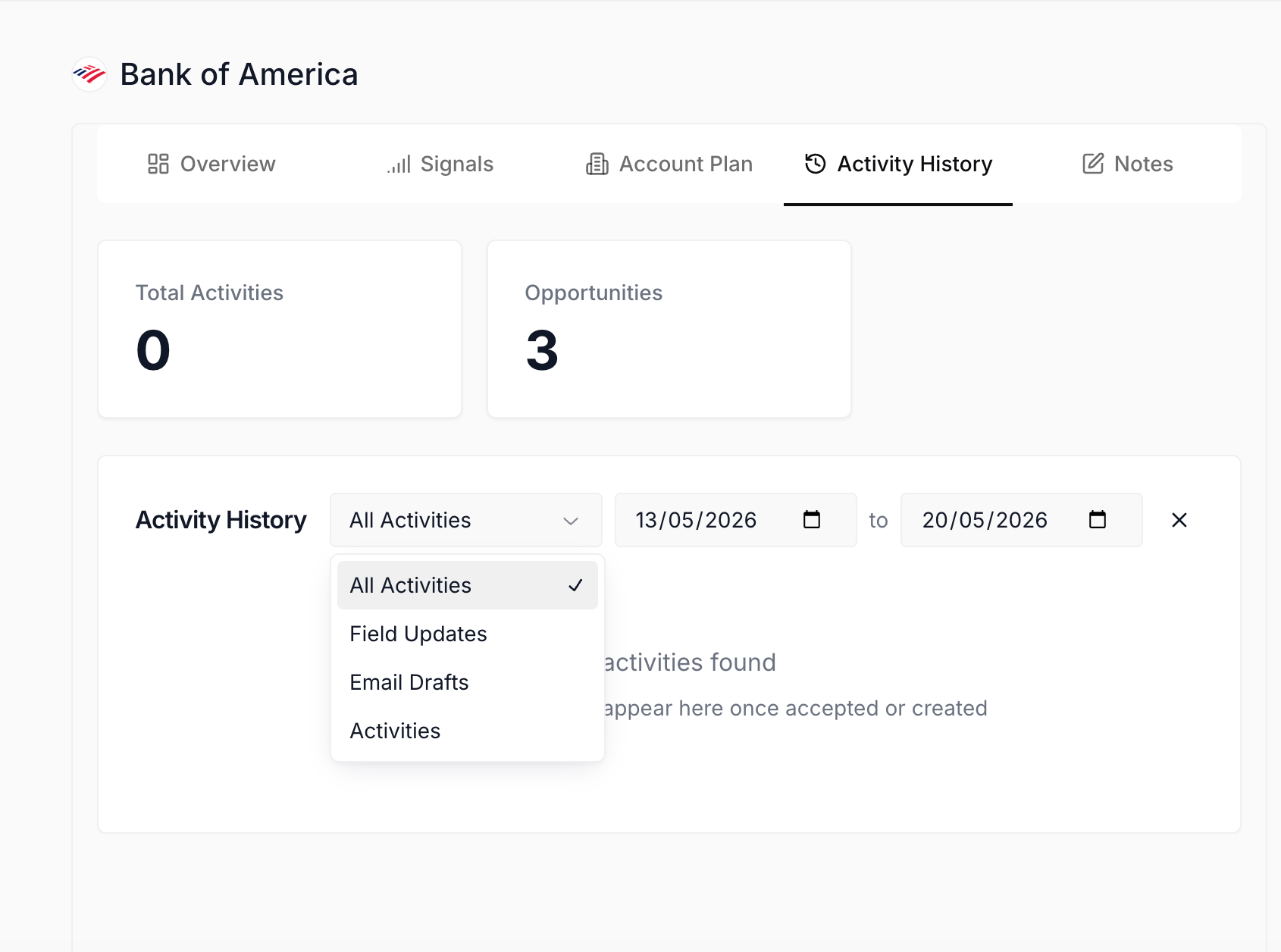
Activity History sub-tab on Account Detail; the AI-performed actions for the account render as rows with type, timestamp, account or opportunity tag, action label, and status badge.
- Scan for failed writes or pending retries. Read the Status column top-to-bottom for today’s rows. Three states matter at this hour. Accepted or Action Taken means the write landed; nothing to do. Rejected means the rep already decided that one; also nothing to do. Pending, Suggested, or Drafted means the row is still in flight, and end-of-day is the moment to resolve it. Failed states surface in red and need the deepest look.
- For anything stuck, drill into the row’s reasoning and retry. Click View on a stuck row. The dialog opens with the shape-specific renderer: a field update shows the proposed value plus the AI’s reasoning paragraph; an email draft shows recipients, provider, thread ID, and reasoning; an Activity shows subject, body, and lifecycle status. Read the reasoning and decide. If the AI’s read still looks right, the retry path is to re-accept from the upstream surface (the per-meeting recommendation or the per-cell AI Suggestion). If a Post-meeting Action Plan partially executed earlier, the failed steps surface on the original meeting card with a per-row Retry affordance.
- Drop a Note on persistent failures. If a write failed twice (or a sync issue won’t resolve in this session), open the account’s Notes sub-tab. Create a new Note: name the account, name the field or activity that failed, name what the AI was trying to do. Three lines is enough. The auto-save catches it the moment the rep types. Tomorrow’s first task is now named; the rep doesn’t carry the failure mentally overnight.
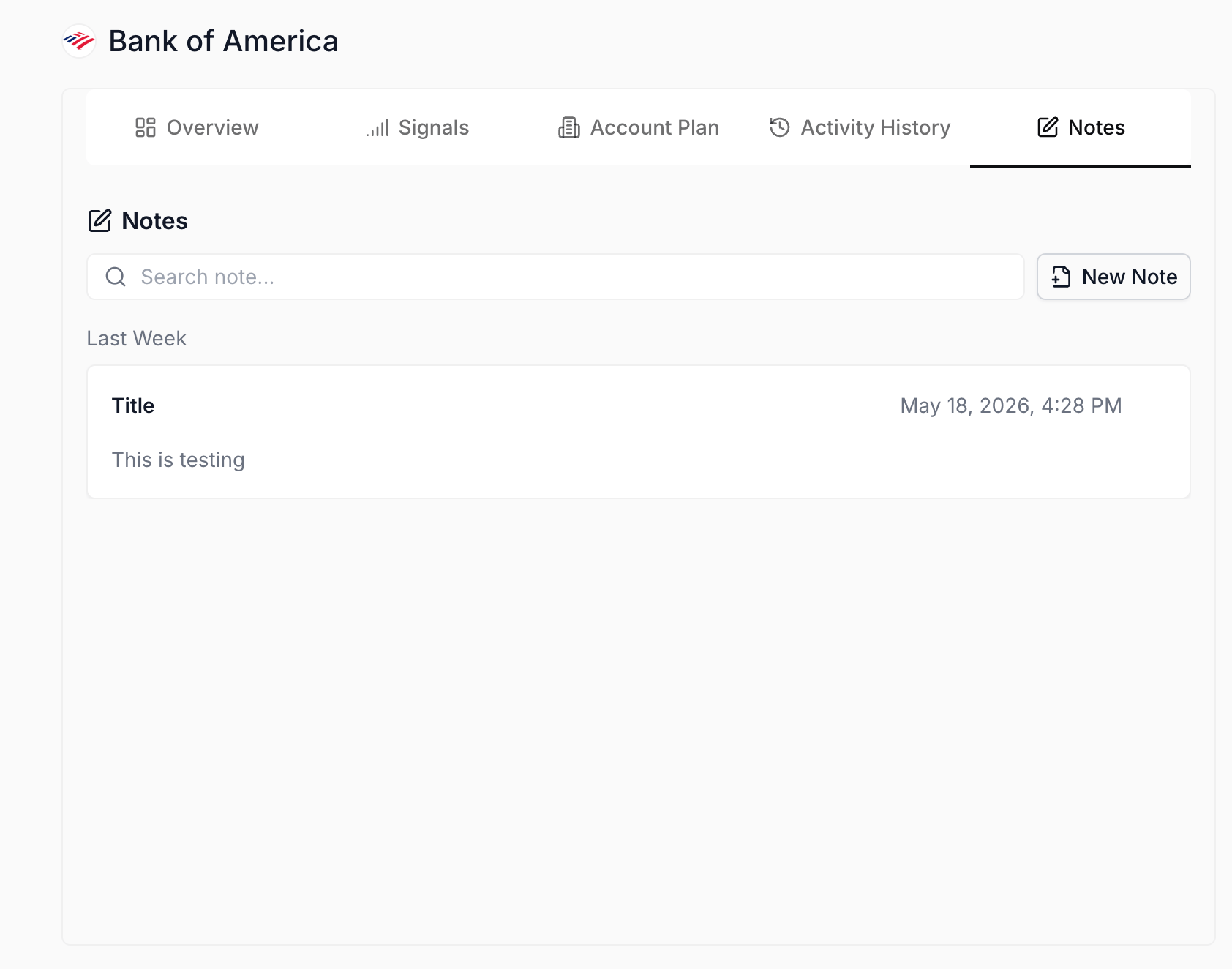
Notes sub-tab on the account; the auto-save composer captures the end-of-day flag the moment the rep types.
- Repeat for the rest of the touched-today list. Move through each account on the list, same pass: Activity History scan, retry the stuck rows, Note any persistent failures. A five-account day is usually 10 minutes; the rhythm gets faster as the rep learns which accounts tend to need scrutiny.
- Mark the day clean. When every account on the list has been swept and either confirmed clean or flagged with a Note, the day is closed out. The audit trail is durable, the failures are named, and tomorrow morning starts oriented rather than catching up.
Variations
If the day was light (one or two accounts touched), skip the touched-today list and just open Activity History scoped to those accounts directly; the whole sweep takes three minutes. If the day was a manager’s day rather than a rep’s (audit across the team rather than the rep’s own book), flip to the global AI Activity tab from the side nav and scope to All Opportunities or All Accounts; the same scan-and-retry loop applies, just one level wider. If a persistent failure clusters on one field or one account (the rep keeps Noting the same row across multiple days), that’s a calibration signal: run Audit AI activity this week on the next Friday and tune the column instruction or mute the upstream suggestion type.Related
- Home - the launchpad this play starts from.
- Activity History - the per-account audit surface the sweep centers on.
- Notes - the per-record scratchpad the persistent failures land in.
- AI Activity - the org-wide forensic log the manager variation uses.
- Audit AI activity this week - the weekly calibration play to run when patterns surface in this sweep.
- Recap after a customer meeting - the per-meeting play this sweep verifies the writes from.