

Activity History
Activity History is the per-account audit trail for the autonomous layer. It sits as a sub-tab on Account detail and lists every AI-performed action on the account, drafted emails, accepted field updates, fired Action Plan steps, accepted recommendations, with the reasoning and the timestamps captured against each row. The rep uses it for an end-of-day confirmation pass; a manager uses it to reconstruct a deal-loss retro.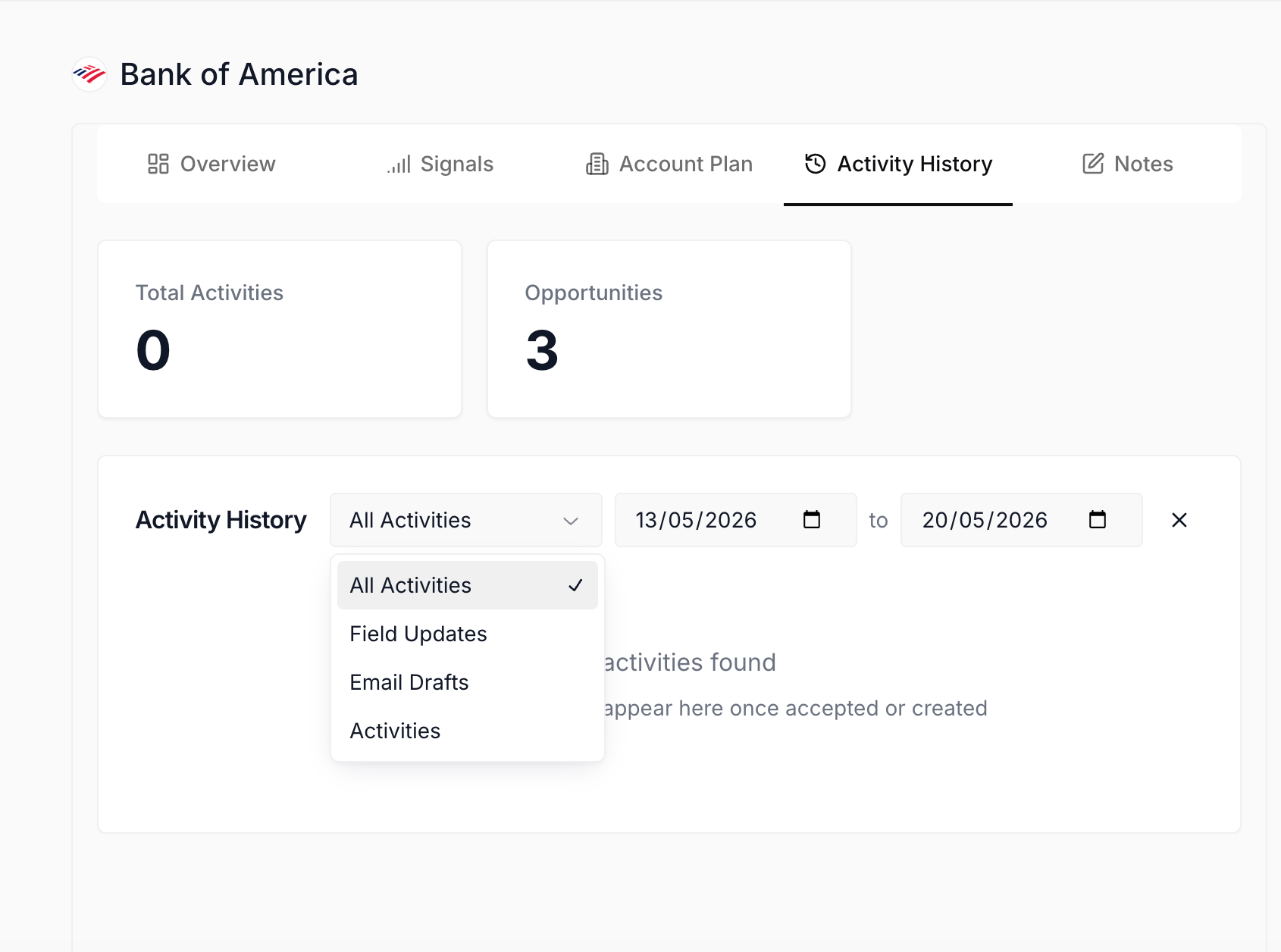
Activity History sub-tab on Account detail
What you can do here
- Open it from any account. Activity History is the fourth sub-tab on Account detail, sitting alongside Overview, Account Plan, and Signals. The header carries the same account context as every other sub-tab; the right-side chat panel stays put so a rep can read the log and ask the chat about it in the same pass.
- Read the two summary stats. Two stat cards sit at the top of the surface: Total Activities for the count of AI actions on this account in the current filter window, and Opportunities for the count of opps under the account that have had AI activity. The pair gives a one-line read on how much of the autonomous layer has touched this account and across how many deals.
- Filter by activity type. A dropdown above the list scopes to All Activities, Field Updates, Email Drafts, or Activities (the catch-all for AI-performed tasks). Switching the type filter is the fastest way to ask “what fields has the agent changed on this account” versus “what emails has it drafted on this account.”
- Set the date range. The date picker defaults to a seven-day window; widen the start date to read a quarter or a full deal cycle, narrow to today to confirm what just fired. The clear-filter control to the right resets both filters back to the defaults.
- See pending and post-accept rows together. The list shows both rows still awaiting a decision and rows that were already accepted; rejected rows are moved to a rejected bucket that’s accessible through the filter, so nothing is hard-deleted from the trail. A rep can confirm an end-of-day state at a glance: zero pending, fourteen accepted, one rejected.
- Read the reasoning on every row. Each activity carries the action type, a short summary of what the AI did or proposed, the timestamp, and the reasoning the agent used. The reasoning is the load-bearing column: it’s what lets a rep go back later and confirm why a field flipped or why a draft went out the way it did.
- Trace fired steps back to their source. Steps that came from the Post-meeting Action Plan land here once the executor finishes, with a link back to the meeting that triggered them. Accepted suggestions from the per-cell volt-lime ring land here when they fire. Draft Email sends land here when the rep sends the draft. The page is the place every accept-and-fire ends up.
How to use it
A CS lead wrapping up a Friday afternoon opens her largest account, clicks the Activity History sub-tab, and reads the seven-day window top to bottom. Total Activities reads 22, Opportunities reads 3, and the list shows: six accepted field updates (mostly Next Step and Last Activity Date nudges from AI Suggestions), four drafted emails (three saved to Gmail, one sent), eight Post-meeting Action Plan steps from Tuesday’s QBR that fired together as a single Approve and Sync pass, three accepted recommendations from the Wednesday discovery call, and one rejected stage change she turned down on Thursday because the contract wasn’t countersigned yet. She clicks the rejected row, reads the reasoning (“Procurement email Jun 10 references signature window”), confirms her own call, and pulls the same account into her Monday team review. Six minutes from sub-tab open to a clean read of the autonomous layer’s week on the account.Patterns that work
Use Activity History as your end-of-day confirmation. The page rewards a quick read at the end of the day on whichever accounts the rep moved that day. Scope by activity type when looking for a specific class of action, leave it on All Activities to read the day as a story. The point isn’t to find new work; it’s to confirm what landed, what didn’t, and what got rejected before the day closes. Pair it with AI Activity on Monitor when the question is org-wide. Activity History is one account at a time; AI Activity is the org-wide cousin and lives under Monitor. The pattern is to open Activity History when the rep is already inside an account, and to open AI Activity when a manager or the rep wants to see the same data across every account in scope. The two surfaces share the same row shape, so a rep who knows one knows the other. Read the reasoning column when a row surprises you. Most rows on the page are obvious from the summary alone; the high-value reads are the ones that surprise. When a field flipped to a value the rep didn’t expect, open the reasoning column on that row before assuming the agent got it wrong. The reasoning often references the line in a transcript or the email that triggered the proposal, and the rep can decide from there whether to reject and tighten the prompt or let it stand. Use it as the spine of a deal-loss retro. When a deal closes lost and the team wants to reconstruct what happened, Activity History scoped to the account with a 90-day window is the chronological spine: every field nudged, every email drafted, every meeting fired into a plan, every recommendation accepted or rejected. The trail is durable, so a retro three months after the fact still reads cleanly.Related
- Meetings - the workspace where post-meeting recommendations get accepted; the fired rows land here.
- Post-meeting Action Plan - the flagship follow-through flow; each executed step appears as a durable row on this page.
- AI Activity - the org-wide cousin of this page; same row shape, scoped to every account in the rep’s book.
- Account detail - the parent surface where Activity History lives as the fourth sub-tab.
- AI Suggestions - the per-cell accept-and-reject layer; accepted field updates land here.
- Actions - the cross-pipeline inbox for pending suggestions; rows resolve into Activity History once accepted or rejected.
- Confirm Salesforce sync at end of day - the closing-time routine that opens here for a per-account confirmation.
- Run a deal-loss retro - the 90-day-window pass that uses Activity History as the chronological spine.
- Weekly Close the Loop review - the Friday-afternoon pass across the rep’s worked accounts for the week.
- Catch up after PTO - reading Activity History across the accounts the rep owns to see what fired while they were out.