

Notes
Notes is the in-product notebook on every record. Open the Notes sub-tab on an Account, Opportunity, or Contact, start typing, and the note saves on every keystroke. The same content becomes context the per-record AI Chat reads back the next time you ask it a question on that record.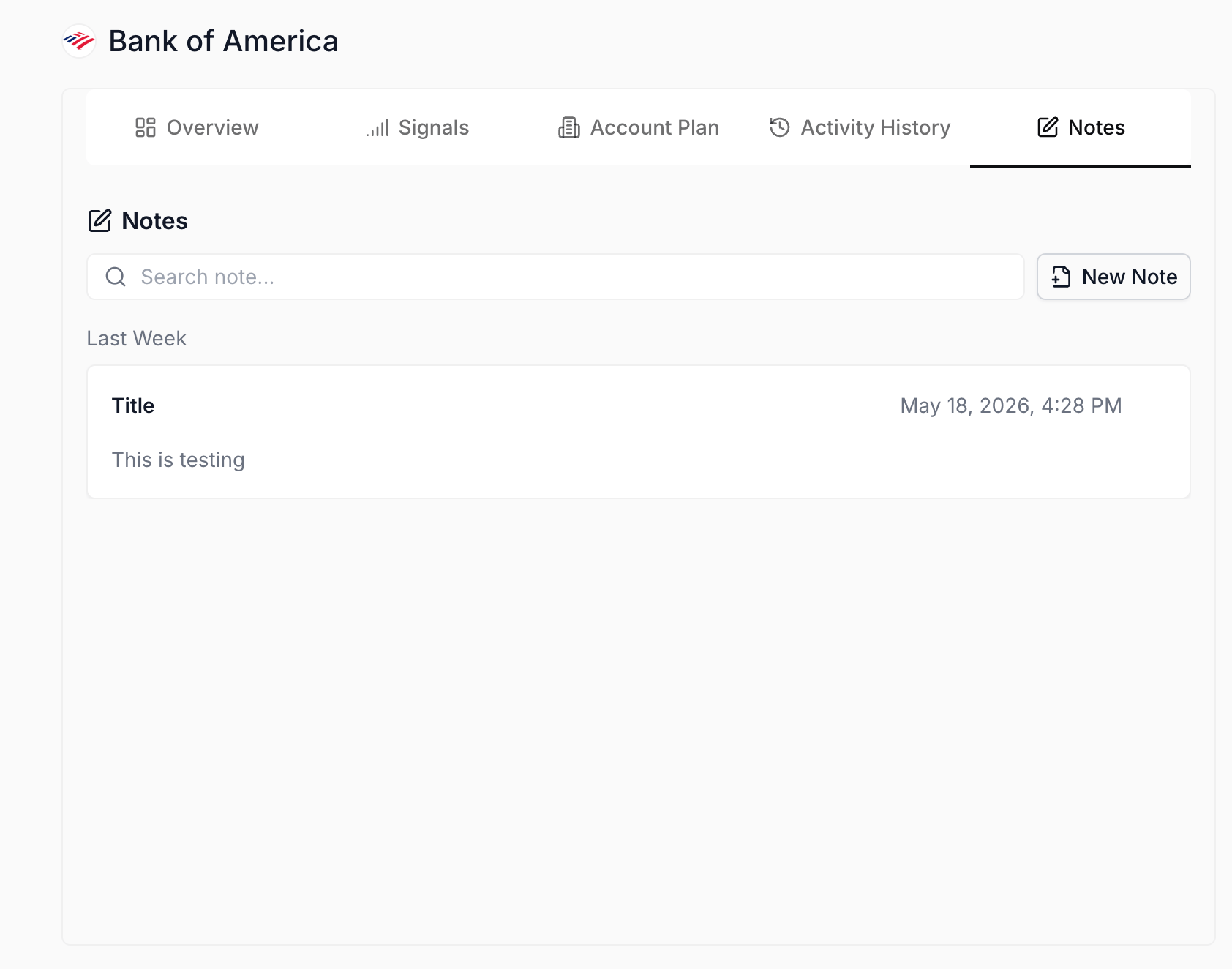
Notes sub-tab on a record
What you can do here
- Open the Notes sub-tab from any record. Notes lives as a sub-tab on Account detail, Opportunity detail, and Contact detail. Same shell on each surface, scoped to whichever record you’re on. The list view holds every note you’ve taken on that record, sorted most-recently-edited first.
- Jot in a freeform editor with auto-save per keystroke. New note opens an in-place editor with an editable title and a large body field. Every keystroke writes through; there is no save button, and there’s nothing to lose if you switch tabs, close the laptop mid-call, or get pulled into another meeting.
- Search across every note on the record. The search bar at the top filters by title and full body text, so finding “the procurement question from the May call” takes two words rather than a scroll through cards.
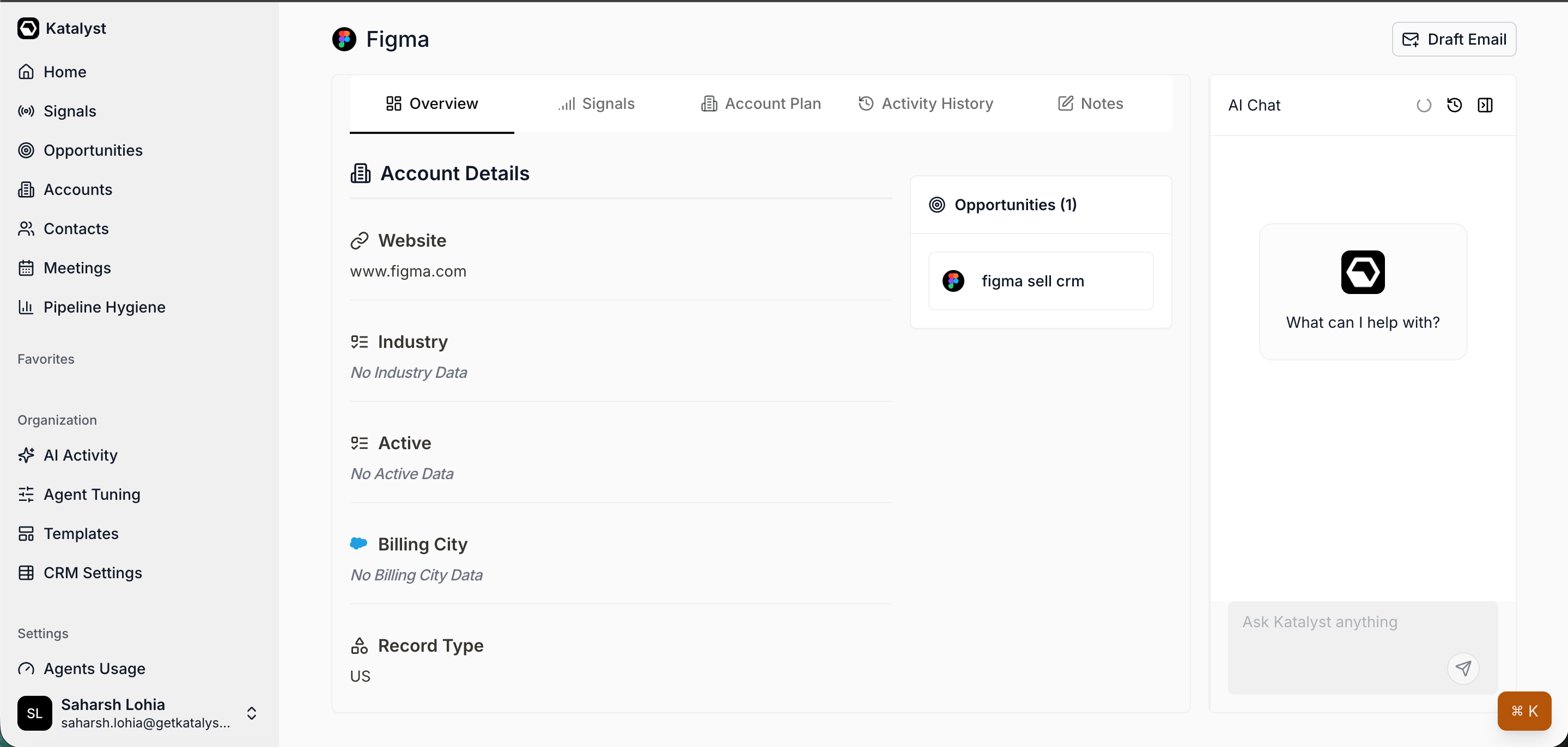
Account detail with Notes as one of its sub-tabs
- Feed your notes into the next AI Chat ask. The per-record chat already knows every field on the record. It also reads your notes. The next time you ask “what did they say about budget” or “draft a follow-up referencing last week’s discovery,” the chat answers from the notes you took, not from a blank slate.
- Share with your team automatically. Notes are visible to teammates on the same account, not private to the author, so a CS handoff or a manager review reads the same trail you took.
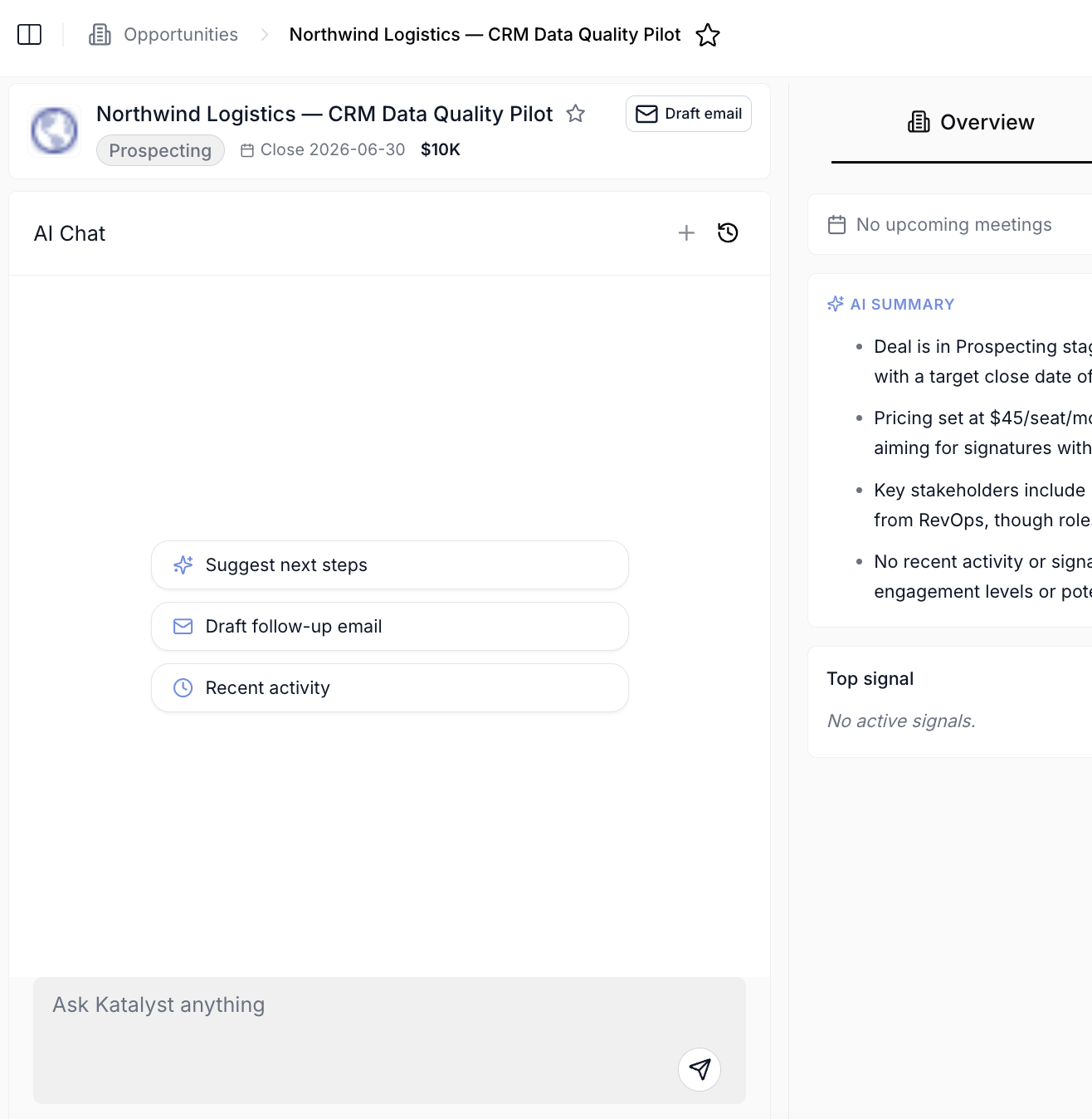
Per-record AI Chat picking up notes as context on the next ask
How to use it
An AE finishes a 30-minute discovery call with a healthcare prospect. She opens the account from her Favorites, clicks the Notes sub-tab, hits New Note, types “May 15 discovery” in the title, and starts typing what she heard. Budget timing, the two stakeholders who joined, the integration concern around their existing EHR, the off-hand comment about a competing vendor’s pricing. Six minutes later she clicks back to the list. The next morning she opens the same account, asks the chat panel “draft a re-engagement note that addresses their EHR integration concern,” and the assistant pulls the right detail from her note and hands the result to the Draft Email modal. Eleven minutes from the call ending to a tailored follow-up sitting in her Gmail drafts.Patterns that work
Type while the call is live, not after. Auto-save per keystroke is the whole point. If you wait until after the meeting, you’ll lose half the off-hand comments that turn out to matter; if you type during, you don’t have to remember anything later. Two short paragraphs of “what they said” during the call beats a polished writeup attempted from memory the next morning. Title each note with the date and the conversation. “May 15 discovery,” “Jun 2 procurement check-in,” “Jul 10 security review call.” That’s what the search bar searches against, and that’s what a teammate reads back when they pick up the trail. A consistent title format makes a year of notes navigable. Treat notes as the chat’s working memory. The per-record AI Chat reads everything on the record, including notes. The pattern that compounds is: take notes during the call, ask the chat to reason over them the next time you open the account, and the chat answers as if it sat in on the conversation. Skip the notes step and the chat is back to inferring from CRM fields alone. Use Notes for what didn’t fit a Salesforce field. The CRM has fields for next step, close date, stage, and amount; Notes is for the texture around them, the why, the off-script comment, the political dynamic. Don’t try to re-type Salesforce fields into a note, and don’t try to compress a note down to a Salesforce next-step value. Both surfaces win when each holds what it’s good at.Related
- Draft Email - the next-step composer; a note’s worth of context routinely turns into the prompt for an outbound draft.
- Actions - when a note ends in “follow up Thursday,” create an Action on the record and the task tracks the commitment.
- Account detail - the per-account workspace; Notes lives here as one of the sub-tabs.
- Opportunities - the deal-list workspace; every Opportunity detail page carries its own Notes sub-tab.
- Log a call right after the conversation - the play that turns a 30-minute conversation into a note plus a follow-up Action in five minutes.