

Tune your signal noise budget
The Signals feed is only as useful as the catalog feeding it. After a month or two of live use, every rep ends up in one of two states: the feed is firing too much (a hiring type that pulls every junior backfill, a partnership type that catches every minor reseller note), or too little (a category the rep cares about, like sustainability filings or layoff announcements, is not in the curated 14-type catalog at all). This play is the 5 to 10 minute monthly tune-up that calibrates the catalog to the rep’s actual book: mute the noisy types, add the custom ones, right-size the 6-active cap, and set per-type delivery channels.What to expect
- Timing. Roughly 5 to 10 minutes, once a month or after a notable noise spike.
- Prerequisite. The rep has been using Signals long enough to have an opinion (typically two or three weeks of live signals). They land on Signals Settings via the gear icon in the top-right of the global Signals tab.
- Outcome. A calibrated catalog: a deliberately small set of active types matching the rep’s book, custom types added for the gaps, the noisy defaults muted, per-type notification channels set, and the next week’s feed reflecting the new budget.
Step-by-step
- Open Signals Settings. From the global Signals tab, click the gear icon in the top-right of the toolbar to land on the Signals Settings page. The page has two main cards: Signal Types and Relevance (the catalog) on top, and Notification Channels (Slack, email, in-app) below.
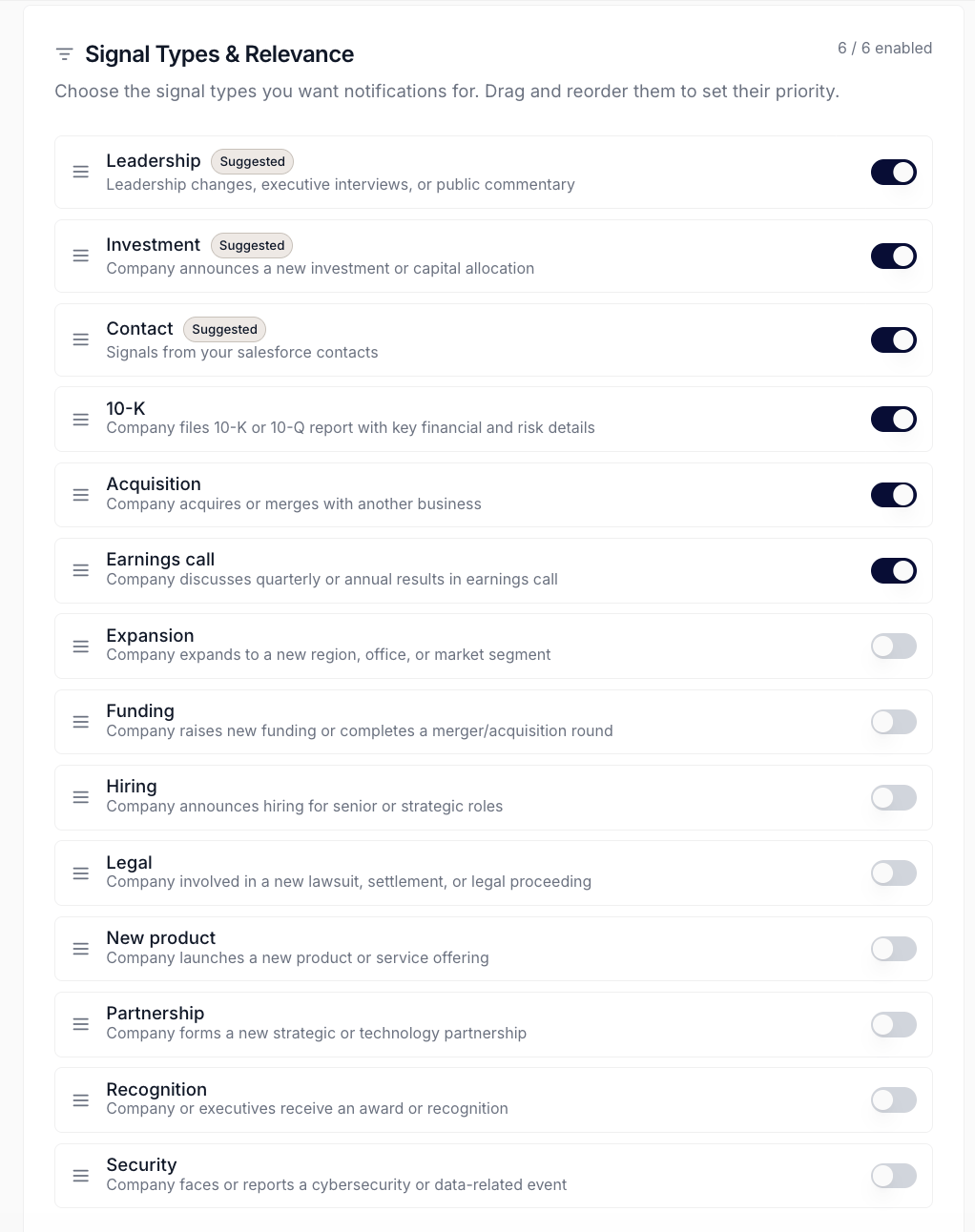
Signals Settings page with the active-cap counter, the sortable Signal Types list, and the per-type enable switches.
- Count what’s currently on, and decide the budget yourself. Katalyst no longer imposes a hard ceiling on active types; what your plan allows is shown by a lock badge on anything above your tier. That means the noise budget is now a discipline rather than a limit, and this step is where you set it. Look at how many types are enabled and how many rows they produced last week. If the feed has been noisy, the play is mute-then-replace, not “add another type.”
- Scan recent fires per type. Open the global Signals feed in another tab and narrow the Date filter to This Week. Group by Type by reading the type tag on each card, or filter the Type dropdown one type at a time. The pattern the rep is looking for: which types fired a lot but did not result in any acts, and which ones fired rarely but every fire was useful. Noisy-without-value is the mute candidate. Useful-but-rare is fine, keep it.
- Mute the noisy types. Back on Signals Settings, flip the enable switch off for each type the rep wants to silence. The active count drops; the catalog row stays in the list (the rep can flip it back on later) but no new signals of that type generate. The default 14-type catalog cannot be deleted; only custom types have a trash icon.
- Add a custom signal type for a gap. Click Create custom signal in the page header. The dialog asks for a name (e.g. “Sustainability filings” or “Layoff announcements”) and a short description. The name must be unique against the existing catalog (default and custom). Custom types are a Core-and-above capability; on Starter the button explains which plan unlocks them. On submit, the new row prepends to the sortable list with the ghost-blue tint that marks custom rows, defaults to enabled, and starts generating signals on the next fetch tick. Adding a custom type no longer forces a default off to make room, so the discipline of keeping the list short is yours to hold.
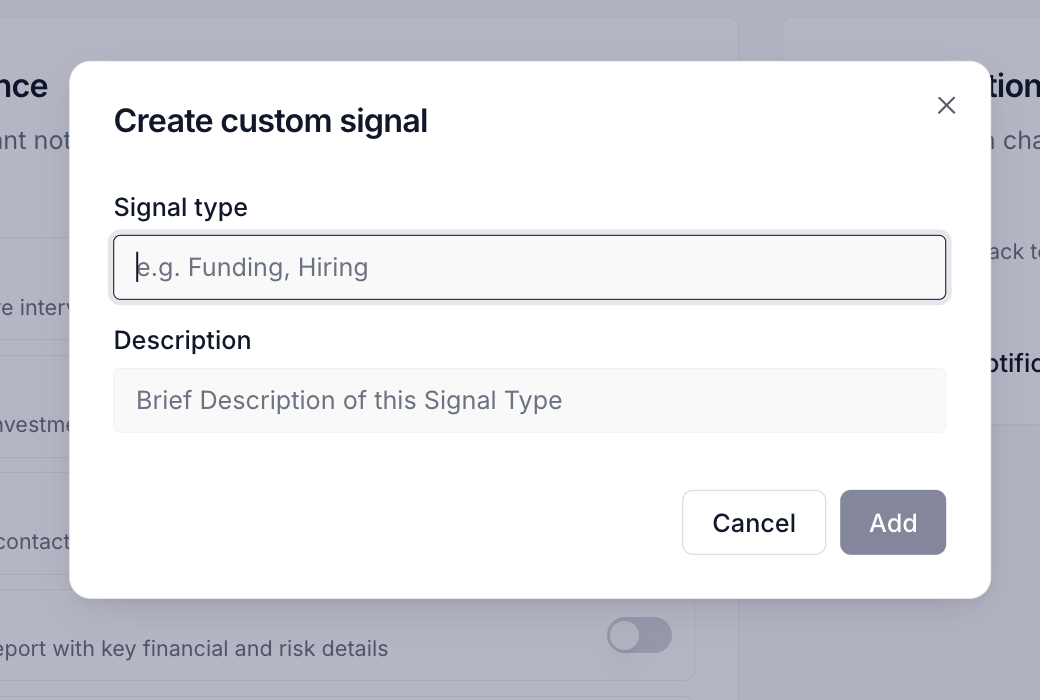
Create custom signal dialog with the name and description fields and the cap-aware Add button.
- Adjust per-type notification channels. In the Notification Channels card, set the delivery for each enabled type: in-app (the Bell and Toast deck), email, or both. The in-app channel is also the gate for whether signal Toasts pop at all; turning it off means signals still populate the feed but never interrupt. For the types the rep wants to react to live, leave in-app on. For the types that are valuable but not urgent, email-only keeps the feed clean.
- Confirm the budget and save. The page auto-saves channel and type changes as the rep flips them; no explicit Save button is needed for most edits. Confirm the active-cap counter shows the intended count (typically 4 to 6, rarely below 3), close the page, and let the next 8 AM or 1 PM EST fetch tick refresh the feed against the new budget. The next morning Signals scan is the proof.
Variations
If the rep is new to Signals and starting from scratch, the play is “add, don’t mute”: pick the 4 to 6 default types that map most directly to the book, leave the rest off, and revisit in two weeks once there is a signal history to read against. If the rep is a manager auditing a team’s noise budget, the play shifts: scan the team’s feed (set the Owner filter to a specific teammate on the Signals tab) to see what their book is firing, then have the conversation about the catalog rather than editing it directly.Related
- Start the day with signals - the morning ritual this play tunes for; the proof that the tune-up worked.
- Catch a signal as it fires - the live-Toast play whose interruption budget depends on the in-app channel set here.
- Audit AI activity this week - the end-of-week play that surfaces the patterns this tune-up calibrates against.
- Signals Settings - the canonical home for the catalog this play tunes; default 14-type list, the 6-active cap, per-type channels, and the Create custom signal dialog all live there.
- Signals - the surface this play feeds. The feed reflects the catalog set here.
- Notifications - the in-app delivery surface gated by the channel toggles set here.