

Signals Settings
Signals Settings is where you decide what counts as a signal worth seeing and how those signals reach you. Two stacked cards: the Signal Types & Relevance card curates which categories fire (the default catalog plus your own custom types), and the Notification Channels card routes the signals that do fire to Slack, email, in-app, or any combination.
The top of Signals Settings with both cards visible
What you can do here
- Curate the active catalog. Katalyst ships with a 14-type default catalog (leadership, investment, contact, filings, acquisition, earnings, expansion, funding, hiring, legal, new product, partnership, recognition, security). You decide which of those types fire for your account by flipping the per-row Switch.
- See what your plan unlocks. There is no hard ceiling on how many types you can run. Instead, access is set by your plan: any type above your tier carries a lock badge naming the plan that unlocks it, and clicking it explains what you’d need to upgrade to. Starter covers the core categories (hiring, funding, leadership and the like); Core opens the full signal suite and custom types; Agent adds the website, tech-stack, and competitive signals on top. What you can watch scales with your tier rather than against an arbitrary limit.
- Drag to set priority. The order of enabled types is the priority order. The top row fires first when two signals of different types arrive in the same window, and Home’s Do This Now card and the Bell badge weight the top types higher when they pick what to surface. Drag the handles to put your highest-leverage type at the top of the list.
- Create custom signal types. The Create custom signal button in the page header opens a dialog with two inputs (name and a short description) and adds your category to the same sortable list. Custom rows render with a tinted background so they’re visually distinct from defaults, and carry a pencil for edit and a trash for delete. Custom types are a Core-and-above capability. Use them to add categories the default catalog doesn’t cover: sustainability filings, layoff announcements, regulatory rulings in your vertical.
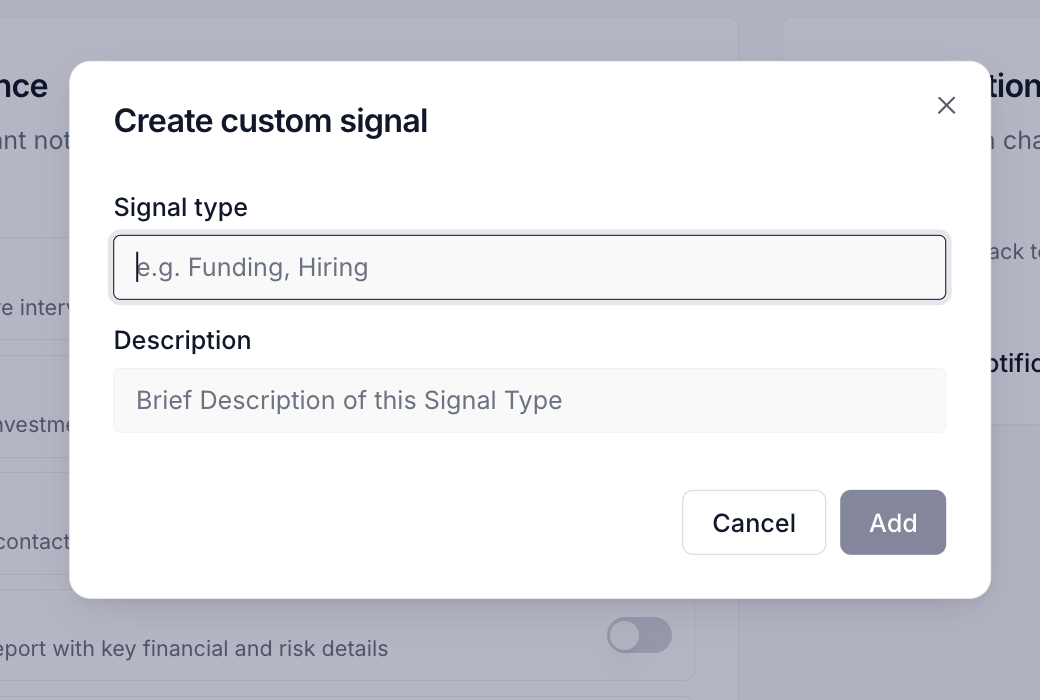
A custom signal type row, tinted, with edit and delete affordances
- Edit or delete a custom type. The pencil on a custom row opens the same dialog pre-filled, so you can rename a category or rewrite its description. The trash opens a confirmation dialog naming the type explicitly. Default-catalog rows don’t have a trash icon; the 14-type baseline can be turned off but not removed.
- Route signals to the channels your team actually checks. The Notification Channels card carries three toggles: Slack (DM delivery plus the workspace
#katalyst-signalschannel, gated on the Slack connector being wired), Email (delivery to your work address), and In-App Notifications (the Bell and the Toast inside Katalyst). Toggles are independent; pick one, two, or all three. Slack is a Core-and-above channel, and the toggle is disabled if Slack isn’t connected yet, with an inline Connect link that routes to Integrations.
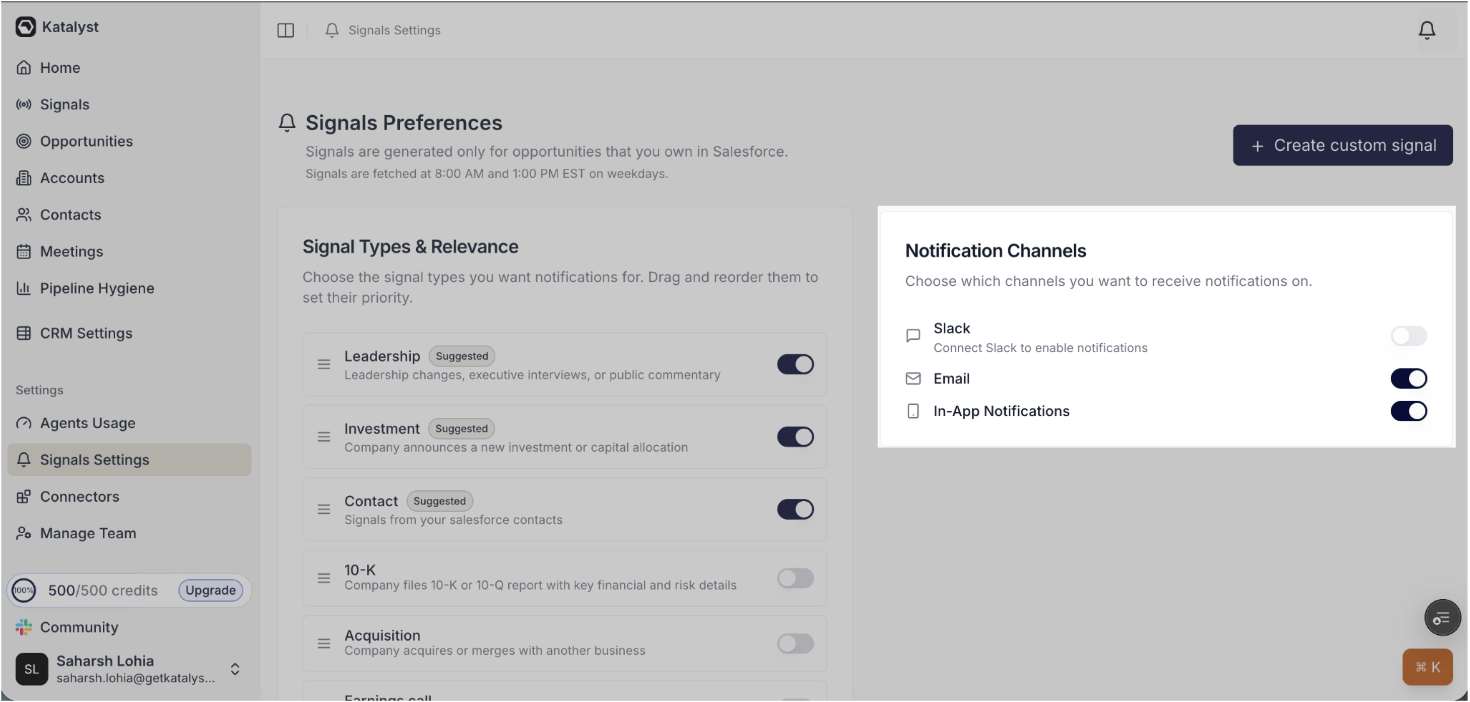
The Notification Channels card with Slack, Email, and In-App toggles
How to use it
A mid-market healthcare rep covering fifty accounts opens Signals Settings on a Friday afternoon, two weeks into using Katalyst. The default catalog is leaving her with thirty-plus Slack pings a day, most of them noise. She flips Earnings, Recognition, Filings, and Security off because none of them have produced a useful row in her two-week feed; she leaves Leadership, Acquisition, Partnership, New Product, Investment, and Hiring on; she drags Leadership to the top, Acquisition to second. She opens the Notification Channels card, leaves Slack on for DM delivery, turns Email off (she’d rather see signals in Slack than in her inbox), leaves In-App on. She adds one custom type, Layoff announcements, because layoffs at a target account reliably reset her champion map. Six minutes from page open to a tuned configuration; the next morning the Slack pings drop from thirty to six and every one is something she’d actually act on.Patterns that work
Set your own budget; the product no longer sets one for you. Nothing stops you from turning on every type your plan allows, and that is usually a mistake. Every type you enable adds rows to your daily feed, and the 14-type catalog is wider than most books actually need. Most reps land at four or five enabled types after a tuning week. Start broad in the first week to see what fires, then trim to the categories that produced rows you actually acted on. Drag the highest-leverage type to the top. The priority order isn’t cosmetic. Home’s Do This Now card and the Bell badge weight top-of-list types higher when they pick what to surface. If leadership changes are the signal that actually moves your deals, leadership belongs at the top, not in slot five. Treat a lock badge as a question, not a wall. A locked type is Katalyst telling you there’s a category of news you’re currently blind to. Before upgrading, check whether the types you already have are producing rows you act on. A tier change is worth it when your enabled types are earning their keep and you can name the blind spot; it isn’t worth it as a way to fix a feed you aren’t reading. Use custom types for categories the default catalog misses. The 14-type default catalog covers the common cases; the custom-type flow is the escape hatch for everything specific to your vertical. A finance-vertical rep adds Regulatory ruling; a sustainability-focused team adds ESG filings; an enterprise-software rep adds Open-source release. Pick channels by what your team actually checks during the day. Reps who live in Slack should keep Slack on and email off; reps who scan email on the train should keep email on. In-App is always worth keeping on because the Bell and Toast surface signals while you’re working in Katalyst anyway. Turning everything on every channel is the most common configuration mistake: the same signal hitting you three times trains you to dismiss the second and third without reading.Related
- Signals - the AE-facing feed that consumes the catalog and routing curated here, and where Your Move turns a signal into an action.
- Notifications - the in-app Bell and Toast surface that receives the in-app channel from this page.
- Integrations - the Slack connector that gates the Slack channel toggle on this page.
- Plans and Billing - the tier that decides which signal types carry a lock badge, and whether custom types and Slack are available.
- Tune your signal-noise budget - the weekly review routine that opens here.
- Start the day with Signals - the morning routine that depends on the catalog being tuned.