

Signals
Signals is the AE’s monitoring surface. One continuously curated feed of every deal-moving external event across your entire book, scored for relevance, filterable in seven dimensions, and arriving in real time so the next conversation starter surfaces itself rather than waiting for you to go looking. Every card also tells you what to do about it, and hands the whole context to the AI when you decide to act.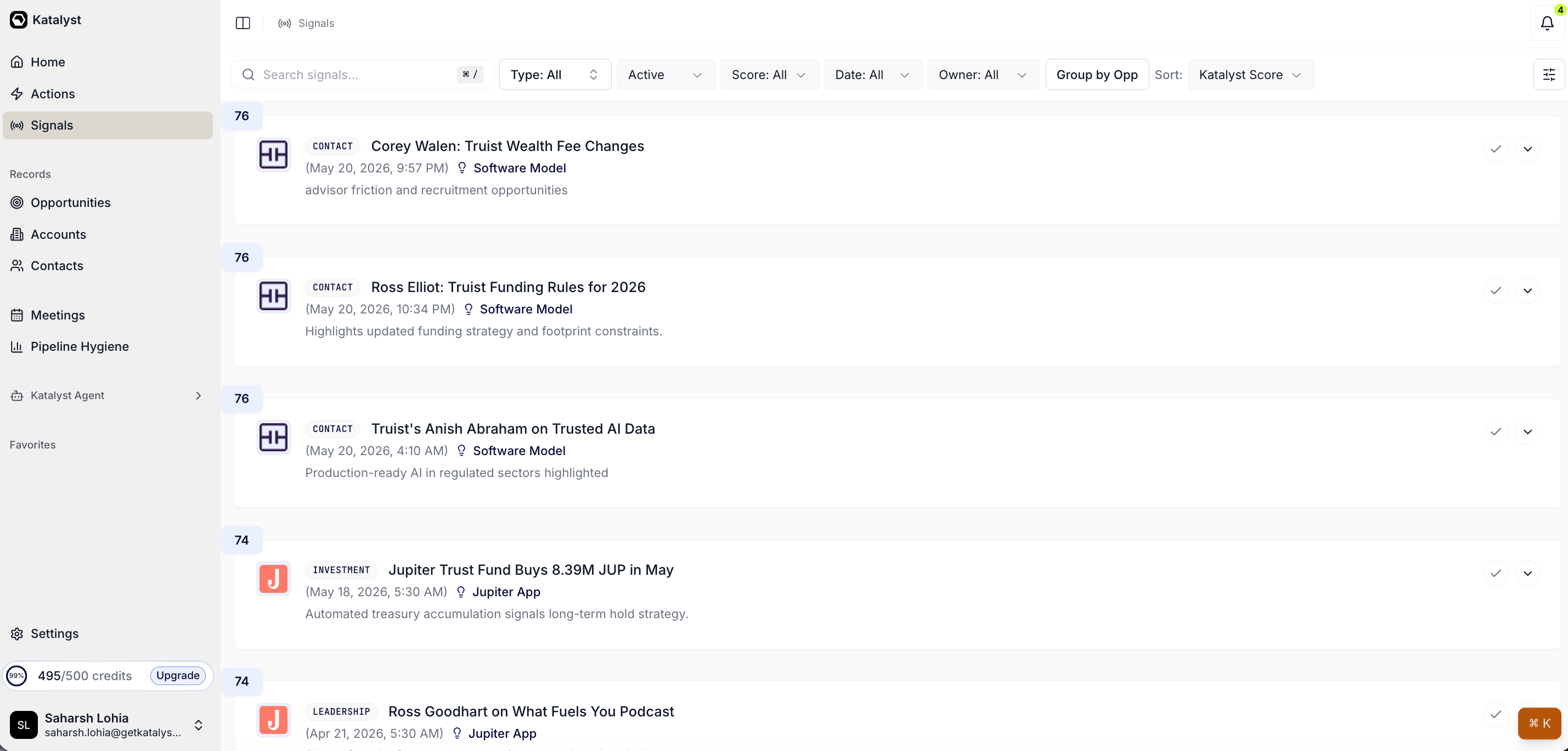
The global Signals feed at /signals
What you can do here
- Scan the whole portfolio in one feed. The global Signals tab aggregates every AI-generated external signal across every opportunity in your book: leadership changes, hiring posts, filings, acquisitions, partnerships, funding rounds, and more. Sorted by Katalyst Score by default, the most relevant items sit at the top so a thirty-second scan tells you the day’s priorities.
- Read a Signal Card in seconds. Each card carries a numeric score badge (0 to 100, color-coded at 90+, 80+, 70+, and below), a company favicon, a type tag, the AI-generated headline, the published date, and a one-line “why this matters” framing. Click anywhere on the card to expand the AI summary, the source link, and the Your Move block.

A single Signal Card close-up
- Know what to do about it, from the card. Every Signal Card carries a Your Move block: a specific recommended action, the reason it is timely, and a concrete next step, all drawn from Katalyst’s analysis of the signal against what it already knows about the deal. A hiring signal is not just news; it’s the green light on the headcount blocker your champion raised in discovery, and Your Move says so.
- Hand the signal to the AI with one click. The Take action button on the card opens the AI assistant already holding the signal’s context, so it can draft the outreach, update the deal, or do whatever the move calls for without you re-explaining the situation. Signals that don’t have a specific play show a Generate suggestion button instead, so there is always a path forward rather than a dead end.
- Filter the feed down to the slice that matters. Seven controls sit above the feed: Type (multi-select against the live catalog), Status (Active or Archived), Score (High, Medium, Low), Date (Today, This Week, This Month), Owner (every teammate or just you), Group by Opp toggle, and Sort (Score or Date). Every change writes to the URL, so any filtered view is bookmarkable and shareable.
- Flip to grouped view for prep. The Group by Opp toggle swaps the flat list for per-opportunity buckets. Flat view answers “what’s the most urgent thing happening across my book”; grouped answers “for the three deals I’m prepping for tomorrow, what’s the latest.” Same card shape in both modes.
- Accept a signal in one click. The round check icon on each card archives the signal server-side. The accept ripples to every other place the card is rendered (per-account, per-opp, the Bell, the Toast) so a signal you’ve handled disappears everywhere at once. There’s no “reject”; archive is the only action because the goal is to clear the queue, not adjudicate quality.
- Read the per-account slice from inside an account. Every account detail page carries a Signals sub-tab that shows the same data, scoped to that one company. Same card, same expand, same accept.
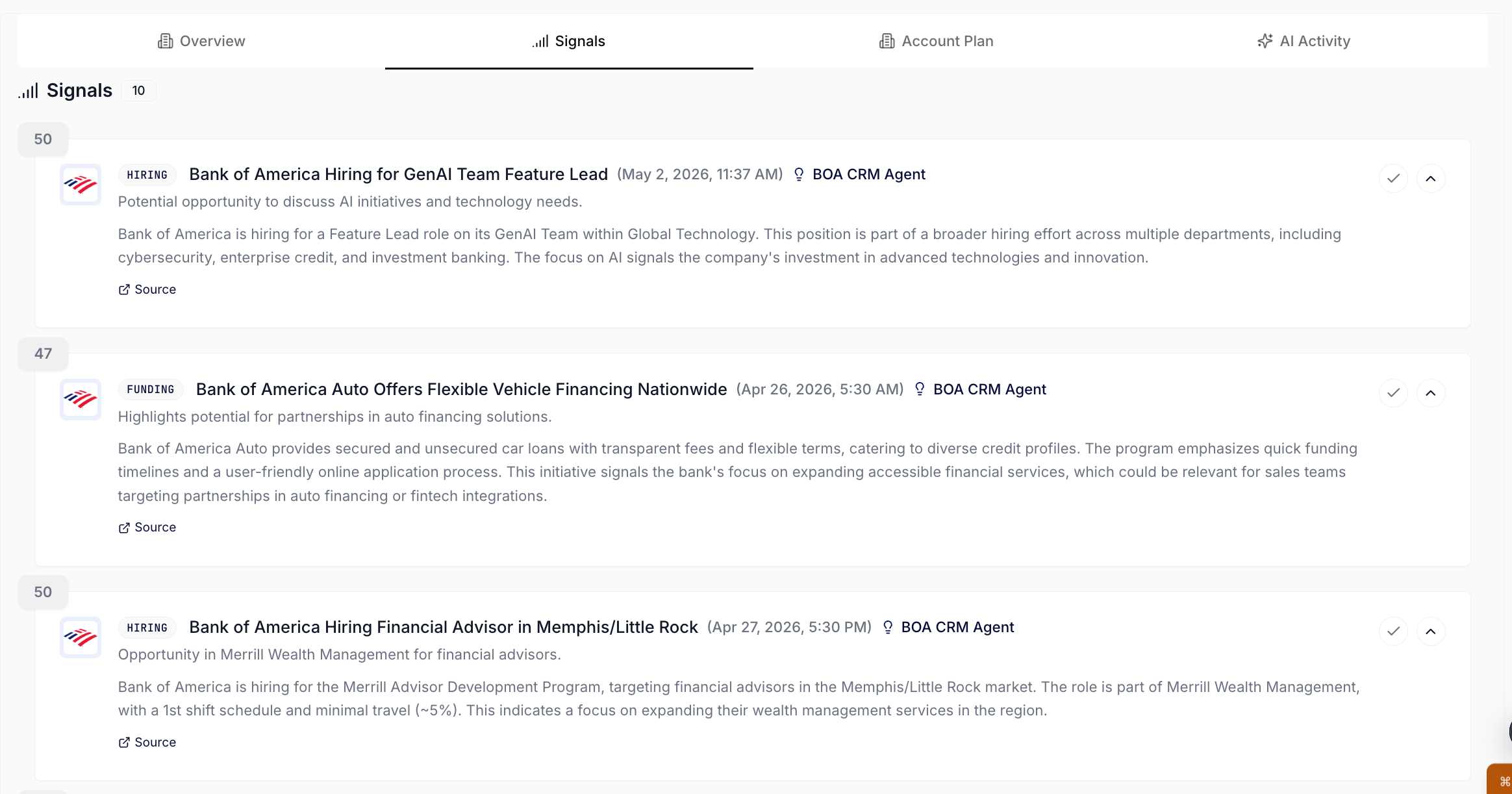
The Signals sub-tab on an account detail page
- Catch new signals as they fire. The global feed subscribes to a realtime channel and pulls in new signals the moment they’re generated, no manual refresh required. A signal published twelve seconds ago shows up at the top of the feed without you doing anything.
- Read the same priorities on Home’s Do This Now. The Do This Now card on the Home tab samples from the highest-priority slice of this feed, mixing in hygiene rules and meeting context. It’s the AI-driven “what’s worth doing right now” read; the Signals feed is the full source. The recommended move rides along: each row shows the signal, then the move in full on a second line, with Take action beside it, so you can act on the top signals of the day without ever opening the feed.
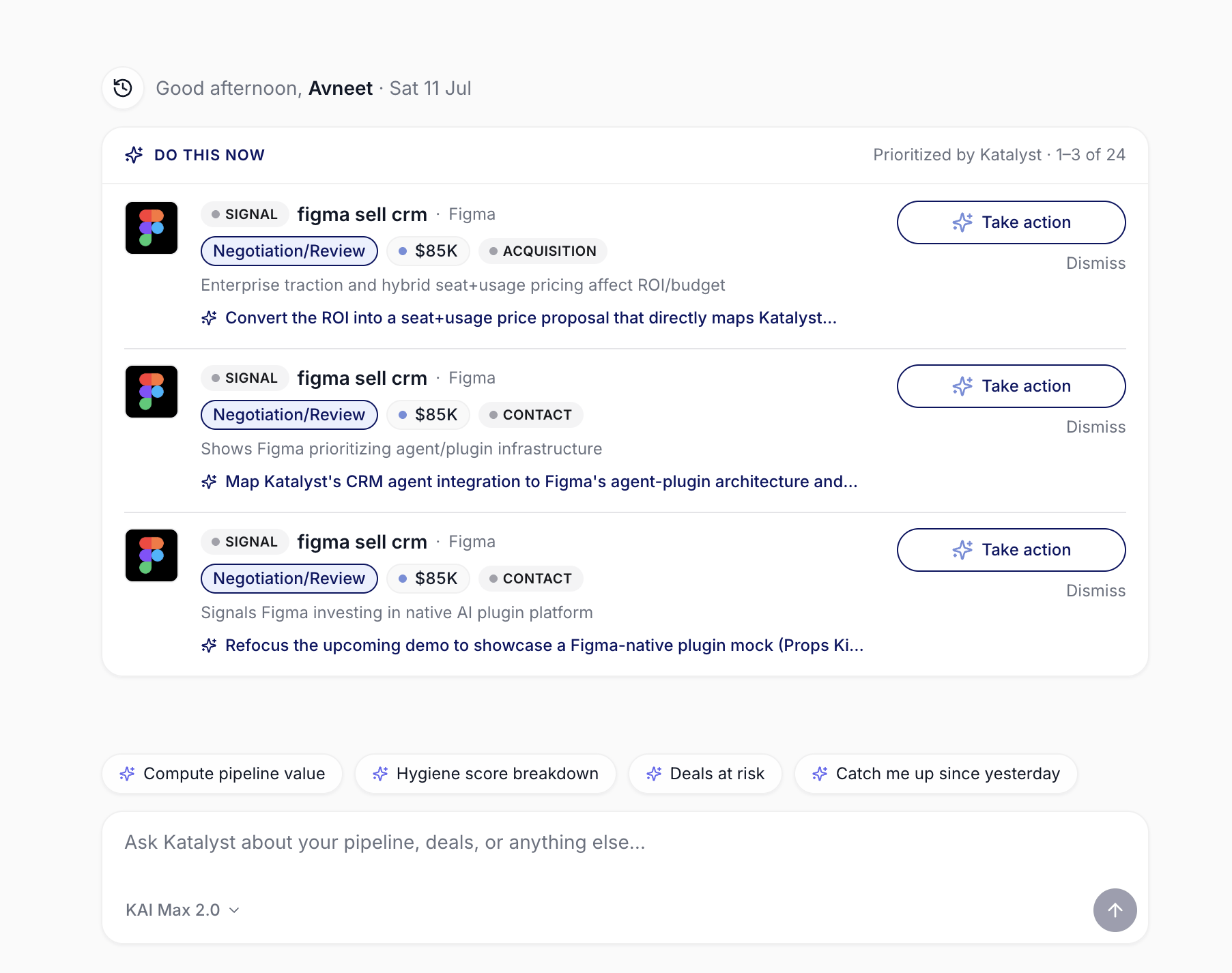
Do This Now on Home, with the recommended move under each signal and Take action beside it
How to use it
A rep covering thirty enterprise software accounts opens Signals first thing on a Tuesday at 8:48 AM. Sorted by score, the top three rows are an Acquisition signal scored 92 on her largest Negotiation deal, a Leadership change scored 88 on an account she opened a discovery cycle on last week, and a Hiring signal scored 76 on a stalled Proposal. She expands the Acquisition card, reads the two-line summary, and drops straight to Your Move: reach the champion before the integration team locks its vendor list, because the window closes with the deal’s announced close. She hits Take action, the assistant opens holding the filing and the deal, and a draft comes back written against the acquisition rather than against a template. She sends it, accepts the card, and moves on. Then she filters Date to Today, flips on Group by Opp, sees a clean per-deal stack of overnight arrivals, accepts six obvious-yes signals, and leaves the rest open for a second pass before lunch. Nine minutes from feed load to a sweep, and one signal that turned into a real touchpoint instead of a note-to-self.Patterns that work
Sort by score for the morning scan, by date for the catch-up. Score sort surfaces what matters most across the whole book; date sort surfaces what’s new since you last looked. The morning read is score; the after-lunch and after-meeting reads are usually date. Both views are one click apart, and the URL preserves your choice so a bookmark holds the right default. Use the catalog as a starting point, not a target. Katalyst surfaces fourteen signal types out of the box (leadership, investment, contact, filings, acquisition, earnings, expansion, funding, hiring, legal, new product, partnership, recognition, security). You decide which of those types fire for you on the Signals settings surface. There is no longer a hard cap on how many you can run: types beyond your plan carry a lock badge naming the plan that unlocks them, so what you can watch scales with your tier rather than with an arbitrary limit. If a type is producing noise you don’t act on, turn it off rather than scrolling past it day after day. Let Your Move close the loop, not just start it. The gap that kills signal programs is the one between “I read the signal” and “I did something about it.” Your Move is designed to remove that gap: the card names the play, Take action opens the assistant already holding the context, and the draft comes back written against the specific thing that just happened. Reps who click Take action while the card is open convert signals into touchpoints; reps who accept the card and promise to come back to it later mostly don’t. Accept aggressively; the queue is the point. The single accept action is meant to be used. Archived signals stay searchable under the Status filter set to Archived, so a misclick is recoverable in two seconds. Reps who hesitate to accept end up scrolling the same rows three days in a row; reps who accept fast keep the feed honest and the morning scan fast. Bookmark the filtered view you live in. Every filter writes to the URL. The view that matters most to you (“high-score acquisition signals this week, owned by me, grouped by opp”) is a browser tab, not a re-do every morning. Reps who save two or three of these and keep them pinned cut their daily Signals time in half.Related
- Account detail - the per-account workspace; the Signals sub-tab is the per-account slice of this feed.
- Home - the daily landing surface; Do This Now samples from the highest-priority signals across your book.
- Notifications - the Bell and Toast deck; a fresh signal pops in both places before it ever needs the feed.
- AI Activity - the durable log of every signal you accepted or dismissed and every AI action that followed.
- Signals settings - the upstream configuration layer: which types fire, how many are active, and where notifications route.
- Start the day with Signals - the morning routine that opens here.
- Catch a signal as it fires - working the live arrival before the rest of your day starts.
- Research from a fresh signal - turning a Signals card into a next step on the account.
- Tune your signal-noise budget - the weekly review that keeps the catalog producing rows you’ll actually act on.