

Actions
Actions is your sit-down review queue. Every AI-suggested field update, follow-up task, and drafted email across your book lands here as a row you can accept, reject, or snooze, one at a time or in bulk. The Do This Now card on Home surfaces the top three; the Actions tab is the rest.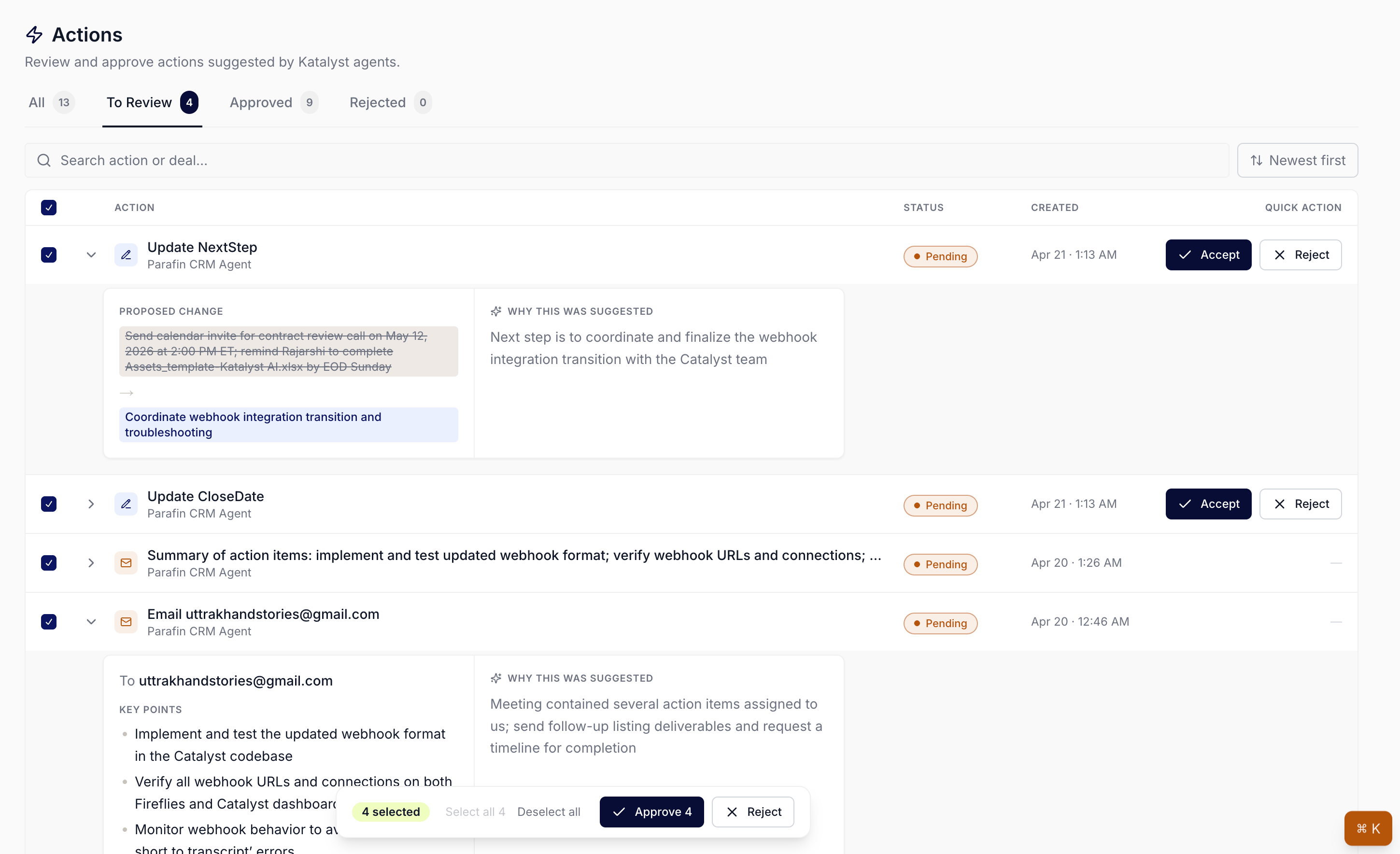
Actions tab with the four-tab header (All, To Review, Approved, Rejected) and the populated To Review queue of AI suggestions across the rep's book.
What you can do here
- Land on the To Review queue as your default view. The Actions tab opens to the pending bucket: every AI-suggested action across your deals waiting on a decision. Four tabs across the top, All, To Review, Approved, Rejected, with live counts on each so you always see what’s left.
- Drill into a row without leaving the page. Click the row title or the chevron and a two-pane drawer slides open below it. The left side shows the proposed change, an old-to-new field diff, the activity description and due date, or the email recipients and key points. The right side shows the AI’s reasoning in plain English. Decide with full context, then accept or reject from the row itself.

Per-action drawer expanded in place; proposed change and the AI's reasoning side by side.
- Accept or reject one row at a time, or a stack of rows at once. Each row has Accept and Reject buttons in the quick-action column. Select the row checkboxes and a floating bar appears at the bottom with Approve N and Reject controls. Bulk approve fans the writes out to Salesforce, Gmail, or Outlook with per-row success and failure reported back, so a single bad row doesn’t roll back the rest of the batch.

Bulk multi-select on the Actions queue: the floating Approve and Reject bar appears at the bottom of the page once one or more rows are checked.
- Turn what a meeting revealed into CRM records. When Katalyst detects a new deal from a meeting, or spots that a meeting belongs against an existing one, the suggestion lands here as its own row, labelled with the meeting it came from. Expanding it shows the exact Salesforce records that would be created (the account, the contacts, the opportunity, and the links between them) alongside a plain-English reason drawn from what was actually said. Accept and the writes fan out in the background with a syncing indicator on the row, and a retry if anything fails, so you can keep working the queue instead of waiting on Salesforce. Only the most recent suggestion per meeting is shown, so a long call doesn’t flood the list.
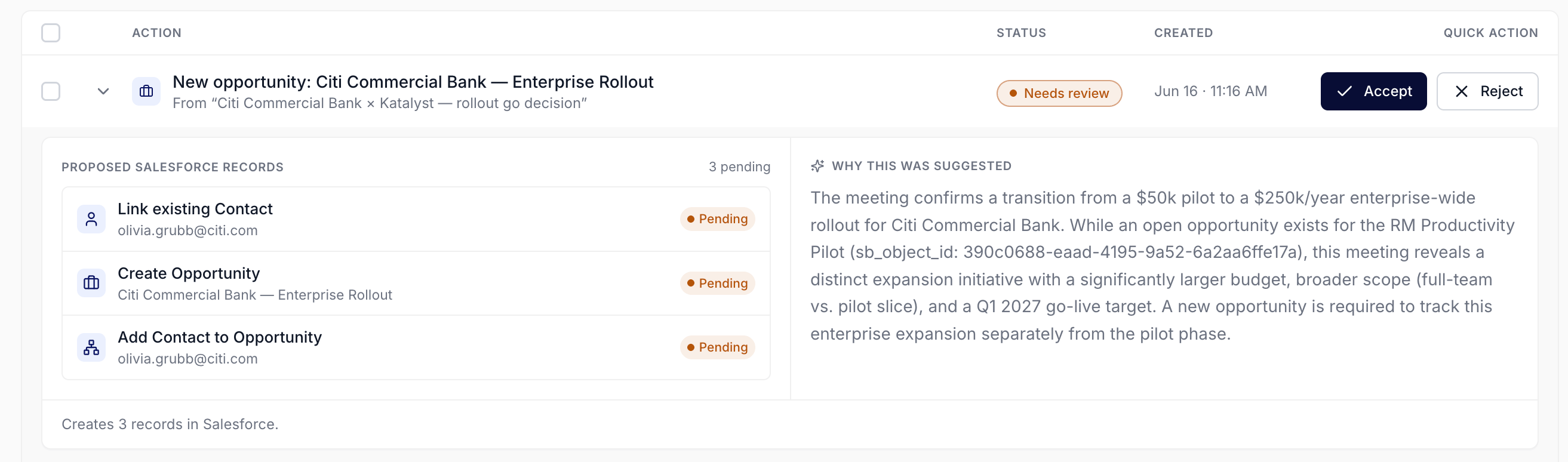
A meeting-sourced opportunity suggestion, expanded and awaiting review
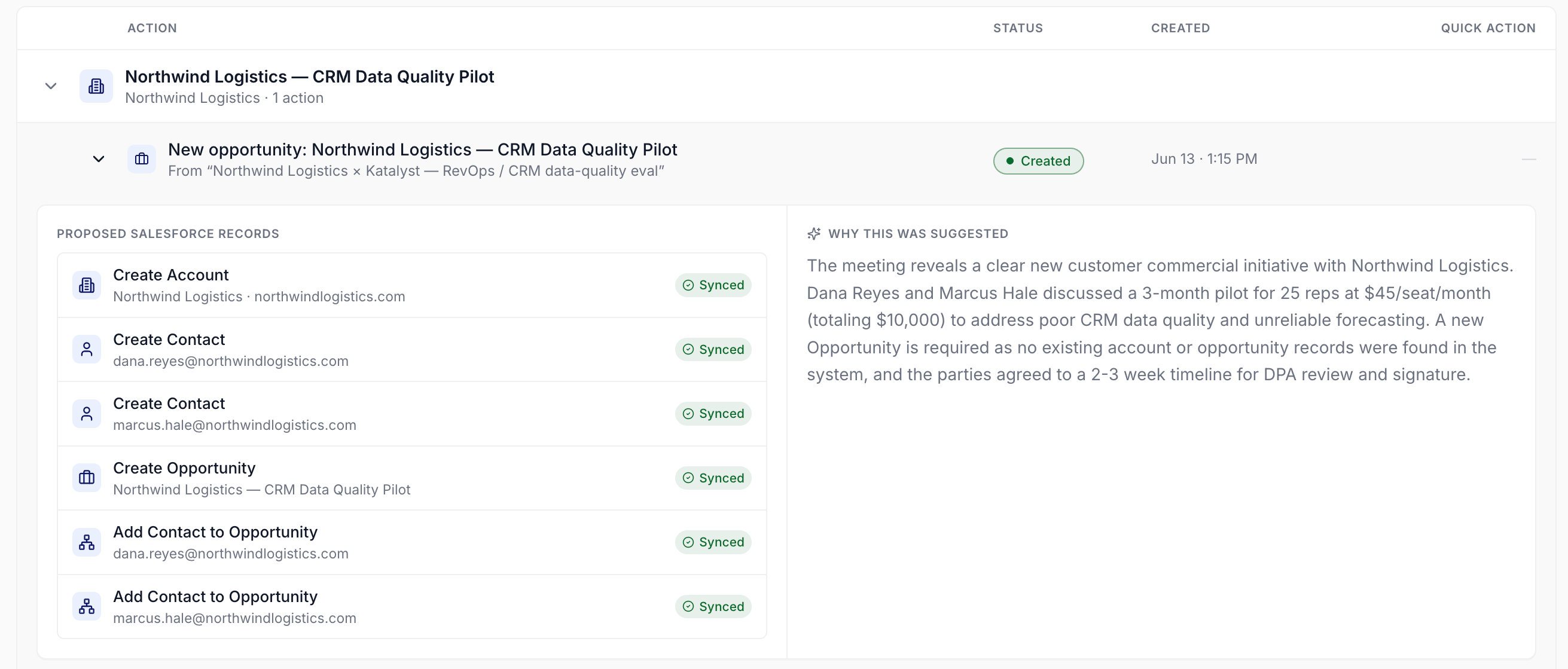
The same suggestion after accepting: every proposed record written to Salesforce and marked Synced
- See what your plan is holding back. If your org is at its cap on AI-detected records from meetings, the ones beyond the limit appear as locked rows rather than disappearing. Upgrade and they unlock retroactively, so nothing detected while you were capped is lost.
- Search by deal, field, or reasoning text. The search bar above the list filters across opportunity names, field names, activity subjects, and reasoning text on the loaded page. Sort flips between newest-first and oldest-first.
- Create an Action manually from a record. Beyond the AI-suggested queue, you can add an Action from a record page when you want to track a follow-up you’ve committed to. The Action joins the same queue and shows up in your Approved tab as soon as you mark it complete.
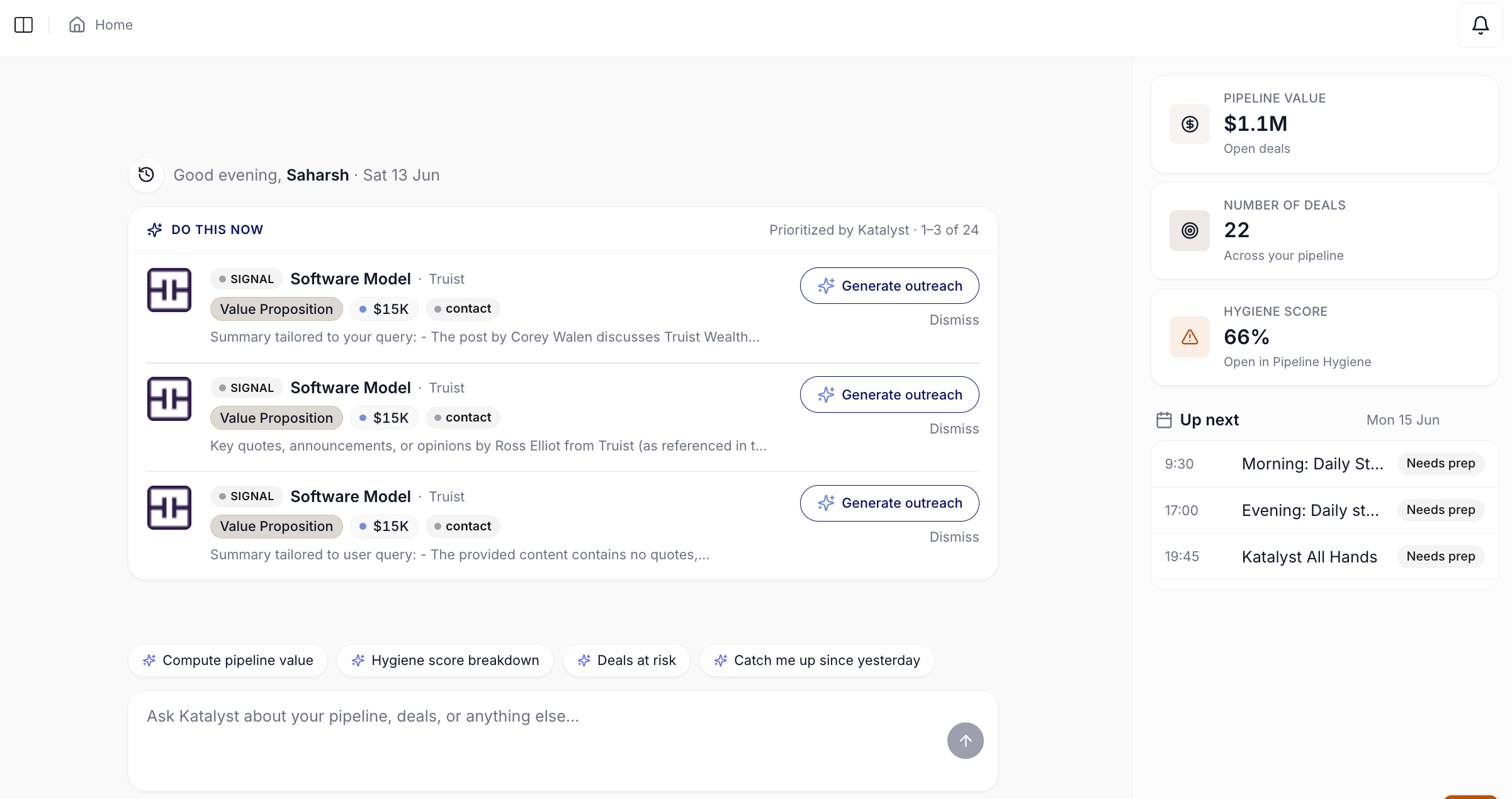
Home landing surface where the Do This Now card surfaces the top three actions
- Use Home’s Do This Now as the curated top of the queue. Do This Now picks the three highest-priority items across your whole book and surfaces them on Home with one-click prompts. Actions is the full backlog; Do This Now is the AI-curated top of that backlog. Both pull from the same underlying recommendations, so resolving one clears the other.
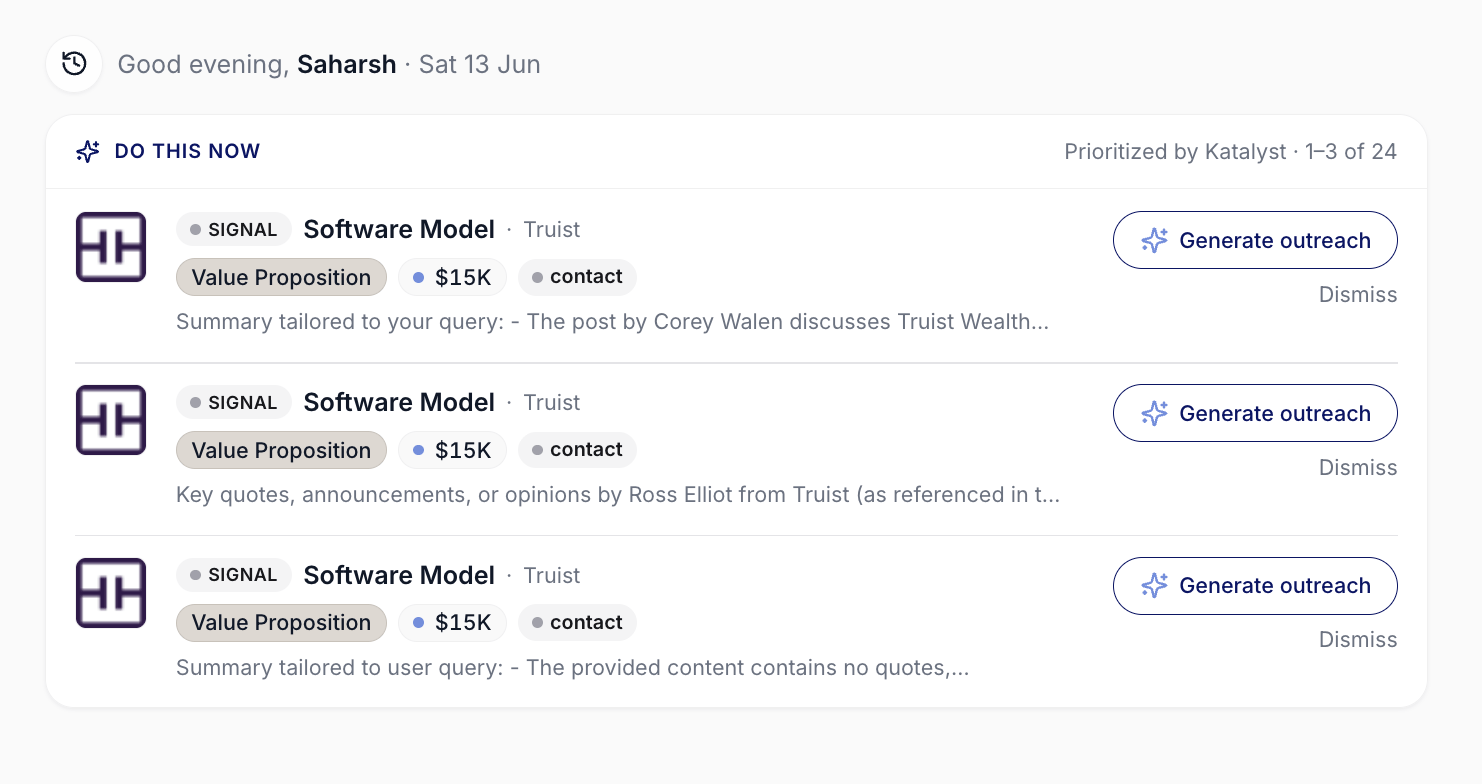
Do This Now card close-up on Home
How to use it
An AE coming back from PTO opens the Actions tab on Monday morning. The To Review tab shows 41 pending rows: 23 field updates on Negotiation deals, 11 follow-up tasks the AI has scheduled, and 7 drafted emails sitting in the Approved tab awaiting send. She types “Bank of America” into the search bar, sees the four BoA rows, expands the first one, reads the AI’s reasoning on a proposed close-date push, accepts it, and rejects the second one that conflicts with what her champion told her on Friday. She clears the search, multi-selects the 14 obvious-yes field updates on her top three Negotiation deals, hits Approve 14, watches the toast confirm 14 of 14 succeeded, and switches to her Gmail to send the three drafted emails she still wants to ship. Fourteen minutes from cold start to a clean queue.Patterns that work
Treat Do This Now as the daily read; Actions as the weekly sit-down. Do This Now is for the first 10 minutes of the day, three items, three decisions. Actions is for the longer sweep when you can sit down and clear the backlog. Reps who use both, instead of one or the other, never get buried under a 60-row queue and never miss a high-priority single item. Expand the drawer before you accept the obvious-looking ones. The AI’s reasoning lives in the right pane of the drawer. The cost of one expand is two seconds; the cost of an accepted bad recommendation is a Salesforce write you’ll have to undo later. Make it a habit to expand before clicking Accept on anything that touches a deal’s stage, close date, or amount. Use bulk for the same kind of change across many deals; use single for the high-stakes ones. A 20-row sweep of “update last activity date” is exactly what the bulk bar is for. A single 7-figure deal moving from Proposal to Negotiation belongs in a one-at-a-time expand-read-accept loop. Pattern your behavior to the stakes of the change. Reject is real; it isn’t snooze. Rejecting a row clears it from the queue and tells the rest of the system the suggestion didn’t land. If you actually want to defer the decision, leave the row in To Review and come back to it. Use Reject when the answer is no, not when the answer is “not right now.”Related
- Draft Email - drafted emails route here as Approved rows; opening one hands you off to your Gmail or Outlook draft folder.
- Notes - a note from a call often produces a manually-created Action on the same record.
- AI Suggestions - the per-cell volt-lime ring on Opportunities and Accounts is the trigger; Actions is the queue where those suggestions live as rows.
- Home - the Do This Now card lives on Home and surfaces the curated top three from this backlog.
- Meetings - where the meeting-sourced suggestions in this queue are detected in the first place.
- AI-active coverage - the plan limits behind locked rows, and the coverage decision that determines which deals produce suggestions at all.
- Knock out today’s actions - the daily 15-minute clear-the-queue routine.
- Triage from the notification bell - the bell-driven entry point that lands in the same rows.