

AI Suggestions
AI Suggestions is the per-cell accept-and-reject layer. When Katalyst proposes a value for a field, the cell lights up with a volt-lime ring on the Opportunities or Accounts table (and on the kanban card when you’re in Board layout). Click into the cell to read the AI’s reasoning, accept or reject one at a time, or use bulk selection to sweep across many rows.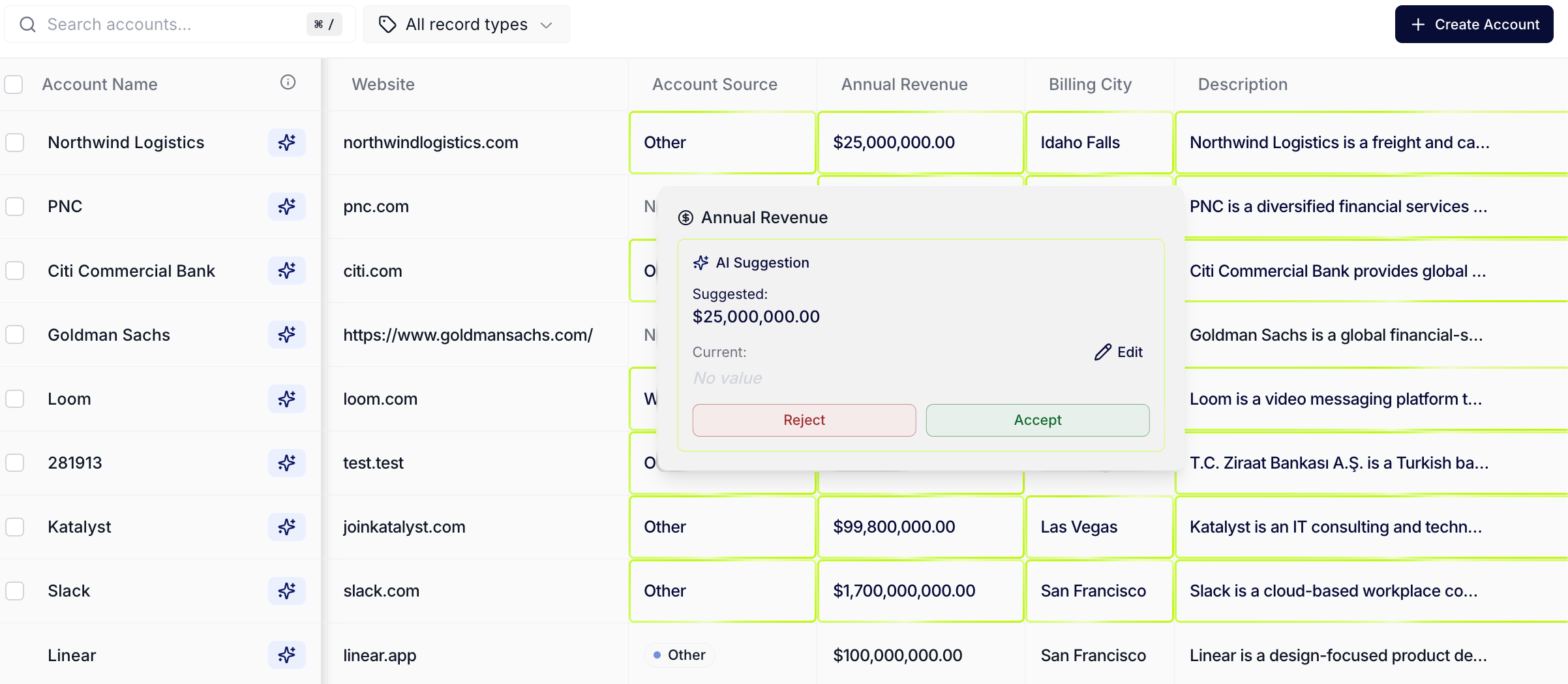
Volt-lime ring marking AI Suggestions on cells
What you can do here
- Read the volt-lime ring as your visual cue. Any cell on the Opportunities or Accounts table with a pending AI Suggestion picks up a volt-lime outline. The same ring shows up on kanban cards when the deal has at least one pending suggestion. The cue is consistent across table and board layouts, so the “this row has AI work waiting” affordance follows you between views.
- Open the per-cell modal to see the AI’s reasoning. Click into the cell and a modal opens with the proposed value, the old-to-new diff if the field already had a value, and a plain-English reasoning paragraph. Accept writes the value to Salesforce in the background; reject clears the suggestion and tells the agent the proposal didn’t land.
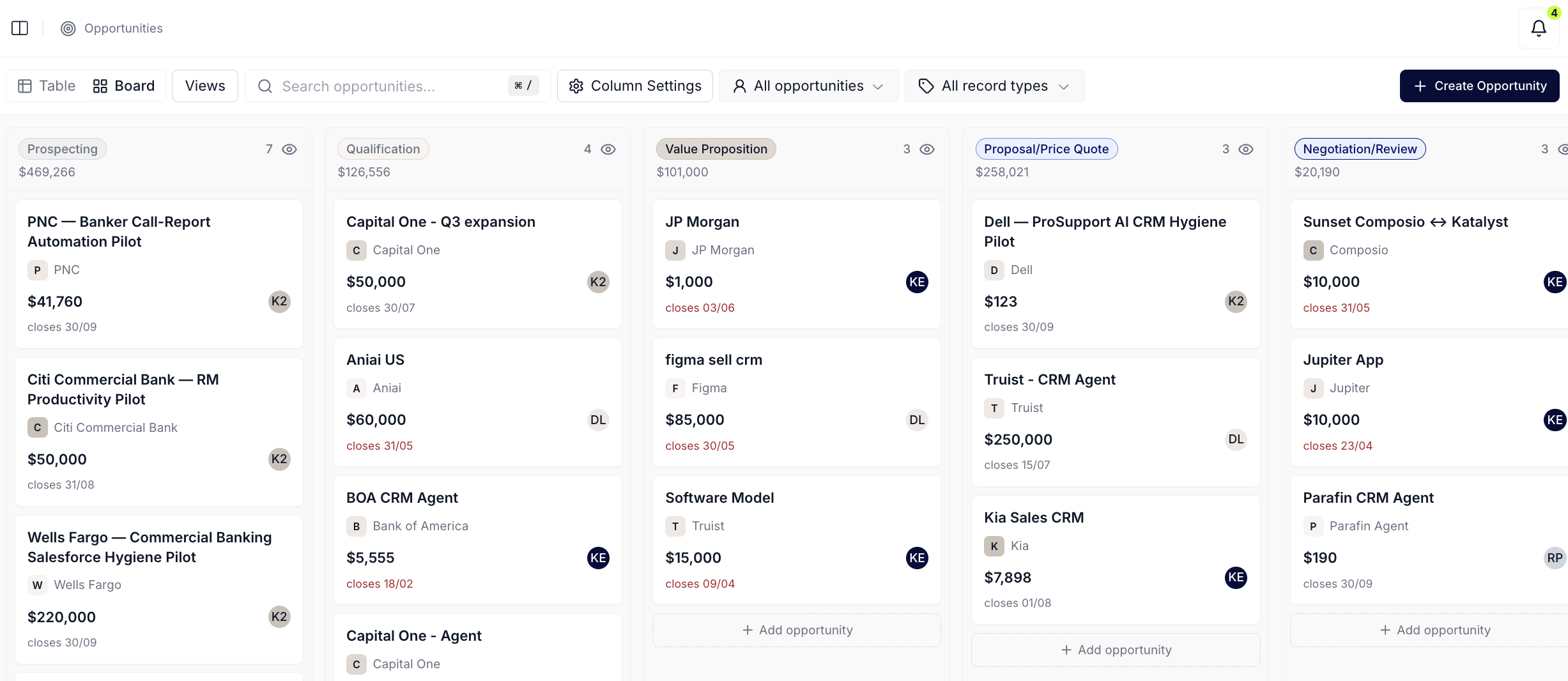
The volt-lime ring on kanban cards in Board layout
- Bulk-accept or bulk-reject across selected rows. Select the row checkboxes on the table and a floating bar appears with Approve and Reject controls. Select all suggested limits the selection to rows that actually have pending suggestions, so a select-all sweep on a 60-row table doesn’t include the 22 rows with nothing to act on. Bulk runs writes in bounded batches, so a single failure doesn’t roll back the rest.
- Filter the table down to rows with pending suggestions. The row-level highlight on the Opportunities table also drives a “rows with suggestions” predicate. Combine it with a Saved View, or with the Mine / All filter, to land on the slice of pending work you want to sweep through in one sitting.
- Tune what gets suggested at the field level. AI Suggestions is configurable: any Salesforce-mirrored field on the Opportunities or Accounts schema can be flipped to AI-suggestion mode, and the prompt the agent uses on that field is editable through the column header’s Update Instruction dialog. The Test Prompt panel inside the same dialog lets you preview the proposed value against a chosen deal before you ship the new prompt to the whole pipeline.
- Accept a suggestion knowing Salesforce will take it. For picklist and lookup fields (Stage, Owner, and the like), the AI proposes only values that are valid in your org today, because the options are pulled live from Salesforce rather than from a cached snapshot. Accepting a suggestion no longer risks a write that silently fails because an admin retired that stage last week.
- Logged activities land on the right owner. When Katalyst logs an AI-generated call, task, or event, it assigns it to the deal’s owner, which closes a class of blank-owner errors. Ownership is matched against Salesforce user identity directly, so a rep whose Katalyst login and Salesforce account use different email addresses still gets their suggestions.
How to use it
An AE doing a midweek pipeline review opens the Opportunities tab and applies her “Mine, Negotiation and Proposal” Saved View. Eighteen of her 26 rows carry the volt-lime ring on at least one cell. She clicks into the Next Step cell on her largest deal, reads the AI’s reasoning (“Last activity 12 days ago; champion mentioned procurement review on Jun 2 call; suggest pushing close date and updating next step to procurement follow-up”), accepts, and watches the row’s volt-lime ring clear on Next Step. She multi-selects the 11 obvious-yes Last Activity Date updates with the bulk bar, hits Approve 11, sees 11 of 11 succeed, then flips to Board layout and scrolls the Negotiation lane to confirm the volt-lime rings have cleared on the cards. Twelve minutes from view-load to a swept queue.Patterns that work
Treat the ring as a prompt, not an obligation. Volt-lime means a proposal is waiting, not that you have to accept it. The cost of a fast reject is one click; the cost of an accepted bad value is a Salesforce write you’ll have to undo. When the ring lights up on a high-stakes field, slow down enough to read the reasoning before you decide. Use bulk on the boring fields, single on the high-stakes ones. Last Activity Date, secondary contact role, account industry, sweep these in bulk. Stage, close date, amount, next step on a 7-figure deal, decide these one at a time. The bulk bar is a tool for clearing routine work, not for blast-accepting everything. The ring on the kanban card mirrors the ring on the table cells. If you’re working in Board layout for a pipeline review, the volt-lime ring on a card is the same trigger as the ring on a table cell, the deal has at least one pending suggestion. Click into the card or the deal page to act on it, or flip to Table to use the bulk bar across many rows. The configurable layer is where you make Suggestions stop missing. If the AI keeps proposing values you don’t want, edit the prompt on the column header instead of muting the surface. The Update Instruction dialog is where the agent’s behavior actually changes; the Test Prompt panel lets you preview the new prompt before it goes out to every row.Related
- Opportunities - the deal-list workspace where the volt-lime ring shows up on table cells and kanban cards.
- Accounts - the account-list workspace where the same per-cell ring surfaces on the Accounts table.
- Draft Email - a field-update suggestion often pairs with an outbound email; the composer is one click from any record page.
- Actions - the cross-pipeline queue where every accepted or pending suggestion also lives as a row.
- AI Suggestions configuration - the Update Instruction dialog and Test Prompt panel for tuning what each column proposes.
- Bulk-clean an AI Suggestions sweep - the routine 15-minute pass that clears a Saved View’s worth of pending rings.
- Tune an AI column when it’s noisy - the calibration play to run when accept-reject ratios start drifting.