

Tune an AI column when it’s noisy
A rep notices a pattern. The volt-lime ring on a specific AI-driven column keeps proposing values that miss the mark, or the Bulk-clean AI Suggestions sweep keeps rejecting the same column over and over, or Audit AI activity this week surfaced a stack of rejects against one column name. This play is the 10-minute tune-up that pulls the column’s instruction open, edits it to be more specific, tests it against 3 to 5 rows the rep already knows the answer for, saves, and waits for the next sweep to confirm the noise dropped.What to expect
- Timing. Roughly 10 minutes per column.
- Prerequisite. The rep (or RevOps lead) has noticed a noisy AI column in Opportunities or Accounts: rejects piling up, the same wrong-shape value showing up repeatedly, or a pattern surfaced in Audit AI activity this week. They know what the column should propose; they have 3 to 5 rows where the right answer is obvious as test fodder.
- Outcome. The column’s instruction is tuned and saved. The Test Prompt panel confirmed the AI’s proposed value matches the rep’s known answer on the test rows. The next sweep against fresh rows will reflect the new instruction.
Step-by-step
- Open the table the noisy column lives on. Opportunities for deal-shape columns (Forecast Category, Next Step, Stage-related), Accounts for company-shape columns (Industry, Segment, Employee Count). Find the column by name; the noisy ones usually announce themselves by volt-lime ring frequency.
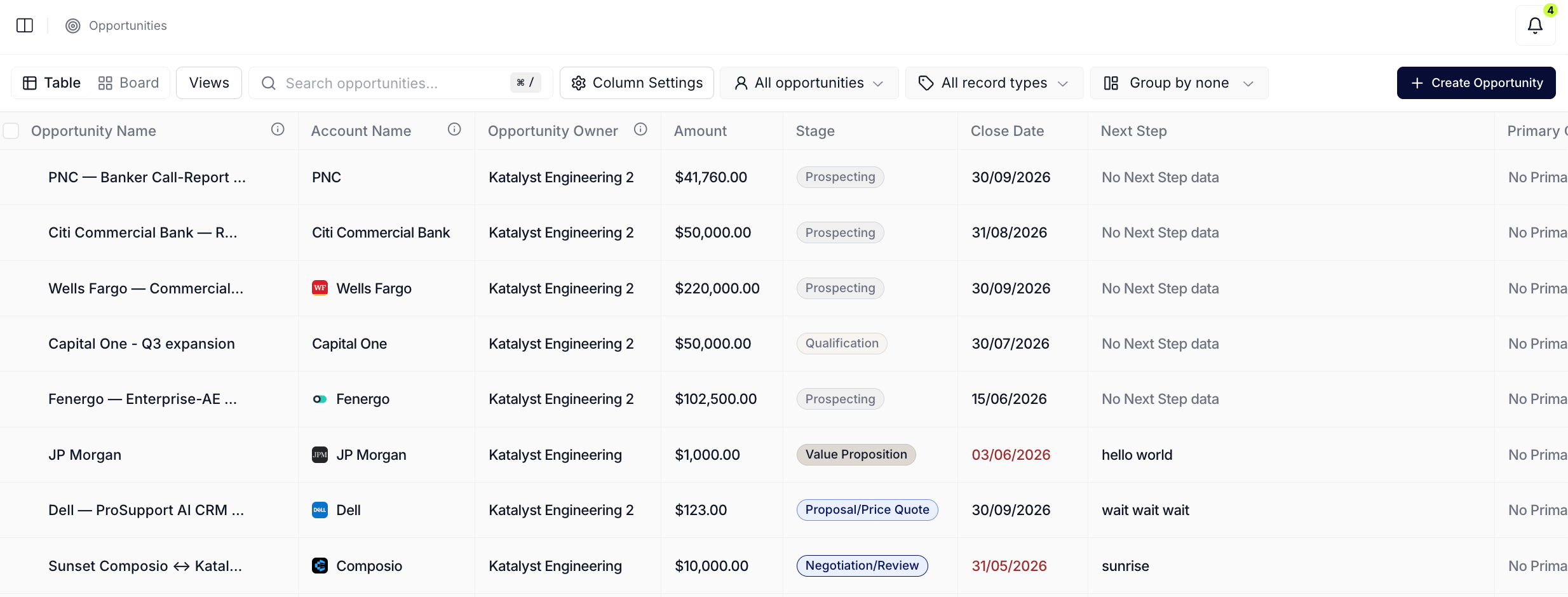
Opportunities table with the volt-lime rings flagging cells where the AI column has proposed a value pending acceptance.
- Open the column header dropdown and click Update Instruction. Hover the column header; a chevron appears. Click it and pick Update Instruction from the menu (Delete sits beneath it, disabled for Salesforce-mirrored columns). The Update Instruction dialog opens as a two-pane workspace: Prompt Details on the left, Test Prompt on the right.
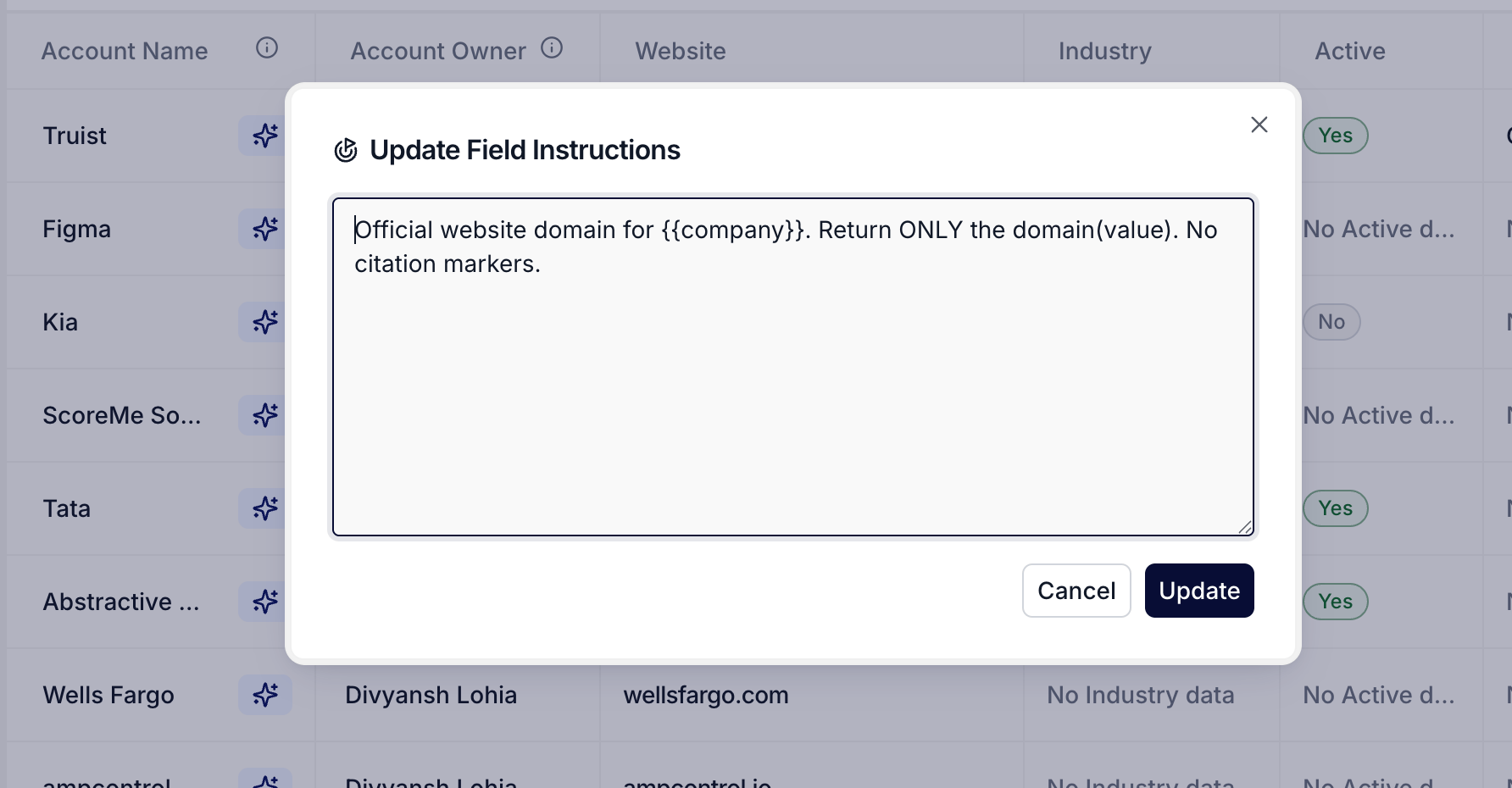
Update Instruction dialog: Prompt Details on the left, Test Prompt panel on the right for previewing the AI's proposed value against a chosen opportunity.
- Read the current instruction. The left pane shows the Field label (the column name, read-only) and the Update Agent Instructions textarea with whatever instruction is live today. Read it slowly. The noisy column is usually noisy because the instruction is too vague (“propose a Next Step”) or too broad (“set Forecast Category based on the deal”). Name the gap in one sentence before editing.
- Edit the instruction to add the missing constraint. The two moves that tighten a noisy column: name what the column should NOT propose (“Do not propose a stage; only propose a NextStep that names the rep’s concrete next move”), or add the criterion the AI is missing (“Only propose Forecast Category as Commit when the deal has a signed redlined contract attached”). One or two constraint sentences is usually enough; the goal is sharper, not longer.
- Pick a known-answer row in the Test Prompt panel. The right pane has an Opportunity select (or an Account select on the Accounts table). Pick a deal the rep already knows the answer for: a Negotiation-stage deal whose Next Step they wrote yesterday, a key account whose Industry they’re certain of. Click Run test.
- Read the proposed value, the reasoning, and the Context Used. The panel renders three things: the proposed value (compare against the rep’s known answer), the field-level reasoning paragraph (does the AI’s hypothesis match how the rep thinks about the column?), and a collapsible Context Used block showing the Deal Summary, Momentum Signals, and Pending Actions the AI leaned on. If the proposed value matches, the constraint took. If not, the reasoning usually names exactly what the AI is doing wrong; go back to step 4 and tighten further.
- Test against 2 to 4 more rows. One test row is not a calibration; three or four is. Pick a mix: a Closed Won row, an early-stage row, a stalled row. If the proposed value matches on every test row, the instruction is tuned. If one row goes sideways, decide whether that row is genuinely an edge case (and the instruction is fine) or whether the instruction is still missing a clause.
- Save and wait for the next sweep. Click Save on the Update Instruction dialog. The column re-runs against subsequent rows with the new prompt; existing pending suggestions on the table stay as they were until the rep accepts or rejects them. The proof the tune-up worked is the next sweep: open the table tomorrow morning, scan the volt-lime rings on the same column, and check whether the proposed values now look right by eye.
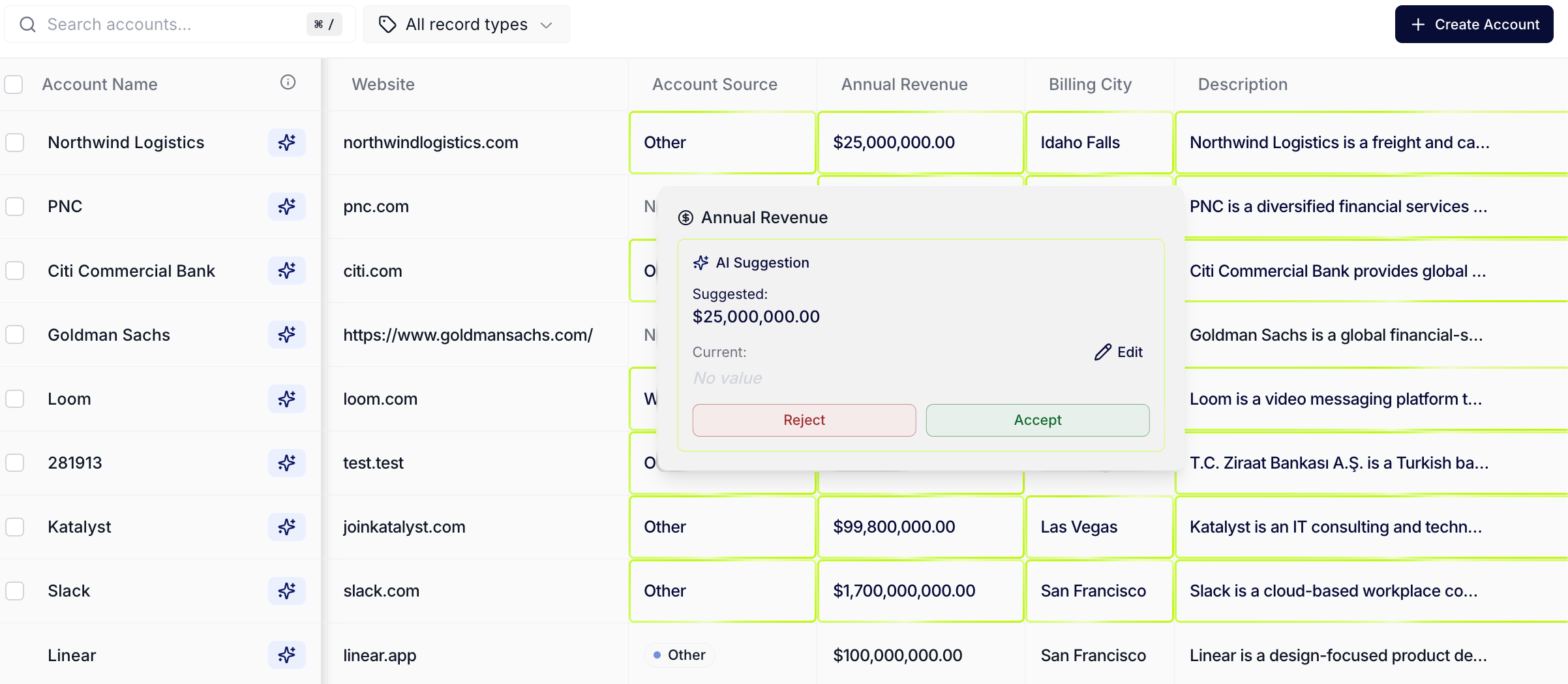
AI Suggestions per-cell overlay: the volt-lime ring on the column the tune-up just touched. The next sweep against this column should propose sharper values.
Variations
If the noisy column is a Salesforce-mirrored field (Forecast Category, Next Step, a custom SF field), the Update Instruction dialog has the full Prompt Details plus Test Prompt panel shape. If the noisy column is a Katalyst research-agent column (added via Add Column), the dialog is simpler: just the natural-language prompt textarea, no Test Prompt panel, because the research agent runs on a different cycle. The pattern is the same (name the gap, tighten the prompt, save), just without the in-dialog test step; the test happens implicitly on the next agent run. If the rep is the RevOps lead doing this on behalf of the whole team, the saved instruction takes effect org-wide; the test step is doubly important because every rep will live with the new prompt. If the rep is noticing noise across multiple columns rather than one, do not try to tune them all in one session: pick the worst one, run this play, watch the next sweep, then return for the next noisiest column.Related
- Bulk-clean AI Suggestions sweep - the surface that surfaces the pattern this play tunes for; run that play first to notice the noise, then run this one to fix it.
- Audit AI activity this week - the Friday ritual that often surfaces the column-level pattern this play addresses.
- Tune your signal noise budget - the signal-shaped sibling to this play; same pattern, different surface.
- Opportunities - the table this play usually runs on.
- Accounts - the other table this play runs on, usually for enrichment-shape columns.
- AI Suggestions - the per-cell overlay whose noise this play reduces.
- AI Activity - the audit surface that surfaces the noise pattern.