

AI Suggestions configuration
AI Suggestions configuration is the per-column prompt editor that sits behind every AI-driven column on Opportunities and Accounts. The same dialog covers two surfaces: the per-cell suggestions that light up the volt-lime ring on Salesforce-mirrored fields, and the AI columns you add to the table as research questions. Both are tuned the same way, the prompt that drives the agent lives in the column header, and a Test Prompt panel lets you preview the output against a chosen deal before the new prompt ships to the whole pipeline.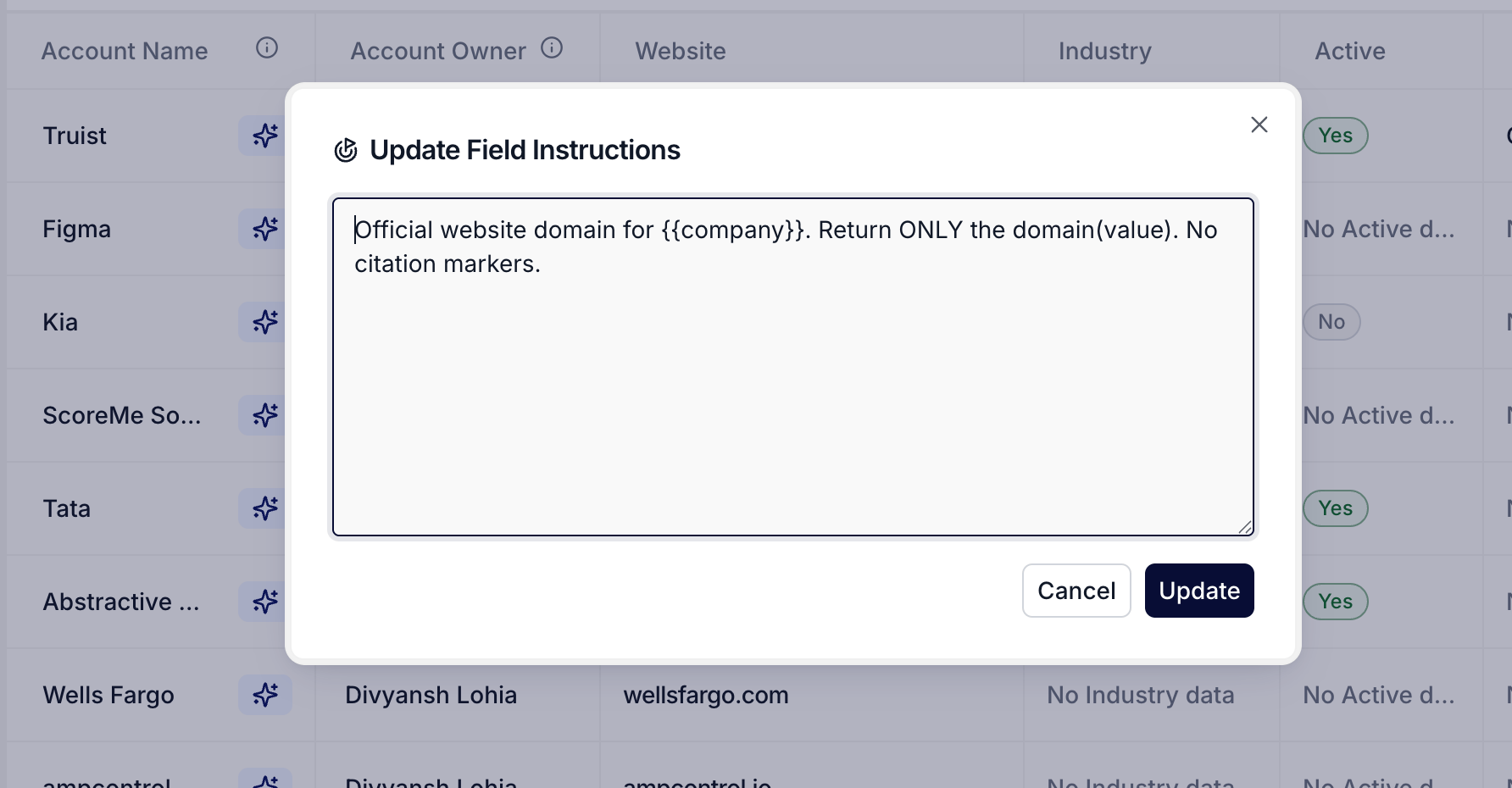
The Update Instruction dialog on a column header
What you can do here
- Open the dialog from any AI-driven column header. Every non-name column header on Opportunities and Accounts carries a hover-trigger menu with two items: Update Instruction and Delete. Update Instruction opens the dialog you tune the prompt in; Delete removes a Katalyst-side AI column from the schema. Salesforce-mirrored columns don’t expose Delete because the column lives in Salesforce, but they still expose Update Instruction because the prompt is Katalyst-side.
- Read the dialog shape that matches your column. Salesforce-mirrored fields open a two-panel 900-pixel dialog: Prompt Details on the left and Test Prompt on the right. Katalyst-side research-agent columns open a simpler 600-pixel dialog with just the prompt textarea, because the test panel doesn’t apply to a full-table research run.
- Edit the agent instruction. The left panel carries the column name as a read-only label and the Update Agent Instructions textarea where the prompt actually lives. Plain English: tell the agent what the field should hold, what good output looks like, what to ignore. The prompt is the only knob; the rest of the agent’s behavior (which Salesforce fields it can read, which signals it factors in, how it reasons across deals) is fixed.
- Preview against a chosen deal in the Test Prompt panel. The right panel is an opportunity picker and a Run test button. Pick any deal from the dropdown (Katalyst loads up to 50 at a time), hit Run test, and the panel renders the agent’s proposed value, the field-level reasoning, and a collapsible Context Used block that shows what the agent leaned on (deal summary, momentum signals, pending actions). Run the test as many times as you need; nothing writes until you click Save.
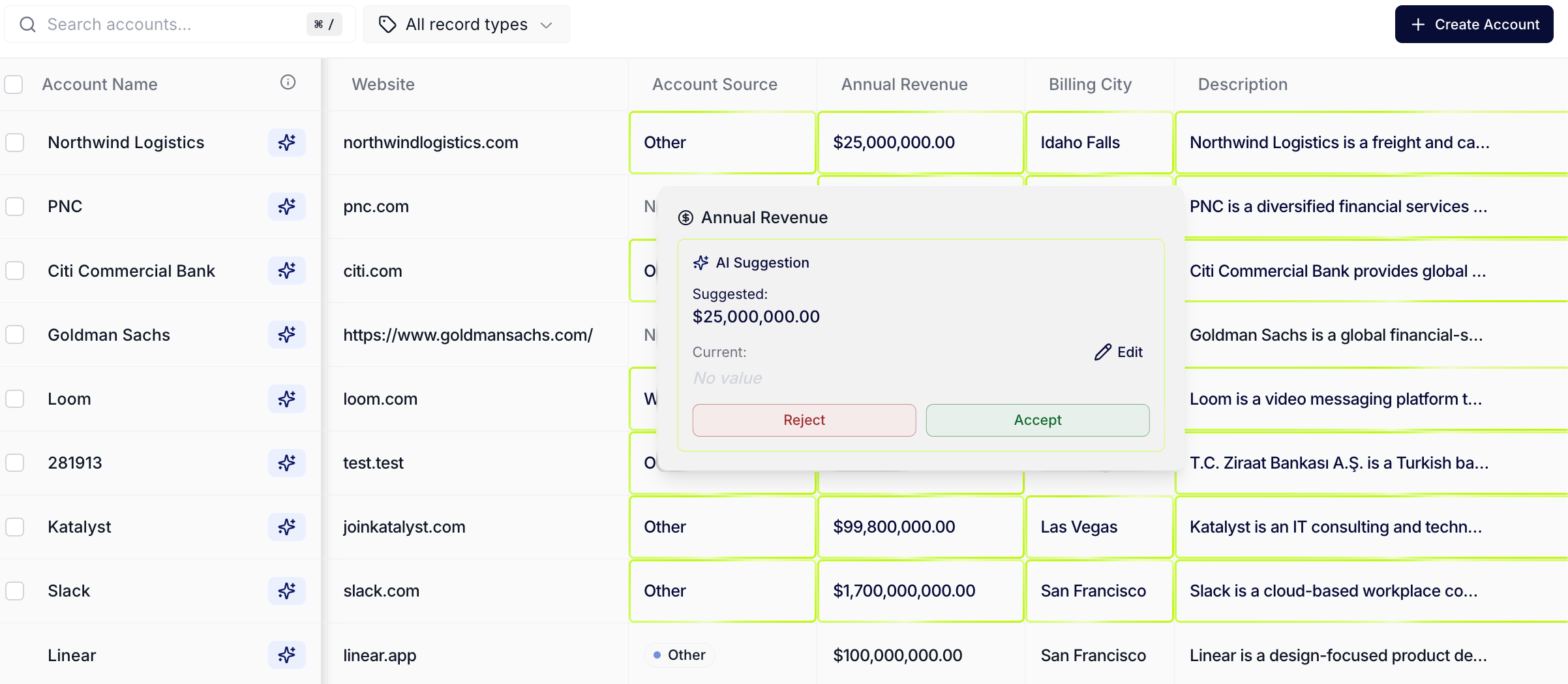
The volt-lime ring this dialog ultimately drives on cells
- Save to ship the prompt to the whole table. Save commits the new instruction and the column re-runs against subsequent rows with the new prompt. The volt-lime ring you see on cells (and on kanban cards) is the downstream output of whatever instruction is saved here. If the AI is proposing values you don’t want across many rows, the fix is in this dialog, not in the per-cell accept-reject sweep.
- Add new AI columns from the toolbar. The plus Add column button in the Opportunities and Accounts toolbars opens a separate dialog that creates a Katalyst-side AI column from scratch: an attribute type (research agent or one of the standard types), a column name, an agent instruction, and a description. Once saved, the new column lands at the right of the table, runs the agent across every row, and is editable through the same Update Instruction dialog as everything else.
- Delete a Katalyst AI column when it stops being useful. The Delete item on the column-header menu is fully wired for Katalyst-side columns and removes the column from the schema (optimistic on the cache, with a revalidate on success). Salesforce-mirrored columns leave the Delete item disabled because removing a column from Salesforce is out of scope for this surface.
How to use it
A RevOps lead notices that the Next Step column on Opportunities is producing suggestions that are too generic across most deals (“Follow up with champion this week” on twenty different rows). She hovers the Next Step column header, picks Update Instruction, and reads the existing prompt. The current instruction is one sentence; she rewrites it to: “Return the most specific next action this week, anchored to the deal’s most recent signal or meeting transcript, naming the contact you’re following up with and the question you’re asking. Do not return generic follow-up language.” She picks her largest Negotiation deal from the Test Prompt dropdown, hits Run test, reads the agent’s proposed value (“Reach out to the CFO with the procurement-review pushback from the Jun 9 call”) and the reasoning, expands Context Used to confirm the agent picked up the right signal and the right meeting, then re-runs the test against a Proposal deal and a Closed Won deal to make sure the new prompt doesn’t break either case. She hits Save, refreshes the table, and watches the Next Step volt-lime rings update across the next batch of rows with concrete, deal-specific proposals. Ten minutes from noticing the problem to a fixed prompt and a re-run pipeline.Patterns that work
Tune the prompt before you accept or reject in bulk. When the AI keeps proposing values you don’t want, accepting or rejecting cell-by-cell is treating the symptom. The fix lives here, in the column header. Edit the prompt, run the test against two or three representative deals, and ship a change that improves every future suggestion instead of just clearing the current pending batch. Use the Test Prompt panel against your edge cases, not just your obvious ones. The default opportunity in the dropdown is the highest-recency deal, which is also usually the easiest case. Pick a deal that’s stalled, a deal at an early stage, a deal that just closed, and a deal in your weirdest record type, and run the test against each. A prompt that works on the easy case but breaks on the edge cases is the most common failure mode of this dialog. Expand Context Used to debug a confusing output. When the test returns a value that doesn’t look right, the Context Used block tells you what the agent actually saw: which signals it weighted, which meeting summaries it pulled in, which Salesforce fields it read. The fix is usually a prompt-level instruction that tells the agent which context to lean on or ignore for this field, not a deeper architectural change. Treat AI columns as living artifacts. A column that worked in February might be producing noise in June because your pipeline composition shifted, your signal catalog tightened, or a new persona showed up in your buying committees. The Update Instruction dialog isn’t a one-time setup surface; revisit any column you’re consistently rejecting and tune the prompt against the current pipeline.Related
- AI Suggestions - the per-cell accept and reject mechanic this configuration ultimately drives on the table.
- Opportunities - the deal-list workspace where the Add column button and the per-column header menu live.
- Accounts - the account-list workspace where the same per-column dialog opens on AI-driven columns.
- AI Activity - the durable log of every value the AI has proposed and every accept or reject downstream; the place to confirm a new prompt is producing better output across the book.
- Tune an AI column when it’s noisy - the fifteen-minute routine for fixing a column that’s drifted.
- Bulk-clean an AI Suggestions sweep - the cell-side companion that clears the pending volt-lime rings once the prompt is right.