

Send a personalized follow-up email
A rep has a deal that’s gone quiet and needs a re-engagement note that actually references the last conversation. This play moves from the trigger surface (a Do This Now row on Home, or a manual click into a deal) through the per-record AI Chat into the Draft Email modal and back out to a saved Note, in about five minutes, without leaving the account or opp page.What to expect
- Timing. Roughly 5 minutes.
- Prerequisite. A Do This Now row prompting a follow-up, or a deal you’ve already decided needs one. Gmail or Outlook connected so the draft can land in your real drafts folder.
- Outcome. A real email in your mail client’s drafts, ready to send, and a one-line Note saved on the record so the next time anyone opens it the re-engagement is traceable.
Step-by-step
- Spot the prompt or open the record. If the AE caught it on Home, the Do This Now row already names the deal and the recommended move. Click through to land on the account or opportunity. If they’re navigating manually, open the record from Favorites or the Opportunities table.
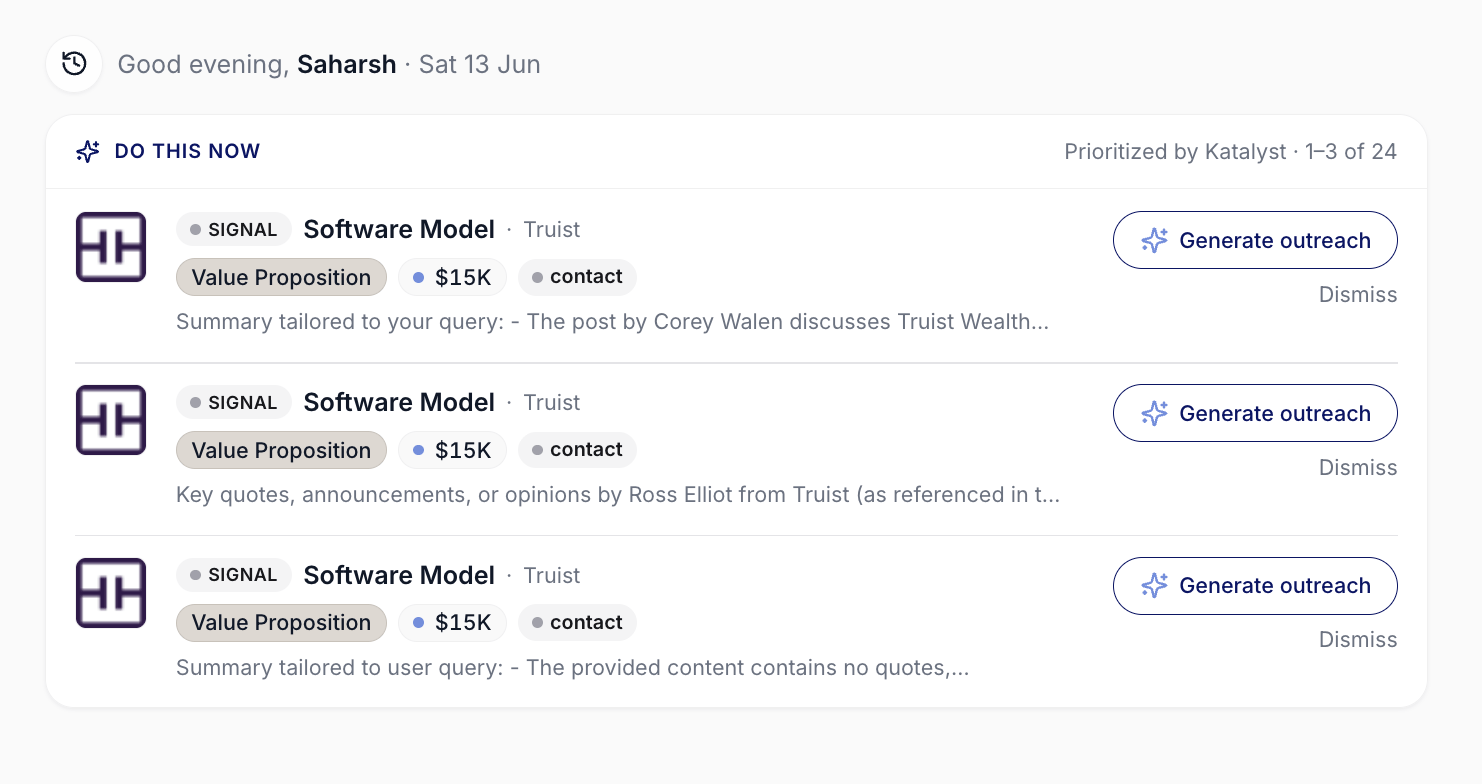
Do This Now card surfaces the highest-leverage moves across the AE's book, including a re-engagement prompt on a stalled deal.
- Open the per-record AI Chat. On the account or opp detail page, the chat panel is already scoped to that one record and has the Account Plan, Activity History, Signals, and any linked meetings loaded as context. No setup needed.
- Ask it to draft a re-engagement note. Type something close to “Draft a re-engagement email referencing our last conversation and the security review concern.” The chat reads across the meeting notes, the recent signals, and the activity history, then emits a draft.
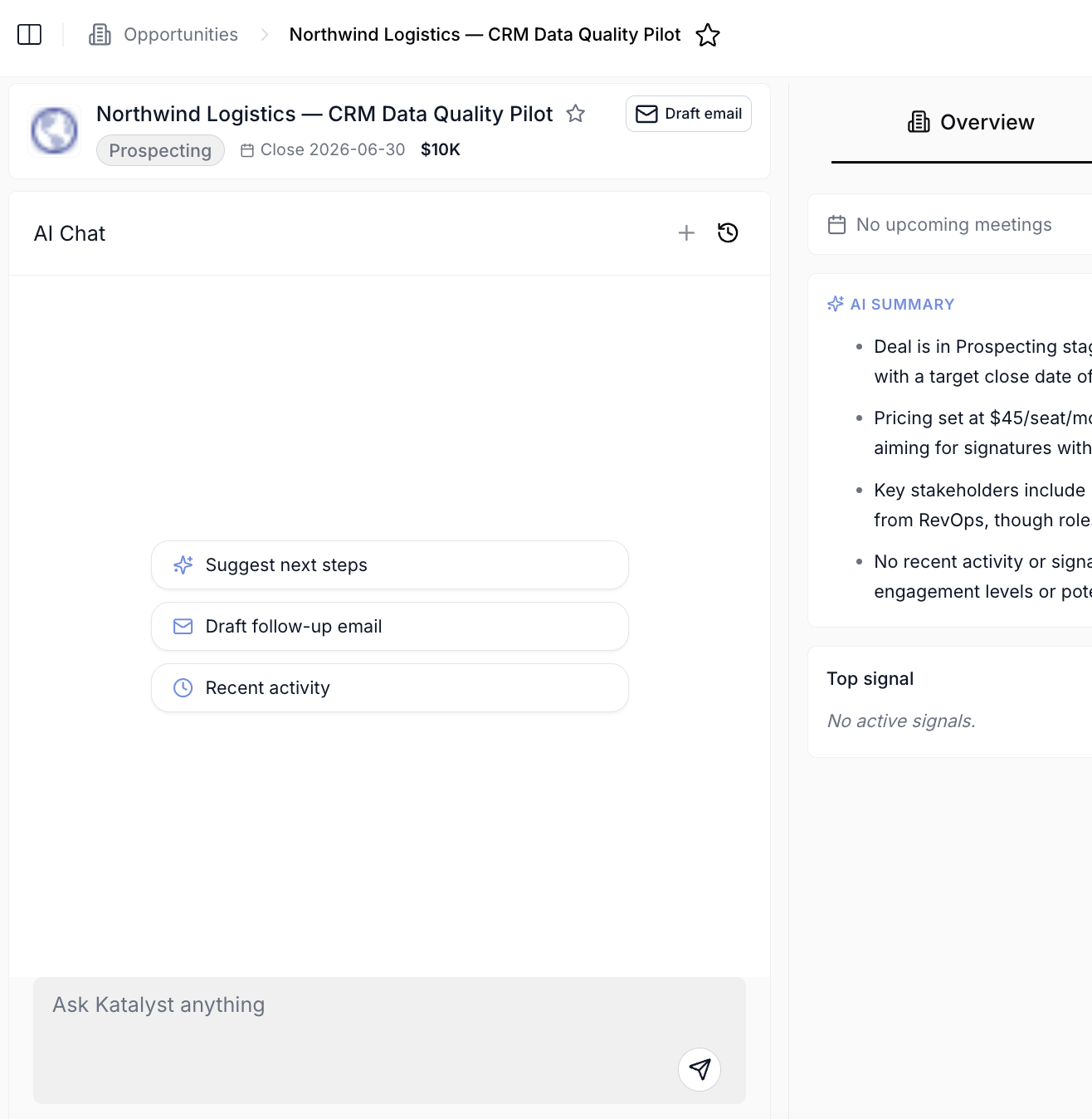
Per-record AI Chat scoped to a single Account or Opportunity, with the full record context already loaded.
- Hand off into the Draft Email modal. The chat’s draft opens the modal pre-filled: the prompt area carries the chat’s framing, the company is auto-set to the record, and key people from the buying committee are pre-selected. The right side renders the To, Subject, and Body the AI just wrote.
- Tune the opening and the ask. Read the body. Rewrite the opening if it sounds generic, sharpen the ask in the last paragraph, swap the template from the dropdown if a different cadence fits better. Regenerate draft is one click away if a wholesale rewrite feels easier than line edits.
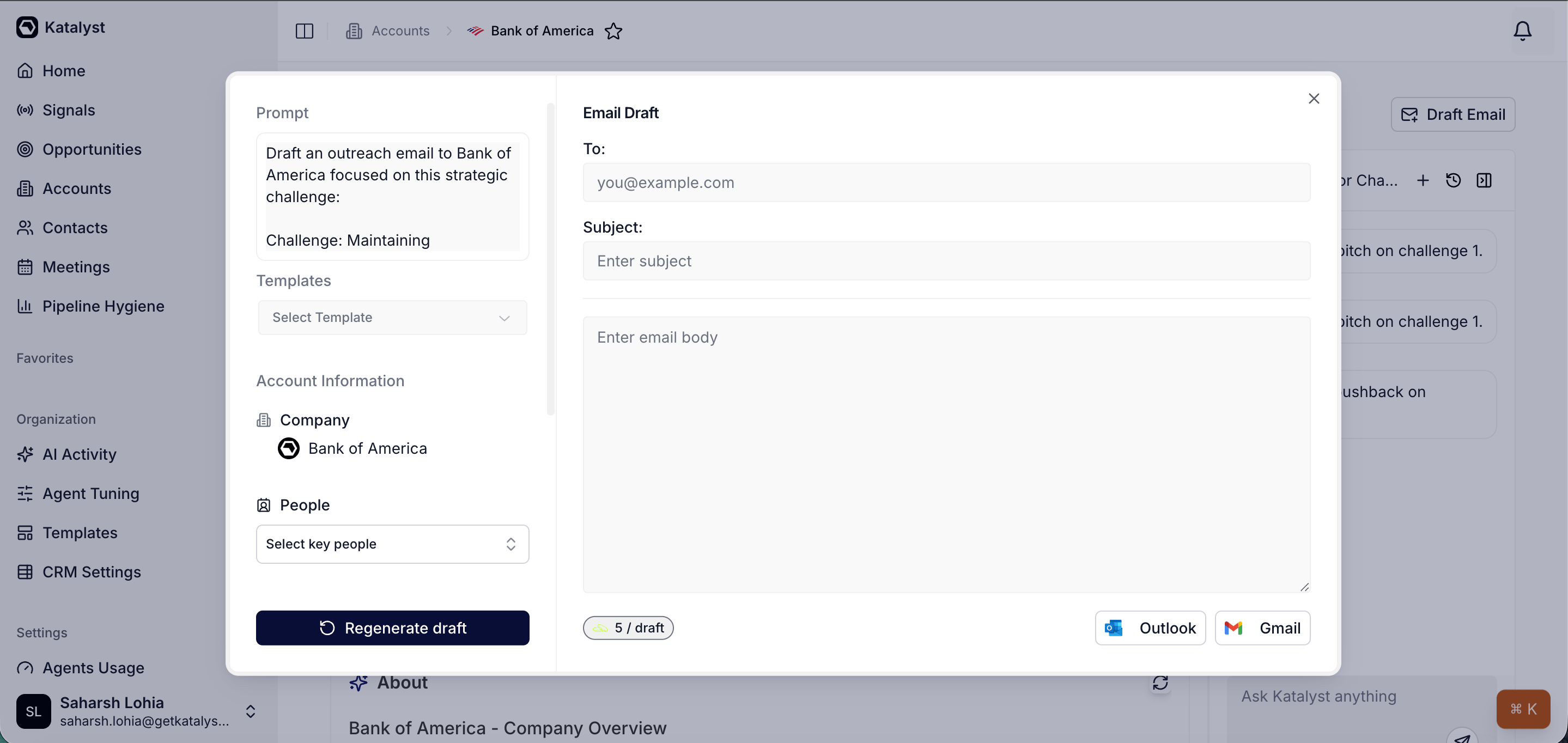
Draft Email modal pre-filled from the chat handoff; left side prompt and key-people picker, right side editable To, Subject, and Body.
- Save to Gmail or Outlook drafts. Click Save to Gmail or Save to Outlook. The draft lands in the mail client’s drafts folder. Switch over, give it one last read, and hit send. Katalyst never sends on the AE’s behalf, the last review always happens in the inbox.
- Drop a Note on the record. Back on the account or opp, open the Notes sub-tab and write a one-liner: “Sent re-engagement on the security review thread, watching for reply.” Notes auto-save per keystroke, so the thread is captured the moment the AE moves on.
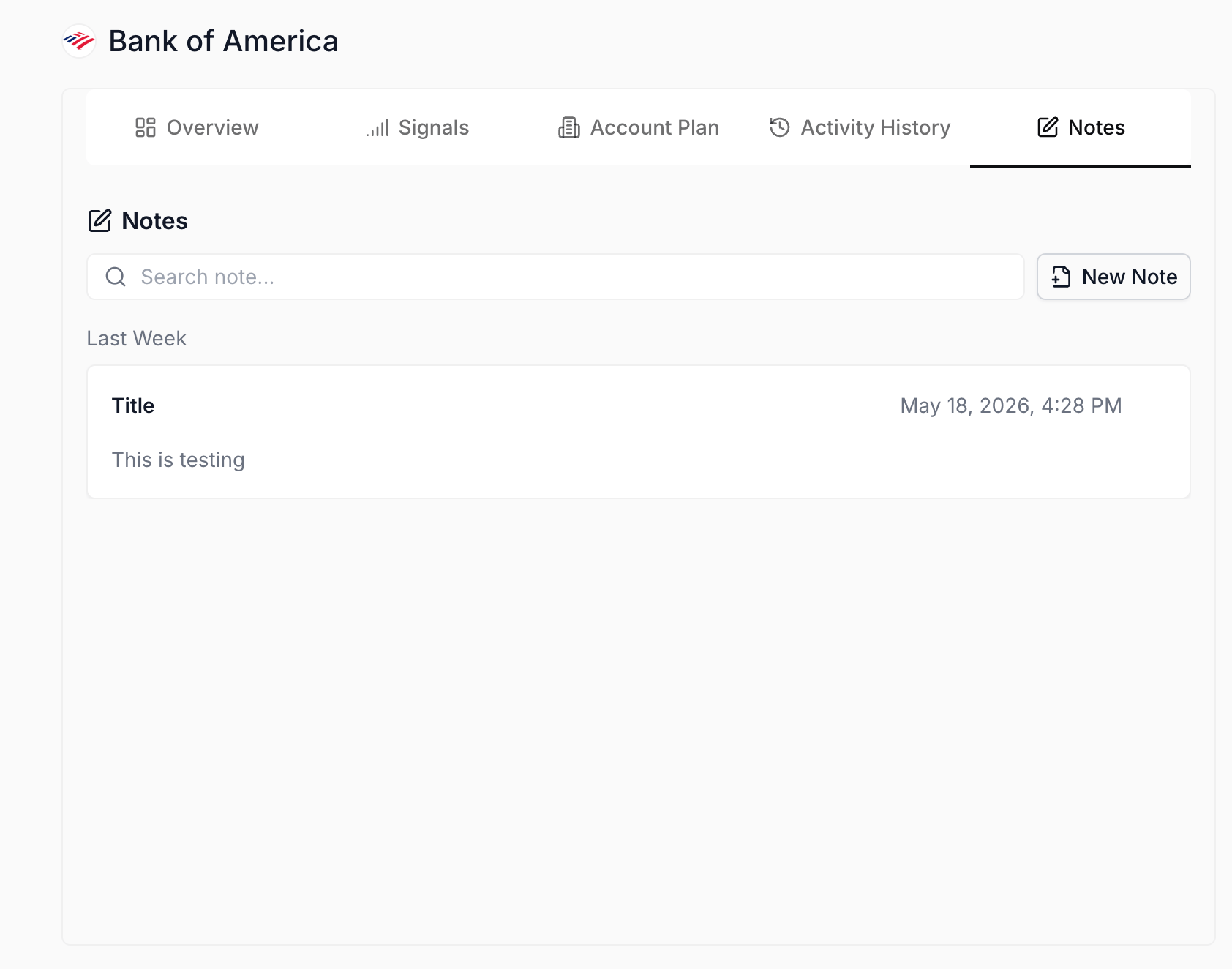
Notes sub-tab on the record, where the AE captures the re-engagement context so it's traceable on the next open.
Variations
- Shape the draft instead of rewriting it. The composer carries a collapsible panel for email type, tone, and length. The edit reps most often make by hand, cutting a draft down or warming it up, is a control here. Change length to short and regenerate rather than trimming three paragraphs manually.
- Check the Cc before you save. When the AI thinks someone else on the deal belongs on the thread, usually an economic buyer, it pre-fills the Cc field. It’s right often enough to be worth reading and wrong often enough to be worth a glance.
- Follow the confirmation straight to the draft. Saving to Gmail or Outlook returns a link directly to the saved draft, so the last read happens one click away rather than after hunting through a drafts folder.
Related
- Draft Email - the composer this play hands off to.
- Notes - the per-record scratchpad that captures the re-engagement context.
- AI Suggestions - the volt-lime ring overlay that flags fields the AI thinks need an update before the follow-up goes out.
- Log a call right after - the play to run if the re-engagement is a call instead of an email.
- Knock out today’s actions - the play that batches every pending follow-up into one sit-down sweep.