

Plans and Billing
Katalyst prices in two parts: platform coverage, an org-wide count of how many opportunities the AI works on, and seat plans, a per-rep tier that sets what each person can do. The Plans page is where you build that combination and see what it costs before you commit. The Billing page is where you live afterwards: the card on file, the credit balance, the invoice history. Everything here is admin-only. Reps see the effects of a plan (their chat allowance, which signal types they can enable) but never the billing controls.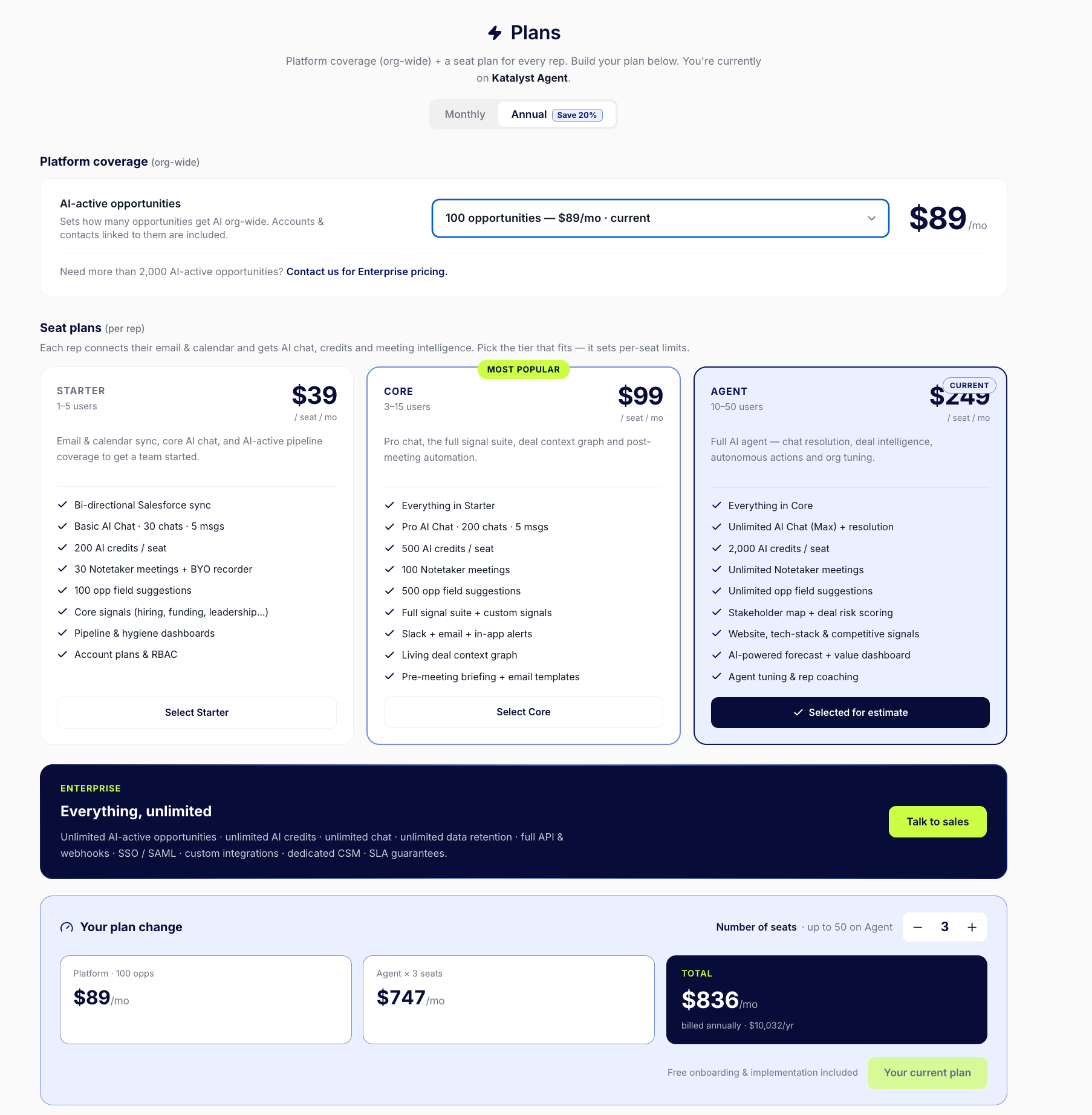
The Plans page: platform coverage plus per-seat tiers, with a live cost estimate
What you can do here
- Size your platform coverage. Coverage sets how many opportunities across the org can be AI-active at once. Accounts and contacts linked to those opportunities come along at no extra cost and are never counted against the number. Pick the tier that fits your book; past a certain scale the page routes you to Enterprise pricing rather than a dropdown.
- Pick a seat plan per rep. Four tiers, each setting per-seat limits rather than feature flags you have to reason about:
- Starter : email and calendar sync, core AI chat, core signals (hiring, funding, leadership), pipeline and hygiene dashboards, account plans.
- Core : everything in Starter, plus the full signal suite and custom signals, a larger chat allowance, more credits, Slack and email alerts, the living deal context graph, and pre-meeting briefing.
- Agent : everything in Core, plus unlimited chat, unlimited notetaker meetings, stakeholder mapping and deal risk scoring, website and competitive signals, AI-powered forecasting, and agent tuning.
- Enterprise : everything unlimited, with SSO/SAML, full API and webhooks, custom integrations, a dedicated CSM, and SLA guarantees.
- See the price before you commit. Toggle monthly or annual (annual carries a discount), set the seat count with the stepper, and the plan-change panel breaks the total into platform cost plus seats. Changing plans opens a modal showing the exact charge or credit first: upgrades take effect immediately, downgrades are scheduled for the end of the current period so nothing is disrupted mid-cycle.
- Stay inside your seat ceiling. Each tier has a seat range (Starter runs 1 to 5 users, and the ceiling climbs from there). The stepper clamps to your plan’s maximum and labels the limit inline, so you find out you need a bigger tier while you’re choosing, not after a failed invite.
- Manage credits, and let them top themselves up. Monthly plan credits are spent first and reset each cycle. Add-on credits are spent after those, never expire, and can be bought in one click against the card already on file. Turn on auto-recharge and Katalyst buys more automatically when the balance runs out, up to a monthly spending cap you set, so AI features keep running instead of stopping mid-week.
- Decide how credits are shared. Add-on credits can run as a shared pool for the whole team, or with per-member ceilings so no single rep can drain the month’s budget. The ceilings can’t sum past your monthly limit.
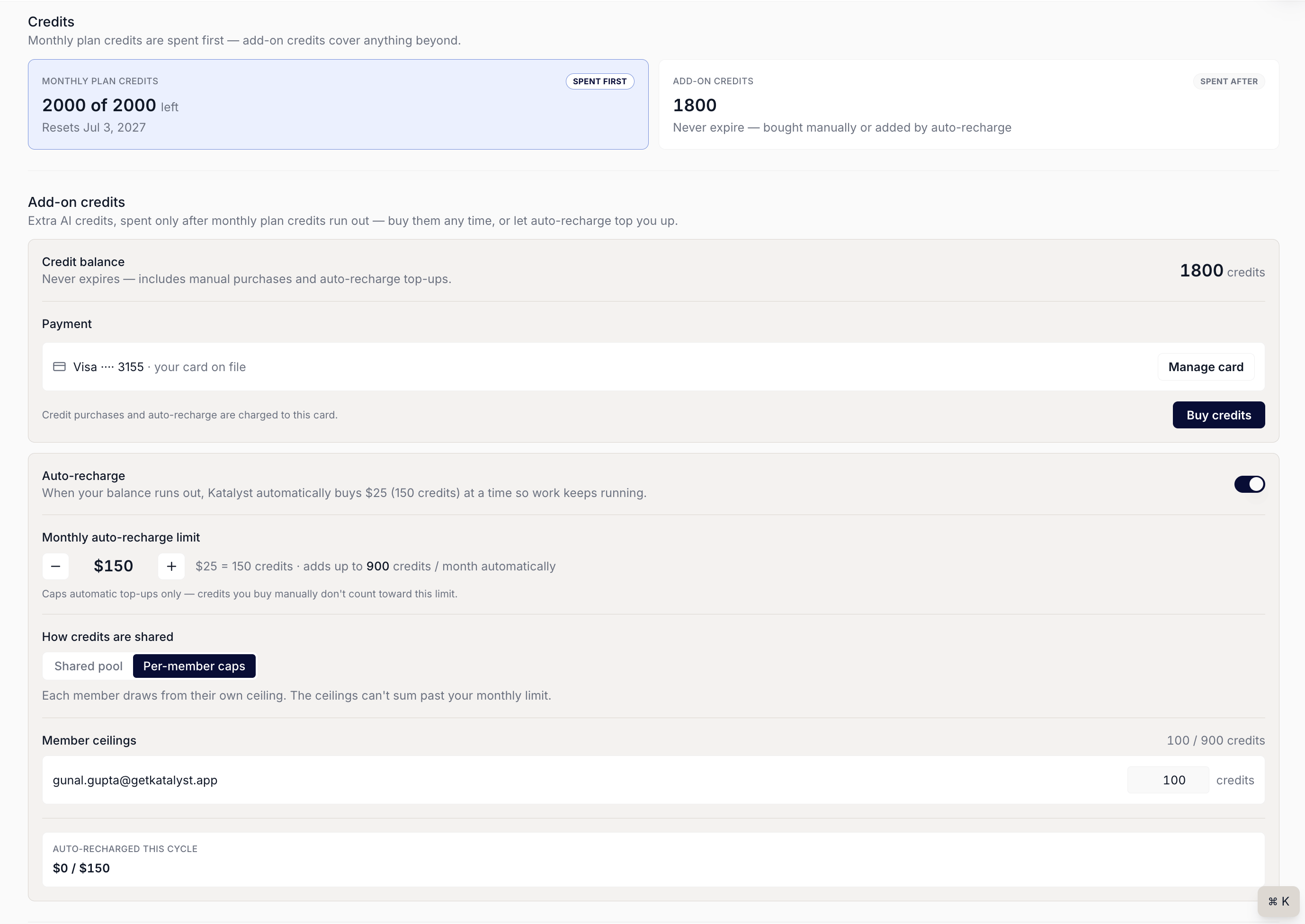
Credits on the Billing page: card on file, one-click Buy credits, and auto-recharge with a monthly cap
- Handle cards, invoices and cancellation. The Billing page shows the active plan, the renewal date, and a full invoice history with PDF downloads. A single Manage billing button opens a secure Stripe portal to update the card, cancel, or reactivate. Cancelling in-app keeps access running until the end of the paid period.
- Know what each charge covers. Billing breaks the cost line by line (platform coverage plus seats equals total), so an invoice question has an answer on the page rather than in a support thread.
How to use it
The admin at a 25-rep team is moving from Core to Agent midway through the quarter. She opens Plans, toggles to annual to compare, and watches the estimate update as she sets the seat count; the panel shows platform coverage and seats broken out into a total before she touches anything. She clicks upgrade, the modal shows the exact prorated charge, and she confirms. The change lands immediately. Two weeks later a rep hits the out-of-credits dialog mid-draft, so the admin opens Billing, sees the card already on file, and turns on auto-recharge with a $150 monthly cap and per-member ceilings so no one rep can spend the pool. When finance asks for documentation at quarter close, she pulls the last three invoices as PDFs without opening a support ticket.Patterns that work
Size coverage to the deals you’re actually working, not to your whole CRM. Coverage is the org-wide count of AI-active opportunities, and linked accounts and contacts ride along free. Most teams over-buy here on instinct. Start narrow, watch the counter on the coverage page, and raise it when you’re genuinely capped rather than pre-emptively. Turn on auto-recharge with a cap, rather than reacting to empty. The failure mode without it is a rep hitting an out-of-credits wall mid-week and losing the thread. Auto-recharge with a spending cap you’re comfortable with converts that from an interruption into a line item, and the cap means it can’t run away from you. Use per-member ceilings on bigger teams, a shared pool on small ones. A shared pool is simpler and works fine when everyone’s usage is roughly similar. Once the team is large enough that one power user can drain the month, ceilings are the safer default. Downgrade at the boundary, upgrade whenever. Upgrades apply immediately because you want the capability now. Downgrades are scheduled for the end of the period, so there’s no advantage to timing one carefully, and no risk of cutting capability off mid-cycle by accident.Related
- AI-active coverage - the page where you choose exactly which opportunities the coverage you bought is spent on.
- Team and permissions - seats, invitations, and what happens when every paid seat is taken.
- Signals Settings - the catalog whose lock badges are set by the plan you pick here.
- Home - the chat surface whose monthly conversation and message allowance comes from your seat plan.
- Meetings - notetaker meeting limits and the plan caps on AI-detected records from meetings.