

Integrations
Integrations is the Connectors workspace, a two-pane shell with every supported external system listed on the left and the per-connector page on the right. Salesforce is the foundation; mail, calendar, the notetaker, and Slack stack on top of it; each row in the rail carries its own connected-or-issue badge so a broken sync is visible from anywhere on the page.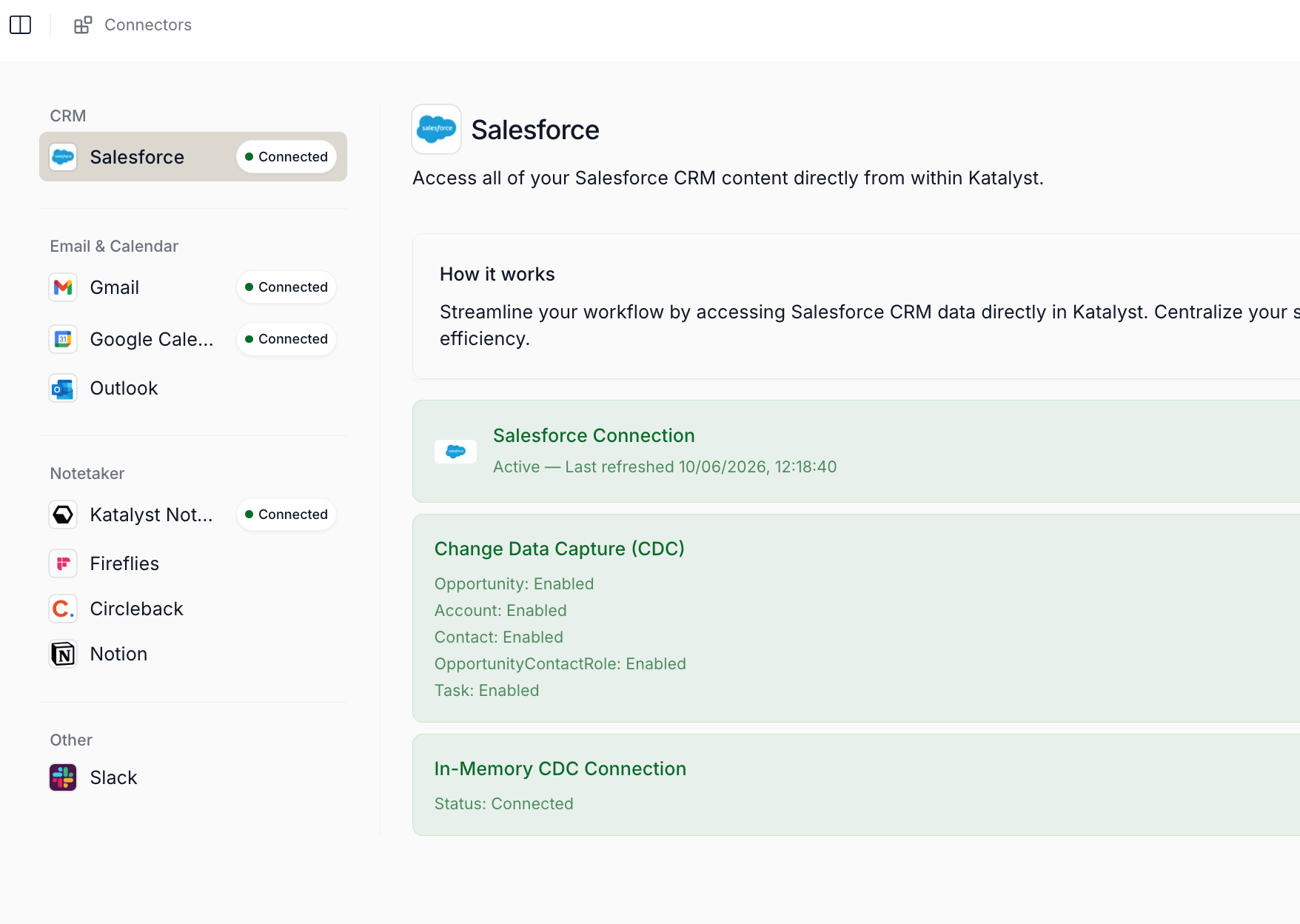
Connectors workspace with the per-provider rail and per-connector status pane
What you can do here
- Wire Salesforce as the foundation. The Salesforce connector is the gate for every records-table surface in Katalyst (Accounts, Opportunities, Contacts, Pipeline Hygiene, AI Suggestions, the per-record chat). Connecting it opens a native OAuth popup, and once it returns active, three stacked status cards appear on the page: a Connection card backed by the token health probe, a Change Data Capture entity grid that confirms five Salesforce objects (Opportunity, Account, Contact, OpportunityContactRole, Task) are streaming, and an In-Memory CDC card that tracks the live streaming subscription. The rail badge reads Connected only when all three are healthy; otherwise it flips to Issue so an admin spots the problem from any connector page.
- Connect Gmail or Outlook for mail. Either one wires the Draft Email composer’s Save to drafts target and feeds inbound and outbound mail into the per-account timeline. Gmail and Outlook are mutually exclusive because Katalyst doesn’t dedupe across both, so connecting one disconnects the other in the same gesture. Outlook also covers calendar in a single connection, so wiring Outlook here means you don’t also wire Google Calendar.
- Connect Google Calendar for meetings. Google Calendar feeds the Meetings tab and the Upcoming meetings rail on Home. If you connect Outlook for mail, calendar comes with it; if you connect Gmail, you wire Google Calendar here as a separate step.
- Pick one notetaker source. Five notetaker options share one slot: the Katalyst Notetaker (a server-side bot that joins calendar events automatically), Fireflies, Circleback, Notion (a knowledge-source poller for meeting docs), and the desktop Katalyst Notetaker. Any one of them blocks the other four because they all write transcripts into the same meetings table, and Katalyst doesn’t dedupe across providers. The Katalyst Notetaker also asks for the calendar provider (Google or Outlook) so the bot’s invite-watcher knows which calendar to read.
-
Wire Slack for signal delivery. Slack is a two-step connector. The first step authorizes your Slack identity so Katalyst can DM you; the second step installs the Katalyst Slack bot in your workspace so the bot can post into a
#katalyst-signalschannel that the rest of the team sees. Once the bot is installed, the page exposes a Join Channel button (adds you to#katalyst-signals, creating it if needed) and a Send Test Message button that fires a smoke test into the channel so an admin can confirm end-to-end delivery before turning on the Slack channel toggle in Signals Settings. - Reconnect from the status card when anything goes amber. Every connector’s status card carries a Reconnect affordance. Salesforce’s Reconnect wipes the token row and re-runs the native OAuth popup; the other providers re-run through the OAuth popup. The card preserves the prior known state during the reconnect window instead of flashing unknown.
- Get your meetings without a second step. Connecting Google Calendar or Outlook during onboarding kicks off the calendar sync immediately, so meetings populate on their own rather than waiting for you to trigger a sync after setup. Reconnecting a calendar from this page later behaves the same way.
How to use it
An admin onboarding a five-person team opens Integrations on a Monday afternoon. She clicks Salesforce first, hits Connect Salesforce, finishes the OAuth popup in twenty seconds, and watches the three stacked cards appear. The Connection card lands green, but the CDC entity grid shows two of five entities disabled, so she clicks the Setup CDC button, follows the step-by-step instructions to move all five entities into the streaming set in Salesforce Setup, comes back, hits Check if CDC is Enabled, and the dialog flips to “Real-time Sync Ready.” She moves down the rail to Gmail, hits Connect Gmail, waits for the popup to return active, then clicks Google Calendar and does the same. She picks Katalyst Notetaker, chooses Google as the calendar provider, and confirms. Last she opens Slack, runs the user OAuth, hits Add Slack Bot for the workspace-level OAuth, clicks Join Channel to add herself to#katalyst-signals, and fires a Send Test Message. The test lands, she sees the green dot on every rail badge, and she’s done. Twelve minutes from page open to a fully wired tenant.
Patterns that work
Connect Salesforce first, even if you’ll set up the rest later. Salesforce is the foundation; the rest of the product reads against it. Until the rail badge for Salesforce is green, the Accounts, Opportunities, and Contacts tables won’t hydrate and AI Suggestions won’t have a write target. Get the three Salesforce cards to all-green before you move on to mail, calendar, or notetaker. Treat the rail badge as the health dashboard. Every rail row exposes a Connected pill once the connection lands, except Salesforce, which only reads Connected when token health, CDC, and the streaming subscription all probe healthy. If you ever see an amber Issue pill on Salesforce, open the connector page and one of the three status cards will tell you which layer broke. Choose mail and calendar together when you can. Gmail plus Google Calendar is the two-connection path; Outlook is the one-connection path that covers both. If your team runs Microsoft 365, wiring Outlook saves you a step and avoids the exclusivity guard from firing on a half-wired tenant. Smoke-test Slack delivery before flipping the channel toggle. The Send Test Message button on the Slack page is there so an admin confirms#katalyst-signals is alive before reps depend on it. Turn the Slack toggle on in Signals Settings only after the test message lands in the channel; otherwise the first real signal that fires is the first time you find out the bot wasn’t actually installed.
Related
- Account detail - the per-account workspace where the Salesforce write-back round-trip from inline edits actually plays out.
- Opportunities - the deal-list workspace that hydrates from the Salesforce sync this page sets up.
- Signals Settings - the upstream notification configuration; the Slack channel toggle is gated on the Slack connector being green here.
- AI Activity - the durable log where sync errors and connector-related failures surface for audit.
- Meetings - the surface that consumes the calendar feed and the active notetaker’s transcripts.
- Team & permissions - the sibling Setup surface; the pre-invite walkthrough flags the Salesforce permission an invitee needs to complete their own SF OAuth.
- Onboarding with Kai - the guided first-run flow where most of these connectors get wired for the first time, with the calendar syncing automatically on connect.
- Connect Salesforce, Gmail, and your calendar - the first-day setup pass that opens here.
The Connectors hero is in. Per-connector screenshots are still pending: the Salesforce-specific shot with all three status cards visible (Connection, CDC entity grid, In-Memory CDC), and the Slack page with the Add Slack Bot, Join Channel, and Send Test Message row.