

Meetings
Meetings is the calendar-anchored workspace where every prep, mid-call reference, and post-call follow-through happens. Coming Up over Recent on the left, the per-meeting detail in the center, and a chat on the right scoped to whichever meeting is open, so prepping for the next call and closing the loop on the last one happen in the same surface.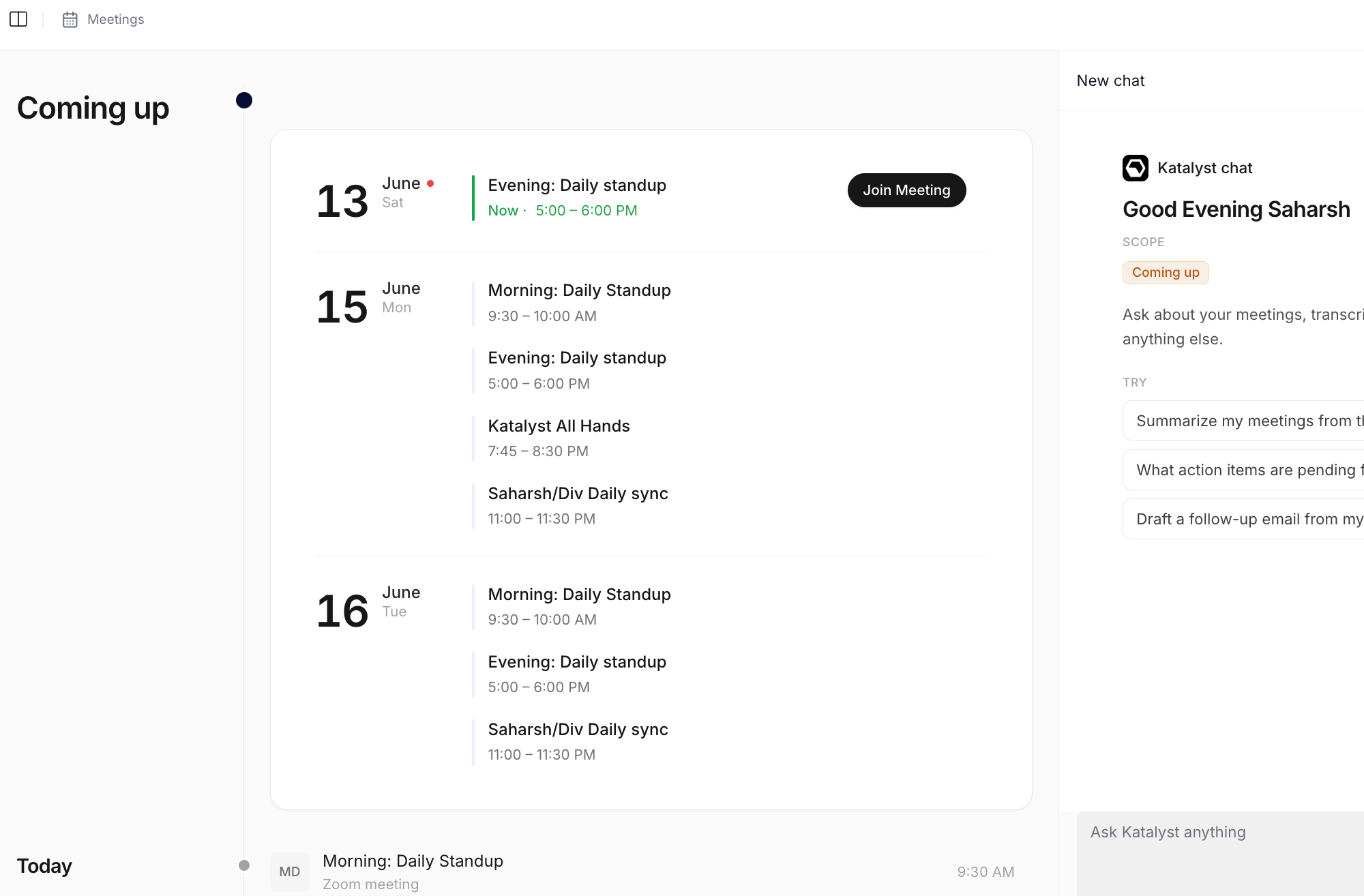
Meetings landing with Coming Up timeline and Recent meetings list
What you can do here
- Scan Coming Up to see what’s on the calendar. The day-grouped timeline lists every upcoming meeting in a configurable forward window, with Today always anchored at the top. Each row shows the title, start and end times, attendees, the calendar source, and a linked opportunity pill when the meeting maps to a deal in pipeline.
- Pick a past meeting from the Recent list. Below Coming Up, Recent is a reverse-chronological list of every past meeting with the enrichment state badged inline: ready, still processing, or no transcript captured. Click any row to open the detail panel; the panel polls while a meeting is still processing so the summary fills in without a reload.
- Open a meeting in the workspace. Clicking a row sets the meeting as selected and the detail panel takes the center column. The header carries the title, the date, the attendees, the linked opportunity when there is one, and a source pill that shows which provider captured the meeting. An expand control on the panel jumps to the full-page view with a section navigator rail.
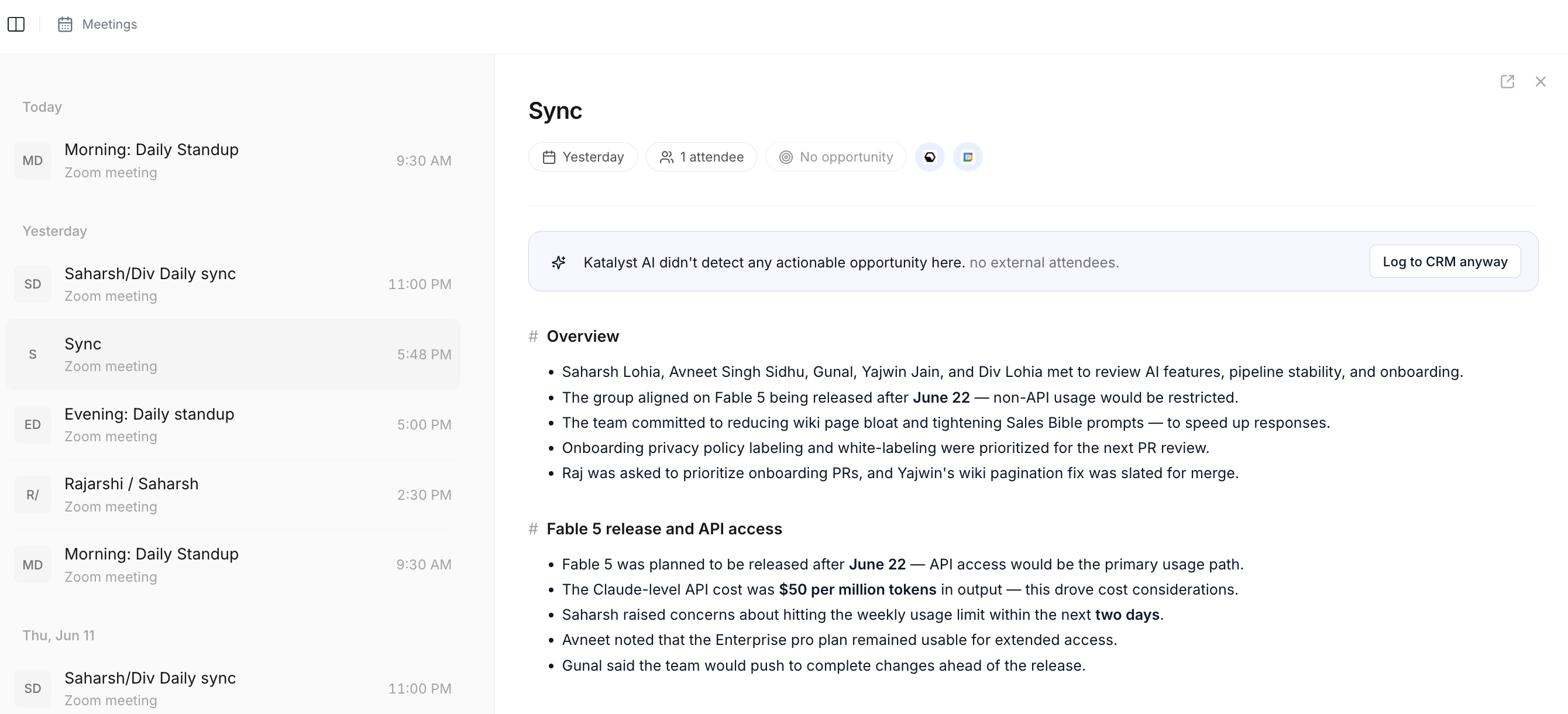
Meeting workspace with pre-brief or summary, transcript, and post-meeting recommendations
- Read the Pre-meeting brief on an upcoming call. When a meeting on Coming Up is in the future, the workspace renders an AI-written brief at the top of the detail panel. It picks a profile based on the context the meeting actually has, opportunity-anchored when the meeting maps to a deal, attendee-anchored when it doesn’t, series-anchored on a recurring touchpoint, and so on, so a rep walks in with the stage, the last touch, and who’s on the other side already in hand.
- Capture the call with the Katalyst notetaker. When the notetaker is configured against the calendar, the meeting is recorded, transcribed, and pushed back into the workspace as a sectioned summary and a speaker-attributed transcript. Fireflies, CircleBack, and the calendar-attached recorders are supported alongside the first-party desktop capture, and the source pill in the header tells the rep which provider captured the call.
- Read the summary and the transcript on a past meeting. The summary lands as sectioned Markdown, Overview, Key Decisions, Action Items, Open Questions, Risks, with a section navigator on the full-page view so a rep can jump straight to Action Items without scrolling. The transcript renders below with per-speaker color and an in-transcript search input for finding the exact words a customer used about budget or a competitor.
- Act on the post-meeting recommendations. Once the summary is ready, the workspace also surfaces the Katalyst Actions block: a list of AI-proposed field updates, drafted follow-up emails, and Salesforce tasks, each with the reasoning the agent used. Accept the ones that read right, reject the rest, and the meeting becomes a permanent ledger of what got actioned.
- Ask the chat about this meeting. The right-pane chat flips its scope when a meeting is open: instead of asking about the upcoming window, the chat is now scoped to this meeting’s transcript, summary, recommendations, attendees, and linked opportunity. The scope banner at the top tells a rep which context the agent is reasoning against, so the surface never feels like a generic chat box.
- Send the notetaker to a meeting that isn’t on your calendar. An Add bot control takes any meeting link (Google Meet, Zoom, or otherwise) and dispatches the notetaker immediately, so an ad-hoc call that was never a calendar invite still gets captured.
- Pull the bot off a specific meeting without unhooking everything. Every scheduled bot has a Delete control, with a confirmation that makes clear the calendar event itself stays untouched. Previously the only way to keep the notetaker out of one sensitive internal call was to disconnect it entirely; now it’s one click on that row.
- Know your plan’s meeting limits. Notetaker meetings are allowanced by tier, and so are the records Katalyst auto-detects from meetings: Starter surfaces up to 5, Core up to 20, Agent and Enterprise are unlimited. Past the cap, detected records appear as locked placeholders on the meeting page and in the Actions queue rather than vanishing, and they unlock retroactively when the org upgrades.
- Let a meeting stand up the deal it revealed. When a call surfaces a commercial initiative that doesn’t map to an existing opportunity, Katalyst drafts the Salesforce records (account, contacts, opportunity, and the links between them) and puts them in the Actions queue for review, rather than leaving you to rebuild the conversation from memory in a CRM form.
How to use it
A rep with a Wednesday discovery call opens Meetings on Tuesday afternoon and lands on Coming Up. The Wednesday call is the third row down, opp-anchored to a $240K deal in Proposal. She clicks the row, the Pre-meeting brief renders in the center panel with the stage, the last touch from twelve days ago, and the buying committee. She reads the brief, asks the chat “what did they push back on last time,” reads the answer, and closes the laptop. Wednesday after the call ends, she comes back to Meetings, the row has moved to Recent and is mid-processing. Ninety seconds later the panel refreshes on its own: the summary lands with five sections, the transcript fills in with per-speaker color, and the Katalyst Actions block shows three pending recommendations, a Next Step field update, a follow-up email draft, and a Salesforce task to schedule the security review. She accepts all three in under a minute. From open to closed loop in roughly fifteen minutes across the two sessions.Patterns that work
Open Meetings as part of prep, not just as a follow-up surface. The Pre-meeting brief is the highest-leverage read on the page and it only renders for upcoming meetings. A rep who opens Meetings the afternoon before a busy day gets a stage, a last-touch, and a buying-committee snapshot for every call without having to stitch context from Salesforce and the last call’s summary. Prep is a Meetings activity, not just a Research one. Trust the processing window; come back, don’t reload. When a row in Recent shows the processing badge, the detail panel polls every thirty seconds. There’s no value in refreshing the tab; the summary and the recommendations will fill in on their own once the transcript is parsed and the agent has a chance to draft. Open the row, let it sit, and come back in two minutes. Use the chat scope banner as your reset signal. The right-pane chat flips between asking about a single meeting and asking about the whole upcoming window. The banner at the top of the chat tells a rep which scope is live; when the answer feels off, the first check is whether the chat is scoped to the meeting the rep is reading or to the overview. Open the right meeting first, then ask. Let the post-meeting recommendations land before drafting anything yourself. The Katalyst Actions block proposes the field updates, follow-up email drafts, and Salesforce tasks that should flow from the call. Reading these before writing a follow-up by hand saves a rep from doing the same work twice; the surface that captured the conversation is also the surface that drafts the response.Related
- Actions - the queue where a meeting-detected deal lands for review, with the proposed Salesforce records attached.
- AI-active coverage - the plan caps on AI-detected records from meetings, and the locked-row behaviour when you reach them.
- Turn a meeting into a deal - the review-and-approve play for what a call surfaced.
- Post-meeting Action Plan - the marquee follow-through flow that fires off the same meeting once the conversation introduced a commercial initiative.
- Activity History - the per-account log where every accepted post-meeting recommendation lands as a durable row.
- Account detail - the per-account workspace; the Meetings list is the same data feed that drives the Home upcoming rail.
- Draft Email - the canonical composer that the post-meeting email recommendations open into.
- Notes - the in-product notebook for jotting thoughts mid-call without leaving Katalyst.
- Prep for a customer meeting - the standard pre-call pass that starts on the Pre-meeting brief.
- Prep for a discovery call - the deeper research pass for a first conversation with a new buyer.
- Recap right after a customer meeting - the five-minute pass that closes the loop on a call you just finished.
- Log a call right after - the manual-capture variant for calls without a notetaker on them.