

Catch up after PTO
The play
You took a real week off. The laptop stayed closed, the Slack notifications stayed muted, and now it’s Monday morning and you own 48 deals you haven’t looked at in eight days. The old way is two hours of opening every account tab and reading email backwards. This play is the new way: the AI tells you what changed, the signals feed shows you the deal-moving events, Activity History shows you what got handled on your behalf, and the Do This Now backlog points you at the items waiting for a human decision. You’re fully caught up by your 10 AM, not by lunch.Step-by-step
- Open Home and ask the chat to catch you up. Type “Catch me up since [the Monday you left]” into the composer. The chat reads across your opportunities, signals, meetings, and CRM activity in one pass and gives you a paragraph-shaped summary: which deals moved stages, which accounts had funding or leadership signals fire, which meetings ran while you were out. The named deals and accounts deep-link to their detail pages so you can drill in if anything looks off.
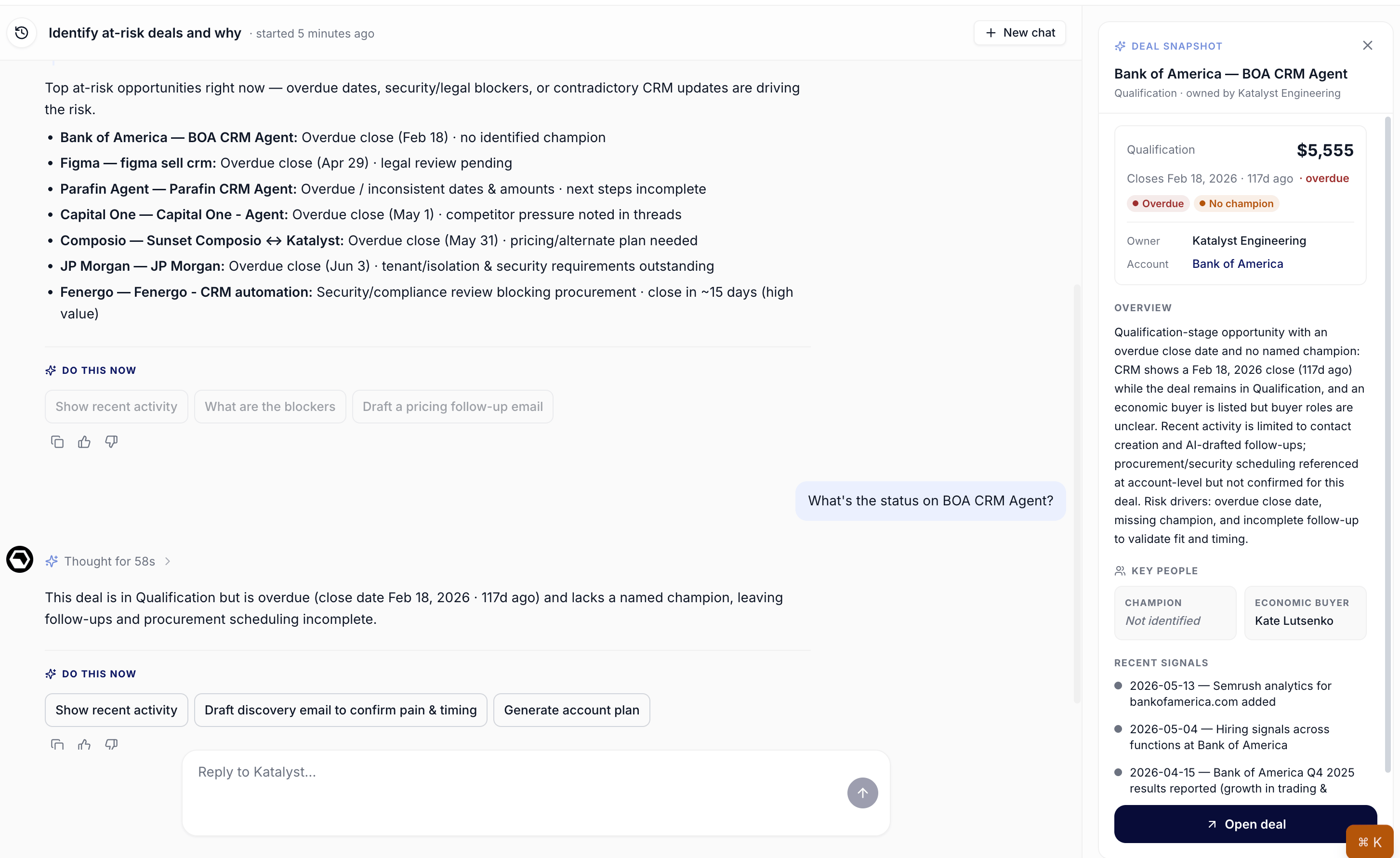
Home chat in flight: the catch-up prompt and the AI's paragraph-shaped summary of what moved across the rep's book.
- Scan the Do This Now rail for the backlog. The rail surfaces the three highest-priority items right now, prioritized by the AI across signals and hygiene rules. If a buying signal from Wednesday is still at the top, it’s because no one has acted on it yet, that’s where to start.
- Open Signals and filter to your account book over the past week. The Signals tab gives you the full feed across every opportunity you own, scored and sorted. Set the date filter to “This week” and the score filter to “High.” You’re looking for anything 80+ that you missed: a 10-K filing, a hiring spree, a competitive announcement. Accept the ones you’ve now seen, archive the ones that don’t matter, and note the ones worth a follow-up.
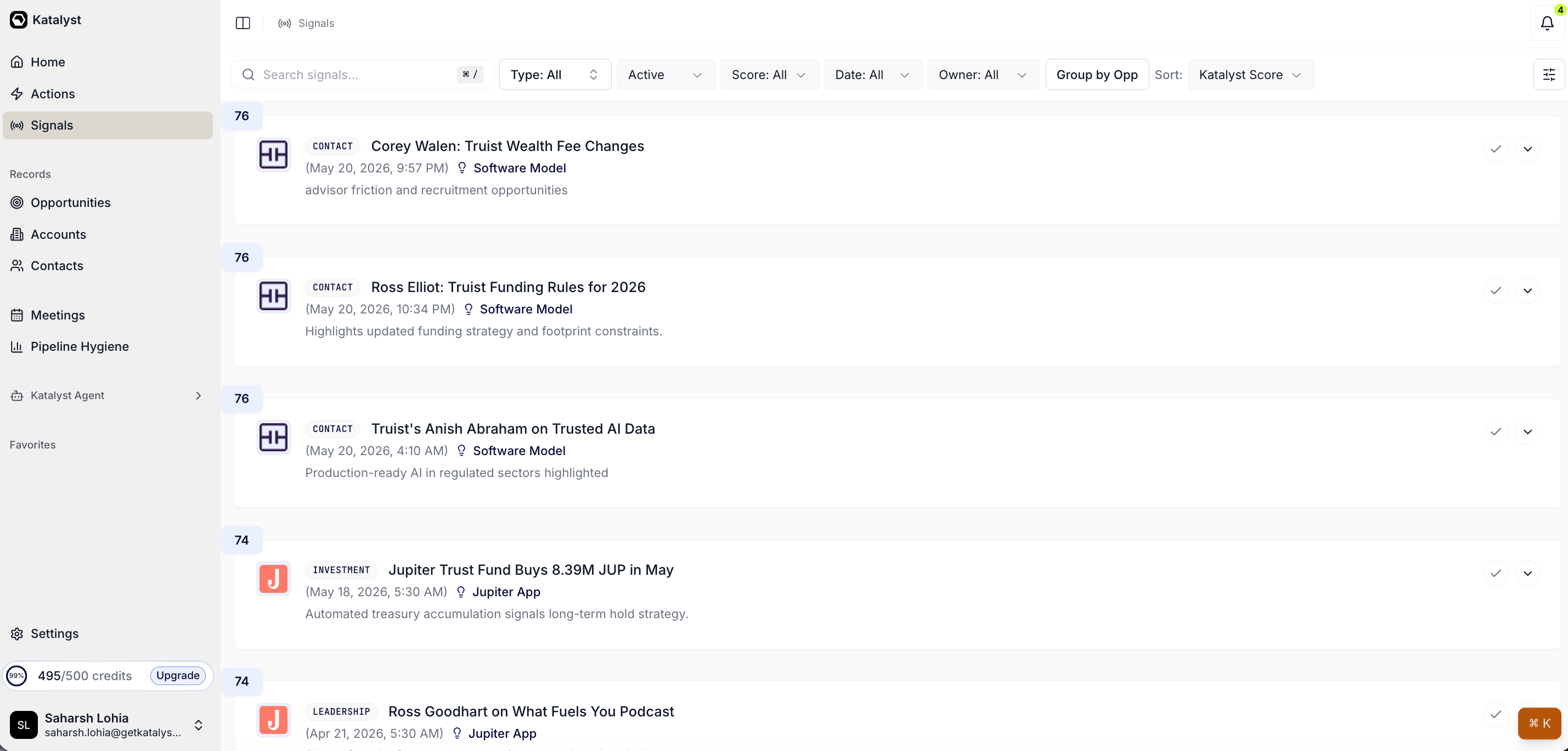
Global Signals feed across the book, scored and sorted.
- Drill into one or two accounts via Activity History. For the accounts where the chat told you “AI updated several fields,” open the account’s Activity History sub-tab. You’ll see every AI-performed action over the week: drafted emails, field updates, post-meeting writes. Each row carries the reasoning so you can sanity-check what landed in your name. Accept anything still pending, reject anything that doesn’t feel right.
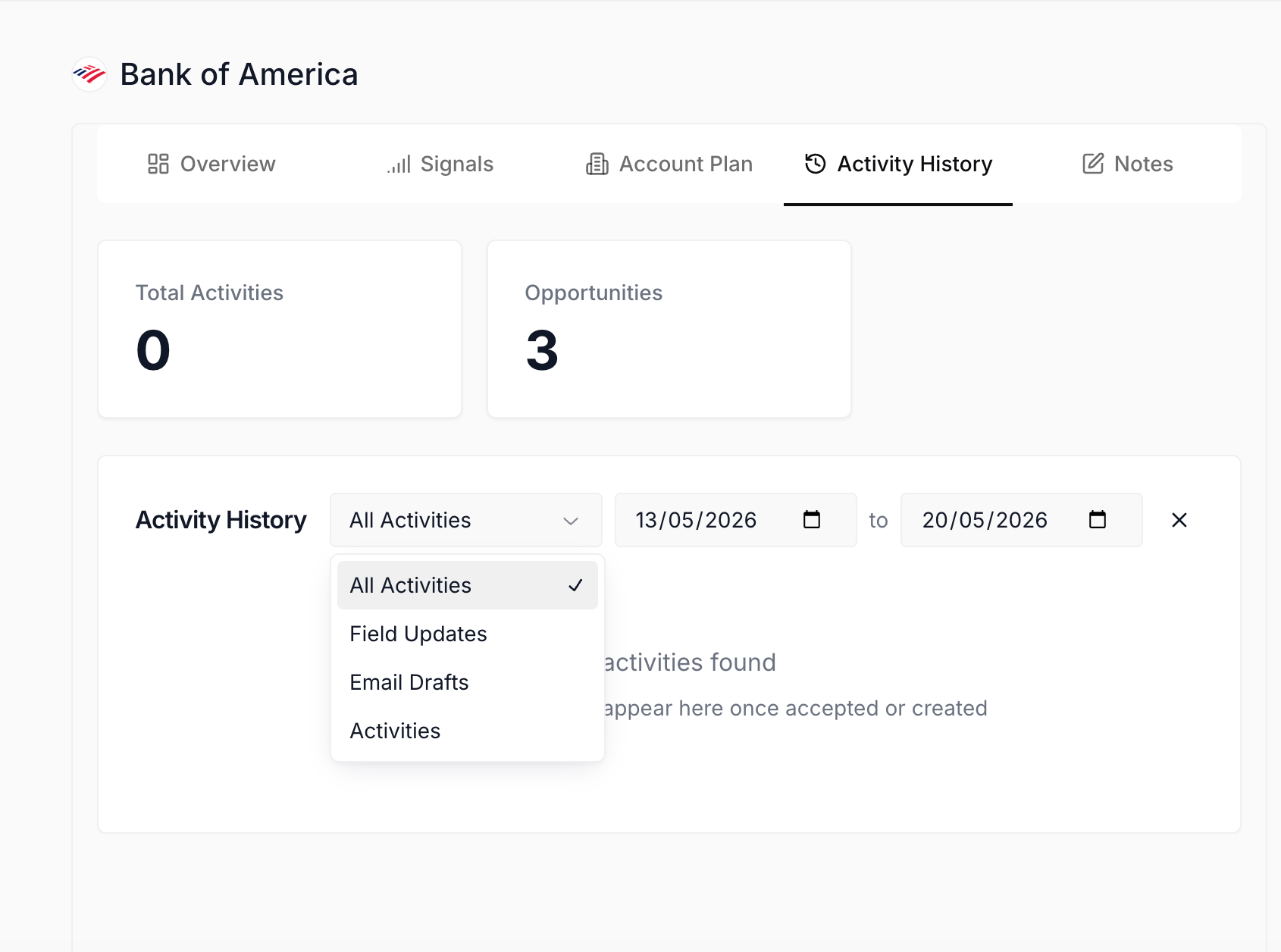
Activity History sub-tab on an Account detail page.
- Check Upcoming Meetings on Home for the week ahead. The right rail shows today’s and the next few days’ calendar with Ready / Drafting / Needs prep status. If your Tuesday discovery call still shows Needs prep, you know to circle back before the call rather than during it.
- Save the catch-up thread. Don’t close the Home chat. Save it as “Back from PTO, week of [date]” so when your manager asks “what did you miss,” you have the receipts in one thread.
What to expect
You go from cold-start anxiety (“what fires were burning while I was out?”) to a clear read on the week in 15 to 20 minutes. The biggest unlock: you don’t have to read backwards through email and Slack to figure out what AI handled for you. The Home chat surfaces the deltas, Activity History shows the receipts, and the Do This Now backlog points you at what still needs you specifically.Variations
- If you were out for two weeks instead of one, start the chat with “Catch me up since [date]” and explicitly ask for “the five most important changes” so the summary stays scannable.
- If you have a customer call within an hour of logging back in, skip Signals and Activity History on the broader book and go straight to the pre-meeting brief for that one call; come back to the wider catch-up after.
- For team leads who took a week off, run this Play on your own book first, then open Pipeline Hygiene sorted worst-first to see how the team’s hygiene number drifted while you were out.
Related
- Start the day with Signals - the daily ritual version of the Signals scan this play runs once after PTO.
- Audit AI activity this week - the Friday-afternoon ritual for the same trust-calibration muscle this play uses on Monday.
- Signals - the canonical home for the global feed this play opens in step 3.
- AI Activity - the org-wide record-keeping page the Activity History sub-tab is the per-account slice of.
- Home - the chat surface step 1 lives on.
- Account detail - the workspace step 4 drills into.