

Connect Salesforce, Gmail, and Calendar
First day with Katalyst. Before any of the rest of the product earns its keep, three integrations have to land: Salesforce so the records tables hydrate, Gmail or Outlook so the Draft Email composer can save into the right drafts folder, and Calendar so the Meetings tab and the upcoming-meetings rail populate. About 20 minutes end-to-end, mostly waiting for the first sync to settle, and the admin (or the rep doing this on their own first morning) is set up for everything that follows.What to expect
- Timing. Roughly 20 minutes, most of which is waiting for the Salesforce first-sync to settle.
- Prerequisite. The admin (or the rep) has a Salesforce login with the org permissions Katalyst needs, plus a Gmail or Outlook account and the calendar that account owns. For Salesforce specifically, the user’s profile needs the Approve Uninstalled Connected Apps permission enabled on the Salesforce side; without it the OAuth handshake silently fails.
- Outcome. Salesforce, Gmail or Outlook, and Calendar all connected, sidebar badges all green, first-sync round-trip verified by opening Opportunities and seeing deals, and Meetings showing today’s calendar.
Step-by-step
- Open the Connectors page. From the side nav, click the Settings entry labeled Connectors (the Blocks glyph). The page lands as a two-pane shell: the left rail lists every supported integration grouped by category (CRM, Email and Calendar, Notetaker, Other), and the right pane shows a “Select a connector” empty state until one is picked.
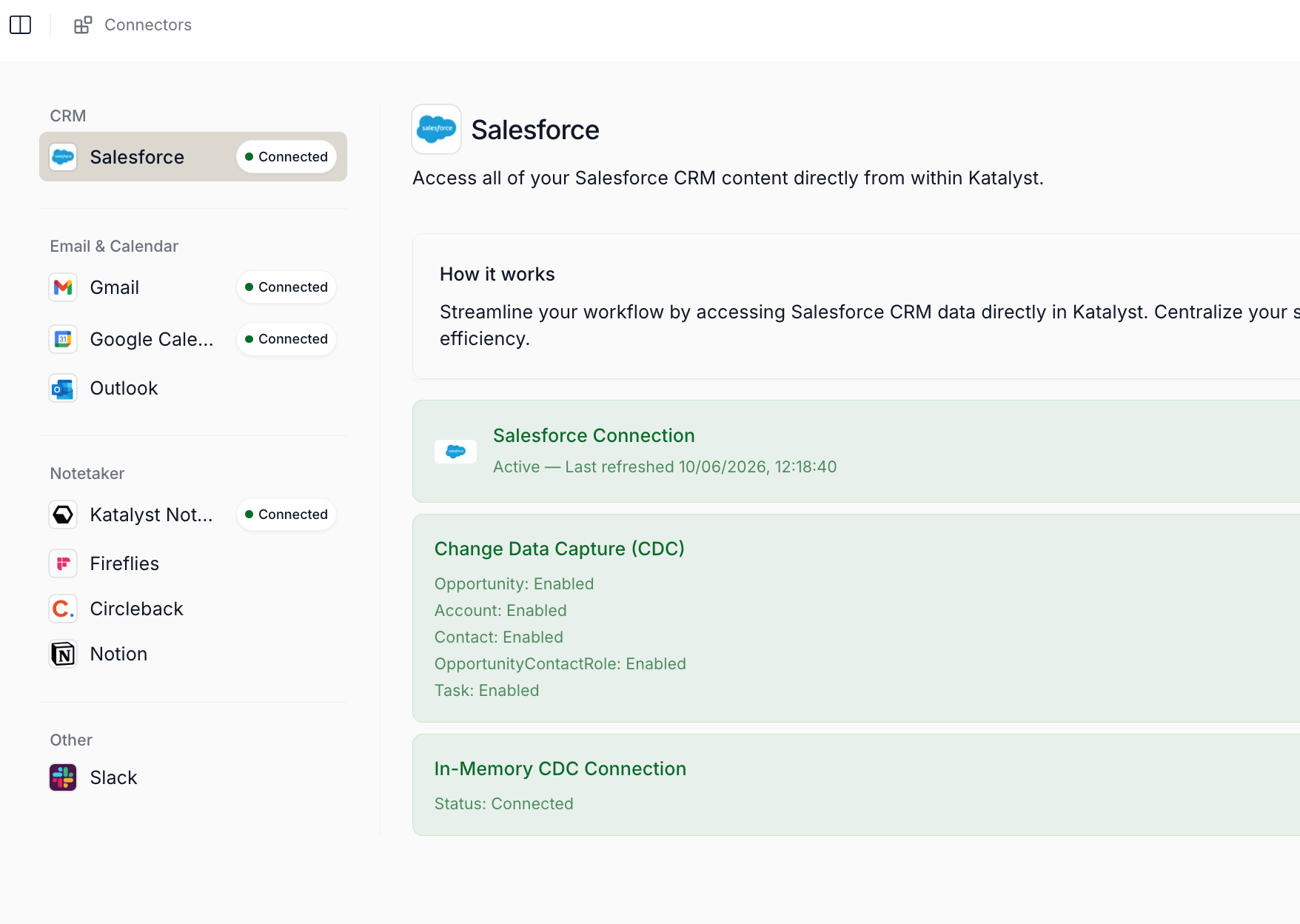
Connectors page: the two-pane shell with the integration rail on the left and the per-connector page on the right.
- Connect Salesforce first. Click Salesforce in the CRM category. Decide sandbox vs. production before clicking Connect Salesforce (most teams want production; sandbox is for orgs piloting a parallel Salesforce instance). The button opens a Salesforce OAuth popup; sign in with the Salesforce user that has the right permissions on the org. The popup auto-closes on success.
- Confirm the three Salesforce status cards turn green. After the OAuth handshake, the page renders three stacked cards: Salesforce Connection, Change Data Capture, and In-Memory CDC Connection. The first goes green immediately. The second is the one to watch: it lists five CRM objects (Opportunity, Account, Contact, Opportunity Contact Role, Task) and asks for each to be enabled in Salesforce. If any read Disabled, click Setup CDC and walk the step-by-step instructions dialog (the admin will need a few minutes in Salesforce Setup → Change Data Capture). The third card goes green automatically once the first two are healthy.
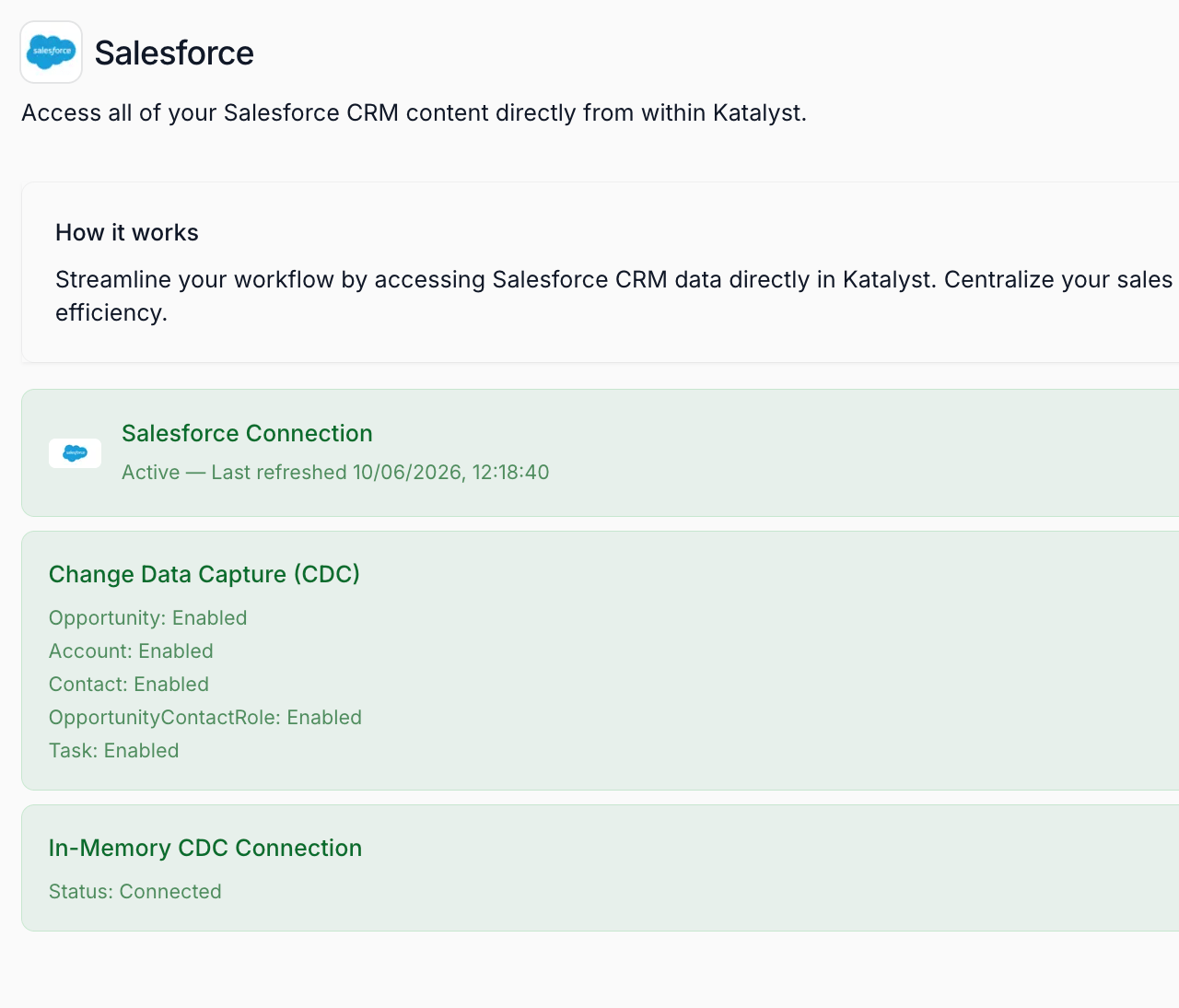
Salesforce connector page with the three stacked status cards: Connection, the Change Data Capture entity grid, and the In-Memory CDC streaming card.
- Connect Gmail or Outlook. Back on the Connectors rail, click Gmail (or Outlook). Click Connect; an OAuth popup opens and asks for the scopes Katalyst needs: read recent mail to surface inbound activity on records, and write to drafts so the Draft Email composer can save into the right folder. Approve and let the popup close. Note: Gmail and Outlook are mutually exclusive at the mail-provider layer; pick one. Outlook additionally covers the calendar slot.
- Connect Google Calendar (if Gmail was the mail choice). Click Google Calendar in the same Email and Calendar category. Same OAuth shape; same minute of waiting. If the team picked Outlook in the prior step, this connection is already covered and the Outlook badge takes both slots.
- Wait for the first Salesforce sync to settle. This is the longest piece of the play. Salesforce CDC streams the full Opportunity, Account, Contact, and related-object catalog into Katalyst on the first connect; for a typical org this takes 5 to 10 minutes. The Connectors rail badge for Salesforce stays green throughout. There is no progress bar; the proof is opening Opportunities and seeing deals.
- Verify Opportunities populated. Open the Opportunities tab from the side nav. The table should hydrate with the admin’s (or rep’s) book of open deals. If the table is empty after 10 minutes, return to Connectors and check the three Salesforce status cards for any amber state.
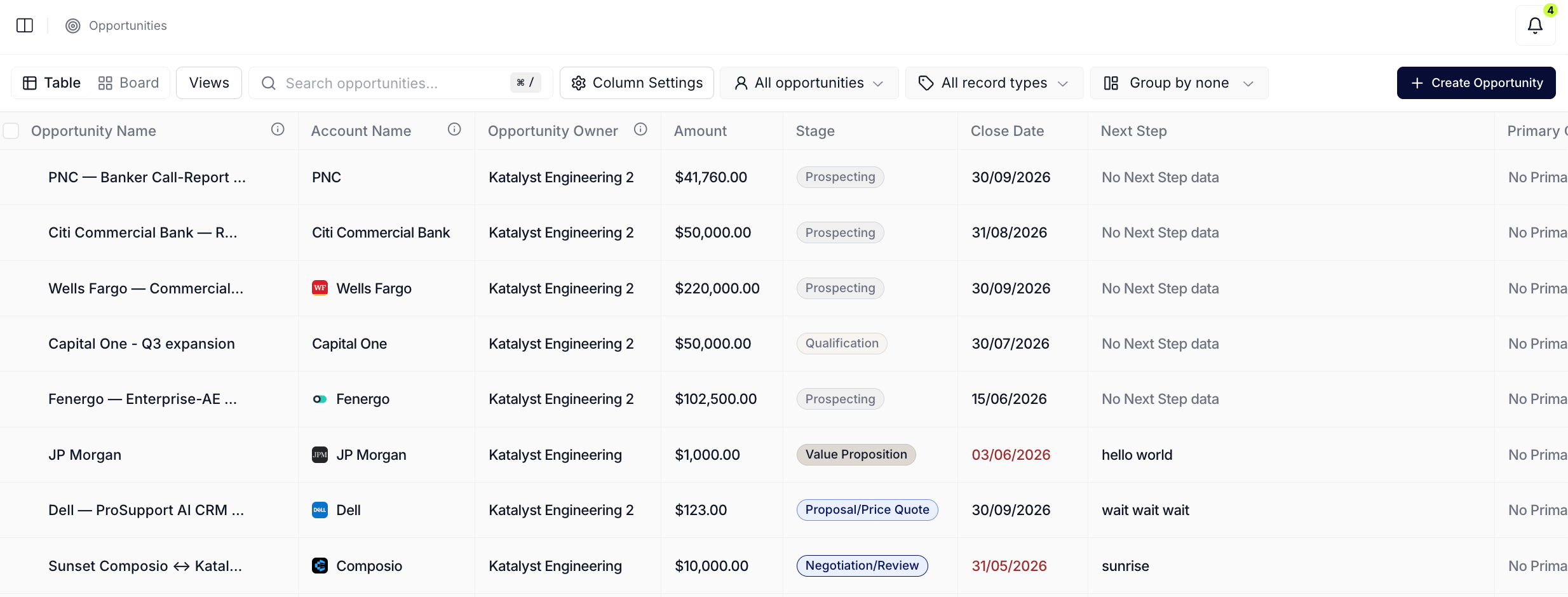
Opportunities table populated after first Salesforce sync; the proof the connector did its job.
- Verify Meetings populated. Open the Meetings tab from the side nav. Today’s calendar entries (and the next few days) should render. If the calendar is empty, the calendar connector did not complete; return to Connectors and reconnect. With Salesforce and Calendar both healthy, the rest of Katalyst has the data foundation it needs.
Variations
If the admin is connecting on behalf of the org rather than for a single rep, the same flow applies but the Salesforce connect lights up the whole team’s downstream surfaces; each rep still needs their own Gmail or Outlook and Calendar connection because mail and calendar are per-user. If the Salesforce CDC step is blocked because the admin does not have Salesforce Setup access, drop the Setup CDC instructions to whoever does and pause here; Katalyst can keep most surfaces in a degraded state with a one-shot sync, but Signals, AI Suggestions, and the volt-lime overlay all depend on CDC being healthy.Related
- Onboard a new teammate - the next play once the org is wired; adds the first rep beyond the admin.
- Start the day with signals - the morning ritual that lights up after Salesforce + Calendar are connected.
- Build your daily focus list - the first-week play that depends on Opportunities being populated.
- Opportunities - the surface that proves Salesforce sync landed.
- Meetings - the surface that proves Calendar landed.
- AI Suggestions - the per-cell overlay that depends on Salesforce CDC being healthy.
- Integrations - the Product page that documents the Connectors workspace this play opens.