

Knock out today’s actions
A rep signs in at 8:45 AM. The Do This Now card on Home names today’s top three moves; the Actions tab carries the wider backlog of AI-suggested field updates, drafted emails, and tasks waiting on a decision. This play walks the rep from the trigger surface on Home into the Actions inbox, clears the easy ones in bulk, and leaves the harder threads with a Note so future-self knows where they stand. About 15 minutes, end-to-end.What to expect
- Timing. Roughly 15 minutes for a typical morning backlog.
- Prerequisite. Do This Now is populated on Home (the AI has at least three pending items across the rep’s book), and the Actions tab has a To Review queue of AI suggestions.
- Outcome. A cleared morning queue: no-brainers approved in bulk, harder calls deferred with reasoning captured, longer threads dropped as Notes on the records they belong to.
Step-by-step
- Open Home and read Do This Now. The card surfaces the three highest-leverage moves across the rep’s book, picked automatically by the AI from signals, hygiene, and pending actions. Two of them are usually quick (a field update on a Negotiation deal, a drafted email ready to send); one is usually the harder thread.
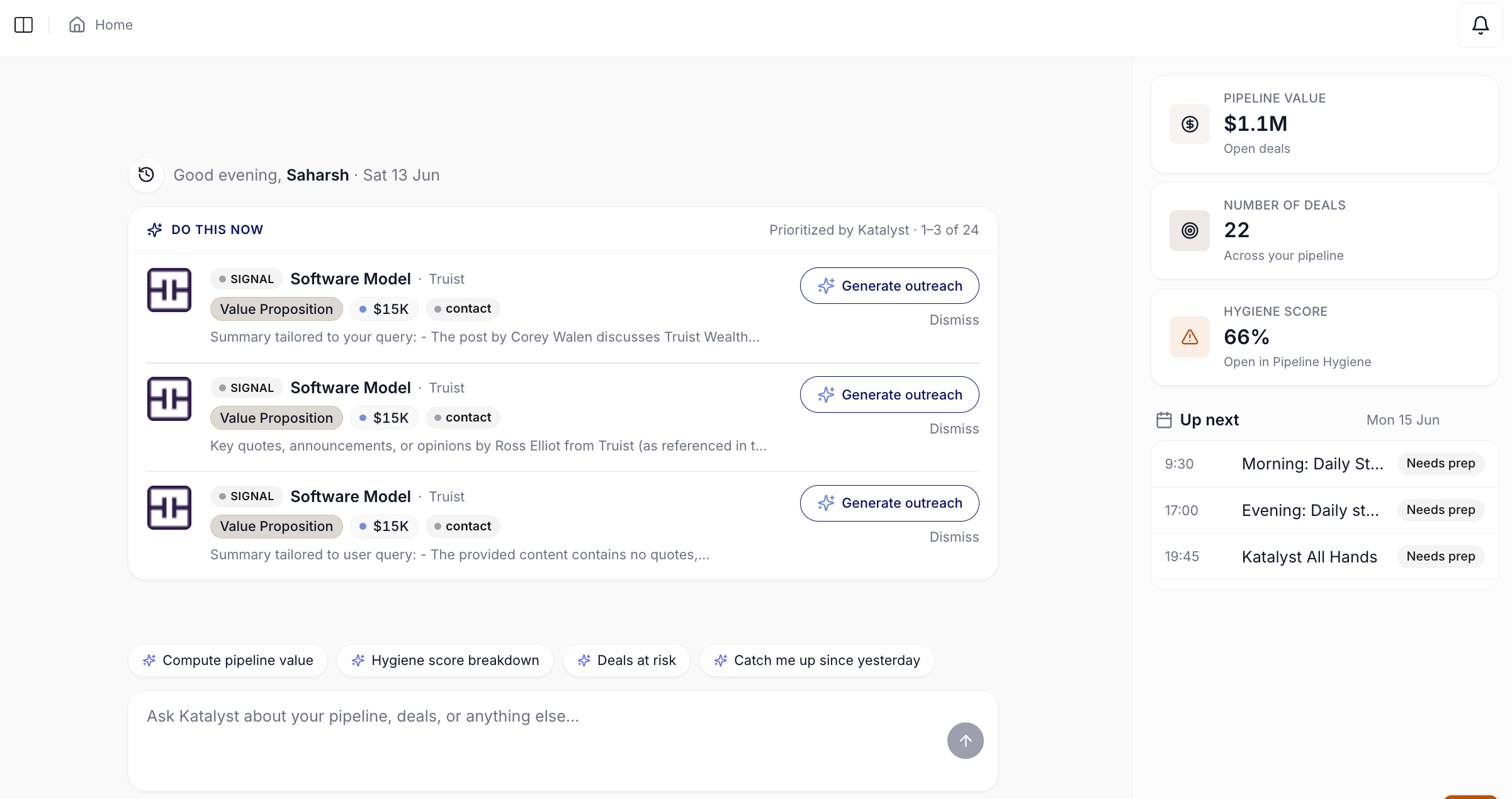
Home opens to the greeting, Do This Now, and the right-rail insight stack.
- Click into Actions from the rail or the side nav. Either click a Do This Now row directly (it deep-links into the matching action), or open the Actions tab from the side nav. The To Review tab is the default landing, populated with every pending AI suggestion across the rep’s book.
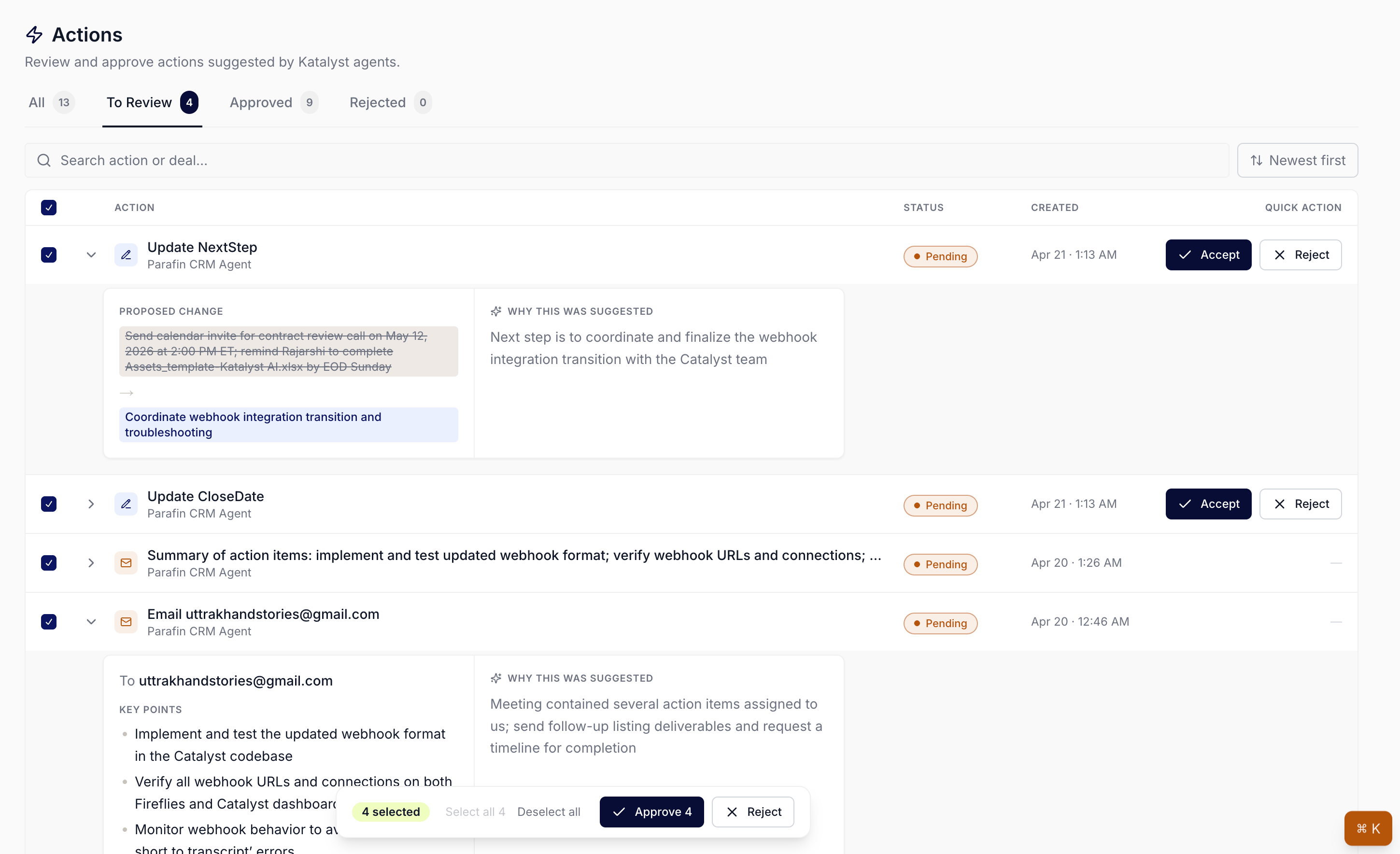
Actions tab lands on the To Review queue: every pending AI suggestion across the rep's book.
- Scan worst-first. Sort newest-first to catch the freshest suggestions, or sort oldest-first to clear the stale tail. Scan the row titles and the deal-name sublines. The rows the rep recognizes as obvious (a Close Date update on a deal they already pushed, a Next Step they already wrote in their head) are the bulk-accept candidates.
- Multi-select the no-brainers and bulk approve. Click the row checkboxes for the suggestions the rep is confident on. The floating bulk bar appears at the bottom with Approve N and Reject buttons. Approve N fans out the writes in batches; the queue clears the resolved rows in place. Failed rows (rare, usually a Salesforce sync hiccup) stay selected so the rep can retry.

Floating bulk-action bar on the Actions queue after multi-select.
- Open the harder ones in-place. For each remaining row, click the title or the chevron. The row expands inline: the Proposed change on the left (old value to new value, or the email recipients and key points, or the task description and due date) and the AI’s reasoning on the right. The rep never leaves the queue page to inspect a row.
- Decide row-by-row. Approve or reject each expanded row. For drafted emails, the View full draft link opens the Gmail or Outlook draft in a new tab; the rep reviews and sends from their mail client, then comes back to the queue.
- Drop a Note on anything that turned into a longer thread. If a suggested update revealed a deeper issue (a misaligned next step, a competitor mention that wasn’t logged), open the linked record and write a one-line Note. The Notes sub-tab auto-saves per keystroke, so the context is captured before the rep moves to the next row.
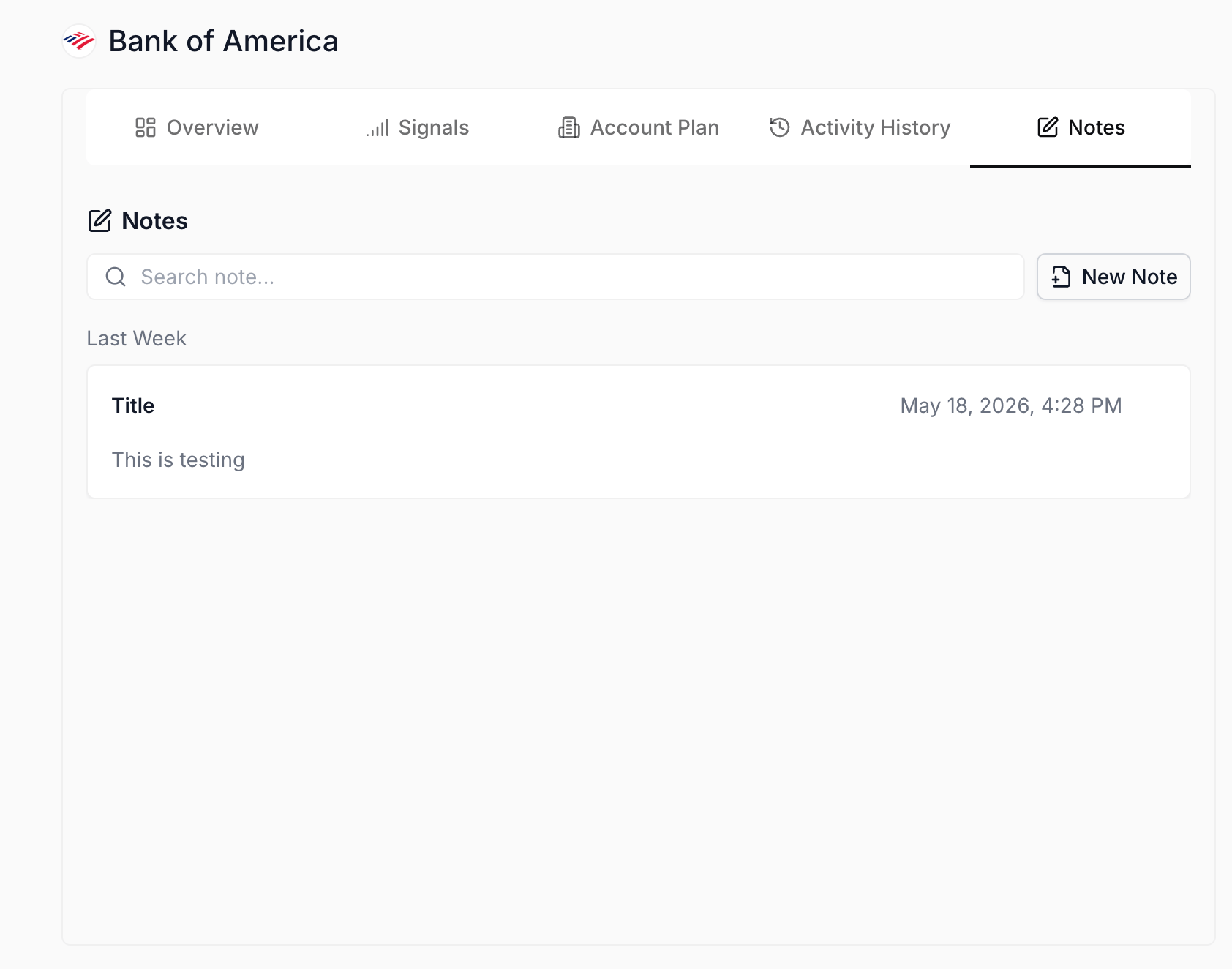
Notes sub-tab on a record, where the AE drops a one-liner for the actions that turned into a longer thread.
- Glance back at Do This Now. Return to Home. The three top picks have shifted: the items the rep cleared dropped off, the next-highest-priority items took their place. The morning queue is closed, and the rest of the day is selling.
Variations
- Expect meeting-sourced deals in the queue. Alongside field updates, tasks, and drafted emails, the queue now carries opportunities Katalyst detected from your meetings, with the proposed Salesforce records and the reasoning attached. These deserve more than a bulk-accept: read the reasoning against what you remember of the call. Turn a meeting into a deal is the dedicated play.
- Locked rows are not broken rows. If the org is at its plan cap on AI-detected records from meetings, the extras appear locked rather than missing, and unlock retroactively on upgrade. Leave them; they are the upgrade argument, already compiled.
Related
- Actions - the queue this play lives in.
- Home - where Do This Now surfaces today’s top three.
- Notes - the per-record scratchpad for actions that turned into threads.
- AI Suggestions - the per-cell volt-lime ring on Opportunities and Accounts, the in-context cousin of the Actions queue.
- Triage from the notification bell - the play to run when the trigger is a live arrival, not the morning sit-down.