

Triage from the notification bell
The Notification Bell in the top-right of every page is the single check-in surface for everything Katalyst produces: fresh signals, AI Suggestion proposals, action prompts, meeting briefs and summaries, account-plan updates. When the volt-pill count appears on the bell, this play turns the popover into a 10-minute triage pass: scan the categories, decide for each one, route into the action surface (Draft Email, Actions, Notes, accept-suggestion) without leaving the popover, and clear the rest.What to expect
- Timing. Roughly 10 minutes for a heavy day, under 3 minutes for a quiet one.
- Prerequisite. The volt-pill count on the Notification Bell is non-zero (something fired across the book since the rep last opened the bell), and the rep is on any page in the product (the bell is global).
- Outcome. Every notification triaged: each one either acted on inline, drilled into for context, or marked as read and held. The Bell badge drops to zero.
Step-by-step
- Notice the count on the bell. The Notification Bell sits in the top-right of the page header on every screen. A volt-pill count appears when there’s anything new since the rep last opened the popover. The count is per-AE, scoped to the rep’s own notifications across signals, AI Suggestions, drafted emails, action prompts, meeting briefs, summaries, and account-plan updates.
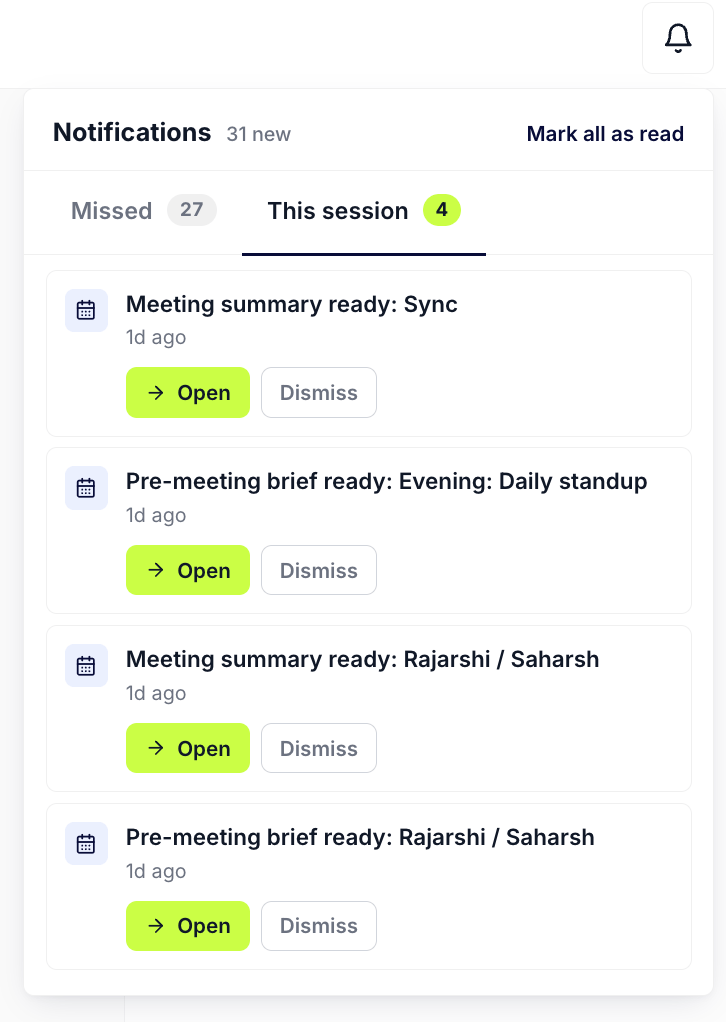
Notification Bell in the top-right of the page header, with the volt-pill count surfacing items the rep hasn't seen.
- Click the bell to open the popover. The popover opens with two tabs: This session (everything that fired live while the rep was signed in) and Missed (the pending-state buckets the rep didn’t see live). The default landing is This session if there’s anything there, Missed otherwise.
- Scan the categories top-to-bottom. The Missed tab groups notifications into cards: Signals (fresh signal arrivals), Actions (AI-drafted emails, field updates, AI-created tasks), Accounts (per-account enrichment suggestions), Meetings (summaries and pre-briefs ready). Each card carries a count, a preview line (“incl. funding round at strategic account”), and the time of the latest item.
- Decide per category: drill in or act inline. For FYI categories like Signals or Meetings, click through to the source: the Signals card lands on the global feed, the Meeting card opens the meeting workspace. For action categories, the row stays in the popover and exposes inline chips.

Signal card surfaces inside the Bell's Signals row and on the global Signals feed; the AI relevance line tells the rep whether to drill.
- For field updates, review-in-place. A field-update row (an AI proposal to set Close Date or Next Step on an opportunity, or to enrich an account field) collapses the title and reveals a navy box: fieldName to suggestedValue. The chips swap to Accept (volt with check) and Reject. Accept writes through to Salesforce on the same path the per-cell volt-lime ring uses, the row clears, the Bell count drops by one.
- For drafted emails, open the draft. The Review chip on an email-draft row opens the actual Gmail or Outlook draft URL in a new tab. The rep reads, edits, sends from the mail client. Coming back to the popover, the row has cleared because the underlying recommendation is no longer pending.
- For deeper context, drill into the record. If a row needs more than the popover gives (the rep wants to see the Account Plan, the Activity History, the per-record AI Chat before deciding), click into the record. The popover closes; the rep lands on the account or opp detail page with full context loaded.
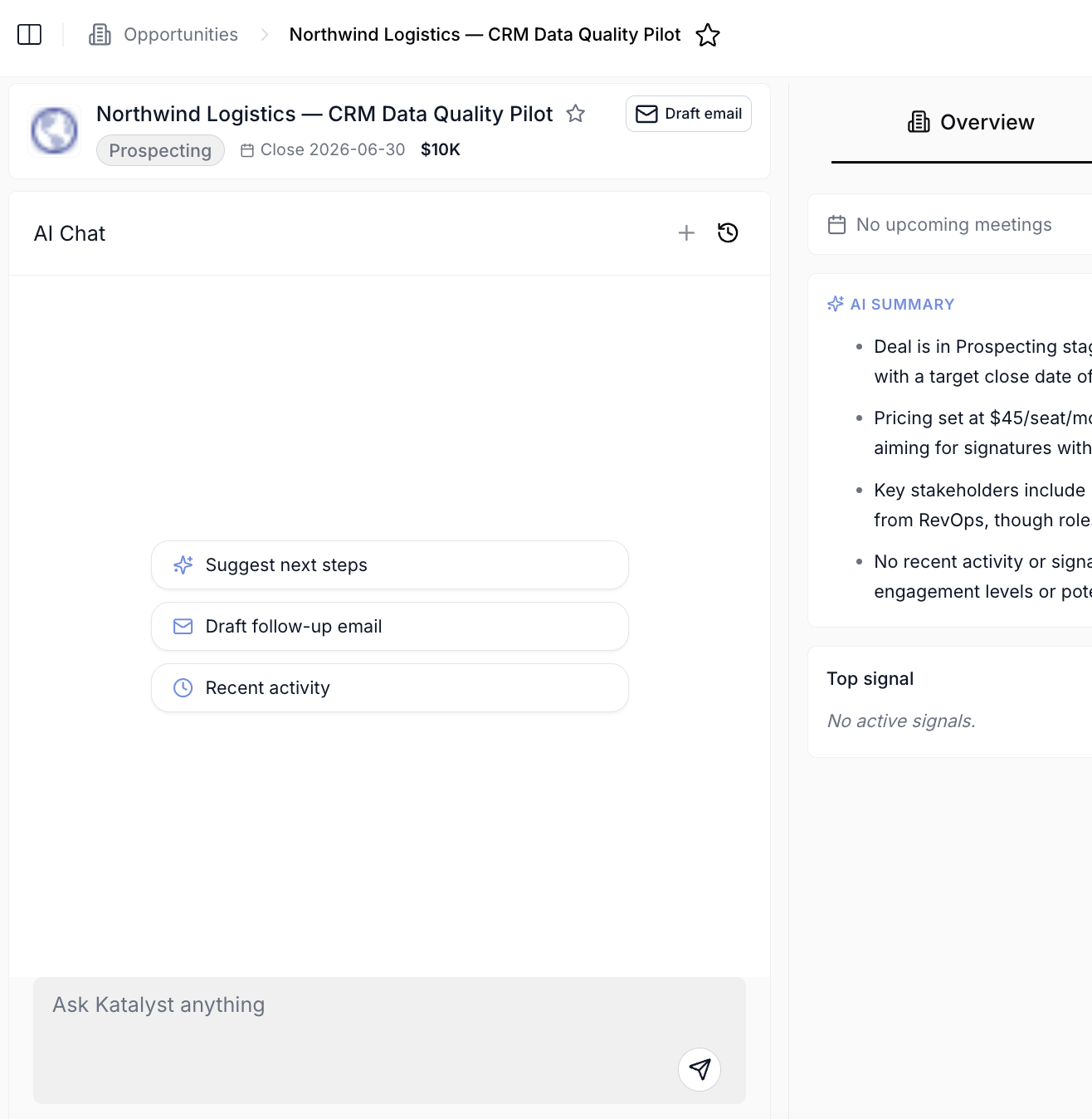
Per-record AI Chat after drilling in from the Bell; the chat is scoped to the record and has the full context loaded for the inline-act decision.
- Mark all as read for the rest. When the rep has acted on what matters and the residual rows are FYI noise, click Mark all as read in the popover header. The badge drops to zero, the Missed-tab categories grey out, and the next bell-open is a clean slate until something new fires.
Variations
- Start with Missed, not This session. The bell splits into Missed (fired while you were away from the tab) and This session. Missed is the higher-value tab on a catch-up, because those are the ones you never had the chance to see at all.
- Act from the row. Rows keep their own Review and Dismiss controls, and field-update rows carry the suggested change inline, so a decision does not require opening the deal.
- Unresolved high-priority items chase you. Unsent AI drafts and unreviewed field updates re-surface as toasts periodically while you work, so the bell is a safety net rather than the only path back to them.
Related
- Notifications - the canonical home for the Bell + Toast system this play opens.
- Actions - the dedicated inbox the Bell’s Action rows roll up into.
- AI Suggestions - the per-cell volt-lime ring that’s the in-context cousin of the Bell’s field-update rows.
- Draft Email - the composer the Bell’s email-draft rows hand off to.
- Catch a signal as it fires - the live-Toast sibling to this Bell-popover play.
- Knock out today’s actions - the morning-sit-down sibling to this live-arrival play.
- Research from a fresh signal - the play to run when the Bell row is a high-scoring signal.